Everyday AI Guides · Work & Productivity · Updated September 2026
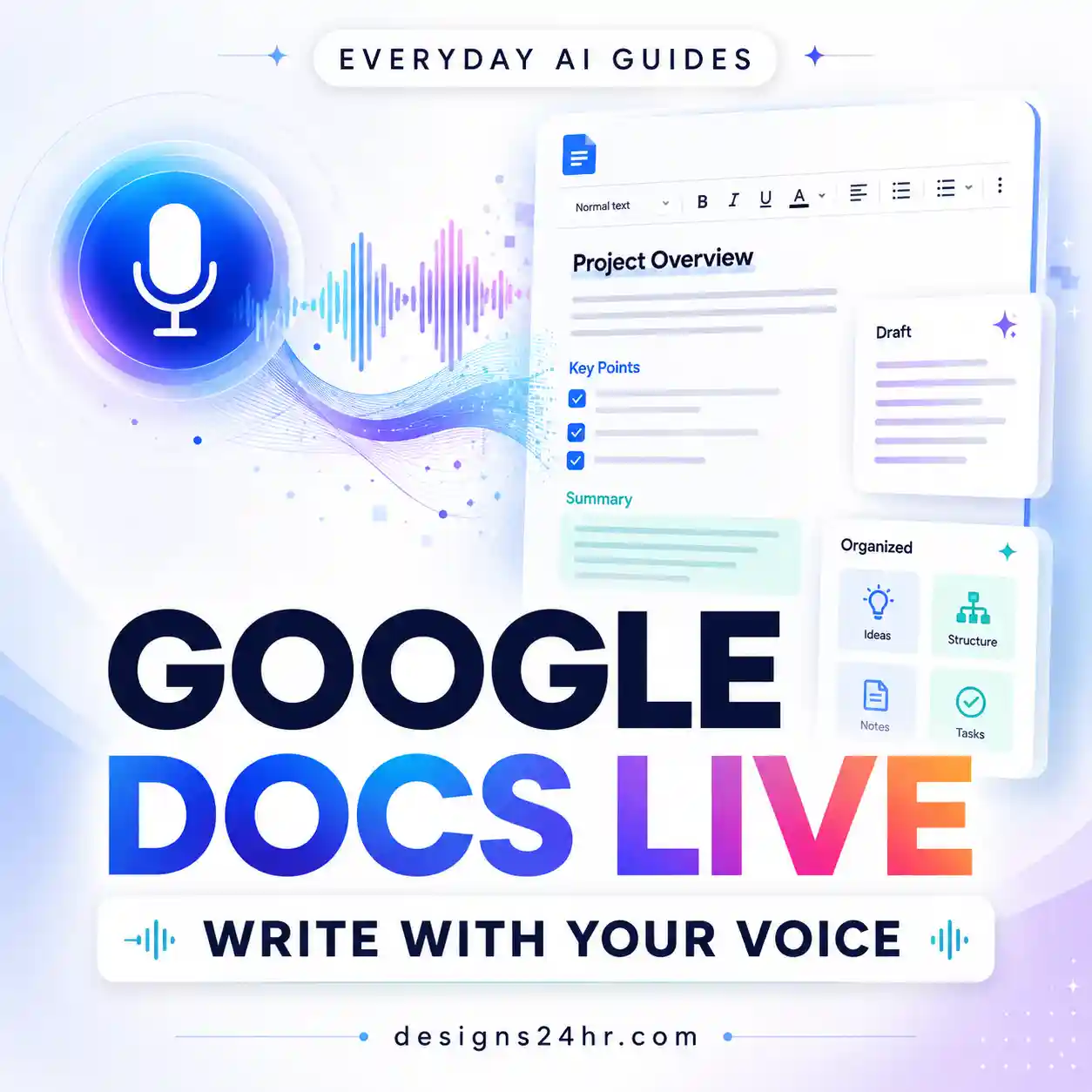
ChatGPT Voice plugins let you use supported plugins and connected apps during a Live Voice conversation. That means you can speak naturally while ChatGPT works with information or actions available through the apps connected to your account.
The important part is that Voice does not bypass normal permissions. Your existing app access, connected account, workspace restrictions, supported actions, and approval rules still apply. If an action requires confirmation, you must review and approve it on screen. Saying “yes” aloud does not count as approval.
This guide explains how ChatGPT Voice plugins work, how to connect and use apps in Live Voice, what Voice can and cannot do, why an app may not appear, how permissions work, why a task can seem stuck, and when it is safer to switch from Voice to text.
Use Live Voice, make sure the plugin and any required connected app are available to your account, complete sign-in or authorization if required, then ask ChatGPT by voice to use that plugin or app.
If the requested action needs approval, look at the screen and review the approval card. Use the on-screen controls to approve or decline it. Spoken approval is not currently supported.
- What ChatGPT Voice plugins are
- Which Voice mode supports plugins
- How to use connected apps in Live Voice
- Why saying “yes” does not approve an action
- What connected apps can do
- The Designs24hr VOICE safety check
- Read requests vs. action requests
- Why a plugin may not work in Voice
- Voice in Chat vs. Voice in Work
- How permissions work
- When to switch from Voice to text
- Copyable Voice plugin prompts
- Frequently asked questions
What Are ChatGPT Voice Plugins?
Plugins package capabilities that ChatGPT can use to complete workflows. A plugin may include reusable skills, one or more connected apps, or both.
A connected app links ChatGPT to an external service. Depending on the specific app, that may allow ChatGPT to search information, retrieve content, interact with an in-chat experience, or perform supported actions.
ChatGPT Voice plugins bring those available capabilities into a spoken Live conversation. Instead of typing a request, you can ask naturally by voice and follow the written output in the same chat.
Which ChatGPT Voice Mode Supports Plugins?
OpenAI currently documents plugin and connected-app support in Live Voice.
| Voice mode | Main use | Plugin / connected-app note |
|---|---|---|
| Live | Natural real-time conversation with supported web, memory, visual, text, and image capabilities. | Can use plugins and connected apps available to your account. |
| Advanced | Previous real-time Voice experience. | Useful when you need supported mobile capabilities such as video or screen sharing. |
| Standard | Turn-by-turn Voice based on speech transcription. | Not the mode OpenAI currently documents for Live plugin use. |
To review or switch the Voice experience available to you, open Settings → Voice. The exact options you see can depend on your plan, workspace, region, app version, and other account controls.
How to Use a Plugin in ChatGPT Voice
The safest workflow is: Connect → Start Live → Ask → Review → Approve if needed → Verify.
Why Saying “Yes” Does Not Approve a Voice Action
One of the easiest ways to think a Voice workflow is broken is to reach an approval step, say “yes” aloud, and wait for something to happen.
OpenAI currently says spoken approval is not supported.
When an action requires confirmation, Voice presents an approval request on screen. You must use the visible controls to approve or decline it.
This distinction matters because a spoken conversation can feel hands-free while some external actions intentionally require a visual confirmation step.
What Can ChatGPT Voice Do With Connected Apps?
Capabilities vary from one app to another. Depending on the connected service, app, permissions, workspace rules, and available plugin, ChatGPT may be able to:
- Search information available through a connected service.
- Find and reference messages, documents, files, or records.
- Summarize information retrieved from the connected app.
- Use supported app content as part of a workflow.
- Interact with supported cards, maps, documents, or other in-chat experiences.
- Perform supported actions such as creating or updating information.
The phrase supported action is important. An app that can read information does not automatically have permission or functionality to create, edit, send, or delete it.
Use the Designs24hr VOICE Check Before Taking an Action
Voice makes interaction faster, but speed can also make it easier to miss an important detail. Use the Designs24hr VOICE Check for connected-app requests.
Are you using the intended plugin, service, and external account?
Is ChatGPT only reading information, drafting something, or changing external data?
What can this app actually read or do with the connected account?
Read approval requests instead of treating confirmation as a routine tap.
Verify the final email, event, document, file, message, or record after the action.
VOICE is a Designs24hr editorial framework, not an OpenAI feature.
For broader microphone, privacy, transcript, and Voice-safety checks, use our ChatGPT Voice privacy and safety checklist .
Read Requests vs. Action Requests in ChatGPT Voice
Not every spoken app request has the same consequences. Separating read/reference tasks from external actions is a useful habit.
| Example Voice request | Request type | What to check |
|---|---|---|
| “Summarize the recent messages that appear to need my attention.” | Read / reference | Confirm the correct connected account and source set. |
| “What meetings do I have tomorrow?” | Read / reference | Verify the date, time, timezone, and calendar. |
| “Find the newest project brief.” | Read / reference | Confirm the correct file and version. |
| “Draft a reply to this message.” | Draft | Read the wording and factual details before any send action. |
| “Create a meeting for Friday.” | External action | Check date, time, timezone, attendees, title, and calendar. |
| “Send this message.” | External action | Check recipient, final wording, attachments, and approval request. |
| “Update this business record.” | External action | Confirm the record, field, new value, and whether the change is reversible. |
These are workflow examples rather than promises that every account or connected app supports each action.
Why Isn’t My Plugin Working in ChatGPT Voice?
Troubleshoot in a fixed order instead of randomly reconnecting apps or changing settings.
1. Confirm you are using Live Voice
OpenAI currently documents plugin and connected-app support for Live. Check Settings → Voice if you are unsure which experience is active.
2. Check whether the plugin is installed and available
Plugin availability can depend on plan, region, account, workspace, role, and the product surface you are using.
3. Check the required app connection
A plugin may be installed while an included app still requires a separate provider-account connection or authorization.
4. Confirm the correct external account
If you have more than one provider account, make sure the connected account is the one that contains the information or resources you want ChatGPT to access.
5. Check whether the app supports the requested action
An app may support searching or reading but not creating, editing, sending, or deleting. Capabilities are specific to the connected app.
6. Check workspace restrictions
In a managed workspace, plugin installation, app availability, role access, provider authorization, and action permissions can all be controlled separately.
7. Look for an approval request on screen
If Voice appears to have stopped before an external action, inspect the screen. ChatGPT may be waiting for you to approve or decline the proposed action.
8. Try the same request in text
This is a useful isolation test:
Fails in text and Voice: investigate the plugin, app connection, permissions, provider account, or workspace settings.
Works in text but not Live Voice: investigate the Voice mode, current session, product surface, or Voice availability before rebuilding the app connection.
If the Plugin Directory itself is missing, use our separate ChatGPT Plugins Not Showing troubleshooting guide rather than repeating the entire directory-access workflow here.
ChatGPT Voice in Chat vs. Voice in Work
OpenAI currently supports Voice in more than one context. They should not be treated as identical.
| Experience | Best understood as | Current documented capabilities |
|---|---|---|
| Voice in Chat | Natural spoken ChatGPT conversation | Live conversations plus plugins and connected apps available to your account. |
| Voice in Work | Spoken control for broader agentic work | Can use connected apps, create documents, presentations, and spreadsheets, and work in a browser where supported. |
OpenAI also says that if a Work task is still running when you end the Voice call, it can continue in text. Both Voice and Work access are required for Voice in Work.
Do ChatGPT Voice Plugins Have Different Permissions?
Using Voice does not automatically grant a plugin or app extra authority. OpenAI says existing app connections, data permissions, action restrictions, and workspace controls continue to apply.
Depending on the app and account, permission settings may include options such as:
- Always ask before app access or actions.
- Allow read actions without asking while still confirming changes.
- Allow low-risk actions where supported.
- Allow all actions for certain eligible app/account configurations.
The exact controls vary. Workspace rules and sensitive-action protections can still require approval or prevent an action even when a broader permission has been granted.
When Should You Switch From Voice to Text?
Voice is convenient, but text is better when precision matters more than speed.
Switch to text when:
- You need to inspect exact wording before an action.
- A person’s email address or recipient must be exact.
- A meeting date, timezone, or attendee list is important.
- You need to compare several files, records, or alternatives carefully.
- You want a durable written record of the request and result.
- An action affects customers, money, access, employment, contracts, or business data.
- The plugin is behaving unexpectedly.
- You need careful source checking or citations.
- You are handling confidential or sensitive material.
A good workflow does not need to be Voice-only. Start by speaking when that is faster, then switch to text whenever inspection, editing, or precise confirmation becomes more useful.
Best ChatGPT Voice Plugin Prompts
These examples deliberately separate read-only requests from actions. Edit them for the plugin and connected app actually available to your account.
Summarize without changing anything
Use my connected app to find the relevant items from today and summarize what appears to need my attention. This is a read-only request. Do not send, edit, delete, archive, label, move, share, or modify anything. Tell me which connected account and source you used if that is available in the result.
Check a calendar without editing it
Check the connected calendar available to this conversation and tell me what I have tomorrow. Include: – event title; – exact start time; – timezone; – important location or meeting details when available. Do not create, edit, move, invite, decline, or cancel anything.
Draft before taking action
Use the connected app only to prepare a draft. Do not send, publish, create, update, or change anything externally. Show the complete draft in the chat and summarize the important details I should verify before I decide whether to take the next action.
Require an explanation before any change
Before taking any action that changes external data, explain: 1. which connected app and account will be used; 2. exactly what will be created, changed, sent, moved, or deleted; 3. the important details I should verify; 4. whether the action can be reversed. Do not treat spoken confirmation as permission to skip any required on-screen approval.
Find a file without modifying it
Use the connected file service available to this conversation to find the most relevant file for [PROJECT OR TOPIC]. Before summarizing it: – confirm the file name; – use the newest relevant version when that can be determined; – tell me if several files appear equally relevant. Do not rename, move, edit, delete, or share any files.
If your actual task involves uploaded PDFs or documents rather than a connected app, use the separate ChatGPT Voice file-upload guide .
ChatGPT Voice Plugin Safety Checklist
- Use Live when you need plugin or connected-app access in Voice.
- Confirm the intended plugin is installed and available.
- Connect any required external app separately.
- Sign in to the correct provider account.
- Know whether the request is read-only, a draft, or an external action.
- Review exact names, dates, recipients, files, and accounts before changes.
- Look at the screen if Voice appears to pause before an action.
- Do not rely on spoken “yes” for an approval step.
- Use the narrowest practical app permissions.
- Verify the result in the external service after an important action.
- Switch to text when precise wording or careful review matters.
- Do not assume another user’s connected apps or capabilities match yours.
Frequently Asked Questions About ChatGPT Voice Plugins
Can ChatGPT Voice use plugins?
Yes. OpenAI currently says Live Voice can use the plugins and connected apps available to your account.
How do I use connected apps in ChatGPT Voice?
Make sure the relevant plugin or app is available, connect and authorize the external account if required, start a Live Voice conversation, and ask ChatGPT to use that app for the supported task.
Which ChatGPT Voice mode supports plugins?
OpenAI currently documents plugins and connected apps as a Live Voice capability.
Why isn’t my plugin working in ChatGPT Voice?
Check that you are using Live, the plugin is available, the required app is connected, you are signed into the correct provider account, the app supports the requested action, your workspace allows access, and Voice is not waiting for an on-screen approval.
Why doesn’t saying “yes” approve a ChatGPT Voice action?
OpenAI currently says spoken approval is not supported for actions that require confirmation. You must review and use the on-screen approval controls.
Do I need to connect an app before using it in Voice?
When an app requires an external account connection, yes. Installing a plugin does not replace provider authorization or workspace approval requirements.
Can ChatGPT Voice send emails?
Only when an app available to your account supports the required email action and your permissions allow it. Do not assume every email connection supports sending. Actions may also require approval.
Can ChatGPT Voice create calendar events?
It can only do so when the connected calendar app available to your account supports that action and the relevant permissions allow it. Review the event details before approving any external change.
Does Voice get different plugin permissions than text ChatGPT?
No additional authority is granted simply because you are using Voice. Existing app permissions, connected-account access, workspace controls, and action restrictions continue to apply.
Can ChatGPT Voice use plugins on mobile?
Yes. OpenAI currently documents Live plugin support on web, iOS, and Android, subject to your account and available plugins.
What is the difference between Voice in Chat and Voice in Work?
Voice in Chat is the normal Live conversation experience and can use plugins and connected apps available to your account. Voice in Work can handle broader Work tasks, including connected apps, document creation, presentations, spreadsheets, and browser work where supported. Voice in Work requires both Voice and Work access.
Can a Voice task continue after I end the call?
OpenAI currently says an unfinished task started through Voice in Work can continue in text after the Voice call ends.
Official Sources and Related Guides
Voice, plugins, app permissions, and connected-app capabilities can change. Check the controls available to your own account before depending on a specific workflow.
- OpenAI Help Center — ChatGPT Voice
- OpenAI Help Center — Connected apps in ChatGPT
- OpenAI Help Center — Plugins in ChatGPT and Codex
- OpenAI Help Center — ChatGPT Work and Codex
- Designs24hr — ChatGPT Plugins in 2026
- Designs24hr — ChatGPT Voice Privacy and Safety Checklist
- Designs24hr — ChatGPT Voice File Uploads
Final Takeaway
ChatGPT Voice plugins make connected-app workflows more natural because you can start the request by speaking instead of typing. But Voice does not remove the normal controls around external data and actions.
Use Live, connect the right app, confirm the correct external account, distinguish read-only requests from actions, and watch the screen whenever a workflow reaches an approval step. If a request changes something important, inspect the details before approving it and verify the result afterward.
The best Voice workflow is not completely hands-free. It is fast where speaking helps, deliberate where approval matters, and easy to switch back to text whenever precision is more important than convenience.
Independent publication notice: Designs24hr is not affiliated with or endorsed by OpenAI. ChatGPT, Voice, Plugins, Work, and related product names are used descriptively. Features, plans, app availability, permissions, interface labels, and supported actions can change. Always review the current controls and documentation for your own account or workspace.