Everyday AI Guides · Claude
Claude usage limits decide how much you can chat with Claude before you have to wait, and they work differently from a simple daily message count. This guide shows you exactly where to check your Claude usage, when your limits reset, what each “limit reached” message means, and how Free, Pro and Max plans compare, using only what Anthropic currently publishes. If you track your own data in Claude, see how to build Claude dashboards and verify the numbers behind each chart.
On a paid plan, open Claude, go to Settings > Usage. You will see how much of your current five-hour session you have used, how much time is left in that session, and when your weekly limit resets. Every plan has a session limit that resets every five hours. Pro, Max and Team plans add a weekly limit on top.
Anthropic does not publish a fixed number of messages for any plan. How far your allowance goes depends on message length, file size, conversation length, the model, the effort level and the tools you use.
What Claude usage limits actually measure
Think of Claude usage limits as a budget of work, not a count of prompts. A short question about a recipe uses very little. A long conversation with several large PDFs, web search, extended thinking and a powerful model can use a lot in a few turns. That is why two people on the same plan can reach their limit at very different points.
Anthropic describes two kinds of time window:
- Session limit: a usage window that resets every five hours. It applies to Free and paid plans.
- Weekly limit: a second, larger cap on paid plans (Pro, Max and Team) that resets once a week at a fixed time assigned to your account. Max plans also have a separate weekly limit for the Fable models.
Two details about Claude usage limits catch many beginners out. First, everything you do in Claude draws from the same pool: the website, the desktop app, the mobile app and Claude Code all count toward one set of limits. Second, Anthropic says it may also limit usage in other ways, such as monthly caps or limits on certain models or features, to keep access fair. If you automate repeat tasks to save usage, start with our guide to free AI workflow automation.
Usage limits are not length limits. A usage limit is about how much you do over time. A length limit is about how long one conversation can get before it no longer fits in Claude’s context window. If you see a message saying your message will exceed the length limit for this chat, waiting will not help. Start a new chat or attach fewer or smaller files instead.
How to check your Claude usage in Settings
If you are wondering how to check Claude usage, the Usage page is the one place that shows your real numbers. Here is how to find it on a paid plan:
- Open Claude on the web at claude.ai or in the Claude desktop app and sign in.
- Open Settings from your account menu.
- Choose Usage.
- Read the Plan usage limits section at the top.
According to Anthropic’s help center, the Usage page shows these items:
- Current session: a progress bar for your five-hour session and the time left before it resets.
- Weekly limits: your weekly progress and the day and time it resets, for all models and, if your plan includes it, separately for Fable.
- Usage credits: whether pay-as-you-go credits are turned on and how much you have spent.
- Resets: any free limit reset Anthropic has offered you, with its expiry date.
Anthropic’s pages name the destination, Settings > Usage, rather than every click. If your screen looks a little different, open Settings and look for the Usage tab.
Can you check the Claude free usage limit?
Anthropic’s instructions for the Usage progress bars are written for Pro, Max, Team and seat-based Enterprise plans. For the Free plan, Anthropic says Claude will notify you when you have reached your limit. It does not say whether Free accounts see the same progress bars, so open Settings > Usage on your own account to see what is shown to you. The practical sign on Free is the warning message that appears as you approach the limit.
Checking on your phone or in Claude Code
Your limits are shared across every Claude surface, so heavy use on one device shows up everywhere. One documented difference: the “Reset for free” button for limit resets is not available in the Claude mobile app or in Claude Code, so use a browser or the desktop app for that.
Claude usage limits by plan: Free vs Pro vs Max vs Ultra vs Team
Anthropic describes each plan in relative terms rather than fixed message counts. This table compares Free, Pro, Max, Ultra, and Team using Anthropic’s help center and pricing page (checked November 4, 2026). US web prices can differ from app-store billing. Usage across claude.ai, Claude Desktop, Claude mobile, and Claude Code draws from the same pool.
| Plan | Five-hour session allowance | Weekly limit | Keep going after a limit |
|---|---|---|---|
| Free ($0) | Limited usage that resets every five hours. Message count varies with demand and task size. | Limited weekly usage as well. | Wait for the reset or upgrade. Usage credits are for paid plans. |
| Pro ($20/month in the US; about $17/month billed annually) | More than Free (Anthropic describes Pro as at least about 5× Free per session on pricing copy). | Yes, across all models (1× Pro weekly baseline). | Wait, upgrade to Max/Ultra, buy a limit reset if offered, or turn on usage credits. |
| Max ($100/month) | 5× Pro every five hours. | 5× Pro every week, plus a separate weekly Fable cap (up to half your weekly limit). | Wait, move to Ultra, use a limit reset if offered, or turn on usage credits. Max also includes monthly API credits on the Claude Platform. |
| Ultra ($200/month) | No five-hour session limit for verified Ultra accounts. Unverified Ultra still follows Anthropic’s session rules. | 10× Pro every week, plus a separate weekly Fable cap (up to half your weekly limit). | Wait for the weekly reset, use a limit reset if offered, or turn on usage credits. Ultra includes higher monthly API credits than Max. |
| Team, Standard seat | More than Pro (Anthropic: Standard seats give more than Pro). | Yes, per member. | Depends on your organization’s usage credit settings. |
| Team, Premium seat | 5× Standard (Anthropic). | Yes, per member. | Depends on your organization’s usage credit settings. |
On Team plans, Claude usage limits belong to each member, not to the team as a whole, so one heavy user does not use up a colleague’s allowance. Usage-based Enterprise plans work differently: they are billed by consumption instead of having fixed plan limits.
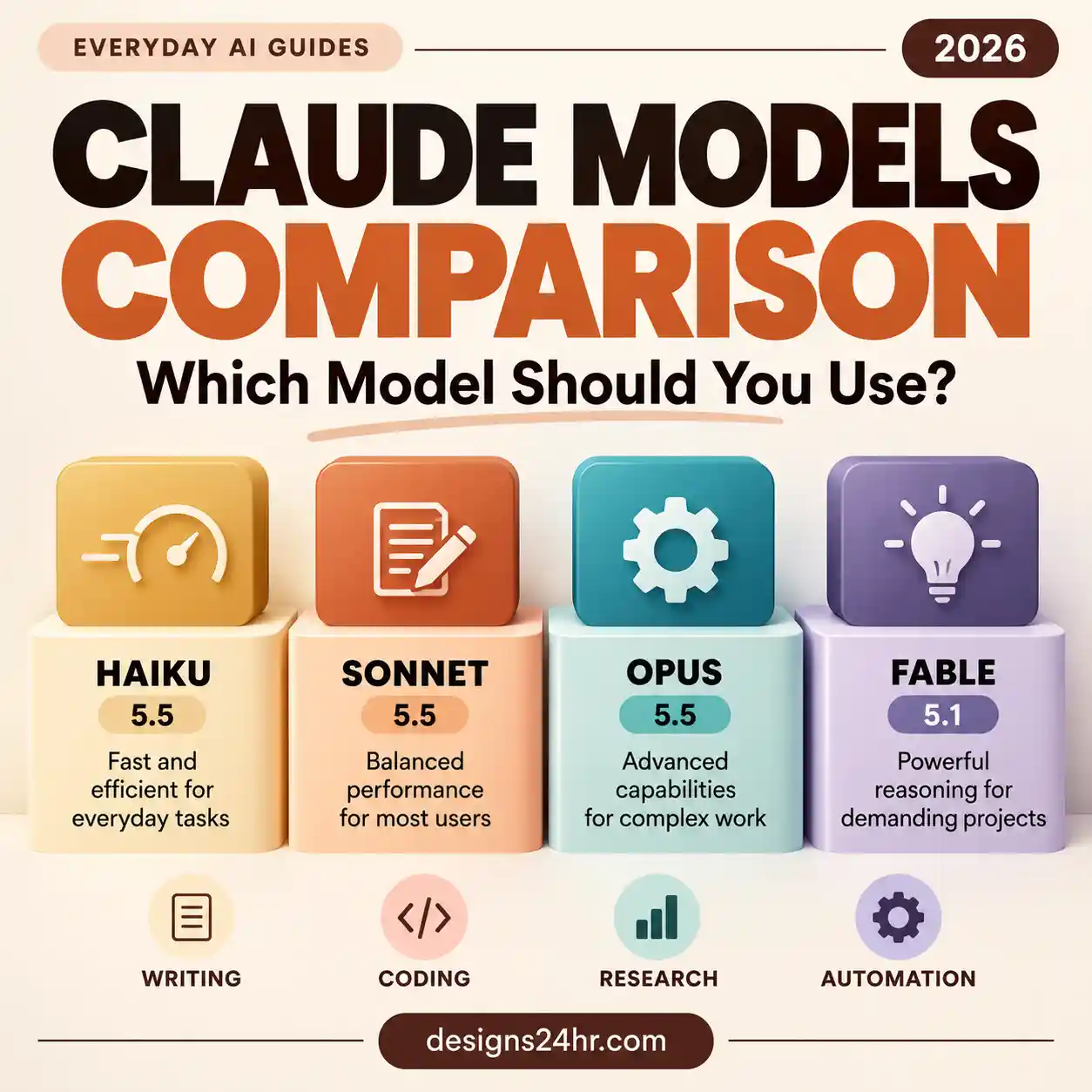
If you are deciding between models rather than plans, our Claude models comparison explains which model suits which kind of task. For Fable in particular, the Claude Fable 5.1 guide covers how Fable access works on each plan.
When does the Claude weekly limit reset?
Your two windows reset on different schedules, and knowing both is the key to planning around Claude usage limits:
- Session limit: resets every five hours. The Usage page shows how much time is left in the current session.
- Weekly limit: resets at a fixed day and time each week that Anthropic assigns to your account. It does not move based on when you start chatting or when you subscribed, and you get your full weekly allowance each cycle. Your next reset time is shown in Settings > Usage.
Because the weekly reset is tied to your account rather than to a calendar week, a friend’s reset day tells you nothing about yours. Check your own Usage page.
What is a Claude limit reset?
Anthropic occasionally gives eligible plans a free limit reset. Using one refills either your five-hour session or your weekly limit straight away, depending on the reset offered. You do not have to wait until you are blocked to use it, but it cannot be undone, and an unused reset expires on the date shown. Your normal weekly reset still happens on its usual day. To use one, open Settings > Usage on the web or desktop app and choose “Reset for free” in the Resets section. The same button can also appear on the limit message itself.
What the “Claude usage limit reached” messages mean
Claude tells you where you stand against your Claude usage limits with short status messages. Here is what each type means and what to do, based on Anthropic’s troubleshooting page:
| What you see | What it means | What to do |
|---|---|---|
| “Approaching session limit” or “Approaching weekly limit” | You are close to one of your plan’s limits. Some versions show the percentage used instead. | Finish the most important request first and save long tasks for after the reset. |
| “5-hour limit reached” with a reset time | You have used your current session allowance. | Wait until the time shown, or use a reset or usage credits if you have them. |
| “You’ve reached your weekly limit” with a day and time | Your weekly cap is used up, even if a new five-hour session has started. | Wait for the weekly reset, upgrade, or turn on usage credits on a paid plan. |
| “Now using credits” or “continuing with usage credits” | You hit a limit, but usage credits are on, so Claude keeps working at pay-as-you-go API rates. | Keep an eye on your monthly spend limit in Settings > Usage. |
| A message about exceeding the length limit for this chat | This is a length (context) limit, not a usage limit. | Start a new chat, split the content, or attach smaller files. |
Anthropic notes that the “approaching” warning can still be on screen at the moment usage switches to credits. It can look as if you have been cut off, but the message changes once your next request goes through.
Your options when you hit the limit
1. Wait for the reset
This costs nothing. Check Settings > Usage for the exact time, then come back. For a five-hour session limit, that is usually the simplest choice.
2. Upgrade your plan
Anthropic says that when you upgrade, your new plan’s limits apply right away. Free users can move to Pro, and Pro users can move to Max or Ultra. Only upgrade if you regularly hit limits on work that matters to you; one busy afternoon is not a good reason.
3. Turn on usage credits (paid plans)
Usage credits let Pro and Max subscribers keep working after a limit, at standard API rates. They are charged separately from your subscription, and you prepay for them. You turn them on in Settings > Usage, and you can set a monthly spending cap and choose whether the balance tops itself up automatically. If you try this, set a modest monthly cap first so a long project cannot surprise you on your bill.
4. Use a limit reset if you have one
If a free reset is listed in your Usage settings, it can refill your session or weekly allowance at once. Save it for a moment when you really need it, before it expires.
How to make your Claude usage last longer
You can’t raise Claude usage limits without paying, but you can waste less of them. These habits come from Anthropic’s own usage guidance, rewritten as a practical checklist. None of them requires a paid plan.
- Plan before you type. Decide what you need, then put related questions and all the background into one message instead of a long back-and-forth.
- Batch similar tasks. Send ten math problems or three emails to edit in one message rather than one by one.
- Reread your prompt before sending. A clear first message saves the follow-ups that a vague one creates.
- Start a fresh chat for a new topic. Very long conversations cost more with every turn, and Anthropic says the automatic summarizing of long chats uses more of your limit.
- Use Projects for documents you reuse. Files in a project are cached and count less when you come back to them while the cache is still active. After a long break, the first message counts them in full again.
- Match the effort to the task. Lower the effort level and turn off extended thinking for routine requests. Higher effort uses more.
- Turn off tools you don’t need. Connected apps and web search use a lot of your allowance, so switch them off when a question doesn’t need them.
- Pick a lighter model for simple jobs. Model choice affects how fast you use your allowance. Our Claude Sonnet 5.5 guide explains effort levels in more detail.
- Let Claude reuse what it knows. On paid plans, memory and past-chat search mean you don’t have to paste the same background every time. See how Claude memory works and how to control it.
Big delegated jobs, such as research reports or file creation in Cowork, generally use more of your allowance than a quick question. Our Claude Chat vs Cowork guide helps you decide when a full task is worth it.
A front-loaded prompt you can adapt
One complete request usually costs less than five small ones. Here is a template that gathers everything up front:
I need help with [task]. Here is the background: [2–3 sentences of context].
Please do all of the following in one reply:
1. [first thing you need]
2. [second thing you need]
3. [third thing you need]
Keep the answer under [length] and use [format, such as a table or bullet list].
If anything is unclear, list your assumptions at the end instead of asking me first.
Choose the text in the box and copy it.
A simple weekly routine for heavy Claude users
This is our own rule of thumb for living with Claude usage limits, not an Anthropic feature. It helps you avoid running out in the middle of something important:
- Check before a big job. Open Settings > Usage before uploading large files or starting a long research or coding task.
- Read both bars. A fresh five-hour session does not help if your weekly bar is almost full.
- If the weekly bar is high, triage. Do the urgent work now with focused prompts. Move nice-to-have tasks to after your weekly reset.
- Note your reset day. Put your weekly reset time in your calendar so you can plan heavier work just after it.
- Review once a month. If you hit the weekly limit most weeks on work you value, compare the cost of a higher plan with a capped amount of usage credits.
Troubleshooting: why did I hit my limit so fast?
| What happened | Likely reason | Try this |
|---|---|---|
| Limit reached after only a few messages | A long conversation, large attachments, web search, extended thinking or a high-effort model | Start a new chat, trim files, lower the effort and turn off unused tools |
| Web app limited after coding in Claude Code | Claude Code and the apps share one usage pool | Check Settings > Usage and plan coding sessions around your resets |
| New session started but Claude is still blocked | The weekly limit is used up, not the session limit | Check the weekly reset time on the Usage page |
| “Reset for free” button missing | The button is not available in the mobile app or Claude Code | Open Claude in a browser or the desktop app |
| Unexpected extra charges | Usage credits are on with a high or unlimited monthly cap | Lower the monthly spend limit or turn off auto-reload in Settings > Usage |
If you also use ChatGPT, its limits work differently. Our guide to GPT-6 Astra usage limits covers the OpenAI side.
Claude usage limits: frequently asked questions
How many messages can I send on Claude Free?
Anthropic does not publish a number. It says the Free plan has a session limit that resets every five hours and that the number of messages varies with demand and with how long and complex your messages are.
Does Claude Pro have a weekly limit?
Yes. Pro has a five-hour session limit and a weekly limit that applies across all models. Your weekly reset time is listed in Settings > Usage.
Is there a daily Claude message limit?
Anthropic does not describe a daily limit. It describes a five-hour session limit for all plans, a weekly limit for paid plans, and the possibility of other caps for capacity reasons.
Do Claude Code and the Claude app share the same limits?
Yes. Anthropic says usage across claude.ai, the desktop app, the mobile app and Claude Code all counts toward the same limits.
Does upgrading reset my limit right away?
Anthropic says your new plan’s Claude usage limits apply as soon as you upgrade. It does not describe this as a refund or reset of usage you have already spent, so check your Usage page after upgrading.
Will Claude limits change?
They can. Claude usage limits are not fixed. Anthropic says plans, prices and limits may change at its discretion, so treat any figure here as a snapshot and check the official pages before you pay for anything.
The takeaway
Claude usage limits come down to two clocks: a five-hour session and, on paid plans, a weekly cap, both visible in Settings > Usage. Check that page before a big task, write fuller prompts, start fresh chats for new topics and switch off tools you don’t need. If you still run out often, compare upgrading with capped usage credits. For more beginner-friendly help, browse our AI tools and beginner guides.
Sources and editorial note
The Claude usage limits described in this guide are based on Anthropic’s official documentation, checked on November 4, 2026. Designs24hr did not test every plan or device, and Anthropic does not publish exact message counts. Official sources used:
- How do usage and length limits work? (Claude Help Center)
- Usage limit best practices (Claude Help Center)
- What is the Pro plan? and What is the Max plan? (Claude Help Center)
- What is the Team plan? (Claude Help Center)
- Getting started with Claude (Free plan limits, Claude Help Center)
- Troubleshoot Claude error messages (Claude Help Center)
- Manage usage credits for paid Claude plans and What is a limit reset? (Claude Help Center)
- Claude plans and pricing (Anthropic)
This article was created with the help of AI, one of the many ways AI is making useful knowledge easier for everyone to create and access. It is provided for educational purposes only, to help readers understand and use AI tools better.
Claude and Anthropic are trademarks of Anthropic, PBC. Product names are trademarks of their respective owners; Designs24hr is not affiliated with or endorsed by Anthropic, and no affiliation or endorsement is implied.
Get new AI guides every week
Short, practical how-tos and free tools from Designs24hr. No spam, unsubscribe anytime.