Want to know how to disconnect Google Drive from ChatGPT without accidentally deleting important files? You can remove your Google Drive connection through ChatGPT’s account settings. This stops future access through that individual connection, but it does not automatically delete old conversations, saved information, or the original documents in Google Drive.
This guide explains the disconnection steps, how to revoke Google’s authorization separately, what happens to previously accessed information, and how to review your privacy settings afterward.
How to Disconnect Google Drive From ChatGPT
Open ChatGPT → Settings → Plugins. Select the plugin or app connected to Google Drive. Under Connected accounts, open the relevant account’s three-dot menu and choose Disconnect. If Connected accounts is not shown, look for the Connection setting or the plugin’s options menu.
Important: Disconnecting does not erase your original Google Drive files or automatically remove information already included in previous ChatGPT conversations.
How to Disconnect Google Drive From ChatGPT: Step by Step
If you previously connected your Google account so ChatGPT could access Google Drive, you can disconnect that individual account. You do not need to delete your ChatGPT account or remove documents from Google Drive to do this.
- Sign in to the correct ChatGPT account.
Open ChatGPT and check that you are using the personal account or workspace where you originally connected Google Drive.
- Open Settings.
Find Settings through your account menu. The precise location of the menu can vary between desktop and mobile interfaces.
- Select Plugins.
Open the Plugins area and select the app or plugin associated with Google Drive. Some older app versions may label this area Apps.
- Find your connected Google account.
If the Connected accounts section appears, find the appropriate Google account and open its three-dot menu. Otherwise, look under Connection or the plugin’s options menu.
- Select Disconnect.
Read any confirmation message before removing the connection. If multiple Google accounts are connected, verify that you selected the intended one.
- Review your remaining connections.
Return to the plugin settings and check whether the unwanted account is still listed as connected. Other individually connected Google accounts may remain active.
Uninstalling a plugin may disconnect all accounts associated with that plugin. If you only want to remove one Google account, choose the account-level Disconnect option when available.
How do you know Google Drive is disconnected?
Check whether ChatGPT still shows the selected account as connected. A successful disconnection means ChatGPT should no longer be able to retrieve new files through that individual Google Drive connection.
However, this does not prove that every other account, connected app, administrator-managed source, previously saved conversation, or stored file has been removed.
How to Revoke ChatGPT Access to Google Drive From Google
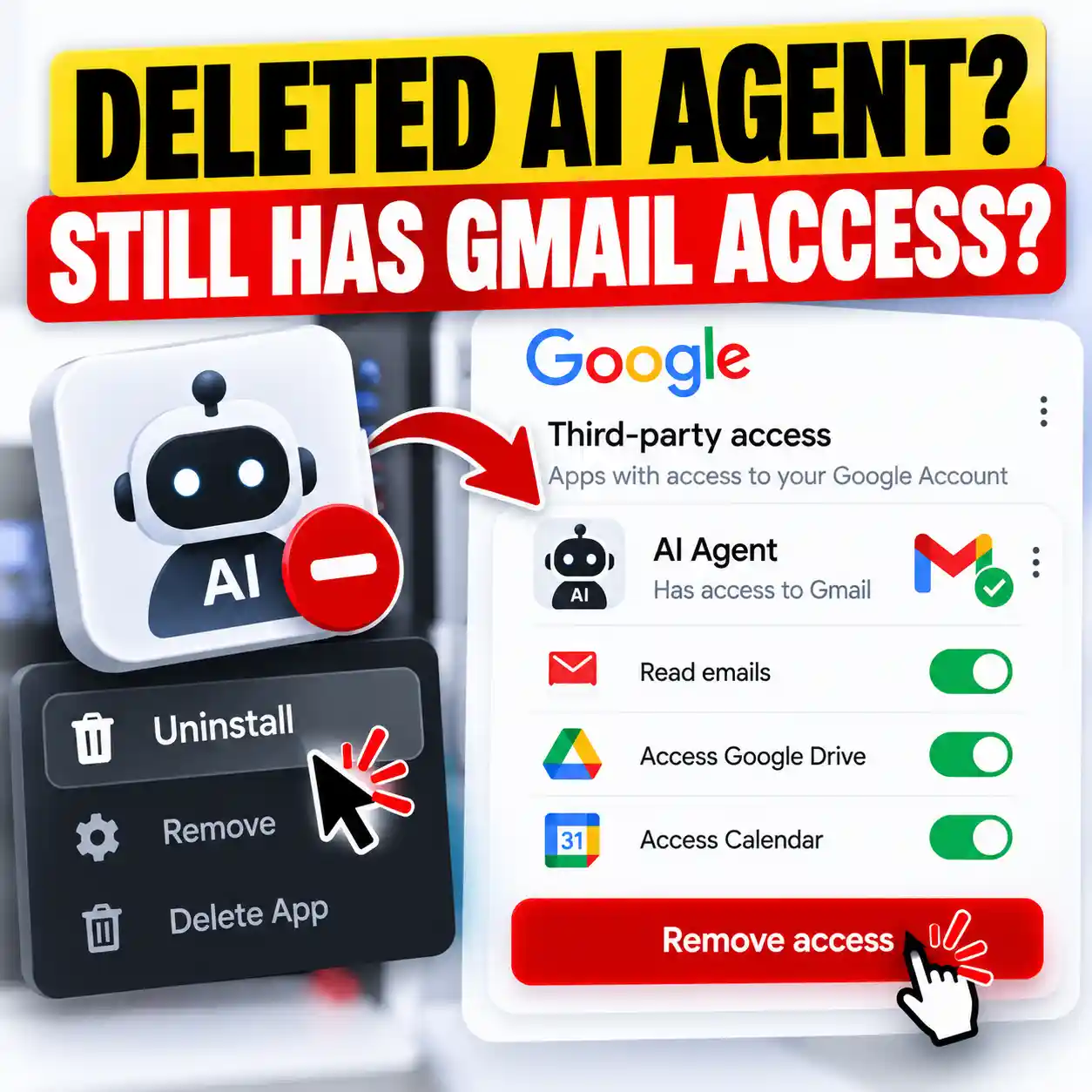
ChatGPT’s Disconnect option and Google’s third-party authorization controls are separate places to manage access. If you want to review which external apps have permission to use information from your Google Account, you can check Google’s security settings too.
- Open your Google Account’s third-party connections.
Visit Google Account connections while signed in to the Google account you want to review.
- Review apps with access to your Google Account.
Look for the relevant ChatGPT or OpenAI connection, if one is listed. Do not remove an unrelated integration just because it has a similar name.
- Inspect the connection details.
Review which Google services and permissions the connection can access. If you use multiple Google accounts, check the correct one.
- Remove access if appropriate.
Choose the available option to remove access, then confirm. Labels may vary between Google Account interfaces.
- Review ChatGPT separately.
Return to ChatGPT’s plugin settings to make sure the connection is no longer active there. A previously established app connection may need to be reauthorized before future use.
Google’s official third-party access guide explains how connected apps request and retain authorized access. Removing authorization prevents future access through that Google authorization, but does not necessarily delete information the third party previously received.
Which action should you use?
| Your goal | Best starting point |
|---|---|
| Remove a specific Google account from ChatGPT | ChatGPT Settings → Plugins → Disconnect |
| Review Google’s authorization for an external app | Google Account → Third-party connections |
| Remove previous ChatGPT conversations | ChatGPT conversation management |
| Review information used for personalization | ChatGPT Settings → Personalization |
| Control company-managed Google Drive access | Authorized ChatGPT or Google Workspace administrator |
What Happens When You Disconnect Google Drive From ChatGPT?
Disconnecting Google Drive changes the connection’s future access. It does not function as a universal erase button for information that has already been used, shared, uploaded, or stored elsewhere.
| Information or feature | What happens after disconnection? | Additional action? |
|---|---|---|
| Future access through the disconnected Google account | Stops through that individual connection. | Review other connections if present. |
| Original Google Drive files | Remain in Google Drive and are not changed merely by disconnecting. | Manage them in Google Drive only if necessary. |
| Earlier ChatGPT conversations | Are not automatically deleted. | Review and delete relevant chats separately. |
| Memory and personalization | Existing remembered information is not automatically erased. | Review Memory summary and related controls. |
| Manually uploaded files | Are not automatically removed by disconnecting Drive. | Review applicable file and retention controls. |
| Other connected Google accounts | May remain connected. | Inspect each account if you want all removed. |
| Administrator-managed Drive sources | May remain available through separate workspace configuration. | Contact the workspace administrator. |
These distinctions reflect OpenAI’s Google app data controls FAQ. In particular, the FAQ separates disconnection from conversation deletion, file retention, Memory and workspace-managed access.
Does disconnecting Google Drive delete your files?
No. Removing an individual Google Drive connection from ChatGPT does not delete the original documents, spreadsheets, presentations, or folders stored in your Google Drive account.
That is useful when you want to stop connecting the services without disrupting your normal Google Drive work.
Can ChatGPT still use information from previous conversations?
Information already included in a conversation can remain in that conversation after the Drive connection is removed. If Memory is enabled, eligible information may also affect personalization according to your account settings and applicable data-use restrictions.
For this reason, reviewing prior conversations and Memory is a separate part of a complete privacy cleanup.
Does disconnecting prevent all workplace Google Drive access?
Not necessarily. An organization may use an administrator-managed Google Drive connection with separate controls. Removing your individual connection does not automatically disable that shared workspace source.
How to Review ChatGPT Data After Disconnecting Google Drive
If your objective is privacy rather than simply switching Google accounts, follow these additional checks. Each addresses a different type of access or retained information.
1. Previous conversations
Review chats where Google Drive files were summarized, quoted or discussed. Delete conversations you no longer need through the available chat controls.
2. Memory settings
Open Settings → Personalization. Review your Memory summary, relevant memory controls and whether personalization should remain enabled.
3. Saved files
Check files you uploaded manually or saved in ChatGPT’s file-related areas. These are distinct from the original documents in Google Drive.
4. Google permissions
Check your Google Account connections to see whether the external app still has authorized access.
Does deleting a conversation immediately erase every copy?
No immediate, universal erasure should be assumed. OpenAI explains that deleted conversations are normally scheduled for permanent deletion within 30 days, with exceptions such as legal or security retention obligations and information already de-identified and disassociated from an account.
Read OpenAI’s data controls guidance for the current controls and retention explanation.
How to review ChatGPT Memory
Open Settings → Personalization and inspect the memory-related controls available on your account. Where supported, you can turn Memory off and review your Memory summary. For full removal of a personal detail, consider both its memory representation and the original chats or other sources that contain it.
For a longer explanation, read our guide to deleting ChatGPT memory and our ChatGPT Privacy Center guide.
Turning off model improvement, disconnecting Google Drive, reviewing Memory and deleting conversations are different controls. One action does not automatically perform the others.
Google Drive and ChatGPT Privacy Checklist
Use this checklist to review the main points after disconnecting Google Drive from ChatGPT. Select each item as you complete it.
- I confirmed the correct ChatGPT account or workspace.
- I located the Google account under the appropriate plugin connection.
- I disconnected the intended Google Drive account.
- I checked whether other Google accounts or app connections remain active.
- I reviewed relevant third-party access from my Google Account.
- I reviewed past ChatGPT conversations that included Drive information.
- I checked ChatGPT Memory and personalization controls.
- I checked separately stored or manually uploaded files.
- I confirmed that the original files I want to keep remain in Google Drive.
- If I use a managed workspace, I checked whether an administrator-managed connection also exists.
This checklist is an educational self-review. It cannot guarantee that all previously processed or retained information has been deleted.
Can’t Find Google Drive in ChatGPT Settings? Troubleshooting
If you cannot remove Google Drive from ChatGPT, the problem may be the account, interface, permissions or type of connection you are using.
1. You are signed in to a different ChatGPT account
Connections are associated with the account or workspace where they were established. If you use both personal and work accounts, confirm that you are viewing the correct one.
2. The interface shows Apps instead of Plugins
Some older app interfaces use the label Apps. Follow the relevant account-management area shown in your version, rather than assuming the same menu labels appear on every device.
3. The plugin is installed but no Google account is connected
A plugin can sometimes appear without an active individual Google account connection. Inspect Connected accounts or Connection before assuming that installation alone means Google Drive is authorized.
4. Several Google accounts are connected
Disconnecting one account does not necessarily disconnect the others. Review each listed account separately and avoid removing one that is still needed for your work.
5. Your organization controls the connection
If your employer or school manages Google Drive access through ChatGPT, individual users may not have all the connection-management permissions. Ask the workspace administrator whether the source is managed centrally.
6. You removed Google authorization but the app still appears
The presence of an app listing does not always mean that the same Google account is still authorized. Review the connection status in ChatGPT and the permissions shown by Google.
Quick Troubleshooting Decision
Do you see the Google account in Connected accounts?
Yes → Open the account options and look for Disconnect.
No → Verify which account or workspace you are signed into.
Does your organization manage the connection?
Yes → Contact the administrator rather than modifying unrelated personal settings.
Does Google still list external access?
Review the relevant authorization through Google’s third-party connections page.
If the problem persists, refer to OpenAI’s connected apps documentation and use the official support options associated with your account.
How to Reconnect Google Drive to ChatGPT Later
Disconnecting is not necessarily permanent. If you decide to use the Google Drive integration again, you can generally reconnect an eligible account through the available app or plugin setup flow.
- Open ChatGPT and go to the appropriate Plugins or Apps area.
- Find the Google Drive integration.
- Choose the available connection option.
- Select the Google account you intend to use.
- Review the permissions requested by Google.
- Complete authorization only if you are comfortable granting the requested access.
Reconnection may require additional Google permissions if supported actions or OAuth scopes have changed. Managed workspaces may also require administrator approval.
Before reconnecting, consider whether you need full Google Drive access for your task. Sometimes sharing a carefully prepared, non-sensitive excerpt is more appropriate than connecting an entire account.
Our AI privacy checklist can help you decide what information to leave out before using connected apps or uploading documents.
Three Examples: When Should You Disconnect Google Drive?
The correct action depends on whether you are reducing access, changing accounts or handling sensitive information.
Example 1: Finished with a project
You connected Drive to summarize project notes and no longer need the integration. Disconnect the account, then review any relevant chats that you do not want to retain.
Example 2: Connected the wrong account
You accidentally authorized a personal Google account instead of your intended work account. Disconnect the incorrect account, review Google’s access permissions, and only reconnect the appropriate account if permitted.
Example 3: Confidential workplace files
You discover that your organization has restrictions on using AI with sensitive documents. Stop using the connection, review what was accessed, and follow your organization’s security or reporting procedures.
Example 4: Complete privacy review
You want to reduce unnecessary information sharing. Disconnect Drive, inspect other connections, review saved files and chats, and evaluate Memory and model-improvement settings separately.
These examples are illustrative scenarios, not claims of real user testing or observed account behavior.
Frequently Asked Questions About Disconnecting Google Drive From ChatGPT
How do I disconnect Google Drive from ChatGPT?
Open ChatGPT Settings → Plugins, select the relevant integration, find your connected Google account and choose Disconnect through the account or connection options. Menu labels can vary by interface.
Will disconnecting Google Drive delete my Google Drive files?
No. Disconnecting an individual Google Drive account from ChatGPT does not delete or modify the original files stored in Google Drive.
Can ChatGPT access my files after I disconnect Google Drive?
ChatGPT can no longer access new files through that individual disconnected connection. However, other active connections or an administrator-managed source may have separate access, and previous conversation content may remain.
Does removing Google Drive from ChatGPT delete my chat history?
No. Past ChatGPT conversations are not automatically deleted by disconnecting Google Drive. Review and delete relevant conversations separately if needed.
Will ChatGPT forget Google Drive information after disconnecting?
Not automatically. Memory and previously retained conversations are separate from the Google Drive connection. Review the Memory controls in Settings → Personalization and relevant original sources.
Can I disconnect just one Google account?
Yes, where multiple individual accounts are supported, you can select the specific account you want to disconnect. Other connected accounts can remain active.
How do I remove ChatGPT permissions from my Google Account?
Open your Google Account’s third-party connections page, find the relevant application authorization if listed, and choose the option to remove access. This is separate from deleting prior conversations in ChatGPT.
Does turning off ChatGPT model training disconnect Google Drive?
No. Model-improvement controls and connected-app permissions are separate. OpenAI also documents specific restrictions on the use of data accessed directly through connected Google apps for generalized model training, with stated exceptions.
Why don’t I see the Disconnect button?
Check that you are signed in to the right ChatGPT account or workspace, that an individual Google account is actually connected, and that you are viewing the relevant plugin or connection controls. Managed workspaces may have different permissions.
Can I reconnect Google Drive after disconnecting it?
Generally yes, if the integration is available to your account or workspace. You may need to complete Google authorization again and accept any newly requested permissions.
Can a company administrator still access a managed Google Drive source?
An administrator-managed Google Drive integration may operate independently of an individual’s connection. Ask your organization’s administrator to review the applicable connection and access controls.
Is disconnecting Google Drive enough to protect sensitive information?
It stops future access through the selected connection, but it is not a comprehensive data-deletion action. Review past chats, manually uploaded files, Memory, other connections and your organization’s privacy requirements.
Disconnect Access. Then Review What Remains.
Knowing how to disconnect Google Drive from ChatGPT is useful when you finish a task, switch accounts or want more control over connected services.
The key distinction is simple: disconnecting stops access through that connection, while deleting previously retained information requires separate controls.
Start with the individual Google Drive connection, inspect Google’s permissions and review past conversations and personalization settings as needed.
Official Sources and Editorial Notes
This guide is based on the published help and account-control instructions listed below. It does not claim that Designs24hr independently tested a live Google Drive disconnection.
- OpenAI — Connecting and Managing App Accounts in ChatGPT
- OpenAI — Google App Data Controls FAQ
- OpenAI — Connected Apps in ChatGPT
- OpenAI — Memory in ChatGPT
- Google — Sharing Account Data With Third-Party Apps
Documentation reviewed: October 18, 2026. Features, permissions, plans, menu names and privacy controls may change. Refer to the official documentation for the most current instructions.
Disclaimer: This article provides general educational information about connected-account and privacy settings. It does not guarantee permanent deletion of previously retained information, and it is not legal or professional security advice. Designs24hr is not affiliated with or endorsed by OpenAI or Google.