ChatGPT desktop app not working on Windows or Mac? Maybe the application will not open, its login button does nothing, conversations appear blank, or the window gets stuck loading. The right solution depends on which symptom you see and whether ChatGPT still works in your browser.
Before uninstalling anything, check your connection, the OpenAI service status, and which version of the desktop application you are using. This guide walks through those checks, explains safer repair options, and shows when you should contact official support.
If the ChatGPT desktop app is not working, open ChatGPT in your browser first. If the website also fails, check OpenAI’s official status page and troubleshoot your account or connection.
If the website works but the desktop app does not, restart the app, check for updates, confirm the correct account and app version, and follow the Windows or Mac instructions below. Do not reset or reinstall until you have considered any local-only work.
ChatGPT Desktop App Not Working? Choose Your Problem
Different failures require different checks. Select the symptom that most closely matches what is happening on your computer.
Important distinction: An application failing to display a conversation does not automatically mean that conversation was deleted. Check where it was created and stored before making changes to the app.
First: Check These Before Changing App Settings
These initial checks help separate a ChatGPT service issue from an application-specific problem. They are also less disruptive than resetting the program.
-
Open ChatGPT in a web browser
Visit chatgpt.com and sign in to the same account. Try opening an existing cloud conversation or starting a regular chat.
If the browser works normally, you have evidence that the issue may be limited to the desktop application, its configuration, or its connection path.
-
Check whether OpenAI is reporting an incident
Visit OpenAI Status and inspect the affected service, not just the headline status. Look for relevant incidents involving ChatGPT conversations, authentication, Work, or desktop functionality.
A healthy status page does not rule out every account-specific problem, but an active incident can save you from unnecessary reinstalls.
-
Close and reopen the desktop application
Fully quit the application rather than simply hiding its window. Then launch it again and check whether the original problem remains.
-
Check for an available app update
Install an official update through the application or its supported distribution channel. Desktop bugs can sometimes require an updated build rather than a change to your account.
You can consult the official ChatGPT release notes for relevant changes.
-
Identify whether you use ChatGPT or ChatGPT Classic
The newer ChatGPT desktop application and the earlier ChatGPT Classic can coexist. Check the application name before following version-specific instructions.
This checklist runs in your browser. It does not inspect your computer or send diagnostic information anywhere.
Why Is the ChatGPT Desktop App Not Working?
Several unrelated problems can produce similar error screens. The table below explains what each symptom may indicate and how to narrow it down. These are diagnostic possibilities, not confirmed causes.
| What you see | Possible explanation | First useful check |
|---|---|---|
| ChatGPT closes immediately | An application fault, interrupted update, or compatibility problem. | Restart the app and check its current version. |
| Blank window or loading spinner | Loading failure, session issue, network interference, or service incident. | Test ChatGPT in a browser and check official status. |
| Login button does nothing | Authentication flow or embedded browser interaction may be failing. | Check your sign-in method and test browser login. |
| Chats do not appear | Wrong account, workspace, application view, or a loading problem. | Check account, workspace, Recents, and history search. |
| Problem begins after an update | A version-specific regression or changed application behavior. | Read release notes and check for a newer build. |
| Works on mobile hotspot, not office Wi-Fi | Corporate network, proxy, firewall, or DNS filtering may be involved. | Ask your IT administrator to review network access. |
The most useful clue is often whether the problem follows your account across devices or happens only inside one desktop application.
Fix ChatGPT Desktop App Not Working on Windows
If the ChatGPT Windows app will not open, freezes, or fails to respond, work through the following steps in order. Stop when the issue is resolved rather than performing every step automatically.
1. Fully close ChatGPT using Task Manager
- Press
Ctrl + Shift + Escto open Task Manager. - Find the relevant ChatGPT application process.
- If it is unresponsive, select it and choose End task.
- Launch ChatGPT again.
This can help if the application was left in an unresponsive state. It will not necessarily fix a damaged installation or service-side problem.
2. Check for a Windows app update
For a Microsoft Store installation, open Microsoft Store and check its Downloads or Library area for available application updates. If your edition of ChatGPT includes an in-app update option, follow that option instead.
Use official update channels. Avoid third-party websites offering modified ChatGPT installers or supposed desktop repair utilities.
3. Restart Windows
Restart the computer through Start → Power → Restart. This is useful after an app or operating-system update, or when ending the application process did not resolve the problem.
4. Try the Windows Repair option if available
- Open Windows Settings.
- Go to Apps → Installed apps.
- Find the affected ChatGPT application.
- Open its menu and select Advanced options, if available.
- Choose Repair, if the option is offered.
- Restart the application and test again.
Microsoft documents Repair as an available troubleshooting option for certain Windows applications. Not every installation exposes this control. Do not assume that the absence of Repair means your app is corrupted.
Reference: Microsoft Support — Repair apps and programs in Windows.
5. Check your connection and network environment
If browser ChatGPT works on one network but the desktop application fails on another, the network may be relevant.
- Check whether your computer has a working internet connection.
- For troubleshooting, test another trusted network when permitted.
- Check whether a VPN or proxy is interfering with access.
- On company-managed devices, ask IT to review required ChatGPT connectivity.
Security note: Do not permanently disable your firewall, endpoint protection, or workplace security controls to make ChatGPT work. Network changes should be temporary, authorized, and reversed after testing.
6. Consider Reset only after checking local data
OpenAI documents a Windows app reset under Settings → Apps → Installed apps → ChatGPT → Advanced options → Reset.
However, resetting may remove local application data or settings. If you use local Work or Codex conversations, first determine whether important content is stored only on this computer.
See the repair and reset decision guide before taking this step.
Official reference: Using the ChatGPT Windows app.
Fix ChatGPT Desktop App Problems on Mac
If ChatGPT is not working on macOS, begin by checking whether the application is frozen, unsupported on your device, or affected by an update.
1. Force quit the unresponsive app
- Press
Option + Command + Esc. - Select the affected ChatGPT application.
- Choose Force Quit.
- Reopen the application.
If the app resumes normally, the immediate issue may have been an unresponsive process. If it freezes again, continue diagnosing instead of repeatedly force-quitting.
2. Confirm your Mac meets the requirements
OpenAI’s current requirements for the supported macOS desktop app include macOS 14 or later and an Apple Silicon M1-or-newer or supported Intel processor.
Check your system version through Apple menu → About This Mac. If your system is older than the required version, the current app may not be compatible.
See OpenAI’s current macOS system requirements before downloading a different build.
3. Check the application version
Look for an update through the app’s available menu or supported installation channel. Confirm whether you are running the newer ChatGPT desktop app or ChatGPT Classic.
These are not interchangeable versions of every feature. A setting or menu shown in an older tutorial may no longer appear in the same location.
4. Test the web version
Open ChatGPT on the web using the same account. If cloud chats load there but not in the Mac app, record this distinction for troubleshooting or support.
5. Restart macOS and reopen the app
Restart your Mac, then launch ChatGPT without opening several copies or attempting repeated installations.
6. Reinstall only when appropriate
If the application still fails and an official update is not available, review its data and installation requirements before reinstalling.
Download ChatGPT through the official ChatGPT download page. Avoid deleting undocumented application-support folders or using third-party cleanup scripts.
Confirm whether you have local-only conversations, unsaved work, or files related to desktop Work or Codex. Browser access to cloud conversations does not prove that everything stored locally is backed up.
ChatGPT Desktop Login Not Working? Try These Checks
A login problem is different from an app-startup problem. If the application opens but you cannot finish authentication, check the account and sign-in method before resetting the app.
Use the account’s correct sign-in method
If you created your account through Google, Microsoft, Apple, or an organization-managed identity provider, use the corresponding supported sign-in option.
Selecting another login method or a different provider account can lead to authentication failures or an account without your expected chats and subscription.
Check browser authentication
- Open the official ChatGPT website.
- Use your usual sign-in method.
- Check whether you can complete authentication.
- If it works, retry the desktop sign-in flow.
If browser login fails, use a private browser window as a diagnostic test. Browser extensions, cookie settings, or network filtering may interfere with authentication.
If the login button does nothing
- Fully restart the desktop application.
- Check for an updated app version.
- Verify that official ChatGPT sign-in works in a browser.
- Check for current authentication incidents.
- Review network restrictions if this is a managed computer.
If your work account uses single sign-on
Use the sign-in flow required by your organization. If your workspace is missing, or the identity provider rejects access, contact your organization’s administrator before modifying account or security settings.
OpenAI’s login troubleshooting documentation covers account email differences, social sign-in methods, verification loops, and authentication errors.
Never share your password, one-time verification code, session cookie, or authentication token with anyone claiming they can repair the desktop application.
How to Fix a ChatGPT Desktop Blank Screen or Endless Loading
A blank window does not identify the cause by itself. It can appear during an application issue, failed session loading, network interruption, or a temporary service problem.
- Check whether ChatGPT loads normally in your browser.
- Inspect the official status page for relevant incidents.
- Fully quit and relaunch the desktop app.
- Check whether an app update is available.
- If accessible, sign out and sign back in using the same account.
- Test another trusted network where permitted.
- If the problem persists, record the symptom and app version for support.
OpenAI’s official troubleshooting guidance includes reloading an unresponsive desktop app, checking login sessions, testing network interference, and contacting support when basic steps do not resolve the problem.
Read: Troubleshooting ChatGPT Error Messages.
What if the app becomes blank only after opening a conversation?
First check whether other conversations open successfully and whether the same cloud chat is accessible on the web. If the problem affects only one thread, avoid treating it as proof that the entire application installation is defective.
If multiple conversations fail across devices, an account- or service-side investigation may be more appropriate.
ChatGPT Desktop Chats or Projects Missing? Check These First
Missing conversations are understandably concerning, but an empty sidebar does not always mean data has been deleted.
1. Confirm your account and workspace
Check that you are signed in to the account containing the conversations. If you belong to multiple workspaces, select the appropriate workspace.
2. Check Recents, Search, and Projects
In the newer ChatGPT desktop app, Chat and Work conversations appear in Recents, while Projects have their own area. You can also use available history search to locate older cloud conversations.
For a complete process, read our guide to searching ChatGPT history, Projects, and files.
3. Distinguish cloud chats from local conversations
This is particularly important for users of Work and Codex. OpenAI documents cloud Work conversations syncing across supported devices, while local conversations remain on the computer where they were created. Codex also has a separate view and history.
Consequently, not finding a local thread on the web does not prove the thread was lost, and successfully signing into the web version does not guarantee local content has been preserved.
4. Check for missing Project controls
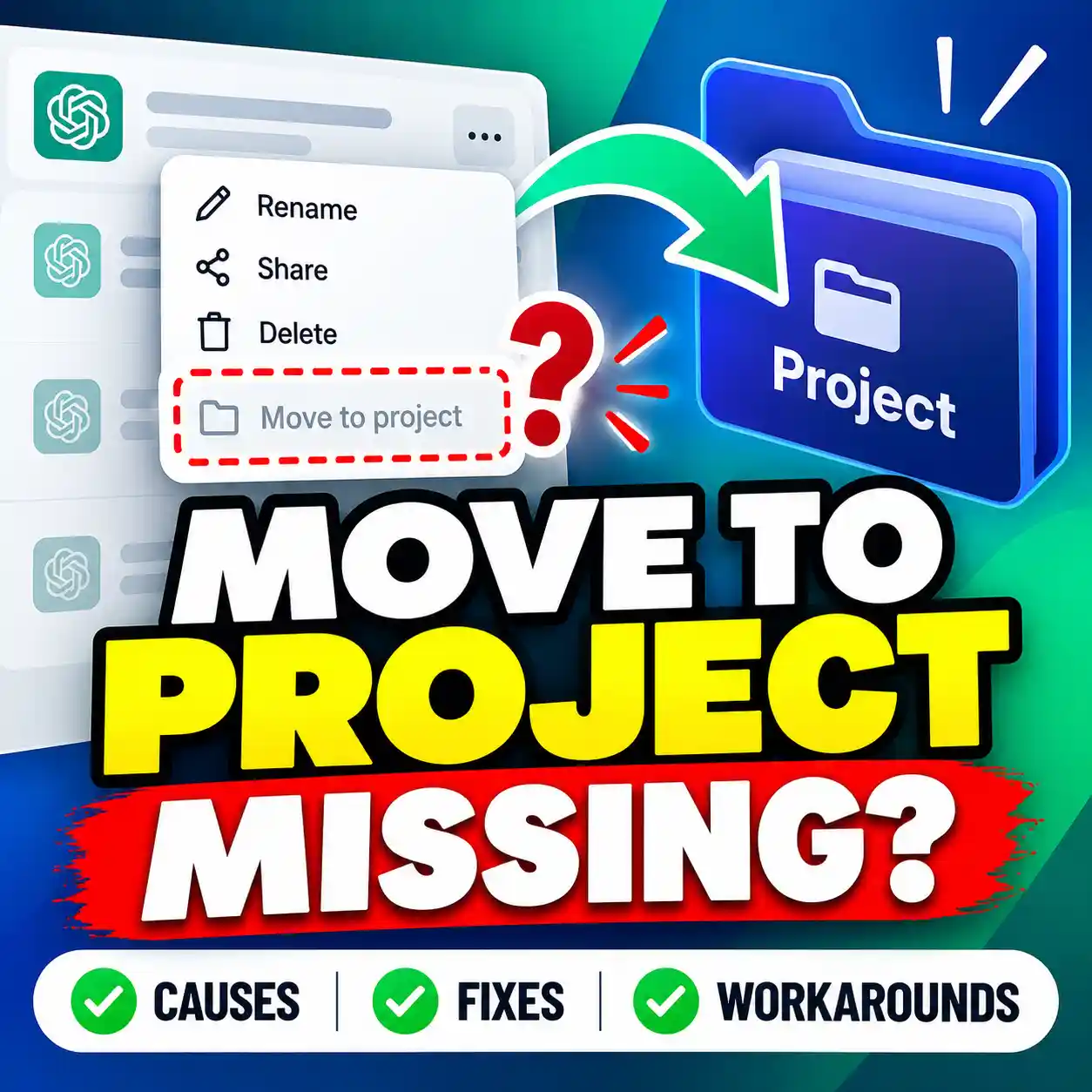
If the app loads but you cannot find the expected option to move a conversation into a Project, see our separate guide: ChatGPT Move to Project Missing? How to Fix It.
5. Do not delete application data while investigating
Avoid resetting, deleting app-support folders, or using automated cleanup tools until you have identified where the affected work is stored and what those actions might remove.
If important local Work or Codex threads have disappeared, preserve the current installation and contact official support before trying destructive repairs. There is no universal recovery method that can be guaranteed to restore removed local data.
ChatGPT vs. ChatGPT Classic: Are You Opening the Wrong App?
The ChatGPT desktop application changed significantly in 2026. The newer app brings Chat and Work together under ChatGPT, alongside Codex. The previous desktop application is called ChatGPT Classic.
Both may remain installed on the same computer. A feature that appears missing might be in another view, while a problem affecting one application does not necessarily affect the other.
| App | What to know | Troubleshooting priority |
|---|---|---|
| ChatGPT | Newer app with Chat, Work, and Codex navigation. | Check the correct view, recent app updates, and local versus cloud work. |
| ChatGPT Classic | Previous desktop application that remains supported. | Use instructions for the older app and confirm which features it supports. |
OpenAI says ChatGPT Classic continues receiving relevant updates and support for existing capabilities. Users do not need to remove it merely because the new application is available.
Official reference: Moving to the New ChatGPT Desktop App.
Should You Repair, Reset, or Reinstall ChatGPT?
These actions are not equivalent. Choose the least disruptive option that addresses the evidence you have.
| Action | Potential disruption | When to consider it |
|---|---|---|
| Restart app | Low; unsaved activity may be interrupted. | First response to a frozen or unresponsive application. |
| Install update | Usually low, but changes application files and behavior. | An update is available or a known version issue exists. |
| Windows Repair | Generally lower than Reset, depending on the app. | The Repair option exists and ordinary checks failed. |
| Reset app | Higher; local app data or settings may be removed. | After checking local-only content and reviewing consequences. |
| Uninstall/reinstall | Potentially high for local data and configuration. | When installation repair is justified and important content is protected. |
Decision rule: If your important conversations or ongoing work might exist only on this computer, treat Reset and Reinstall as high-risk actions until you have confirmed how that information is stored.
What to Do If the ChatGPT Desktop App Still Does Not Work
If the application continues failing after the relevant checks, contact OpenAI Support with a clear description rather than repeatedly resetting the app.
Open OpenAI Help Center and use its support chat. Include the app version, operating system, problem description, time of failure, and steps already attempted.
Copy this support request template
This template helps organize the information a support agent may need. Fill in the brackets after copying it. Do not include passwords, verification codes, access tokens, or private conversation content.
If the copy button is unavailable, select the template text and copy it manually.
OpenAI may request screenshots, timestamps, or additional logs. Review files before sharing them because screenshots and diagnostic logs can contain personal information. The desktop application does not provide the same browser HAR-capture tools as a normal web page.
For official contact instructions, visit How to Contact OpenAI Support.
Frequently Asked Questions
Why is my ChatGPT desktop app not working when the website works?
A working browser session suggests that at least some ChatGPT account and service functionality is available. The desktop application may still have a separate update, loading, authentication, network, or local configuration problem. Restart the app, check its version, and try the relevant operating-system troubleshooting steps.
How do I fix the ChatGPT Windows app not opening?
Fully close the application through Task Manager, reopen it, check for updates, and restart Windows. If the problem remains, look for the Repair option in Windows Settings. Consider Reset only after confirming that important local data is protected.
Why does ChatGPT show a blank screen on my desktop?
Possible explanations include a stalled application, loading error, authentication problem, connection interference, or temporary service issue. Test the browser version and official status page first, then restart and update the desktop app.
Can I use ChatGPT in my browser if the desktop app is broken?
Yes, if the website and your account are working, you can continue using supported web features at chatgpt.com. However, local-only desktop conversations or functionality may not be available through the browser.
Will reinstalling ChatGPT delete my chats?
Cloud-stored conversations are generally associated with the account, but locally stored application data can be affected by uninstalling, resetting, or reinstalling. Do not assume every desktop conversation is cloud-backed. Check where important work is stored first.
Why are my ChatGPT desktop conversations missing?
You may be in another account, workspace, application view, or conversation type. Check Recents, Search, Projects, and archived chats where applicable. Remember that local Work or Codex conversations may not appear in the same places as cloud chat history.
What is the difference between ChatGPT and ChatGPT Classic?
ChatGPT is the newer desktop app that combines Chat, Work, and Codex navigation. ChatGPT Classic is the previous desktop application, which remains supported. Both can be installed on the same computer, so check which one you are troubleshooting.
Should I reset the ChatGPT desktop application?
Reset should not be the first step. Try service-status checks, app restarts, updates, account verification, and available non-destructive repairs before considering it. Reset can affect locally stored app data.
Where can I download the official ChatGPT desktop app?
Use the official ChatGPT download page and select the supported installer for your operating system. Avoid unofficial copies and third-party repair packages.
Fix the Right Problem Without Risking Your Work
When the ChatGPT desktop app is not working, start with the simplest diagnostic question: Does ChatGPT still work in the browser?
Then check OpenAI’s service status, the application version, and the specific symptom. Use Windows or Mac repair steps only when they match the problem, and protect local conversations before performing a reset or reinstall.
If important data may be at risk or the problem persists, official support is a safer next step than repeated destructive troubleshooting.
Check OpenAI Status ↗Sources and Editorial Notes
This guide is based on official OpenAI product documentation, support information, and Microsoft’s Windows application repair guidance. The diagnostic sequences are informational recommendations, not claims of independently tested fixes.
- OpenAI: Moving to the New ChatGPT Desktop App
- OpenAI: Troubleshooting ChatGPT Error Messages
- OpenAI: Using the ChatGPT Windows App
- OpenAI: macOS System Requirements
- Microsoft: Repair Apps and Programs in Windows
- OpenAI: Contacting Support
Editorial review: October 10, 2026. App features, system requirements, and menu labels may change after publication. Confirm current procedures against the linked official sources.