AI calendar assistants can review your availability, suggest meeting times, create events, and help organize a crowded schedule. But connecting one without checking its permissions can also lead to double bookings, incorrect time zones, exposed event details, or invitations being sent before you are ready.
Use this AI calendar assistant checklist before connecting Google Calendar, Outlook, or another scheduling service. Begin with limited access, test the assistant with a low-risk event, and keep human approval turned on for important changes.
Before You Give an AI Assistant Access to Your Calendar
An AI calendar assistant may be able to do more than show your next appointment. Depending on the provider and permissions you approve, it may be able to read event titles, view attendee information, find open time, create meetings, update invitations, or interact with shared calendars.
For example, Google documents calendar actions available through Gemini Apps, while its scheduling feature can suggest meeting times using availability information. OpenAI also documents connected calendar applications for supported ChatGPT accounts. The exact features depend on the provider, account type, subscription, workspace settings, administrator controls, and permissions you grant.
What an AI Calendar Assistant Can Read or Change
Review
It may summarize upcoming events, identify open time, or flag possible scheduling conflicts.
Recommend
It may suggest meeting times, focus blocks, buffers, reminders, or changes to a busy schedule.
Take Action
With additional permission, it may create, edit, reschedule, share, or cancel calendar events.
| Access level | Possible use | Main risk | Safer approach |
|---|---|---|---|
| Read-only | Calendar briefings, availability checks, and conflict reviews | Private event information may still be exposed | Hide sensitive details and connect only the calendar that is needed |
| Create or edit | Adding meetings, changing times, and updating event notes | Incorrect or unwanted calendar changes | Require approval before every action |
| Invite or share | Sending invitations and coordinating with other people | Wrong attendees, premature invitations, or exposed details | Review the guest list, title, notes, and time before sending |
| Shared calendars | Managing team, family, client, or delegated schedules | Changes may affect people who never approved the assistant | Avoid connecting shared calendars unless access is necessary and authorized |
The 12 Checks That Protect Your Schedule
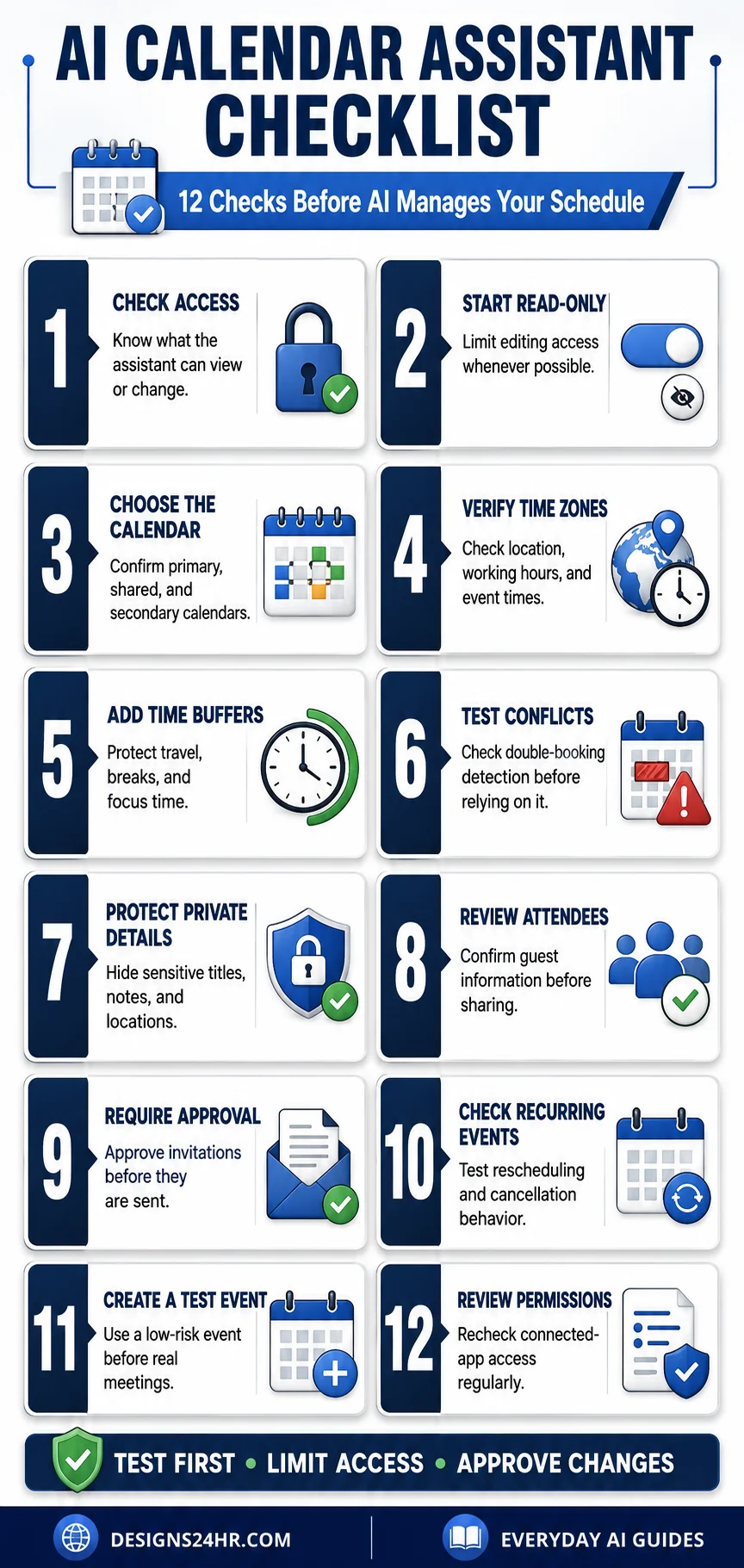
Complete this AI calendar assistant checklist before relying on automated scheduling, calendar briefings, meeting coordination, or event changes.
Understand What the Assistant Can Access
Read the connection screen carefully. Determine whether the assistant can view events, see attendee details, create meetings, edit existing events, or delete calendar information.
Begin With Read-Only Access
If you only need a daily briefing, conflict check, or availability summary, the assistant may not need permission to change anything. Choose the lowest access level that can complete the task.
Select the Correct Calendar
Check whether the assistant will use your primary, secondary, work, family, or shared calendar. Do not assume it will automatically choose the correct one.
Verify Time Zones and Working Hours
Confirm your current time zone, travel plans, normal working hours, and preferred meeting window. Check the displayed time before approving an event involving another location.
Add Buffers, Travel Time, and Focus Blocks
Tell the assistant how much space you need between meetings. Protect lunch, travel, preparation, breaks, prayer, family commitments, and uninterrupted work where relevant.
Test Scheduling-Conflict Detection
Create a temporary event that overlaps another event and ask the assistant to review the day. Confirm that it recognizes the conflict instead of offering the occupied time.
Protect Private Event Information
Calendar titles and notes can reveal health visits, client names, locations, personal routines, travel details, or confidential projects. Replace sensitive titles with neutral wording when appropriate.
Review Attendees Before Sharing
Check every email address, guest permission, meeting link, attachment, event description, and location before the invitation leaves your account.
Require Approval Before Invitations
Ask the assistant to suggest times and draft the event without sending it. Keep final approval with you, especially for clients, interviews, medical appointments, or important work meetings.
Test Recurring Events and Cancellations
Confirm whether a proposed change affects one event or the entire series. A small scheduling request should not accidentally move or cancel every future occurrence.
Create a Low-Risk Test Event
Use a temporary event with no real attendees or confidential information. Test the title, date, time, duration, reminder, time zone, calendar destination, and deletion behavior.
Review Connected-App Permissions
Periodically check which AI services can access your calendar. Remove applications you no longer use and reconnect only when there is a clear reason.
Test the Assistant With a Low-Risk Calendar Event
Do not begin with a client meeting, job interview, flight, medical appointment, or important deadline. Use a temporary event that can be safely changed or deleted.
- Create a temporary event called Calendar Test.
- Choose a time that does not involve a real appointment.
- Ask the assistant to identify the event without changing it.
- Ask it to suggest a different time and explain why.
- Check which calendar and time zone it plans to use.
- Approve one controlled change and review the result manually.
- Delete the test event yourself and confirm that no related event remains.
Calendar Information You Should Keep Private
A calendar can contain more personal information than it appears to. Even read-only access may expose patterns, relationships, locations, and private commitments.
- Medical, legal, financial, or counseling appointments
- Client names, confidential projects, or private meeting notes
- Home addresses, travel plans, hotel details, or daily routines
- Private meeting links, passcodes, attachments, or dial-in details
- Children’s schedules, school information, or family locations
- Interviews, job searches, performance reviews, or salary discussions
- Shared-calendar information belonging to colleagues or family members
Use neutral event names when the exact subject is unnecessary. For example, replace a sensitive title with “Appointment” or “Private Block” while keeping the details somewhere more appropriate.
Safe Prompts for Reviewing Your Schedule
Clear prompts reduce ambiguity, but they do not replace permission controls or manual review. Use instructions that clearly separate reviewing, recommending, and taking action.
You can use the free AI Prompt Generator to build a more detailed instruction for your calendar assistant.
Warning Signs You Should Disconnect the Assistant
It Changes Events Without Approval
Disconnect or remove editing permission if the assistant creates, moves, shares, or cancels events before showing you the final action.
It Uses the Wrong Calendar
Stop using the connection if personal events appear on a work calendar or shared events are placed on a private calendar.
It Misses Conflicts
Do not rely on automated availability if the assistant overlooks overlapping events, buffers, travel time, or events stored on another calendar.
It Exposes Private Details
Remove access if private titles, notes, locations, links, or attendee information appear in summaries where they are not needed.
It Misreads Time Zones
Manually verify every cross-region meeting if the assistant displays inconsistent dates, offsets, daylight-saving adjustments, or local times.
Its Permissions Are Unclear
Do not connect an application when you cannot understand what data it accesses, what actions it can take, or how to remove access.
What to Do After an Incorrect Calendar Change
- Open the original calendar application and inspect the affected event directly.
- Correct the date, time, calendar, attendee list, and notes before doing anything else.
- Notify attendees yourself if an incorrect invitation, cancellation, or update was sent.
- Check the event series to see whether one occurrence or every recurring event changed.
- Reduce the assistant’s permission to read-only access where possible.
- Disconnect the application if it acted outside your instructions or cannot be controlled reliably.
- Review other recent events for similar changes.
If a confusing notification or error appears, paste only the non-sensitive wording into Explain This For Me. Remove names, email addresses, meeting links, and private event details first.
Plan Your Day Before AI Schedules It
Organize your priorities, meetings, focus time, and unfinished tasks before placing them on your calendar.
Open the Free AI Daily Task Planner Create a Safer Calendar PromptContinue With These AI Productivity Guides
AI Meeting Notes Checklist
Check privacy, recording, transcript access, accuracy, and consent before allowing AI to listen to work calls.
AI Agent Safety Checklist
Review connected-app permissions before allowing an AI agent to use your files, accounts, or workplace tools.
Decision Helper
Compare scheduling options or competing priorities when your calendar does not have room for everything.
AI for Work & Productivity
Explore more practical guides for using AI at work without giving up accuracy, privacy, or control.
Frequently Asked Questions About AI Calendar Assistants
What is an AI calendar assistant?
An AI calendar assistant is a tool that can help review availability, suggest meeting times, summarize upcoming events, or manage calendar actions. Its exact abilities depend on the provider, account, permissions, and connected calendar.
Can ChatGPT access my Google Calendar?
ChatGPT can use supported connected calendar applications when they are available for your account and you authorize access. Capabilities may vary by plan, workspace, administrator settings, application, and permission level. Review the connection screen before granting access.
Can Gemini create Google Calendar events?
Google documents supported calendar actions through Gemini Apps, including creating or showing events. Available actions can depend on the device, connected account, calendar type, region, plan, and current product settings.
Is it safe to connect an AI assistant to my calendar?
It can be useful when access is limited and carefully reviewed, but no connection is risk-free. Begin with read-only access where possible, keep private details out of event titles, test with a temporary event, and require approval before changes or invitations.
Can an AI calendar assistant send invitations automatically?
Some assistants may be able to create events or send invitations when write and sharing permissions are granted. Always confirm the guest list and require approval before any invitation is sent.
How can I stop AI from changing my calendar?
Use read-only access, disable action permissions, require confirmation before every change, or disconnect the calendar application. You should also review connected applications through your Google, Microsoft, workplace, or AI account settings.
Can AI detect scheduling conflicts and time-zone mistakes?
AI may help identify overlaps and convert times, but it can still miss events stored on another calendar, misunderstand buffers, or use the wrong time zone. Manually verify important meetings before accepting the result.
Should I connect a shared or delegated calendar?
Only connect a shared or delegated calendar when access is necessary, authorized, and understood by the people affected. Start with the narrowest possible permission and avoid exposing private event information belonging to others.
Use AI Scheduling Without Losing Control
An AI calendar assistant should help you understand your schedule and reduce repetitive coordination. It should not quietly decide which commitments matter, expose private event information, or send invitations before you review them.
Complete the AI calendar assistant checklist, begin with limited access, test conflict detection and time zones, protect sensitive details, and keep approval turned on. A few careful checks can prevent a small scheduling shortcut from becoming a much larger calendar problem.