Gemini Daily Brief is designed to give eligible Gemini users a personalized morning overview of the things that may need their attention. Instead of checking Gmail, Google Calendar and previous Gemini conversations separately, Daily Brief can surface important items, organize priorities and suggest useful next actions in one place.
But there is an important catch: simply paying for Gemini does not guarantee that Daily Brief will appear. Your account type, location, age, Personal Intelligence settings, connected Google Workspace apps and Gemini Memory all matter.
Gemini Daily Brief is a personalized daily summary that primarily uses information from Gmail, Google Calendar and your Gemini chats. Google currently requires users to be 18 or older, located in the United States, signed in with a personal Google Account and subscribed to Google AI Plus, Pro or Ultra. Personal Intelligence must also be eligible and configured with Google Workspace connected and Memory turned on.
What Is Gemini Daily Brief?
Gemini Daily Brief is a proactive planning feature inside Gemini Apps. Instead of requiring you to ask separate questions about your inbox, calendar or plans, it creates a daily overview intended to highlight information that may matter now and actions that may matter next.
Google describes the brief as having two main areas:
- Top of mind: timely and actionable information, primarily drawn from Gmail, Calendar and Gemini conversations.
- Looking ahead: longer-term goals and suggested next steps based on information available through Personal Intelligence.
That makes Daily Brief closer to an AI-assisted personal dashboard than a conventional email digest. You can review a surfaced item, inspect where it came from, discuss it with Gemini, mark it complete or dismiss it.
Who Can Use Gemini Daily Brief?
Daily Brief is not currently available to every Gemini user. According to Google’s current requirements, you need to meet all of the core eligibility conditions below.
| Requirement | Currently required? | What to check |
|---|---|---|
| Age | Yes | You must be 18 or older. |
| Location | Yes | Daily Brief is currently available to eligible users in the United States. |
| Google Account type | Yes | You need a personal Google Account. |
| Work or school account | Not supported | Google says work, school and supervised accounts are not currently supported for Daily Brief. |
| Google AI subscription | Yes | Google AI Plus, Pro or Ultra on the eligible personal account. |
| Personal Intelligence eligibility | Yes | Your account must be eligible for Personal Intelligence. |
| Google Workspace connection | Yes | Connect Google Workspace to Gemini Apps through Personal Intelligence. |
| Gemini Memory | Yes | Memory must be turned on. |
| Language | English currently | Google currently lists Daily Brief as English-only. |
Gemini Daily Brief Eligibility Check
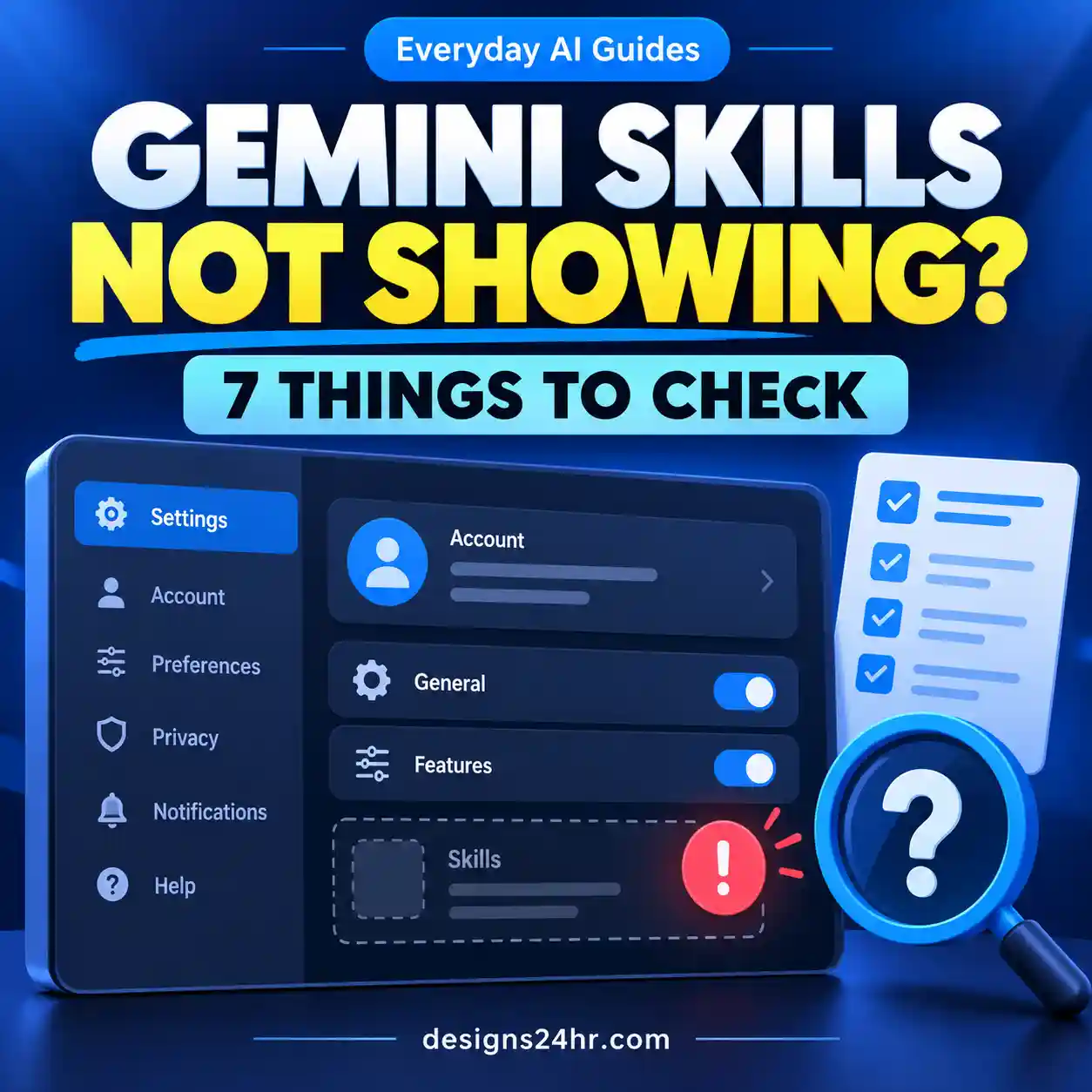
If Daily Brief is missing, do not start by reinstalling apps or repeatedly changing settings. Work through the requirements in order. This quickly separates an account-eligibility problem from a feature or configuration problem.
7-point Daily Brief eligibility test
How to Set Up Gemini Daily Brief
Daily Brief is designed to work automatically for eligible users once its prerequisites are configured. The practical setup is therefore less about creating a brief manually and more about making sure Personal Intelligence, Workspace access and Memory are ready.
Use the correct Google Account
Sign in to Gemini with the personal Google Account that has your eligible Google AI Plus, Pro or Ultra subscription. If you switch between personal and work accounts, confirm which account Gemini is actually using before changing anything else.
Check Personal Intelligence
Open Gemini’s settings and confirm that Personal Intelligence is available for your account. Daily Brief depends on this personalization layer.
Connect Google Workspace
Connect the supported Google Workspace services required by Personal Intelligence. This gives Gemini access to relevant information from services such as Gmail and Google Calendar according to your settings.
If you want a deeper walkthrough of app access and controls, read our guide to Gemini Connected Apps.
Turn on Gemini Memory
Google also requires Memory for Daily Brief. Memory lets Gemini use information from past conversations to provide more personalized assistance.
Open Daily Brief
On the web, open Gemini and look for Daily brief in the sidebar. On mobile, open the Gemini app, open the menu and select Daily brief.
What Does Gemini Daily Brief Read?
Google’s current Daily Brief documentation identifies three primary information sources: Gmail, Google Calendar and your Gemini chats.
That does not mean every email, event or old conversation will appear in every brief. Gemini decides which available information appears relevant enough to surface.
Google also lets you inspect the source of an individual Daily Brief item. Open the item’s More menu to see where it came from. This is one of the most useful controls in the feature because it lets you verify important details against the underlying source instead of trusting the summary alone.
Gemini Daily Brief Privacy: What Can You Control?
Daily Brief becomes useful precisely because it can work with personal information. That also means you should understand the access you are enabling before treating the feature as a default morning dashboard.
Connected sources
Personal Intelligence settings control the Google apps and information available to supported Gemini personalization features. Review these connections rather than assuming every connection is necessary for you.
Memory
Daily Brief currently requires Gemini Memory. This allows personalization based on previous Gemini conversations, subject to Google’s applicable account and activity settings.
Item sources
You can open More on a Daily Brief item to inspect its source. Use this before acting on anything important, time-sensitive or surprising.
Daily Brief itself
Google provides a Daily Brief switch under Personal Intelligence, so you can turn the feature off without having to abandon Gemini entirely.
If you’re trying to understand the broader difference between chat history, memory and information an AI assistant may reuse later, our guide to searching AI chat history in ChatGPT provides a useful comparison point. Different AI products use different controls, so do not assume one platform’s history or memory behavior applies to another.
Does chatting about a Daily Brief item create activity?
Yes. Google states that if you start a chat about a Daily Brief item, that conversation is saved to Gemini Apps Activity. That is worth knowing if you are trying to minimize what is retained in your account activity.
Why Is Gemini Daily Brief Missing?
A missing Daily Brief option does not automatically mean something is broken. The most common explanations come from eligibility and prerequisites.
Daily Brief missing even though you have Gemini Pro?
A Pro subscription alone is not enough. Your account must also satisfy the age, location, account-type and Personal Intelligence requirements. This is why two users with the same paid plan may not see the same option.
How to Make Gemini Daily Brief More Useful
The feature is most useful when you treat it as a triage layer, not an unquestionable list of what matters most.
Start with “Top of mind”
Look for items tied to actual deadlines, appointments, replies or commitments before exploring lower-priority suggestions.
Inspect important sources
Use the source option on anything where a date, person, deadline or request could change what you do next.
Mark finished items complete
Google lets you mark items complete or dismiss them. This helps keep the brief focused and gives Gemini feedback about what matters.
Use feedback deliberately
Mark items helpful or not helpful when the feature repeatedly over-prioritizes or under-prioritizes something.
The 4-step Designs24hr morning verification workflow
- Scan: read the brief for deadlines, messages and upcoming commitments.
- Verify: open the source behind important items.
- Prioritize: separate “must act today” from “useful later.”
- Act: reply, schedule, dismiss or complete the item instead of letting the brief become another unread dashboard.
This approach avoids one of the biggest problems with AI planning tools: a polished summary can feel authoritative even when the underlying priority is not actually yours.
What actions can you take from Daily Brief?
Google’s product documentation says Daily Brief can help you move directly from summary to action, including tasks such as opening emails, drafting replies, scheduling events and setting reminders where supported.
You can also chat with Gemini about an individual item. For example, an upcoming event could become a starting point for planning what to prepare, while an important email could become the basis for drafting a response.
What Gemini Daily Brief Can and Cannot Do
| Capability | Current behavior |
|---|---|
| Create a personalized morning overview | Yes — for eligible users. |
| Use Gmail information | Yes — through the required Personal Intelligence/Workspace setup. |
| Use Google Calendar information | Yes. |
| Use previous Gemini chats | Yes — with Memory as a prerequisite. |
| Show the source behind an item | Yes — through the item’s More menu. |
| Let you mark items complete or dismiss them | Yes. |
| Accept helpful/not-helpful feedback | Yes. |
| Let you choose the exact generation time | No — Google currently says there is no custom generation-time setting. |
| Guarantee every important message appears | No — AI prioritization should still be checked against the original sources. |
Can you change what time Gemini Daily Brief is generated?
Not currently. Google says the content is automatically generated once per day in the morning and that there is no setting to choose the specific generation time.
That distinction matters because a notification setting is not the same as a generation-time setting. On mobile, Google provides controls for Daily Brief notifications, but this does not mean you can schedule the underlying brief to be generated at a custom hour.
How to Turn Off Gemini Daily Brief
If you decide that the convenience is not worth the level of personalization you want, you can disable Daily Brief.
On the Gemini web app
- Open Gemini.
- Open Settings & help.
- Select Personal Intelligence.
- Turn off Daily brief.
On mobile
- Open the Gemini mobile app.
- Open the menu.
- Select your profile picture or initial.
- Open Personal Intelligence.
- Turn off Daily brief.
Google also provides separate controls for Daily Brief mobile notifications. Turning off a notification is different from turning off the feature itself, so choose the control that matches what you actually want.
Should You Use Gemini Daily Brief?
Daily Brief makes the most sense for people whose day already revolves around Gmail, Google Calendar and Gemini. In that situation, the value is not simply another summary. It is reducing the number of places you need to check before deciding what deserves attention.
It is less compelling if you do not want Gemini using connected personal information, if most of your important work lives outside Google’s ecosystem, or if you prefer to review messages and events directly without AI prioritization.
Our recommendation is simple: use Daily Brief as a starting point, not as the final authority on your day. Check important sources, correct weak recommendations through feedback and keep your Personal Intelligence connections limited to the access you actually want.
Frequently Asked Questions
What is Gemini Daily Brief?
Gemini Daily Brief is a personalized daily overview in Gemini Apps that can surface important information and suggested actions using sources including Gmail, Google Calendar and your Gemini chats.
Is Gemini Daily Brief free?
No. Google currently lists Daily Brief for eligible Google AI Plus, Pro and Ultra subscribers who meet the other account, age, location and Personal Intelligence requirements.
Why is Gemini Daily Brief not showing?
Check that you are 18 or older, in the United States, using an eligible personal Google Account with Google AI Plus, Pro or Ultra, eligible for Personal Intelligence, connected to Google Workspace and using Gemini Memory. Work, school and supervised accounts are not currently supported.
Does Gemini Daily Brief read Gmail?
Gmail is one of the primary sources Google identifies for Daily Brief. Access depends on the required Personal Intelligence and Google Workspace connection.
Does Gemini Daily Brief use Google Calendar?
Yes. Google Calendar is one of the main sources Daily Brief can use to understand upcoming commitments and surface relevant priorities.
Does Gemini Daily Brief use previous Gemini chats?
Yes. Google says previous Gemini chats can contribute to Daily Brief, and Memory is currently one of the prerequisites for the feature.
Can I see where a Daily Brief item came from?
Yes. Open the More menu beneath an item to view its source. This is useful for verifying an AI-generated summary against the underlying information.
Can I choose what time Gemini Daily Brief is generated?
Not currently. Google says Daily Brief is generated once per day in the morning and there is no setting to choose the exact generation time.
Can I turn off Gemini Daily Brief?
Yes. Open Gemini’s Personal Intelligence settings and turn off Daily brief. Mobile notification controls are also available separately.
Is Daily Brief available on work or school Google Accounts?
No. Google’s current eligibility information says Daily Brief requires a personal Google Account and is not available with work, school or supervised accounts.
Bottom Line
Gemini Daily Brief can turn Gmail, Calendar and Gemini context into a useful morning starting point—but only if your account meets Google’s eligibility requirements and you are comfortable with the Personal Intelligence connections involved.
Set it up carefully, verify important items at the source and use feedback to make the brief more relevant over time. If you want to keep exploring practical ways to use AI without the jargon, browse our Everyday AI Guides.
Official reference: Google Gemini Apps Help — Get started with your daily brief.