Before you share a document with an AI assistant, it is important to know how to redact a PDF before uploading to ChatGPT. A document can reveal names, account numbers, signatures, private messages or confidential business details. Simply drawing black rectangles over sensitive text may leave the original information inside the PDF.
This guide explains how to permanently redact a PDF on Windows and Mac, remove hidden information, verify the saved file and decide whether uploading it to ChatGPT is appropriate. You do not need advanced technical knowledge to understand the process.
How do you redact a PDF before uploading it to ChatGPT? Open a copy of the document in a PDF editor with a genuine redaction feature. Mark the private text and images, apply permanent redaction, remove hidden information where supported and save a separate copy. Reopen that copy, search for the removed information and check document properties before considering an upload.
Important: Redaction reduces what is disclosed, but it does not guarantee that a document is anonymous or approved for sharing.
What Does It Mean to Permanently Redact a PDF?
Permanent PDF redaction means removing selected content from the document rather than merely hiding it visually.
A PDF can contain text, images, annotations, form values and hidden document data. Placing a black shape over a sentence may make it unreadable on screen while leaving the underlying text available for selection, copying or extraction.
A proper redaction workflow removes the selected content and saves the result. A separate sanitization step may be necessary to remove metadata, comments and other information that is not visible on the page.
Bad Redaction vs. Proper Redaction
The following original illustration uses fictional text. It demonstrates the difference between covering a line and removing the information represented by that line.
Problem: The sample text exists beneath the visual overlay in this illustration. A PDF created this way may still expose the original text.
Goal: The marked information has been removed from the saved PDF using a proper redaction tool. The output must still be verified.
Adobe distinguishes between redaction, which removes selected visible content, and sanitization, which handles hidden data. Read its official redaction and sanitization explanation .
What Information Should You Remove From a PDF?
Before editing, determine what ChatGPT actually needs to complete your task. A request to summarize a contract may not require the parties’ full names, signatures or contact details.
Start by checking the following categories.
Personal Identifiers
Full names, home addresses, telephone numbers, email addresses, dates of birth, ID numbers and identifying photographs.
Financial Details
Bank account numbers, payment-card data, tax identifiers, transaction references and confidential financial records.
Workplace Information
Customer information, employee records, private agreements, confidential pricing, internal notes and proprietary material.
Hidden or Repeated Details
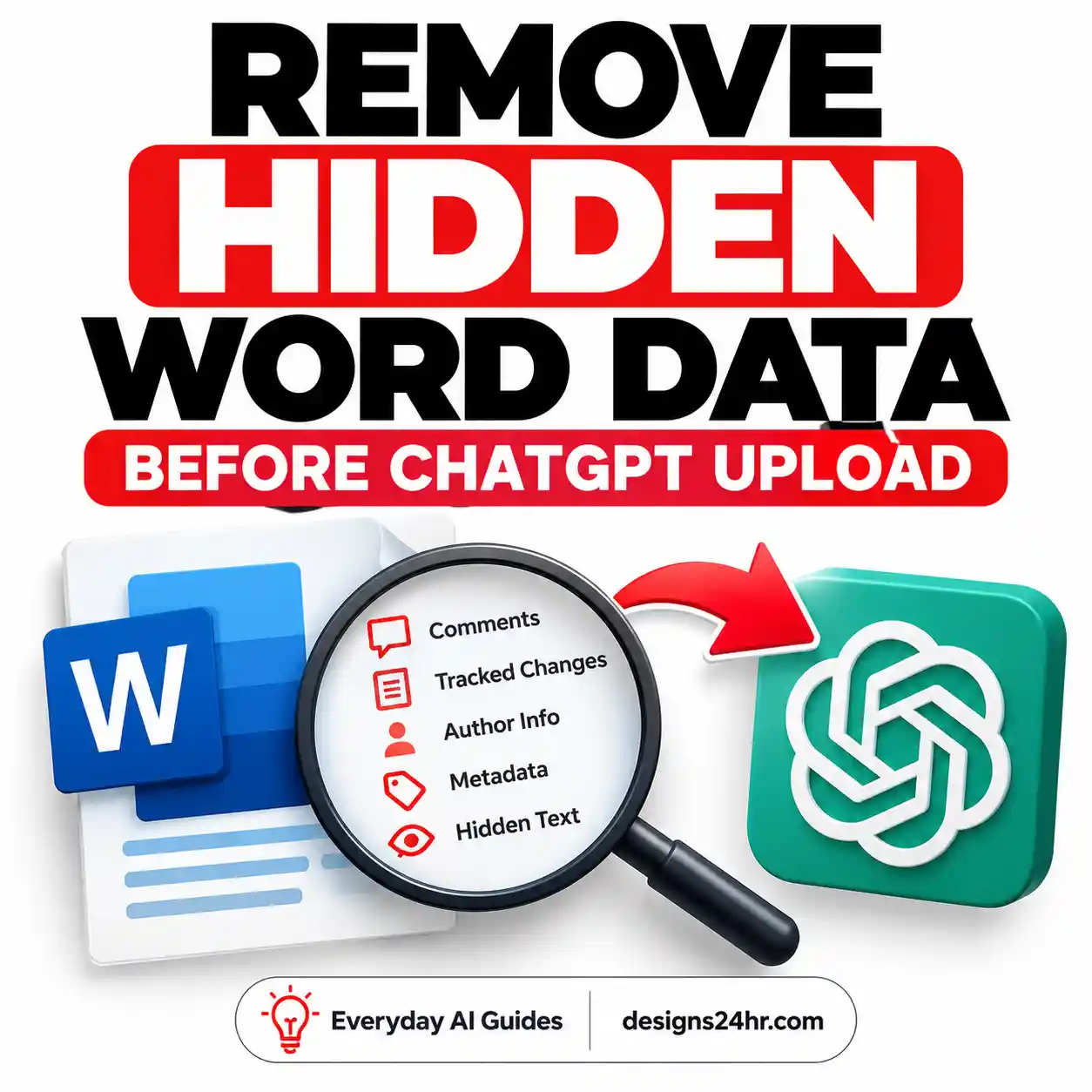
Comments, attachments, metadata, headers, footers, form fields, QR codes and identifying information on other pages.
Example: Preparing a Contract for an AI Summary
Suppose a fictional service contract contains an individual’s full name, signature, home address and payment details. The goal is to summarize the termination clause.
| Information | Recommended Treatment |
|---|---|
| Termination clause | Keep if needed to answer the question. |
| Home address | Remove unless essential to the task. |
| Signature | Redact if it is not necessary. |
| Payment account number | Remove; do not upload the real number. |
| Unrelated attachments | Exclude from the sharing copy. |
| Client or employer confidential terms | Do not upload without authorization. |
For a wider explanation of sensitive information, see our guide to what not to share with ChatGPT .
Prepare a Working Copy
- Keep the original PDF in an approved, secure location.
- Create a separately named copy for redaction.
- Check every page, including attachments and appendices.
- Identify content to remove before editing.
- Use local document-processing tools where practical.
Avoid uploading an unredacted sensitive document to an unknown online PDF converter merely to prepare it for another upload. The redaction service itself would receive the original information.
How to Permanently Redact a PDF on Windows
On Windows, Adobe Acrobat Pro provides a documented workflow for permanently redacting text and images. The free Acrobat Reader is not equivalent to Acrobat Pro’s full redaction tools.
The following steps describe Acrobat Pro’s current desktop workflow. Menu labels can change between versions.
-
Open a copy of the PDF in Acrobat Pro.
Confirm that the file is the working copy rather than the original document.
-
Open the redaction tool.
Select All tools > Redact a PDF. In the left pane, choose Redact text and images.
-
Select sensitive content.
Drag across each passage or image that needs permanent removal. Review all pages.
-
Apply the redactions.
Choose Apply. Confirm the action only after reviewing the selected areas. Applied redactions are irreversible in the resulting file.
-
Sanitize hidden information.
When prompted, use the option to sanitize and remove hidden information as appropriate. Review the items being removed.
-
Save a separate redacted PDF.
Use a neutral filename such as document-redacted.pdf. Do not overwrite your original.
-
Reopen and verify the saved result.
Search for known sensitive terms, inspect the redacted areas and review the document properties. Do not assume the operation succeeded without checking.
Adobe’s official instructions: redact sensitive PDF content in Acrobat Pro .
How to Redact a Repeated Name or Number
Acrobat Pro can search for words, phrases and supported patterns to mark multiple matches for redaction. This can help with repeated account references or personal identifiers.
Use All tools > Redact a PDF > Find text and redact, review the matches, mark the appropriate results and apply the redactions.
Search-based redaction is not a substitute for inspecting signatures, images, scanned pages or identifiers that use inconsistent formatting.
Reference: Adobe’s search-and-redact documentation .
How to Redact a PDF on Mac Using Preview
Mac users can use the dedicated Redaction Selection tool in Preview. This is different from placing an ordinary black shape over the page using markup.
Apple states that Preview redactions become permanent when the edited document is closed. Keep your original separate and test the completed copy.
-
Duplicate the original PDF.
Work on the duplicate so the original is preserved.
-
Open the duplicate in Preview.
Confirm that all expected pages are visible.
-
Show the Markup tools.
Open the Markup toolbar and select the dedicated Redaction Selection tool.
-
Select the sensitive text.
Carefully mark the information that must be removed. Do not substitute a rectangle shape or a highlight annotation.
-
Review the marked content.
Examine all pages and confirm that the selected passages are correct before finalizing.
-
Save and close the redacted copy.
Close the edited document to finalize Preview’s redactions.
-
Reopen and inspect the document.
Test text searches, copying, visible pages and identifying file properties.
See Apple’s Preview PDF annotation documentation .
What About Image-Only PDFs?
If the document consists of scanned page images, the redaction workflow may require a tool capable of permanently removing image regions. A text-selection feature may not find the sensitive information.
When the available tool cannot reliably handle the PDF’s structure, do not guess. Use an appropriate dedicated redaction tool or avoid sharing the file.
Which PDF Redaction Method Should You Choose?
The right method depends on the file format, operating system and sensitivity of the information.
| Method | Best Use | Important Limitation |
|---|---|---|
| Acrobat Pro | Dedicated text and image redaction, search-based redaction and document sanitization. | Usually requires a paid license. You must still review the output. |
| Mac Preview | Built-in redaction of appropriate PDF text on supported macOS versions. | Not a complete replacement for a specialized hidden-information audit. |
| Generic PDF Editor | Suitable only when the application documents genuine permanent redaction. | Black rectangles or visual masking alone may not remove data. |
| Online PDF Service | Potentially useful for non-sensitive files after checking the provider. | The original document may be transferred to a third party. |
| Extract Only Necessary Text | Small tasks that do not need the complete document or its layout. | The extracted text must also be reviewed for private information. |
Practical recommendation: If you only need ChatGPT to explain a paragraph, a carefully reviewed text excerpt may be safer and simpler than uploading a complete PDF.
If you need to retain the document’s layout, use a genuine redaction tool and inspect the final exported file.
How to Verify That PDF Redaction Actually Worked
Verifying PDF redaction is the most important final step. A file that looks clean may still contain information you intended to remove.
Perform these checks on the saved output, not merely on the file currently open in the editor.
Search Test
Search for the original name, identifier or distinctive phrase. A match may indicate that some content remains.
Copy-and-Paste Test
Try selecting or copying around the redacted area. Verify that removed information does not appear in the result.
Visual Inspection
Review every page, including small text, images, headers, footers, form fields and scanned sections.
Metadata Review
Inspect document properties, attachments and other hidden information with a suitable PDF application.
A Practical Redaction Verification Workflow
-
Close the PDF editor.
Make sure the document has been saved and the redaction operation has been finalized.
-
Open the saved PDF in a separate reader.
Check that all intended pages are present and the file is not corrupted.
-
Search known sensitive text.
Test a few distinctive strings that existed in the original document.
-
Inspect the surrounding text.
Confirm that removing one phrase has not left another occurrence or identifying context.
-
Review images and scanned areas.
Do not rely solely on text search. Image-based sensitive information may not be searchable.
-
Inspect hidden information.
Review the document properties and, when necessary, use specialized tools to inspect the PDF structure.
-
Make a final sharing decision.
Consider whether remaining content is confidential or could identify someone when combined with other details.
Example: A Redaction Passes Search but Fails Privacy
Imagine a fictional report where every instance of a person’s name has been removed. The report still includes a precise job title, unusual incident date and the name of a small workplace.
The person’s identity may still be inferred from those combined facts. Permanent PDF redaction and meaningful anonymization are related but different tasks.
This is why the final review must consider the meaning of the remaining document, not just the technical removal of selected strings.
Common PDF Redaction Mistakes to Avoid
1. Using Black Shapes Instead of Redaction
A shape placed over text may hide the information visually while leaving the underlying content in the file.
2. Forgetting to Apply the Redactions
Some editors distinguish between marking content and permanently applying the selected redactions. Follow the application’s complete workflow.
3. Editing the Only Copy
Applied redactions can be irreversible. Preserve an authorized original and work on a separately named copy.
4. Checking Only Searchable Text
Scanned images, signatures, QR codes and other graphics can contain identifiers that ordinary text search will miss.
5. Ignoring Hidden Information
Metadata, comments and attachments can reveal details even when visible content has been properly removed.
6. Trusting an Unknown Online PDF Tool
Online services may require you to transfer the original PDF before they can redact it. Consider the service’s privacy practices, your permission to share the file and the document’s sensitivity.
7. Assuming Redaction Means Authorization
A cleaned document can still contain confidential client material or restricted intellectual property. Removing personal identifiers does not override contractual, workplace or other sharing restrictions.
Should You Upload the Redacted PDF to ChatGPT?
After redaction and verification, decide whether the remaining information belongs in ChatGPT. The answer depends on the document, your account settings, authorization and the purpose of the upload.
| Situation | Suggested Decision |
|---|---|
| Public educational material you are permitted to process. | Generally lower privacy concern; upload only what the task needs. |
| Personal notes with unnecessary identifying details removed. | Consider uploading after verification and reviewing account data controls. |
| Client, employer or confidential workplace document. | Follow the organization’s AI-use rules. Do not upload without authorization. |
| Medical, legal, financial or other regulated personal records. | Use appropriately approved systems and seek qualified guidance where needed. |
| File containing passwords, active API keys or recovery codes. | Do not upload those secrets. Remove them or use fictional placeholders. |
| Document with uncertain redaction or unresolved hidden content. | Do not upload until the risks have been addressed. |
Review ChatGPT Data Controls
In supported ChatGPT accounts, you can review model-improvement settings under Settings > Data Controls. Available features may differ by plan and workspace.
OpenAI explains that data use differs between individual consumer services and eligible business offerings.
See OpenAI’s consumer data-handling guidance .
Does Temporary Chat Make PDF Uploads Risk-Free?
No. Temporary Chat provides different history, personalization, training and retention behavior, but it is not a guarantee that uploading confidential information is appropriate.
OpenAI states that Temporary Chats are not used to improve models while they remain temporary and may be retained for a limited period for safety purposes. Saving one as a regular chat changes the applicable rules.
Review the current Temporary Chat documentation before relying on these features.
Remember to Review Stored Files
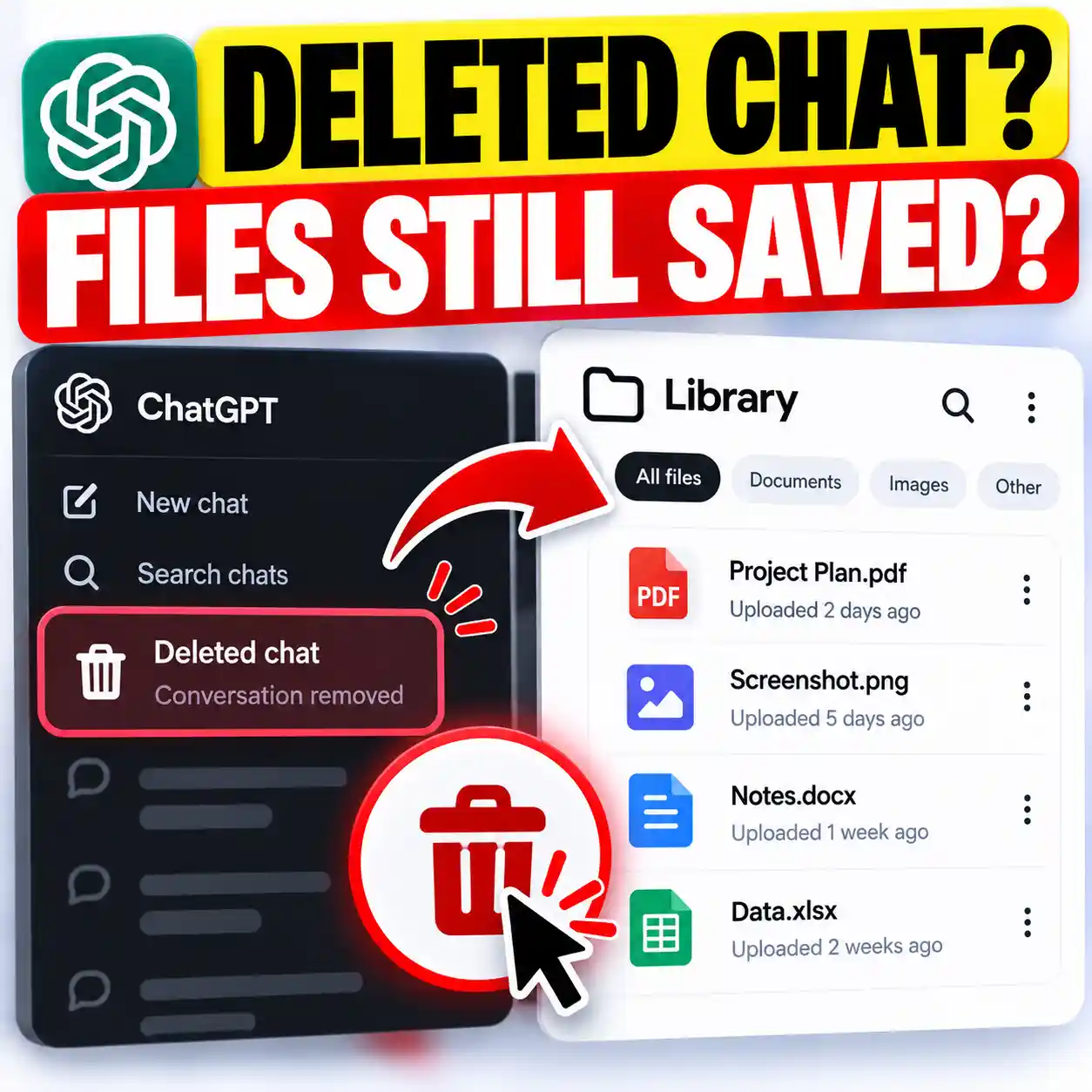
Depending on the product and workspace, uploaded files may be saved separately from the conversations in which they were used. Deleting a conversation does not necessarily delete a file saved in Library.
See OpenAI’s file upload and retention guidance .
Useful ChatGPT Prompts After PDF Redaction
These prompts assume that the document has been properly redacted, reviewed and approved for upload. The instructions do not themselves remove sensitive content from a PDF.
Prompt 1: Summarize a Redacted Document
Prompt 2: Explain a Contract Clause
Prompt 3: Create an Action Checklist
For more help writing precise instructions, see our guide to using ChatGPT effectively .
PDF Privacy Checklist Before Uploading to ChatGPT
Use this checklist after editing and before sharing the final document. It is intended for practical review, not as certification that the file is free from every risk.
Checking every box does not independently verify the file’s security or establish permission to share it.
A Simple Decision Rule
Can You Explain the Task Without the Original PDF?
If yes, consider using a short text excerpt or fictional example.
If not, redact the document properly, verify the output and assess whether sharing the remaining content is authorized.
If you cannot verify the redaction or do not have permission to disclose the file, do not upload it.
Frequently Asked Questions About PDF Redaction
How do I redact a PDF before uploading it to ChatGPT?
Create a working copy, open it in a PDF editor that supports permanent redaction, remove sensitive text and images, address hidden information and save a new file. Reopen the saved PDF and verify that the content is no longer accessible before deciding whether to upload it.
Is blacking out text in a PDF safe?
Not necessarily. Drawing a black rectangle over text can leave the original text in the PDF. A genuine redaction tool removes the selected content instead of simply covering it.
Can I redact a PDF for free on Mac?
Mac Preview includes a dedicated Redaction Selection feature on supported macOS versions. Use the actual redaction tool, finalize the changes and verify the resulting PDF. Additional hidden-information checks may still be necessary.
Can I permanently redact a PDF with Adobe Reader?
Do not assume that free Acrobat Reader provides Acrobat Pro’s dedicated permanent redaction and sanitization capabilities. Check the features available in your installed version. Acrobat Pro provides the documented workflows described in this guide.
Does converting a PDF to an image remove all private data?
No. An image can still display sensitive information, contain metadata or reveal identifying context. Converting formats is not a substitute for reviewing and removing confidential content.
Can ChatGPT recover properly redacted PDF text?
If selected content was genuinely removed from the final PDF, it should not remain available as ordinary underlying text in that file. However, remaining context, duplicate passages, images and other information may still reveal details. ChatGPT may also generate guesses, which should not be mistaken for recovered data.
Does removing PDF metadata guarantee anonymity?
No. Metadata is only one source of identifying information. Visible content, writing style, unusual facts and combinations of otherwise ordinary details may still identify someone.
Is a redacted PDF always safe to upload to ChatGPT?
No. Technical redaction does not automatically provide legal, contractual or organizational permission to share the document. Consider the remaining content, applicable restrictions and relevant privacy settings.
Should I use Temporary Chat when uploading a redacted PDF?
Temporary Chat may be appropriate when you do not want the conversation saved in normal history, but it does not make every upload suitable or eliminate all retention considerations. Review OpenAI’s current documentation and your account settings.
What is the safest alternative to uploading a private PDF?
If possible, describe the problem using fictional details or provide only a short, carefully reviewed excerpt that contains no unnecessary private information.
Final Thoughts: Redact First, Verify Before Sharing
Learning how to redact a PDF before uploading to ChatGPT is useful for anyone who regularly summarizes documents, studies reports or works with AI-assisted reading tools.
The key distinction is simple: hiding content is not the same as removing it. Use a genuine redaction feature, check hidden information, reopen the saved PDF and verify the result.
Most importantly, only share material that you are authorized to disclose. If you can complete the task using less information, choose that approach.
Learn to Use AI More Safely
Explore practical tutorials about ChatGPT, privacy, trustworthy AI information and everyday productivity.
Explore Designs24hrOfficial Sources and Further Reading
The technical procedures and privacy distinctions in this guide are based on published vendor documentation rather than claimed hands-on testing.
- Adobe — Redact Sensitive PDF Content
- Adobe — Sanitize PDFs and Remove Hidden Content
- Apple — Annotate and Redact PDFs in Preview
- OpenAI — Uploading Files and Audio to ChatGPT
- OpenAI — Consumer Data Handling
- OpenAI — Temporary Chat
Documentation reviewed: October 8, 2026. Software interfaces, data controls and service policies may change.
Editorial disclaimer: This article provides general educational information about PDF redaction and AI privacy. It does not certify a file as secure or provide legal, medical, financial or professional cybersecurity advice. For sensitive or regulated documents, follow applicable policies and consult an appropriately qualified professional. Designs24hr is not affiliated with or endorsed by Adobe, Apple or OpenAI.