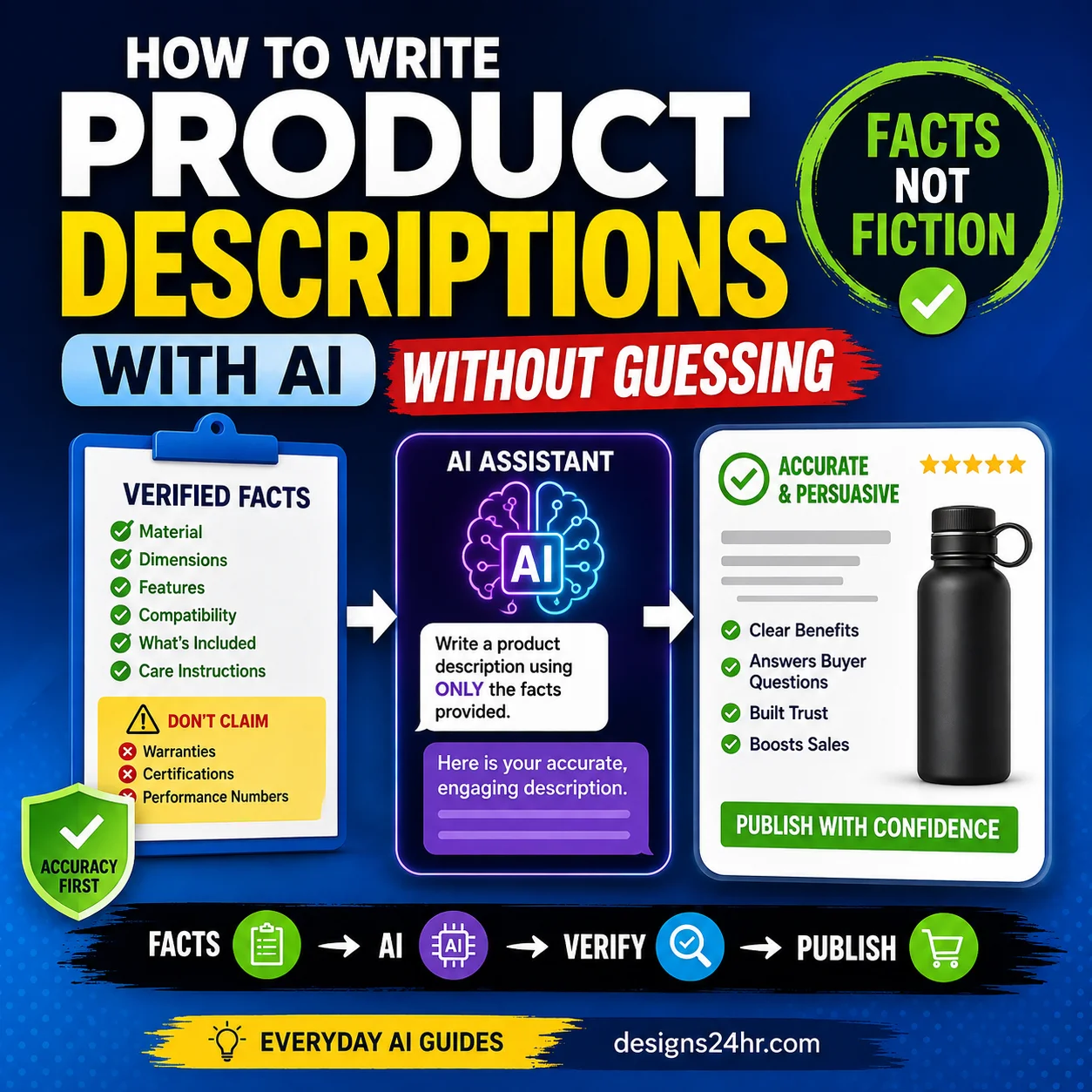
An AI invoice generator checklist helps you catch incorrect client details, duplicated invoice numbers, vague line items, calculation mistakes, unsupported fees and unsafe payment information before an invoice reaches your customer.
AI can organize invoice information and create a polished draft quickly. It cannot independently confirm what work was approved, which rate you agreed to charge, whether a tax applies or whether the payment details are correct. Your agreement, time records, approved quote and other business records remain the source of truth.
Can You Send an AI-Generated Invoice Without Checking It?
No. Before sending an AI-generated invoice, verify the business and client names, invoice number, issue date, due date, line items, quantities, rates, subtotal, authorized adjustments, currency, payment terms and final amount. Compare every important field with the agreement or records that support the charge, then open and review the actual downloaded file.
What Is an AI Invoice Generator?
An AI invoice generator uses the information you provide to draft and organize an invoice. Some tools place the details into a ready-made layout. Others let you describe the work in plain language and then generate line-item descriptions, dates, payment wording and totals.
What AI Can Help With
- Organizing invoice fields.
- Drafting clear service descriptions.
- Formatting dates and references.
- Displaying quantities and rates.
- Preparing a professional-looking draft.
- Identifying fields that are still missing.
What AI Cannot Confirm for You
- Whether the work was authorized.
- Whether a rate matches the agreement.
- Whether an expense is reimbursable.
- Whether a tax applies.
- Whether banking details are genuine.
- Whether the invoice meets every local requirement.
Generative AI may fill gaps with plausible-looking information when instructions are incomplete. The NIST Generative AI Profile discusses risks including confabulation, data privacy and information integrity. For invoicing, this means every generated detail should be treated as a draft until it is verified.
Connected invoicing tools need extra care. When an AI service can access email, cloud storage, accounting software or payment systems, review its permissions and approval controls. The AI Agent Safety Checklist can help you evaluate tools that can take actions or access connected business accounts.
Invoice, Estimate, Quote, Purchase Order or Receipt?
Before creating anything, confirm which business document you actually need. These terms are sometimes used differently by different businesses or locations, but their general purposes are not the same.
| Document | Main Purpose | Typical Timing |
|---|---|---|
| Estimate | Provides an approximate expected cost that may change. | Before the final scope or cost is confirmed. |
| Quote | Proposes a price for clearly defined products or services. | Before the customer accepts the work or order. |
| Purchase Order | Records the buyer’s authorization to purchase specified goods or services. | Before delivery or according to the buyer’s purchasing process. |
| Invoice | Requests payment for supplied or agreed products or services. | After delivery, at a milestone or according to the billing agreement. |
| Receipt | Confirms that payment was received. | After payment. |
Important: Invoice and tax requirements can vary by country, state, industry, transaction and business structure. This guide provides a general review framework, not location-specific legal, accounting or tax advice.
Before Asking AI to Create the Invoice
Confirm That an Invoice Is the Correct Document
Use an invoice when you are requesting payment under an agreement or established transaction. Do not label a price proposal as an invoice or label an unpaid request as a receipt.
Before generating the document, identify whether you are:
- Proposing an approximate cost.
- Offering a defined price for approval.
- Requesting payment.
- Confirming that payment was received.
- Recording the buyer’s purchase authorization.
Ask the client which document and reference fields its payment process requires. A large client may need a purchase-order number, department code or billing contact before it can approve an invoice.
Check: Am I proposing a price, requesting payment or confirming payment?
Check the AI Tool’s Privacy and Data Terms
An invoice may contain client names, project information, addresses, rates, financial details and payment instructions. Review how the AI service handles submitted information before entering anything sensitive.
Check the current service terms for:
- Whether prompts, files and invoices are stored.
- How long submitted information is retained.
- Whether chats and documents can be deleted.
- Whether content may be used to improve or train models.
- Whether human reviewers may access submissions.
- Whether outside providers process or store the information.
- Whether business accounts have different data controls.
Do not enter unnecessary sensitive information. Avoid submitting full payment-card data, passwords, access credentials, private tax identifiers, confidential client material or complete banking information unless the service is authorized and appropriate for that use.
Check: Does this service provide appropriate protection for the invoice information I plan to enter?
Gather the Agreement and Supporting Records
Give the AI verified source information instead of asking it to remember, estimate or infer what happened. Your records—not the generated draft—should determine what appears on the invoice.
Gather the relevant:
- Signed agreement or contract.
- Approved estimate or quote.
- Purchase order.
- Rate sheet.
- Time log.
- Delivery or milestone confirmation.
- Expense receipts.
- Client billing instructions.
- Previous invoice or numbering record.
If a charge cannot be supported by an agreement, approval or business record, do not let AI add it merely because it sounds reasonable.
Check: Can I support every charge with a reliable agreement or record?
Check the Business, Client and Reference Details
Verify Your Business Details
Confirm that the invoice identifies the correct person or business requesting payment. Do not allow an AI tool to reuse outdated information from an earlier draft.
Review the:
- Legal or trading name.
- Business address where applicable.
- Contact email and telephone number.
- Website address.
- Registration or tax fields required for your situation.
- Logo and brand information.
Do not publish private personal details simply to make an invoice look more complete. Use only the business information required for the transaction and applicable rules.
Check: Does the seller information match my current official business records?
Verify the Client’s Billing Information
The person who requested the work may not be the correct person or entity to bill. Check the client’s billing instructions rather than relying on a name from an email conversation.
Verify the:
- Client or company name.
- Correct billing entity.
- Contact person.
- Department or team.
- Billing address.
- Invoice email address.
- Spelling and capitalization.
A small name error can delay approval when the client’s accounting system expects an exact legal entity or department.
Check: Am I billing the correct entity, department and contact?
Use a Unique Invoice Number
A unique invoice number helps you prevent duplicates, locate transactions and connect each invoice to your accounting records. Use the numbering method already established for your business.
Example formats might include:
INV-2026-014EC-1048CLIENTA-2026-07
These are illustrative formats only. Before assigning a number, search your previous invoices or bookkeeping records to confirm that it has not already been used.
Avoid casual renumbering. Changing an established invoice sequence can create confusion between the sent file, your records and the client’s payment system.
Check: Is this invoice number unique and consistent with my existing records?
Check Purchase-Order and Project References
Some clients cannot approve an invoice unless it includes specific references. Confirm these fields before sending the document.
Possible references include:
- Purchase-order number.
- Contract number.
- Project or job name.
- Client reference number.
- Department code.
- Service or billing period.
- Milestone name.
Do not let AI create a purchase-order or contract number when one was not supplied. Mark the field for review instead.
Check: Does the invoice contain every reference the client requires?
Verify Dates, Services and Charges
Confirm the Issue Date and Due Date
The due date should reflect the payment period actually agreed with the client. Do not let AI automatically add “due on receipt,” net-15, net-30 or another term without checking the agreement.
Verify the:
- Invoice issue date.
- Service or delivery period.
- Agreed payment period.
- Calendar due date.
- Milestone or completion date.
- Effect of weekends or holidays where relevant.
Calculate the due date independently. A date that looks reasonable may still be inconsistent with the signed agreement.
Check: Do the issue date, billing period and payment deadline agree with the source records?
Describe Each Product or Service Clearly
A clear line-item description helps the client connect the charge to work it recognizes. AI-generated wording should remain factual and consistent with the approved scope.
Too Vague
Design work
This description does not identify the deliverable, billing period or included work.
Clearer Description
Homepage banner design and two approved revision rounds, completed July 1–10, 2026
This gives the client enough context to recognize the charge.
Avoid AI-generated descriptions that:
- Add deliverables that were not completed.
- Use exaggerated or promotional claims.
- Combine unrelated work into one unclear charge.
- Reveal unnecessary confidential project information.
- Conflict with the agreement’s terminology.
Check: Can the client immediately recognize what each charge covers?
Verify Quantities, Hours and Rates
Check every line separately. A correct final total can still hide an incorrect quantity, unauthorized rate or duplicated entry.
Compare:
- Hours with your time records.
- Quantities with delivery or order records.
- Hourly rates with the agreement.
- Unit prices with the approved quote.
- Milestone percentages with the contract.
- Reimbursable expenses with receipts and approval.
If the project changed, confirm that the client approved the revised scope or rate before including it.
Check: Does every quantity, hour and rate match an approved source?
Recalculate the Subtotal Manually
Do not rely only on the total displayed by the AI tool. Recalculate each line item and the subtotal independently with a calculator or trusted accounting system.
| Item | Calculation | Amount |
|---|---|---|
| Design services | 6 hours × $75 | $450 |
| Approved project expense | Fixed amount | $40 |
| Subtotal | $450 + $40 | $490 |
| Approved discount | $490 − $25 | −$25 |
| Amount before any applicable tax | $465 | |
Check the calculation in this order:
- Multiply every quantity or hour by its agreed rate.
- Add the verified line-item amounts.
- Add only approved expenses and fees.
- Subtract approved discounts and previous payments.
- Review any applicable tax separately.
- Confirm the final outstanding balance.
Check: Can I reproduce the displayed subtotal using the source quantities and rates?
Check Discounts, Expenses, Fees and Taxes
Each adjustment should be authorized, clearly labeled and calculated in the correct order. AI should not decide that a fee, penalty or tax applies merely because it commonly appears on other invoices.
Review whether every adjustment is:
- Included in the agreement or separately approved.
- Supported by a receipt or record where appropriate.
- Calculated correctly.
- Applied to the correct amount.
- Described in plain language.
- Allowed for your transaction and location.
Do not ask AI to guess whether a tax applies or which rate to charge. Tax treatment can depend on the product or service, customer, location, transaction and business circumstances. Use current official guidance or a qualified tax professional.
Remove any late fee, processing fee or penalty that the AI inserted without clear authorization.
Check: Is every adjustment authorized, correctly calculated and appropriate for this transaction?
Confirm the Currency and Final Amount Due
Currency should be unmistakable, especially when the client and seller are in different countries. A dollar symbol by itself may not distinguish U.S., Canadian, Australian or another dollar-denominated currency.
Verify the:
- Currency symbol and code.
- Agreed exchange-rate arrangement, if any.
- Responsibility for conversion or transfer fees.
- Deposit or previous payment deduction.
- Credits or corrected charges.
- Final unpaid balance.
Where ambiguity is possible, write the currency code clearly, such as USD, CAD, AUD, GBP or EUR.
Check: Can the client identify the exact currency and balance without making an assumption?
Verify Payment, Security and Presentation
Review the Payment Terms and Accepted Methods
Payment terms should reflect the agreement and explain what the client needs to do next. Keep the wording clear without adding threats, penalties or legal claims that were never approved.
Payment information may include:
- The due date.
- Accepted payment methods.
- The required payment reference.
- A deposit or previous payment already received.
- Where to send payment confirmation.
- Agreed late-payment terms where appropriate.
Do not allow AI to invent:
- An unapproved late fee.
- A collection threat.
- A payment guarantee.
- A shortened deadline.
- Legal language copied from an unrelated invoice.
Check: Do the payment terms match what the client accepted?
Confirm Payment and Banking Details Independently
Payment-detail errors can send money to the wrong destination. Compare the invoice with your trusted business payment records rather than copying details from an unfamiliar email or AI-generated response.
Verify the applicable:
- Account-holder or payee name.
- Bank name.
- Routing, sort, IBAN or SWIFT information.
- Account number.
- Payment-link destination.
- Payment-platform email or account.
- Required invoice reference.
Verify unexpected changes through a trusted channel. If a client, supplier or colleague unexpectedly requests different banking information, confirm it using a known phone number or established contact method. Do not rely only on the contact details inside the message requesting the change.
Check: Did I verify every payment destination using a trusted business record?
Check Branding, Logo Rights and Readability
A professional invoice should be easy to read rather than overloaded with decoration. Confirm that the client can quickly find the invoice number, due date, total and payment instructions.
Check that:
- The business owns or is permitted to use the logo.
- The invoice does not copy a protected commercial template without permission.
- The business name is readable.
- Text has sufficient contrast.
- The total amount is easy to locate.
- Payment details are not cut off.
- The layout works on mobile devices.
- The document remains legible when printed.
When creating or reviewing brand assets, use the AI Logo Generator Checklist to check originality, licensing, trademark risk and commercial-use terms.
Check: Is the invoice original, readable and easy for the client to process?
Preview and Compare the Final Customer-Facing File
The exported file can differ from the preview inside an invoice generator. Text may wrap differently, a second page may appear or payment information may be cut off.
Before sending:
- Download the final PDF or approved file format.
- Open the actual downloaded file.
- Review every page from top to bottom.
- Confirm the invoice number and filename.
- Verify the final amount and payment details again.
- Remove draft labels and placeholder text.
- Check that no hidden comments or unintended pages remain.
- Attach the correct file to the email.
- Open the attachment from the draft email when possible.
- Save the sent version with its supporting records.
Use the AI Email Assistant Checklist when drafting the invoice email, but do not let an email assistant change the approved amount, deadline or payment instructions.
Check: Did I inspect the exact file the client will receive?
The Two-Minute Final Invoice Review
- Compare the client name and invoice number with your records.
- Check the issue date, due date and billing period.
- Recalculate the line items and final amount.
- Verify the currency and payment destination.
- Open the final attachment and inspect every page.
Before-and-After AI Invoice Example
The following example is entirely fictional and demonstrates how a polished AI draft can contain unsupported or incomplete information.
Unverified AI Draft
Consulting services — $1,500
Payment due immediately.
Late fee: 10%.
Send payment to the account below.
Verified Version
Website content consultation, 10 hours × $125 — $1,250
Approved research expense — $75
Subtotal — $1,325
Payment due August 21, 2026, according to the fictional example agreement.
Payment instructions verified against the fictional business’s approved payment record.
What Was Corrected?
- The vague service description was replaced with specific work.
- The approved hours and rate were made visible.
- The unsupported $1,500 charge was removed.
- The authorized expense was listed separately.
- The unapproved late fee was deleted.
- The due date was aligned with the fictional agreement.
- The payment destination was independently verified.
Stop and Verify Before Sending or Paying
Pause when:
- Payment or banking details changed unexpectedly.
- The payment destination differs from previous records.
- An email creates unusual urgency or secrecy.
- A link points to an unfamiliar or misspelled domain.
- The sender asks for passwords or sensitive account information.
- The invoice contains goods or services no one approved.
- A request demands gift cards, cryptocurrency or another unusual method.
- The sender discourages you from verifying the request.
A Better Prompt for Creating an Invoice Draft
A careful prompt can reduce avoidable errors by telling the AI not to guess. It cannot verify whether your source records are correct or determine which legal and tax requirements apply.
Create a draft invoice using only the verified information I provide below. Do not guess or invent missing client details, dates, invoice numbers, rates, quantities, taxes, expenses, payment terms, penalties or banking information. Clearly mark every missing field as “REVIEW REQUIRED.” Show the calculation for each line item, subtotal, approved expense, discount, previous payment and final amount. Use the stated currency consistently. Keep descriptions factual and aligned with the approved scope. Finish with a separate list of every field that requires human verification before the invoice is sent.
Best practice: Paste only the minimum information required for the invoice. Replace sensitive or confidential details with placeholders when the AI tool is not approved to process them.
AI Invoice Generator Pre-Send Worksheet
Mark each item only after checking it against a reliable source. This worksheet can also be printed for repeated use.
| Check | What to Verify | Done |
|---|---|---|
| Document Type | An invoice is the correct document for this transaction. | |
| Privacy | The information is appropriate for the selected AI service. | |
| Source Records | The charges match approved agreements and business records. | |
| Business Details | The seller’s name and contact information are correct. | |
| Client Details | The billing entity, contact and address are correct. | |
| Invoice Number | The number is unique and follows the existing system. | |
| References | Required PO, contract, project and department references appear. | |
| Dates | The issue date, billing period and due date match the agreement. | |
| Descriptions | Every line item is factual, specific and recognizable. | |
| Hours and Rates | Quantities, hours, unit prices and rates match approved records. | |
| Subtotal | Each line and the subtotal were recalculated independently. | |
| Adjustments | Expenses, fees, discounts and taxes are authorized and correct. | |
| Currency | The currency and outstanding balance are unmistakable. | |
| Payment Terms | The deadline and methods match the agreement. | |
| Payment Details | The payment destination was verified independently. | |
| Presentation | The branding, text, total and instructions are readable. | |
| Final File | The downloaded PDF and email attachment were reviewed. |
Keep the Invoice and Supporting Records
Saving the final sent invoice is only one part of good recordkeeping. Keep the records that explain where its amounts came from and what happened after it was sent.
Relevant records may include:
- The final sent invoice.
- The approved quote or contract.
- Purchase orders.
- Time and delivery records.
- Expense receipts and approvals.
- Client approval correspondence.
- Payment confirmation.
- Credit notes or corrected versions.
- Related accounting entries.
Current IRS small-business recordkeeping guidance says a business may choose a recordkeeping system suited to its operations as long as it clearly shows income and expenses. The time a record should be kept depends on the action, expense or event it documents, so avoid assuming one universal retention period applies to every invoice.
Keep corrected and voided versions clearly identified so they are not confused with the valid invoice. Never alter a sent invoice silently when your business process requires a credit note, replacement or other documented correction.
Final Verdict
AI invoice generators can reduce formatting and drafting work, but they do not remove the need for human review. A professional-looking invoice can still contain an incorrect client name, duplicated number, unauthorized charge, wrong due date or unsafe payment instruction.
Before sending, compare the invoice with the agreement and source records, recalculate every amount, verify payment details through a trusted source and inspect the final downloaded file.
The safest principle is simple: use AI to organize verified information, not to invent the transaction.
Frequently Asked Questions
Can AI create an invoice for my business?
Yes. AI can organize invoice fields, draft line-item descriptions and format a professional invoice. You should still verify every client detail, charge, calculation, due date, tax field and payment instruction against your business records before sending it.
Are AI invoice generators accurate?
They can create a useful draft, but accuracy depends on the information provided and the tool’s behavior. AI may misunderstand vague instructions, insert unsupported details or calculate totals incorrectly. Review every field and recalculate the invoice independently.
Is it safe to enter client information into an AI invoice generator?
That depends on the sensitivity of the information and the service’s current privacy, storage, deletion and training practices. Enter only the minimum necessary information and avoid submitting unapproved confidential, banking, tax or personally identifiable data.
What information should an invoice include?
Common fields include seller and client details, a unique invoice number, relevant dates, itemized products or services, quantities, rates, subtotal, authorized adjustments, currency, amount due, payment terms and payment instructions. Requirements may vary by location, business and transaction.
Can AI calculate taxes for an invoice?
AI may perform a calculation when given a verified rate, but it should not decide whether a tax applies or which rate is legally correct. Tax treatment depends on the transaction and jurisdiction, so consult current official guidance or a qualified tax professional.
How do I check an invoice total?
Multiply every quantity or hour by the agreed rate, add the verified line-item amounts, include only authorized expenses or fees, subtract approved discounts or previous payments and independently check any applicable tax before confirming the final balance.
Should every invoice have a unique invoice number?
A unique number helps prevent duplicates, connect the invoice to accounting records and locate it later. Use a consistent numbering system that fits your existing bookkeeping process and check that the number has not already been assigned.
What should I do when payment details change unexpectedly?
Confirm the change using a trusted contact method, such as a known phone number or established verified contact. Do not rely only on the email, link, telephone number or message that requested the payment-detail change.
Should I keep copies of sent invoices?
Invoices can serve as supporting business records. Keep the final invoice together with the records that support its charges and payment history, following applicable accounting, tax and business requirements.
Can an AI-generated invoice be legally compliant everywhere?
No universal AI template can guarantee legal or tax compliance in every location. Requirements vary by jurisdiction, industry, transaction and business structure. Use current official guidance and qualified professional advice where necessary.
Authoritative Resources
Get new AI guides every week
Short, practical how-tos and free tools from Designs24hr. No spam, unsubscribe anytime.