ChatGPT Memory Summary Explained: How to Control What ChatGPT Remembers
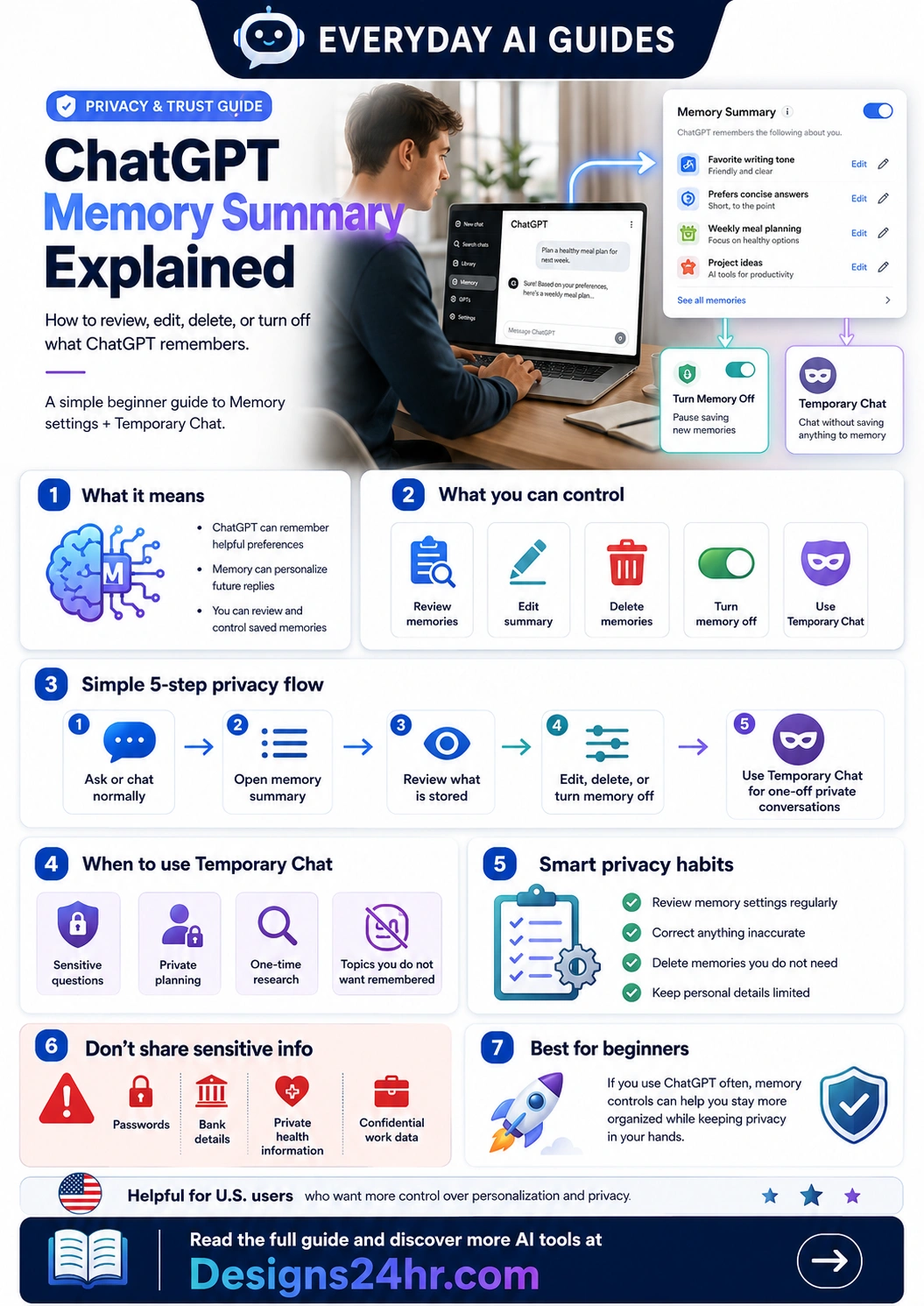
ChatGPT memory summary gives you a clearer way to review, edit, delete, or turn off saved memories that may personalize future replies. This beginner-friendly privacy guide explains what it means, what you can control, when to use Temporary Chat, and what sensitive information you should avoid sharing.
What is ChatGPT memory summary?
ChatGPT memory summary is a privacy and personalization control that helps you see information ChatGPT may remember about you. These memories can include useful preferences, goals, recurring tasks, writing style, or other details that help ChatGPT make future replies more relevant.
OpenAI’s official ChatGPT release notes describe newer memory summary controls that let users delete memories shown on the memory summary page, turn memory off, make changes to the memory summary, and use Temporary Chat when they do not want information from a chat used for personalization.
The key idea is simple: memory can make ChatGPT more helpful, but you should stay in control of what is saved, what is corrected, and what should be deleted.
Memory helps personalize replies
If memory is on, ChatGPT may use saved details to make answers better match your preferences, goals, projects, or recurring needs.
You can manage what is saved
You can review your memory summary, correct inaccurate details, delete memories you do not need, or turn memory off when you want less personalization.
Why ChatGPT memory summary matters
Memory is useful because it can reduce repeated explanations. For example, if you often ask for short answers, beginner-friendly explanations, or help with a recurring project, ChatGPT may remember those preferences and respond in a more helpful way later.
But memory also matters because saved information can shape future answers. If a memory is outdated, too personal, incorrect, or no longer useful, it can lead to replies that feel wrong or too influenced by old context. That is why reviewing your ChatGPT memory summary is a smart privacy habit.
In plain language, memory summary helps you answer three questions:
- What does ChatGPT remember? You can review saved memory information in one place.
- Is anything incorrect? You can update or correct saved details that do not match you anymore.
- Should anything be removed? You can delete memories or turn memory off when needed.
Simple example: when memory is helpful
Imagine you regularly use ChatGPT to plan weekly meals, write short professional emails, or organize school assignments. If ChatGPT remembers that you prefer concise answers or that you are working on a specific project, it may save you time by tailoring future replies without making you repeat the same instructions.
That can be useful. But if the memory says you are working on an old project, following an old schedule, or prefer a tone you no longer use, reviewing your ChatGPT memory summary can help you fix it.
What you can control in ChatGPT memory summary
Memory controls are designed to give you practical ways to manage personalization. The exact layout may vary by account, plan, device, country, and rollout timing, but the core controls are straightforward.
| Control | What it means | When to use it |
|---|---|---|
| Review memory summary | Look at the saved information ChatGPT may use to personalize future replies. | Use this when replies start feeling too personalized, outdated, or based on old context. |
| Edit or correct memory | Update inaccurate or incomplete saved details so future replies are more accurate. | Use this when your preferences, projects, job, schedule, or goals have changed. |
| Delete memories | Remove memories that are wrong, unnecessary, too personal, or no longer useful. | Use this when you do not want a saved detail influencing future ChatGPT responses. |
| Turn memory off | Stop ChatGPT from saving new memories while memory is turned off. | Use this when you want less personalization or do not want new details saved. |
| Use Temporary Chat | Start a chat that does not use existing memories or create new memories. | Use this for one-time questions, private planning, sensitive topics, or research you do not want remembered. |
How to review your ChatGPT memory summary
To review your ChatGPT memory summary, open your ChatGPT settings and look for personalization or memory controls. Depending on your account and rollout status, you may see a memory summary page that lists the information ChatGPT remembers about you.
Open ChatGPT settings
Start by opening your profile or settings area in ChatGPT. Memory controls are usually connected to personalization, data controls, or account settings.
Find memory or personalization
Look for a section related to memory, personalization, saved memories, or memory summary. The wording may change as ChatGPT updates.
Read what is saved
Review each saved item carefully. Ask yourself whether it is accurate, useful, current, and safe to keep.
Correct or delete what you do not need
If something is wrong, update it. If something is unnecessary or too personal, delete it. Memory should serve you, not create confusion.
Use Temporary Chat when needed
For one-off private conversations, use Temporary Chat so that the chat does not use existing memories or create new ones.
Important: deleting memories is not the same as deleting chats
According to OpenAI’s release notes, deleting memories shown on the memory summary page does not delete your past chats. That means memory controls and chat history controls are related but not identical.
If you want to manage both personalization and old conversations, check your memory settings and your chat history settings separately. This distinction matters because a deleted memory may stop influencing future personalization, while old chats may still exist unless you separately delete or manage them.
How to delete ChatGPT memories
If your goal is learning how to delete ChatGPT memories, start with your memory summary page. Review each saved item and remove anything that is inaccurate, outdated, unnecessary, or too personal.
Delete a memory when:
- It contains a preference you no longer have.
- It mentions an old job, project, school, client, or goal.
- It makes future answers feel too narrow or repetitive.
- It includes personal information you do not want saved.
- It is simply not useful anymore.
A good rule is this: if you would not want that detail reused in a future answer, delete it from memory.
How to turn off ChatGPT memory
Turning memory off can be useful when you want ChatGPT to stop saving new memories. OpenAI’s release notes mention a control that lets users delete memories shown on the memory summary page and turn memory off. If the option is available in your account, use it when you want a cleaner privacy setup.
Turn memory off when:
- You are testing ChatGPT and do not want long-term personalization.
- You share a device or account environment and want fewer saved preferences.
- You are discussing topics you do not want remembered.
- You want future replies to feel less based on previous chats.
- You are helping someone else and do not want their details mixed with yours.
If you turn memory back on later, review your settings again so you understand how personalization may work from that point forward.
When to use Temporary Chat
Temporary Chat is useful when you want a one-time conversation without using existing memories or creating new memories. This is helpful for private questions, quick research, sensitive planning, or topics you do not want saved for personalization.
Use Temporary Chat for:
- One-time research that does not reflect your normal interests.
- Private planning you do not want remembered.
- Questions about another person’s situation.
- Testing prompts or ideas that should not affect future responses.
- Sensitive topics where extra privacy control is important.
Temporary Chat is not a reason to share passwords, bank details, or highly sensitive information. It is a helpful privacy control, not a replacement for careful judgment.
Do not share sensitive information with ChatGPT
Even with memory controls, you should avoid sharing information that could put your privacy, money, identity, job, or safety at risk.
Avoid sharing or saving:
- Passwords, passcodes, security questions, or recovery codes.
- Bank account numbers, card details, tax IDs, or Social Security numbers.
- Private health information, medical records, or sensitive family details.
- Confidential workplace files, client data, contracts, or internal strategy.
- Legal documents or financial decisions without professional review.
If you need stronger passwords for your accounts, use the Free Password Generator instead of asking an AI chat to create and remember private credentials.
ChatGPT memory summary for students
Students can benefit from memory when ChatGPT remembers study preferences, learning level, writing style, or recurring subjects. For example, it may remember that you prefer simple explanations, practice questions, or short study plans.
But students should be careful not to save private school records, login details, grades, teacher messages, or personal information about classmates. If you are using AI for assignments, follow your school’s AI policy and treat ChatGPT as a study assistant, not a replacement for your own work.
If a school instruction or assignment feels confusing, use Explain This For Me or the Plain Language Translator to understand it more clearly before asking ChatGPT to help.
ChatGPT memory summary for work
At work, memory can be helpful when ChatGPT remembers your preferred tone, recurring project type, role, or formatting style. That can save time when drafting emails, summarizing notes, planning tasks, or creating outlines.
However, work use requires extra caution. Do not save confidential client information, private company data, internal policies, unreleased product plans, contracts, passwords, or sensitive HR details. If your employer has an AI policy, follow that policy first.
For safer work communication, use How Do I Say This? when you need tactful wording, or AI Prompt Generator when you want to write a clearer prompt without oversharing sensitive details.
ChatGPT memory summary for parents and families
Parents and families may use ChatGPT for meal planning, school routines, travel checklists, bedtime ideas, chore charts, or simple explanations. Memory can make those replies more useful if ChatGPT remembers general preferences, such as “keep meal plans simple” or “use beginner-friendly language.”
But family details can become sensitive quickly. Avoid saving children’s full names, school names, schedules, medical details, addresses, or private family conflicts. Keep memory focused on general preferences rather than identifying information.
ChatGPT memory summary checklist
Use this simple checklist every few weeks, or any time ChatGPT starts giving replies that feel outdated, too personal, or not aligned with your current needs.
Keep memories that are useful
- Preferred writing tone.
- General learning style.
- Broad goals or ongoing projects.
- Safe formatting preferences.
- Non-sensitive productivity habits.
Delete memories that are risky
- Outdated job or project details.
- Private family or health information.
- Confidential work information.
- Financial or account details.
- Anything you do not want reused later.
Copy-and-use prompts for managing ChatGPT memory
These simple prompts can help you think clearly about what should or should not be saved. Do not include private information in the prompt.
To review what should be remembered
“Help me decide which general preferences are useful for an AI assistant to remember. Keep the list non-sensitive and privacy-friendly.”
To rewrite a memory safely
“Rewrite this saved preference in a more general way so it is useful but does not include private details.”
To decide whether to delete a memory
“Give me a simple checklist to decide whether a saved AI memory is useful, outdated, too personal, or should be deleted.”
To use Temporary Chat wisely
“Create a short checklist for when I should use Temporary Chat instead of a regular ChatGPT conversation.”
Common mistakes to avoid
Assuming memory is always good
Memory can be helpful, but more memory is not always better. Keep what improves your experience and remove what creates clutter or privacy risk.
Ignoring outdated memories
If your job, school, project, preferences, or goals change, old memories may lead to less accurate replies. Review your memory summary regularly.
Saving sensitive details by accident
Before continuing a conversation, ask whether the information you are sharing could create privacy, financial, professional, or safety risk if saved or reused later.
Confusing memory deletion with chat deletion
Deleting a memory is not the same as deleting the original conversation. Review both memory settings and chat history settings when you want more complete control.
Using regular chat for one-time private topics
If you do not want a conversation to use existing memories or create new ones, use Temporary Chat when available.
Recommended Designs24hr tools to use with this guide
These free tools can help you manage AI conversations more safely, clearly, and intentionally.
Frequently asked questions about ChatGPT memory summary
What is ChatGPT memory summary?
ChatGPT memory summary is a place where you can review information ChatGPT may remember about you for personalization. It helps you understand what may influence future replies.
How do I delete ChatGPT memories?
Open your ChatGPT memory or personalization settings, review the memory summary, and delete memories that are inaccurate, outdated, unnecessary, or too personal. The exact interface may vary by account, device, and rollout timing.
Does deleting a memory delete my old chats?
No. Deleting memories shown in memory summary is not the same as deleting past chats. Manage memory settings and chat history settings separately if you want broader control.
What happens if I turn off ChatGPT memory?
Turning memory off stops ChatGPT from saving new memories while the setting is off. If you turn memory back on later, review your settings so you understand how personalization may work again.
What is Temporary Chat used for?
Temporary Chat is useful for one-time conversations that should not use existing memories or create new memories. Use it for private planning, sensitive questions, or topics you do not want remembered.
Should I share passwords or bank details with ChatGPT?
No. Do not share passwords, recovery codes, bank details, Social Security numbers, private health information, or confidential work data with ChatGPT, even when using memory controls or Temporary Chat.
Why do I not see memory summary controls yet?
Memory updates can roll out gradually by plan, country, device, and account. Check ChatGPT on the web, update your mobile app, and look in personalization or memory settings.
Take control of what ChatGPT remembers
ChatGPT memory summary can make AI more useful, but it should be reviewed regularly. Keep helpful preferences, correct outdated details, delete anything unnecessary, turn memory off when needed, and use Temporary Chat for one-time private conversations.
Explore more Everyday AI Guides