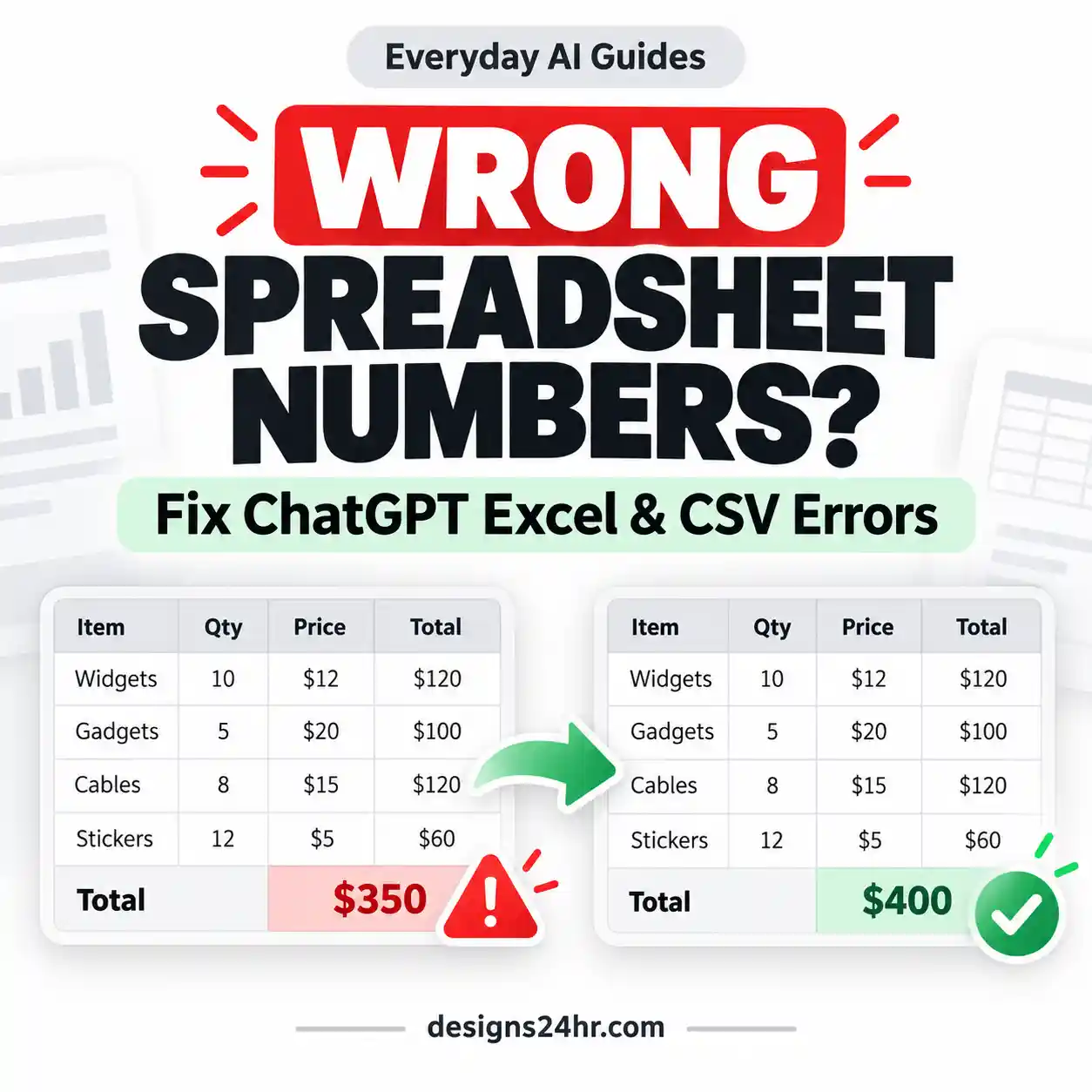
ChatGPT for Excel lets you work with AI directly inside a spreadsheet instead of constantly copying formulas, tables and questions between Excel and a separate chat. The official add-in can help build, update, explain and analyze workbooks using natural-language instructions, including spreadsheets with multiple tabs, formulas, references and assumptions.
To add ChatGPT to Excel, open Excel, go to Home > Add-ins, search for ChatGPT, add the official add-in, open it from the ribbon and sign in with an eligible ChatGPT account. Once the sidebar is open, you can ask ChatGPT to explain a workbook, edit selected areas, fix formulas, clean data, build new tables, compare scenarios and summarize changes.
The important part is review: AI-generated spreadsheet changes can still be wrong. For important files, duplicate the workbook first and verify formulas, calculations, sources and edited cells before relying on the result.
What Is ChatGPT for Excel?
ChatGPT for Excel is OpenAI’s spreadsheet-native ChatGPT experience for Microsoft Excel. It appears in a sidebar inside the workbook and can work with the spreadsheet context that is relevant to your request.
This is different from the older workflow where you opened a normal ChatGPT conversation, pasted a few rows of data, asked for a formula and then copied the result back into Excel. You can still use regular ChatGPT that way, but the Excel add-in is designed to work with the workbook itself.
OpenAI originally introduced ChatGPT for Excel in March 2026 and later expanded the spreadsheet experience, including broader plan availability, Skills, apps and a Codex workflow for Excel.
If your work extends beyond a single workbook into files, research, connected tools and finished deliverables, see our guide to what ChatGPT Work can do.
How to Install ChatGPT for Excel
The normal setup process is straightforward. Your organization may apply additional restrictions if you use a managed Microsoft 365 or ChatGPT workspace.
Open Microsoft Excel
Open Excel on the desktop or web and sign in to the Microsoft account you normally use for spreadsheets.
Open Add-ins
From the Excel ribbon, go to Home and open Add-ins.
Search for ChatGPT
Search the add-in marketplace for ChatGPT. Check that you are installing the official add-in rather than an unrelated third-party tool with a similar name.
Add and open it
Add ChatGPT, then open it from the Excel ribbon. The ChatGPT interface should appear alongside your spreadsheet.
Sign in
Sign in with your supported ChatGPT account. If you use a company or school workspace, access may depend on administrator permissions.
How to Use ChatGPT for Excel
Once the sidebar is open, the most useful change is that you can describe the spreadsheet outcome you want in ordinary language. You do not need to start by knowing the exact Excel formula.
Ask ChatGPT to explain an existing workbook
This is a good first task when you inherit a spreadsheet or return to a complicated workbook after several months.
Fix a formula without changing the rest of the workbook
Narrow instructions are usually safer than telling the AI to “fix everything.”
Clean inconsistent spreadsheet data
ChatGPT can help standardize labels and formatting or identify duplicates, but define the rules first if data integrity matters.
Build a spreadsheet from scratch
The add-in can also create spreadsheet structures. Give it the purpose, fields, calculations and constraints rather than requesting a generic template.
Analyze several tabs together
Use the SHEET Framework for Better Excel Prompts
The biggest mistake is treating a workbook edit like a casual chatbot question. Spreadsheet instructions should tell the AI exactly where it can work, what the desired outcome is and what must stay unchanged.
A simple structure for safer, clearer spreadsheet instructions.
SHEET prompt template
10 Useful ChatGPT for Excel Prompts
These prompts are deliberately task-focused rather than a giant list of generic formula requests. Adjust sheet names, ranges and constraints to match your workbook.
1. Understand a workbook
2. Diagnose a broken formula
3. Create a monthly tracker
4. Clean inconsistent labels
5. Summarize several sheets
6. Update assumptions safely
7. Create a scenario comparison
8. Explain why a result changed
9. Find unusual data
10. Audit before sharing
What Can ChatGPT for Excel Do?
| Spreadsheet task | Current fit | What to know |
|---|---|---|
| Build a spreadsheet structure | Good fit | Useful for trackers, plans, budgets, reporting tables and other structured workbooks. |
| Write or update formulas | Good fit | Specify the relevant cells and verify calculations before relying on them. |
| Explain formulas and dependencies | Good fit | Helpful when understanding unfamiliar spreadsheets or tracing why an output changed. |
| Clean inconsistent spreadsheet data | Good fit | Define what should count as an error or duplicate before destructive changes. |
| Analyze several tabs | Good fit | ChatGPT can work with relationships across multi-tab spreadsheets. |
| Run scenario comparisons | Good fit | Ask it to preserve the original assumptions and separate alternative cases. |
| Search the web for workbook information | Supported | Verify sources and dates before using external information in consequential work. |
| Use reusable Skills | Supported | Skills can encode repeatable spreadsheet workflows, formats and review rules. |
| Use connected apps | Supported with conditions | Availability depends on plan, permissions, workspace controls and data access. |
| VBA and macros | Limited | OpenAI currently warns that advanced spreadsheet features such as VBA and macros may not be fully supported. |
| Guarantee accurate calculations | No | AI output can be incomplete or incorrect. Important calculations still require human verification. |
Can ChatGPT for Excel Search the Web?
Yes. OpenAI currently says ChatGPT for Excel and Google Sheets can search the web for information that can be pulled into spreadsheet workflows.
This can be useful for research tables, current comparisons or updating external information, but it introduces another layer that needs verification. A value can be copied into the correct spreadsheet cell and still be wrong because the source was outdated, misinterpreted or inappropriate for your use case.
For a repeatable verification process, use our AI fact-checking checklist before relying on important AI-generated claims or sourced figures.
How Skills and Apps Work in ChatGPT for Excel
Skills
Skills are reusable playbooks that teach ChatGPT how to handle a recurring spreadsheet workflow. A Skill can contain instructions about the steps to follow, formatting rules, output structure and review criteria.
Instead of rewriting a long prompt every time you produce the same report, a well-designed Skill can preserve the repeatable parts of the process while you supply the new workbook or inputs.
OpenAI’s current spreadsheet documentation says users can open the + menu to access Skills and can select or invoke a Skill from the spreadsheet experience.
If you want to understand another way reusable workflows can be created, see our guide to turning repeatable workflows into ChatGPT or Codex Skills.
Apps
Apps can allow ChatGPT for Excel to use approved information from connected files, systems or data sources in your ChatGPT account. This can make spreadsheet work more contextual because the workbook does not have to contain every piece of source information itself.
App availability is not identical for everyone. It can depend on your ChatGPT plan, workspace administrator settings, user permissions and the permissions attached to the connected data source.
How to Use Codex With Excel
ChatGPT for Excel also supports a newer workflow with Codex in the ChatGPT desktop app. OpenAI says Codex can work with an open Excel workbook through the ChatGPT for Excel add-in and can inspect or update sheets, formulas, values, formatting and charts.
- Install ChatGPT for Excel and sign in to the add-in.
- Open the workbook you want to work with in Microsoft Excel.
- Open the ChatGPT desktop app and select Codex.
- Mention @Microsoft Excel or ask Codex to work with the open workbook.
- Review the resulting workbook changes before saving or sharing the file.
This can be useful when a spreadsheet task benefits from Codex’s broader ability to work with code or local files as part of the same job. It does not remove the need to verify the resulting spreadsheet.
Is ChatGPT for Excel Free?
ChatGPT for Excel is not limited to ChatGPT Plus. OpenAI currently lists global access for Free, Go, Plus, Pro, Business, Enterprise, ChatGPT Edu and K-12 users.
That does not mean usage is unlimited. OpenAI says Free and Go include limited usage access, while other plans can be subject to their applicable agentic usage or credit terms. Larger workbooks, multi-step edits and more complex analysis can consume more usage than simple spreadsheet requests.
ChatGPT for Excel Privacy and Data Access
Spreadsheet privacy deserves more attention than it receives in generic AI tutorials because workbooks can contain customer information, company forecasts, financial data, pricing, employee information and other material you would not casually paste into a public website.
OpenAI says ChatGPT processes your prompt, attachments and relevant spreadsheet context when responding to a spreadsheet request. ChatGPT for Excel also runs inside Microsoft’s Excel environment, so your use of Excel and its add-in ecosystem is subject to the applicable Microsoft agreements.
OpenAI currently also notes that spreadsheet chats operate separately from the main ChatGPT chat history and that spreadsheet chats do not have access to ChatGPT memory.
Before using sensitive spreadsheet data
- Check whether your employer allows the AI tool for that type of data.
- Understand which ChatGPT workspace and account you are signed into.
- Check administrator permissions and connected apps.
- Avoid unnecessarily exposing data that is not required for the task.
- Review your organization’s retention, confidentiality and data-handling rules.
- Do not assume that an AI feature being technically available means your organization has approved its use.
For business, school or regulated work, follow your organization’s own security and compliance requirements rather than relying on a general internet guide.
The Protect → Specify → Review Workflow
You do not need to distrust every AI spreadsheet edit. You do need a workflow that makes mistakes easier to catch and reverse.
What deserves the closest review?
- Financial models and budgets
- Forecasts and scenario assumptions
- Tax-related calculations
- Payroll and compensation spreadsheets
- Inventory and purchasing quantities
- Customer or operational reports used for decisions
- Formulas that feed many downstream cells
- External data pulled from the web or connected systems
ChatGPT for Excel Not Working? Try These Checks
1. The ChatGPT add-in does not appear
Check Home > Add-ins and search again. If you use a work or school Microsoft 365 account, your organization may restrict marketplace add-ins or require administrator deployment.
2. You installed it but cannot use it
Confirm that you are signed into the intended ChatGPT account. Workspace access can also depend on administrator permissions and role-based controls.
3. A Skill or app is missing
App and Skill access can depend on your ChatGPT account, plan, workspace settings, connected data permissions and administrator controls.
4. ChatGPT changed too much of the workbook
Restore your clean copy if necessary, then use a narrower prompt. Specify the exact sheet or range, list what must stay unchanged and ask for a change plan before applying a large edit.
5. A formula looks correct but the result seems wrong
Do not judge a formula only by whether it avoids an Excel error message. Check the cell references, range boundaries, units, assumptions and source values feeding the calculation.
6. ChatGPT cannot handle a macro or advanced feature
OpenAI currently lists advanced spreadsheet functionality such as VBA and macros among areas that may not be fully supported. Use Excel’s native tools or an appropriate specialist workflow when the add-in cannot reliably perform the task.
7. The Office add-in fails during company SSO
OpenAI documents an SSO-specific add-in startup issue that can require a Microsoft tenant administrator to update the OpenAI Enterprise Application configuration. If this is a managed company account, send the error to your IT or identity administrator rather than repeatedly reinstalling the add-in.
ChatGPT for Excel vs Regular ChatGPT vs Excel’s Native Tools
The best tool depends on what you are actually trying to accomplish.
AI does not automatically improve a task simply because it can perform it. If a native Excel feature is faster, more deterministic and easier to audit, use the native feature.
Is ChatGPT for Excel Worth Using?
ChatGPT for Excel is most useful when the difficult part of a spreadsheet task is translating your intention into formulas, structure, analysis or edits. It can reduce the amount of time spent figuring out how to express a spreadsheet task manually, especially when dealing with unfamiliar or multi-tab workbooks.
It is less compelling when the workbook is already simple, the task is easily handled by a native Excel function or the consequences of an automated change are so high that every step must be deterministic and independently controlled.
The best approach is not “let AI run the spreadsheet.” It is to use AI to accelerate the parts it handles well while keeping human control over assumptions, permissions and final verification.
Start with explanation and small, reversible edits. Once you understand how ChatGPT interprets your workbook, use the SHEET framework for larger tasks and keep the Protect → Specify → Review workflow for anything important.
Frequently Asked Questions
Is ChatGPT for Excel free?
OpenAI currently lists ChatGPT for Excel as available to Free, Go, Plus, Pro, Business, Enterprise, Edu and K-12 users. Usage limits and credit rules differ by plan, so availability does not mean unlimited spreadsheet usage.
How do I add ChatGPT to Excel?
Open Excel, go to Home > Add-ins, search for ChatGPT, add the official ChatGPT add-in, open it from the ribbon and sign in with your supported ChatGPT account.
Can ChatGPT edit an Excel spreadsheet?
Yes. The official spreadsheet experience can build and update spreadsheet content directly. Tell it exactly what it may change and review edited cells and formulas before relying on the result.
Can ChatGPT write Excel formulas?
Yes. It can help create, explain and fix formulas. The formula should still be checked for correct cell references, ranges, assumptions and results.
Can ChatGPT analyze multiple Excel sheets?
Yes. OpenAI describes ChatGPT for Excel as capable of working with large, multi-tab files containing formulas, references and assumptions. Give the AI clear instructions about which sheets matter for the analysis.
Can ChatGPT for Excel search the web?
Yes. OpenAI currently says its spreadsheet experience can search the web for information to bring into workbook tasks. Verify the original source, date and context before relying on web-derived information.
Does ChatGPT for Excel use ChatGPT memory?
OpenAI currently says spreadsheet chats operate separately from the main ChatGPT chat history and do not have access to ChatGPT memory.
Can ChatGPT for Excel use apps?
Yes, where supported. Apps can provide approved connected data to spreadsheet workflows, but availability depends on plan access, administrator settings, user permissions and data-source entitlements.
What are Skills in ChatGPT for Excel?
Skills are reusable playbooks for recurring spreadsheet work. They can capture workflows, formatting rules, standards, output structures and review steps so you do not have to rebuild the same instructions every time.
Does ChatGPT for Excel support VBA and macros?
Support may be limited. OpenAI currently identifies advanced spreadsheet features such as VBA and macros as functionality that may not be fully supported.
Can Codex edit an Excel workbook?
Yes. OpenAI currently documents a workflow where Codex in the ChatGPT desktop app can work with an open Microsoft Excel workbook through the ChatGPT for Excel add-in. Users can ask Codex to inspect or update sheets, formulas, values, formatting and charts.
Should I trust calculations created by ChatGPT?
Do not rely on an important calculation solely because ChatGPT generated it or Excel accepts the formula. Review the formula, referenced cells, assumptions, units and result. OpenAI also advises users to verify spreadsheet outputs.
Official Sources
ChatGPT features change quickly. For access, limits, privacy controls and product behavior that could affect an important decision, check the current official documentation rather than relying only on an older tutorial.
Get new AI guides every week
Short, practical how-tos and free tools from Designs24hr. No spam, unsubscribe anytime.