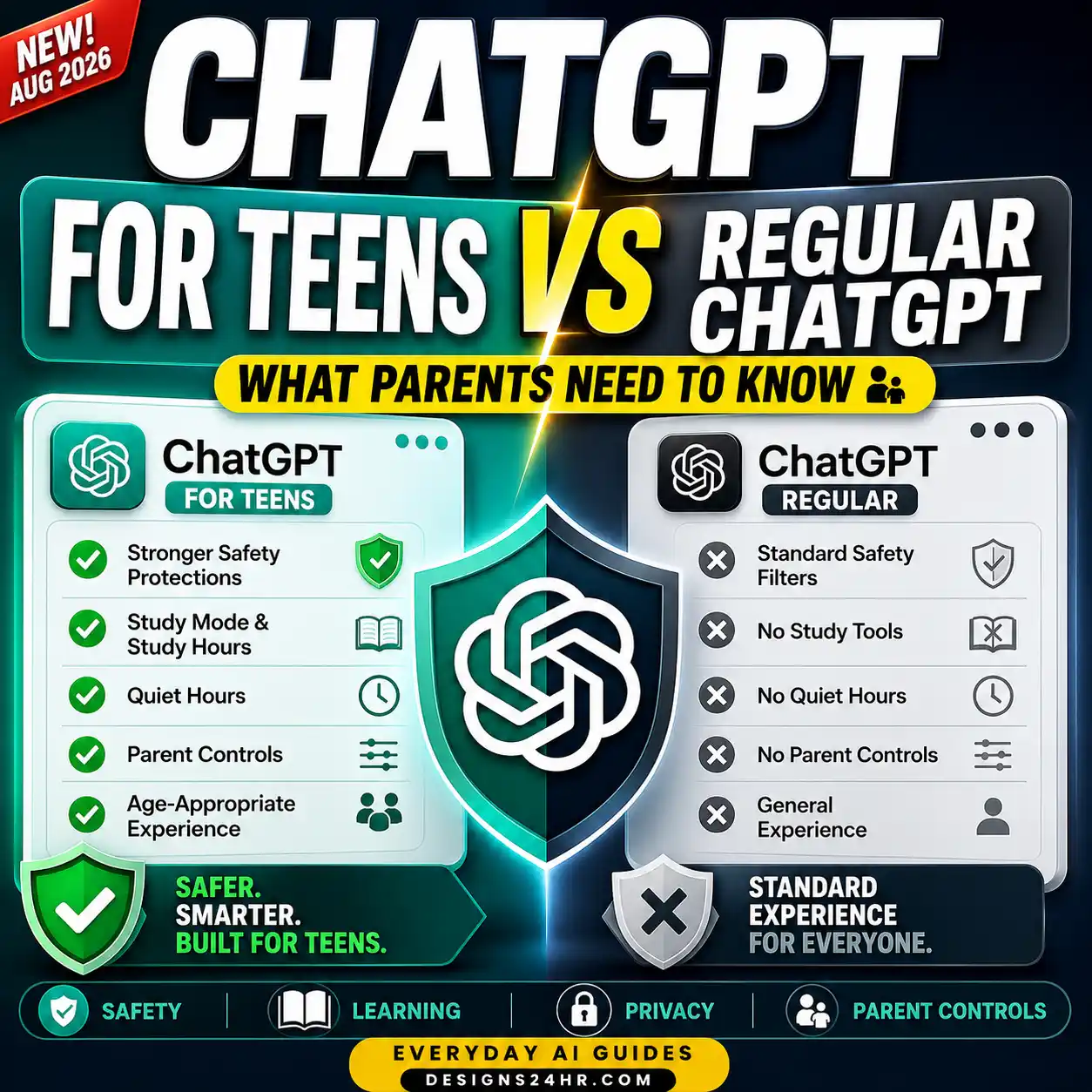
This guide shows how to set up ChatGPT parental controls: the current setup steps, what every control does and its default, what parents can and cannot see, and how safety tools work with ChatGPT for Teens.
How to Link Your ChatGPT Account to Your Teen’s
Want how to set up chatgpt parental controls without missing a step? Either side can start the link. Each parent account can link to several teens, but each teen can link to only one parent or guardian at a time. You can also jump straight to the page at chatgpt.com/parentalcontrols.
If you’re the parent
If you’re the teen
Go to Settings → Parental controls → Invite a parent, choose phone or email, enter your parent’s details, and send. If your parent already invited you, open the same page and choose Accept invite. After linking, you can see which settings are on or off, but you can’t change the ones your parent manages.
Invite Sent but Accounts Won’t Link? Try This
| What you see | What to do |
|---|---|
| The link opens ChatGPT but there’s no Accept button | On the web, sign in to the personal account that matches the email or phone number that got the invite. Go to Settings → Parental controls, open the pending invite, and choose Accept. |
| The invite never arrived | The sender opens Settings → Parental controls, clicks the person marked Invitation sent, and chooses Resend invitation. Check spam or blocked-text filters too. |
| It went to the wrong email or number | The sender chooses Cancel invitation and sends a new one to the right account. |
| Invite expired or was canceled | Send a fresh invite. Old links won’t work. |
| Teen account is a school or work account | Parental controls link personal accounts. Have your teen sign in with their personal ChatGPT account. |
| A linked account disappeared or shows conflicting info | Contact OpenAI Support through the Help Center and include the exact error message. |
Every ChatGPT Parental Control Setting and Its Default
These are the controls OpenAI lists today, with the default you’ll see right after linking. Most switches hide or block a feature when you turn them off, while ChatGPT’s built-in teen protections stay on either way.
| Setting | What it controls | Default |
|---|---|---|
| Reduce sensitive content | Extra safeguards that reduce graphic content, viral challenges, sexual or romantic roleplay, violent roleplay, and extreme beauty ideals. Turning it off removes only this layer, not the other teen protections. | On |
| Improve the model for everyone | Whether your teen’s conversations can be used to train models. | On |
| Reference saved memories | Whether ChatGPT uses saved memories to personalize replies. | On where available (may be off by default in some regions) |
| Health | Access to Health in ChatGPT and connected health data sources. Turning it off disconnects Health and removes synced health data. Existing chats stay. General health questions still work. | On where Health is available |
| Voice Mode | Whether your teen can use voice conversations. | On |
| Image generation | Creating and editing images, including in ChatGPT Work. | On |
| Cloud browser | Whether ChatGPT Work can visit public websites with its built-in browser. | On |
| Codex network access | Whether code run by ChatGPT Work can reach websites and APIs. It does not control search, plugins, apps, or Cloud browser. | On |
| Study mode | Whether new chats in the main ChatGPT experience start in study mode. It doesn’t block study mode or apply to GPT or Project chats. | Off |
| Study hours | A schedule when eligible new chats start in study mode. It doesn’t block access. | Off, no hours set |
| Quiet hours | Times when your teen can’t use ChatGPT at all, including ChatGPT Work. | Off, no hours set |
OpenAI’s parental controls feature page also lists a Group chats switch. If you see it in your account, turning it off removes the option to join group chats. Some changes take a while to apply, and some apply only to new conversations. Chats your teen already started can keep the old setting, so ask them to start a fresh chat after you make a change.
Study Hours vs Quiet Hours: Which One Do You Need?
| Study hours | Quiet hours | |
|---|---|---|
| Blocks ChatGPT? | No | Yes, including ChatGPT Work |
| What happens | New chats in main ChatGPT start in study mode (hints and questions before answers) | ChatGPT is unavailable during the window |
| Applies to GPTs or Projects? | No | Blocks all use |
| Good for | Homework blocks, test prep | Bedtime, school hours, family time |
| Where to set it | Only in Settings → Parental controls. Neither can be changed by asking ChatGPT in a chat. | |
To set Quiet hours: go to Settings → Parental controls, click your teen, turn on Quiet hours, and choose a start and end time. You can add more than one block. For example, a school-night setup might be 10 PM to 6:30 AM, plus a second block from 8 AM to 3 PM if your teen’s school doesn’t allow ChatGPT in class.
Study mode changes how ChatGPT replies. It isn’t a cheating filter. To set expectations, pair it with clear AI homework rules and show your teen how to study with AI without letting it do the work.
What Parents Can and Can’t See
| Can a linked parent… | Answer |
|---|---|
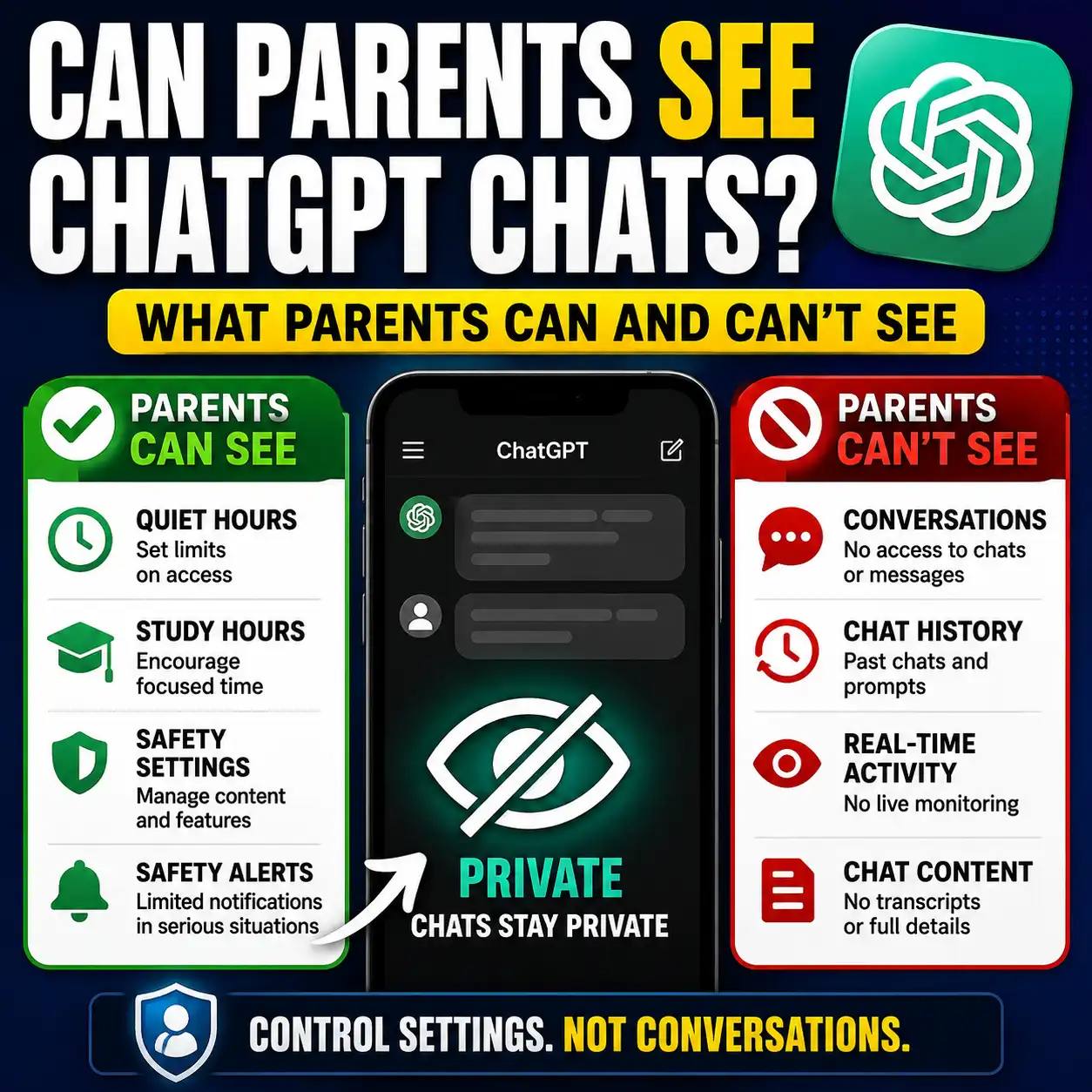
| Read the teen’s conversations or chat history? | No |
| Watch activity in real time? | No |
| See deleted chats? | No |
| See Health conversations or connected health data? | No |
| Get a transcript through OpenAI Support? | No, Support can’t provide one |
| See and change the controls listed above? | Yes |
| Get notified if the teen unlinks? | Yes |
| Get a limited alert about a serious safety concern? | Yes, in specific cases (below) |
If your goal is to see every message, ChatGPT parental controls aren’t built for that. Device-level tools and family agreements handle that part. Teach your teen what not to share with ChatGPT, and see how Temporary Chat and memory controls work, because they affect privacy far more than any parent switch.
How ChatGPT Safety Notifications Work
Safety notifications turn on automatically when accounts link. It can take up to a few hours after linking before they can be sent. OpenAI says a notification may go out when:
- specially trained reviewers identify a serious self-harm concern;
- reviewers identify behavior that may be linked to disordered eating (in Chat only, not Work or Codex); or
- the teen’s account is deactivated over conversations about acts of violence under OpenAI’s usage policies.
A notification includes a short description of the type of concern, any account deactivation, and support resources. It doesn’t include the conversation. To choose how alerts reach you (email, SMS, or push), go to Safety notifications → Manage notifications. Notifications aren’t real-time monitoring and won’t catch everything. If someone may be in immediate danger, call 911 or text or call 988, the Suicide & Crisis Lifeline in the US.
Which Settings to Use: Start From the Problem
How to Change or Remove Parental Controls Later
Go back to Settings → Parental controls, click your teen, and change any switch or schedule. You can also ask ChatGPT in a chat to update a supported setting for your linked teen. It shows the change, and you choose Allow or Deny. Invites, linked accounts, Study hours, and Quiet hours can only be changed on the Settings page.
Either of you can choose Unlink accounts at any time. If your teen unlinks, you get a notification. After unlinking, you can’t manage their settings, safety notifications stop, and a Health restriction you set is lifted.
What Happens When a Teen Turns 18
When ChatGPT identifies the account holder as 18 or older, the account leaves ChatGPT for Teens. Both of you are notified, parental controls are removed and the link ends, teen safety notifications stop, and the account holder gets full control of their settings. Other settings don’t change on their own.
If an adult was placed in the teen experience by mistake, they can go to Settings → Account → Verify age on the web (OpenAI uses Persona for verification). Allow up to an hour, then refresh. Adults who want a safety backup can use Trusted Contact, a separate opt-in feature for people 18 and older.
10-Minute Parent Setup Checklist
- Your teen’s name shows under Family members (not “Invitation sent”).
- Reduce sensitive content is on.
- You decided on Improve the model for everyone and saved memories.
- Quiet hours cover bedtime (and school hours, if needed).
- Study hours cover homework time, if you want guided help.
- Voice, image generation, and Health match how your teen actually uses ChatGPT.
- Cloud browser and Codex network access are reviewed if your teen uses ChatGPT Work.
- You picked how safety notifications reach you.
- Your teen started a new chat so the settings take effect.
To copy, highlight the text in the box and press Ctrl+C (Cmd+C on Mac).
Frequently Asked Questions
Can parents see ChatGPT conversations?
No. Parental controls don’t give access to a teen’s conversations, chat history, or real-time activity. Safety notifications don’t include transcripts either.
Can my teen turn off parental controls?
Your teen can’t change settings you manage, but either of you can unlink the accounts. You’re notified if your teen unlinks.
Do Study hours block ChatGPT?
No. Study hours only make new chats start in study mode. Use Quiet hours to block access.
Can I set up parental controls from the phone app?
OpenAI’s step-by-step invite instructions are for the web. Use a browser (chatgpt.com/parentalcontrols) to send or accept the invite, then manage settings from there.
Can I link more than one teen?
Yes. One parent can link several teens. Each teen can link to only one parent or guardian at a time.
Why don’t I see Parental controls in Settings?
Check that you’re signed in to a personal account (not a work or school workspace) on the web, and that the app is up to date. Features can vary by region and rollout.
Does turning off Health remove my teen’s health data?
Yes. It disconnects Health and removes synced health data, but existing chats stay. If you turn it back on, your teen has to reconnect their sources.
What happens at 18?
Once ChatGPT identifies the account holder as an adult, parental controls are removed, the link ends, and both of you are notified.
Official Sources
Last verified: November 3, 2026. Menus and defaults can change, so trust what your own Settings page shows.
Get new AI guides every week
Short, practical how-tos and free tools from Designs24hr. No spam, unsubscribe anytime.