Learning how to set up ChatGPT parental controls takes only a few minutes: a parent or guardian links their ChatGPT account to a teen’s account, the teen accepts the invitation, and the parent can then manage selected features, schedules, and safeguards.
The important part is not simply turning every switch on or off. Each control solves a different problem. For example, Study Hours do not block ChatGPT, while Quiet Hours do. Linking accounts also does not give a parent routine access to a teen’s conversations.
Control selected capabilities such as Voice Mode, image generation, memory, Cloud Browser, and network access.
Use Study Hours for learning-focused sessions and Quiet Hours when ChatGPT should be unavailable.
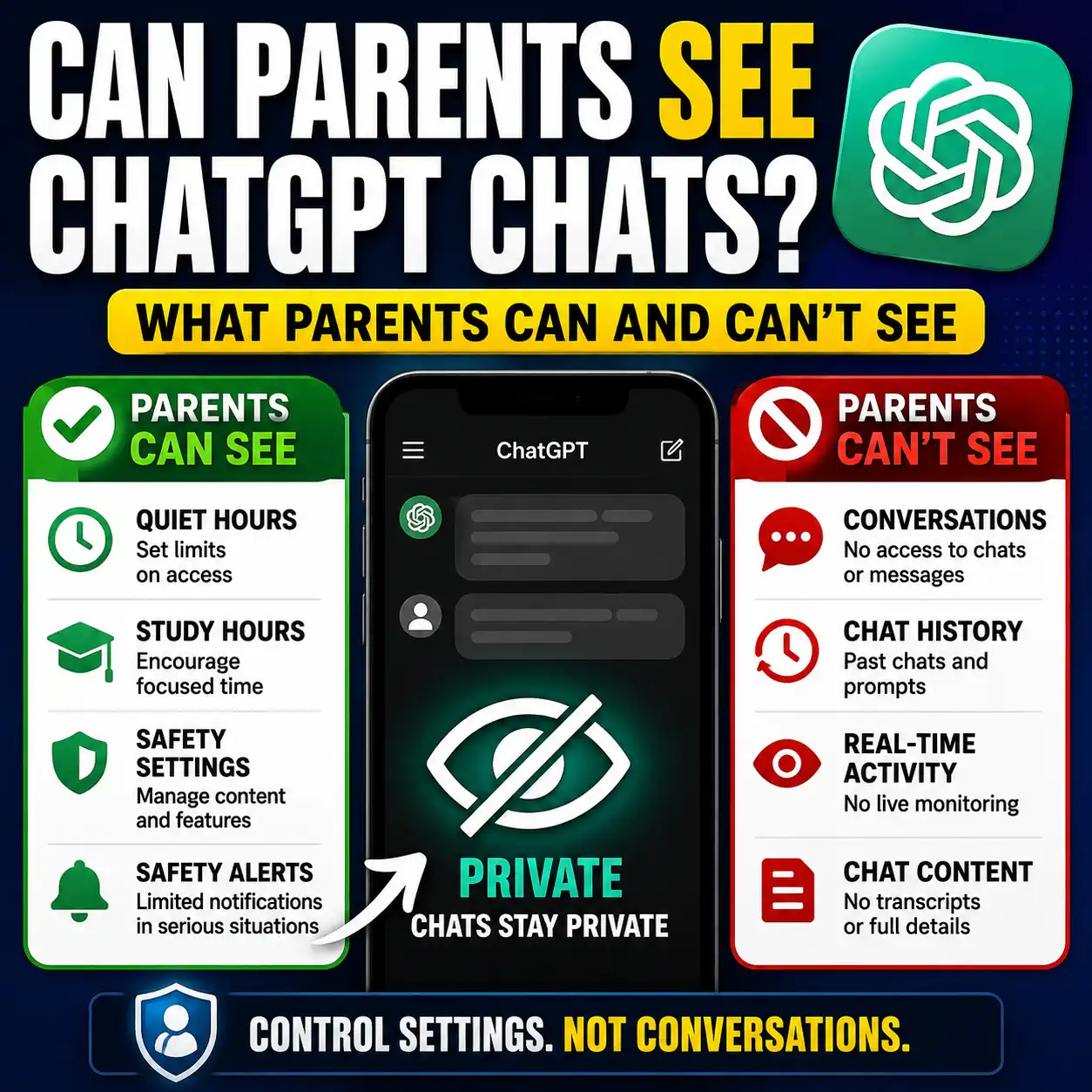
Parental controls do not provide routine access to the teen’s chats, history, or real-time activity.
How to Set Up ChatGPT Parental Controls
Here is the current parent-first setup process documented by OpenAI.
OpenAI currently allows one parent or guardian account to link with multiple teens. A teen can be linked to only one parent or guardian at a time.
What Can ChatGPT Parental Controls Do?
Once accounts are linked, a parent or guardian can manage selected ChatGPT settings for the teen, create schedules, and receive limited safety notifications in certain situations.
The controls are designed to change how the teen account can use specific ChatGPT features. They are not designed to turn the parent’s account into a hidden monitoring dashboard.
Every ChatGPT Parental Control Setting Explained
The exact settings shown in your account can change over time, but OpenAI’s current parental-controls documentation lists the following controls.
| Setting | What it changes | What it does not do | Parent question |
|---|---|---|---|
| Reduce sensitive content | Adds extra safeguards intended to reduce sensitive or age-inappropriate content. | It does not turn ChatGPT into a risk-free environment or remove the need for age-appropriate guidance. | Do we want this additional content safeguard active? |
| Improve the model for everyone | Controls whether the teen’s conversations may be used to help improve ChatGPT models. | It does not control whether the teen can use ChatGPT. | Are we comfortable with eligible conversations being used for model improvement? |
| Reference saved memories | Controls whether ChatGPT can use saved memories to personalize future responses. | Turning memory off does not give the parent access to conversation history. | Does the benefit of personalization make sense for this teen? |
| Codex network access | Controls whether code run by ChatGPT Work can connect to online services such as public websites and APIs. | It does not control ordinary ChatGPT search, plugins, connectors, or Cloud Browser. | Does the teen need online access for coding workflows? |
| Cloud Browser | Controls whether ChatGPT Work can use its built-in browser to visit supported public websites. | It is not a general device-level internet filter. | Does the teen need ChatGPT Work to browse websites on their behalf? |
| Voice Mode | Controls whether the teen can use ChatGPT’s voice experience. | Turning Voice Mode off does not disable normal text chats. | Is voice interaction useful for this teen? |
| Image generation | Controls whether the teen can create or edit AI-generated images in ChatGPT. | It does not control visual content across the teen’s other apps or devices. | Is AI image creation useful for school or creative projects? |
| Study Mode | Controls whether eligible new conversations in the main ChatGPT experience start with Study Mode enabled. | It does not block access to ChatGPT and does not apply identically to every GPT or Project conversation. | Should learning-oriented behavior be the default for new eligible chats? |
| Study Hours | Schedules periods when eligible new conversations begin in Study Mode. | Study Hours do not block ChatGPT. | When should new chats begin in a learning-focused mode? |
| Quiet Hours | Schedules periods when the teen cannot use ChatGPT, including ChatGPT Work. | Quiet Hours do not reveal what was discussed before or after the blocked period. | When should ChatGPT be unavailable? |
ChatGPT Study Hours vs Quiet Hours: What’s the Difference?
Study Hours and Quiet Hours solve two different problems. Study Hours change how eligible new conversations begin. Quiet Hours control whether the teen can use ChatGPT at all during scheduled periods.
| Question | Study Hours | Quiet Hours |
|---|---|---|
| Main purpose | Encourage a learning-focused ChatGPT experience. | Set a time boundary for ChatGPT access. |
| Blocks ChatGPT? | No | Yes |
| Effect | Eligible new chats start in Study Mode during the scheduled window. | The teen cannot use ChatGPT during the scheduled window. |
| Useful for | Homework, revision, tutoring-style sessions, and study routines. | Bedtime, family time, school rules, or other no-ChatGPT periods. |
| Main decision | “How should ChatGPT help during study time?” | “When should ChatGPT be unavailable?” |
If your goal is to help a student use Study Mode more effectively rather than simply schedule it, see our ChatGPT Study Mode prompts and tutor workflow.
Quiet Hours = change access.
Can Parents See Their Teen’s ChatGPT Conversations?
No. Linking a parent and teen through ChatGPT parental controls does not give the parent access to ordinary conversations, chat history, prompts, responses, or real-time activity.
OpenAI also says safety notifications do not include the teen’s conversation transcript or full chat history.
This distinction is important because ChatGPT parental controls manage selected settings and safeguards; they are not conversation-monitoring software.
For the detailed privacy breakdown, read our separate guide explaining what parents can and cannot see in ChatGPT.
How ChatGPT for Teens Fits Into Parental Controls
Parental controls are only one part of the current teen experience.
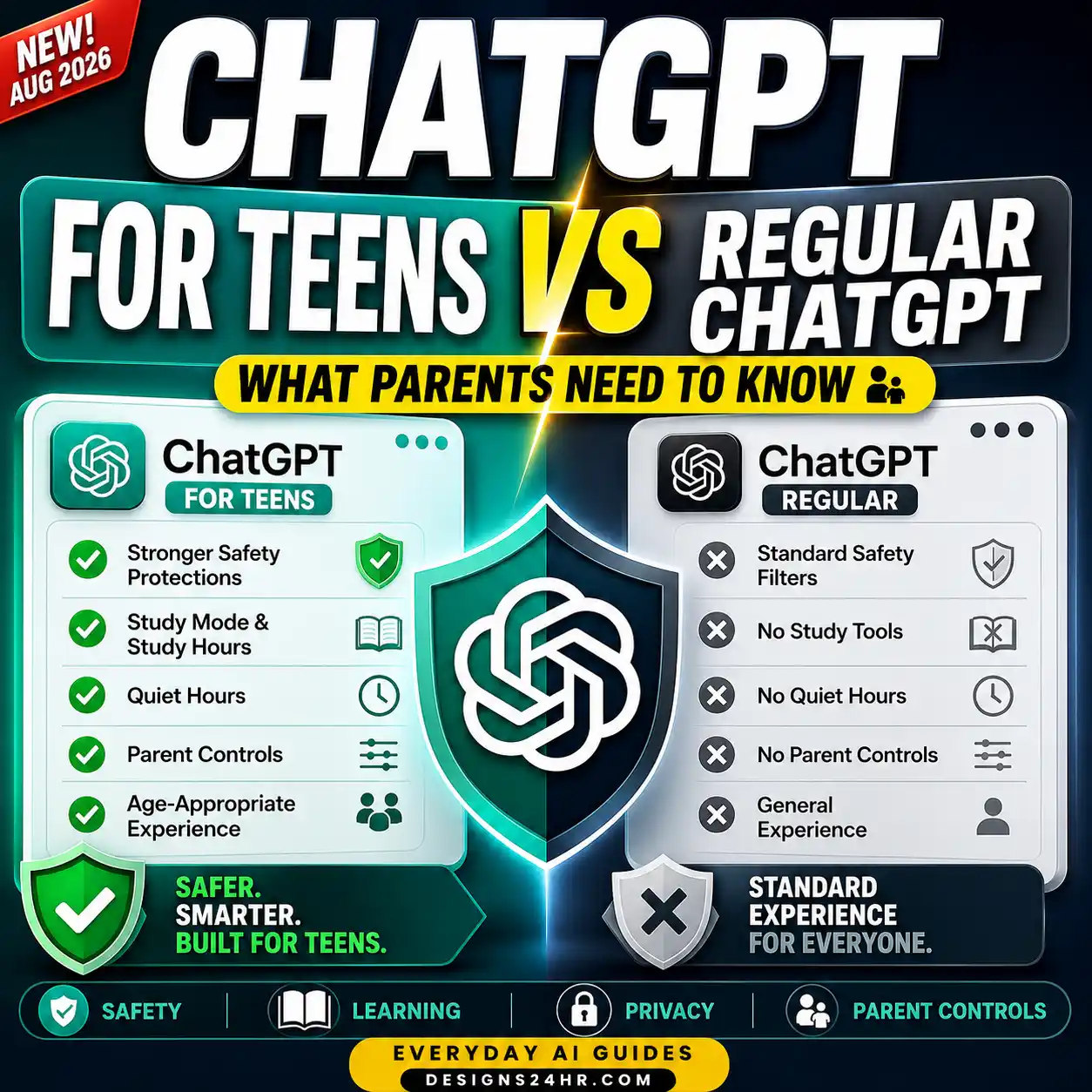
OpenAI introduced ChatGPT for Teens as an age-appropriate version of the ChatGPT experience for eligible users under 18. OpenAI says eligible teen accounts receive additional built-in protections and learning-focused features whether or not a parent has linked an account.
Parental controls add another layer by allowing a linked parent or guardian to manage selected settings and schedules.
For the broader comparison, see our guide to ChatGPT for Teens vs regular ChatGPT.
Which ChatGPT Parental Control Settings Should You Use?
There is no single configuration that is automatically right for every family. A better approach is to decide based on what the teen actually uses ChatGPT for.
If ChatGPT is mainly used for homework
- Consider enabling Study Mode as the default for eligible new chats.
- Use Study Hours during regular homework periods if a scheduled learning mode would help.
- Keep Quiet Hours separate from study settings so learning time and access limits are not confused.
- Review whether image generation, Voice Mode, or browser tools are genuinely needed for schoolwork.
If nighttime use is the problem
Quiet Hours are the more relevant control because they can make ChatGPT unavailable during scheduled periods. Study Hours will not solve a bedtime-access problem because they do not block ChatGPT.
If privacy is the main concern
Review the model-improvement setting and saved-memory setting rather than assuming that disabling every creative feature improves privacy.
If your teen uses ChatGPT for coding
Review Codex network access separately. OpenAI notes that this setting governs whether code run through ChatGPT Work can connect to online services; it does not control all other forms of search or browsing.
If your teen uses ChatGPT Work
Review Cloud Browser and Codex network access individually. They control different Work capabilities.
Five Questions to Ask Before Changing a Setting
Instead of using a universal “turn everything off” approach, ask these five questions.
How to Change ChatGPT Parental Controls Later
You do not need to treat the first setup as permanent.
To review or change controls:
- Open Settings.
- Select Parental controls.
- Select the linked teen under Family members.
- Review the available controls.
- Update the setting or schedule you want to change.
OpenAI also currently allows parents and guardians to ask ChatGPT to review or change certain supported parental-control settings conversationally. ChatGPT presents the requested change for review, and the parent chooses whether to allow or deny it.
Can a Teen Change the Parental Controls?
OpenAI says a linked teen can see which parental controls apply to their account, but they cannot change settings being managed by the parent or guardian.
However, either the teen or the linked parent or guardian can unlink the accounts. If the teen unlinks the connection, OpenAI says the parent or guardian is notified.
That means the system is designed around an account connection rather than invisible monitoring.
What Happens When a Teen Turns 18?
OpenAI currently says that when an account moves out of the ChatGPT for Teens experience, the parental-control connection ends, teen protections are removed, and the account holder gains control over their own ChatGPT settings.
If the account was identified as 18 or older too early, the account holder—not the parent—can use ChatGPT’s age-verification process.
This transition can change as the product evolves, so families approaching that age should check the current OpenAI guidance rather than relying on an older setup tutorial.
What ChatGPT Parental Controls Cannot Do
Understanding the limitations is just as important as knowing which switches exist.
| Expectation | Does parental control provide it? |
|---|---|
| Read every conversation | No |
| View the teen’s complete chat history | No |
| Watch activity in real time | No |
| Manage selected ChatGPT features | Yes |
| Set Study Hours | Yes |
| Set Quiet Hours | Yes |
| Guarantee every response is accurate or age-appropriate | No |
| Replace whole-device parental controls | No |
| Replace family conversations about responsible AI use | No |
ChatGPT Parental Controls Setup Checklist
- Parent and teen accounts are linked successfully.
- You reviewed Reduce sensitive content.
- You decided whether conversation data may be used to improve models.
- You reviewed saved-memory personalization.
- You decided whether Voice Mode is useful.
- You decided whether image generation is needed.
- You reviewed Cloud Browser access if ChatGPT Work is used.
- You reviewed Codex network access if coding tools are used.
- You decided whether Study Mode should be the default for eligible chats.
- You set Study Hours only if scheduled learning behavior is useful.
- You set Quiet Hours only if you need actual access restrictions.
- You understand that linking accounts does not expose ordinary chat history.
- You agreed on basic family rules for privacy, fact-checking, homework, and when to ask an adult.
Create Simple Family Rules for ChatGPT
Settings work better when everyone understands the expectations behind them. You can use ChatGPT to draft a short family agreement, then edit it together rather than treating the AI-generated version as the final rulebook.
For a broader set of skills to teach before a young person relies heavily on AI, explore the AI for Families & Kids guides.
Save This Parent Decision Rule
Choose the control based on the problem you are actually trying to solve:
- Better learning behavior? → Study Mode or Study Hours.
- ChatGPT should be unavailable at certain times? → Quiet Hours.
- Don’t need voice? → Review Voice Mode.
- Don’t need AI image tools? → Review image generation.
- Concerned about personalization? → Review saved memories.
- Concerned about Work browsing websites? → Review Cloud Browser.
- Concerned about coding tools reaching online services? → Review Codex network access.
Frequently Asked Questions
Does ChatGPT have parental controls?
Yes. ChatGPT parental controls let a parent or guardian link their account to a teen’s account and manage selected settings, schedules, and safety-notification preferences.
How do I set up ChatGPT parental controls?
Open ChatGPT, go to Settings → Parental controls → Add family member, choose phone or email, send the invitation to your teen, and have them accept it. After the accounts are linked, select the teen under Family members to manage the available controls.
How do I link my ChatGPT account to my teen’s account?
A parent can send an invitation from Parental controls using the teen’s phone number or email address. A teen can also start the process by selecting Invite a parent. The receiving person must accept before the accounts are linked.
Can parents see ChatGPT conversations?
No. OpenAI says parental controls do not provide access to a teen’s ordinary conversations, chat history, or real-time activity.
Can parents see ChatGPT history?
No. Linking accounts does not give a parent routine access to the teen’s chat history. Safety notifications also do not include complete conversation transcripts.
What are ChatGPT Quiet Hours?
Quiet Hours are scheduled periods when a linked teen cannot use ChatGPT, including ChatGPT Work. They are intended as an access limit rather than a study setting.
What are ChatGPT Study Hours?
Study Hours are scheduled periods when eligible new conversations in the main ChatGPT experience start in Study Mode. Study Hours do not block access to ChatGPT.
What’s the difference between Study Hours and Quiet Hours?
Study Hours change how eligible new conversations begin by starting them in Study Mode. Quiet Hours block access to ChatGPT during the scheduled period.
Can parents turn off ChatGPT Voice Mode?
Yes. Voice Mode is currently one of the features a linked parent or guardian can manage through parental controls.
Can parents turn off ChatGPT image generation?
Yes. Current parental controls include an image-generation setting that controls whether the teen can create or edit images in ChatGPT.
Can parents turn off ChatGPT memory?
Parents can currently manage whether the teen account references saved memories. Turning memory off changes personalization; it does not give the parent access to conversations.
Can parents control ChatGPT Cloud Browser?
Yes. Current parental controls include a Cloud Browser setting for ChatGPT Work. Turning it off prevents Work from using its built-in Cloud Browser, but it does not act as a general internet filter for the teen’s device.
Can a teen change parental-control settings?
A linked teen can review the controls that apply to their account but cannot change settings being managed by the linked parent or guardian. Either person can unlink the accounts.
Will a parent know if a teen unlinks parental controls?
OpenAI currently says the linked parent or guardian is notified if the teen unlinks their account.
Why don’t I see ChatGPT parental controls?
Feature availability can vary by account, region, platform, and rollout status. Make sure you are using the current ChatGPT app or website and check OpenAI’s latest parental-controls documentation if the menu differs from this guide.
What happens to parental controls when a teen turns 18?
OpenAI currently says the parental-control connection ends when the account moves out of the ChatGPT for Teens experience. Teen protections are removed and the account holder receives control over their own settings.
Official Sources
Last verified: September 2026. ChatGPT parental controls, defaults, availability, safety features, and interface placement can change. Check the current controls displayed in your own ChatGPT account before relying on an older screenshot or tutorial.
Get new AI guides every week
Short, practical how-tos and free tools from Designs24hr. No spam, unsubscribe anytime.