ChatGPT Study Mode prompts work best when they make you do more of the thinking—not when they simply make ChatGPT produce better answers. The goal is to turn Study Mode into a tutor that asks questions, gives controlled hints, checks your reasoning, and makes you prove that you can recall and apply what you learned without assistance.
This guide gives you seven copy-ready prompts plus a simple five-step system you can reuse for math, science, history, language learning, exam review, class notes, and other subjects.
If you want the broader principles behind using AI without letting it replace your own thinking, start with our guide to how to study with AI without replacing the learning.
What Are ChatGPT Study Mode Prompts?
ChatGPT Study Mode prompts are instructions that tell Study Mode how to teach you, not merely what topic to explain.
A weak prompt might say:
Teach me photosynthesis.
That gives ChatGPT very little information about your level, your goal, what you have already learned, or whether you want an explanation, a quiz, a hint, or practice.
A stronger prompt tells Study Mode to make you participate:
I am reviewing photosynthesis for a 10th-grade biology test. Ask me one question at a time. Make me answer before you explain anything. If I am wrong, give me a small hint instead of the full answer, then let me try again.
The second version creates a tutoring process instead of an answer-generation process.
According to OpenAI’s Study Mode guidance, Study Mode is designed to guide learning with questions, step-by-step explanations, knowledge checks, and course materials. It can still make mistakes, so important facts should be checked against your class material or another reliable source.
How to Turn On ChatGPT Study Mode
Study Mode is currently available across ChatGPT plans globally on web, iOS, and Android, and OpenAI says it works with all ChatGPT models. Start from a regular ChatGPT conversation. OpenAI’s current documentation says the Study option is not available in Temporary Chats, GPT conversations, or Project conversations.
| Device | Current way to open Study Mode |
|---|---|
| Web | Type @study in the message composer, or select +, search for Study, and select it. You can also open chatgpt.com/studymode while signed in. |
| iOS | Select + to open the available tools, then select Study. If it is not visible, search for it in the menu. |
| Android | Select +, search for Study, and select it. Menu placement can vary by app version. |
To turn Study Mode off, remove the selected Study option from the message composer. On the current desktop web composer, OpenAI says you can place the cursor next to the Study token and press Backspace or Delete. Other layouts may show an × or let you select Study again to turn it off.
Before starting, gather the material you actually want to learn from. Depending on your course and the files you are allowed to use, this might include:
- class notes;
- a study guide;
- a syllabus;
- lecture slides;
- a worksheet;
- assigned readings;
- your own attempted solutions;
- or a PDF or image containing permitted study material.
Study Mode can reference uploaded course materials, images, and PDFs when uploads are available in your chat. If it misses something, tell it which page, section, image, or question to focus on, paste the important text, or provide a clearer file.
If Memory is available and enabled, ChatGPT may use saved memories or past chats to personalize Study Mode based on your settings. Study Mode still works when Memory is off, but the guidance may be less personalized.
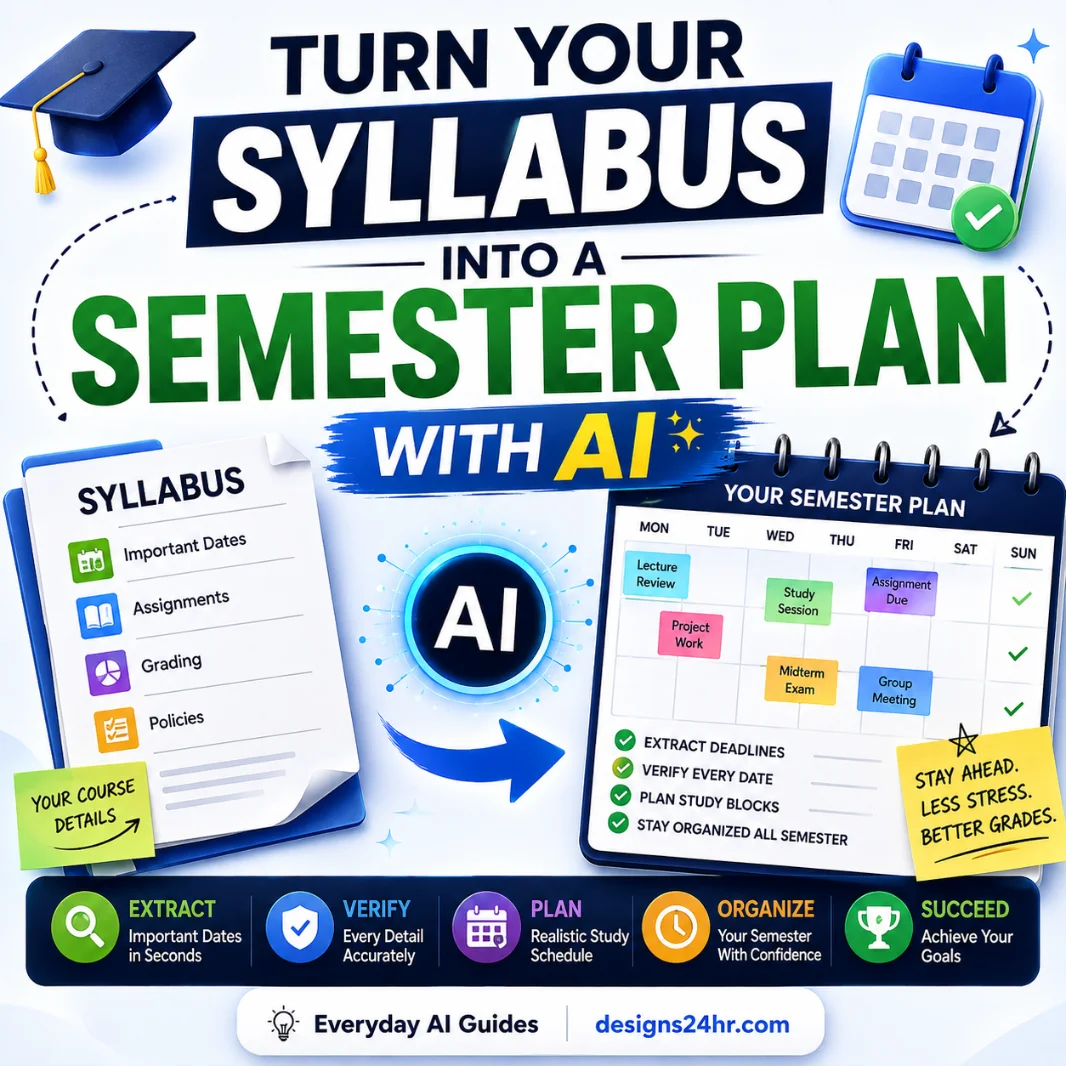
If you are organizing an entire class rather than one study session, our guide to turning a syllabus into a semester study plan can help you build the larger schedule first.
Use the 5-Step ChatGPT Study Mode Tutor Loop
The easiest way to avoid turning ChatGPT into an answer machine is to give every study session the same five-part structure.
1. SOURCE: Start With the Right Material
Study Mode cannot know what your teacher emphasized unless you tell it. Give it the topic, your level, your goal, and any permitted source material.
Instead of saying, “Help me with Chapter 6,” specify what successful learning should look like:
- “I need to explain these concepts in my own words.”
- “I need to solve these equations without notes.”
- “I need to compare these three historical causes.”
- “I need to recognize when to use each formula.”
2. ATTEMPT: Make Yourself Go First
Before ChatGPT explains the answer, attempt the question yourself. Even an incomplete attempt gives Study Mode something useful to diagnose.
Write the equation you would use. Define the term from memory. Predict what happens next. Explain your reasoning. Then ask ChatGPT to respond to your thinking.
3. HINT: Request the Smallest Useful Nudge
If you get stuck, do not immediately ask for the solution. Ask for one clue that moves you forward.
A useful hint might identify the concept you should remember, point to the step where your logic changed direction, or ask a question that helps you notice the error yourself.
4. RETRIEVE: Remove the Help
Once you understand the explanation, close the notes and try a similar question without hints. This is the step that separates “that makes sense” from “I can actually do it.”
5. CHECK: Find the Exact Gap
Finally, have Study Mode inspect your reasoning and identify what you still need to review. Do not settle for “correct” or “incorrect.” Ask what concept caused the mistake and what you should practice next.
7 ChatGPT Study Mode Prompts That Make You Think
The following prompts are designed to make ChatGPT behave more like a tutor and less like an answer generator. Replace the words in brackets with your own subject, level, goal, or material.
Prompt 1: Set Up Study Mode as Your Tutor
Use this when: You are beginning a new study session and want to establish the rules before asking questions.
I'm studying [TOPIC] at [GRADE/COLLEGE LEVEL].

My goal is to [LEARNING GOAL].

Use the notes or material I provide as the main source for this session.

Tutor me instead of simply giving me answers. Ask questions that make me think, let me attempt each answer first, and give me hints when I get stuck.

Do not reveal a full solution unless I have made a genuine attempt and specifically ask for the explanation.

Start by asking 3 short questions to find out what I already understand.
What good output looks like: Study Mode should begin by diagnosing your knowledge rather than immediately launching into a long explanation.
Prompt 2: Find What I Don’t Understand
Use this when: You have studied a topic but are unsure where your gaps are.
Help me find the gaps in my understanding of [TOPIC].

Ask me one diagnostic question at a time, starting with the most important concepts.

Do not teach the topic yet.

After each answer:
1. Tell me what part of my reasoning is strong.
2. Identify any missing or incorrect idea.
3. Ask the next question based on the gap you found.

After 5 questions, summarize the 2 or 3 concepts I should review first.
This works especially well before an exam because it focuses your review on what you cannot yet explain reliably.
Prompt 3: Give Me a Hint, Not the Answer
Use this when: You are stuck on a problem but still want to solve it yourself.
I'm going to show you a problem and my attempt.

Do not solve it for me.

First, identify the exact step where I appear to be stuck or going in the wrong direction.

Then give me ONE small hint that helps me continue.

Wait for my next attempt before giving another hint.

Make each new hint slightly stronger only if I still cannot make progress.
This creates a simple hint ladder. You stay responsible for the solution while Study Mode provides only the assistance needed to keep moving.
Prompt 4: Make Me Explain It Back
Use this when: Something feels familiar but you want to know whether you actually understand it.
Test whether I can explain [CONCEPT] in my own words.

Ask me to explain it without looking at notes.

After I answer, evaluate my explanation for:
- accuracy,
- missing ideas,
- unclear reasoning,
- and unnecessary memorized wording.

Do not rewrite the entire answer for me.

Instead, ask follow-up questions that help me repair the weak parts myself.

Finish by asking me to explain the concept again in a clearer version.
If you can explain an idea accurately without copying the source, you have stronger evidence that you understand it rather than merely recognizing it.
Prompt 5: Find the Mistake in My Reasoning
Use this when: Your answer is wrong or incomplete and you want to understand why.
Review my attempt at [QUESTION OR PROBLEM].

Do not replace my solution with your own.

Go through my reasoning step by step and identify the FIRST point where my logic, calculation, assumption, or interpretation becomes incorrect.

Ask me a question that helps me notice the problem myself.

If I still miss it, give me a small hint.

After I correct the mistake, ask me to explain why the correction works.
The objective is not only to fix one answer. It is to discover the misconception that could cause the same error again.
Prompt 6: Make the Next Question Harder
Use this when: Basic questions have become easy and you want to move from memorization to application.
Give me one practice question about [TOPIC].

Start at my current level.

After I answer correctly, make the next question slightly harder by requiring more reasoning, comparison, application, or multiple steps.

If I answer incorrectly, do not immediately lower the difficulty. Help me identify the mistake, then give me another question at a similar level.

Continue until I can answer 3 challenging questions correctly without hints.
This prevents an easy quiz from creating false confidence. A learner who can define a concept may still struggle to apply it in a new situation.
Prompt 7: Run a Final Mastery Check
Use this when: You think you are finished studying and want one last independent check.
Run a final mastery check on [TOPIC].

Do not give hints unless I explicitly ask for one.

Test me in three ways:

1. RECALL — ask me to state or identify the key idea from memory.
2. EXPLAIN — ask me to explain why it works in my own words.
3. APPLY — give me a new example or problem where I must use the idea.

Wait for each answer before continuing.

At the end, tell me which concepts I can probably stop reviewing and which ones still need practice.
Want to Build a Prompt for Your Exact Subject?
Use the free AI Prompt Generator to create a more specific study prompt for your subject, goal, skill level, or preferred learning style.
How to Use ChatGPT Study Mode With Class Notes and PDFs
Study Mode becomes more useful when it knows what material your course is actually using. If file uploads are available in your ChatGPT experience, you can provide permitted notes, slides, worksheets, images, or PDFs and then tell ChatGPT exactly how to use them.
A useful instruction is:
Use the material I uploaded as the primary source for this study session.

Focus only on [CHAPTER / PAGES / TOPIC].

My goal is to [GOAL].

Start by asking me questions from the material rather than summarizing it.

If I answer incorrectly, point me back to the relevant idea and give me a hint before explaining it.

Tell me clearly if you introduce information that is not contained in my uploaded material.
That last instruction is important. It helps you distinguish between what your course material actually says and additional information ChatGPT may introduce.
How to Stop Study Mode From Giving You the Answer Too Soon
Study Mode is intended to support learning, but no prompt can guarantee that an AI system will behave perfectly every time. If ChatGPT starts explaining too much, reset the tutoring rules.
Try this:
Pause.

For the rest of this session, do not reveal final answers immediately.

Use this help order:

Level 1: Ask me a guiding question.
Level 2: Give me one small hint.
Level 3: Point to the concept or formula I should reconsider.
Level 4: Explain one step only.
Level 5: Give the full explanation only if I explicitly request it after trying again.

Always let me attempt the next step before increasing the help level.
You can also use short commands during a session:
- “One hint only.”
- “Don’t solve it yet.”
- “Ask me what I should do next.”
- “Point to the mistake, but let me correct it.”
- “Give me a similar problem without hints.”
- “Test me again without showing the previous explanation.”
How to Know Whether You Actually Learned It
Understanding an AI explanation is not the same as being able to use the idea independently.
Before ending a study session, use the 3-Proof Check:
| Proof | What you should be able to do | Simple test |
|---|---|---|
| Recall | Bring the idea to mind without seeing the answer. | Close your notes and state the main idea from memory. |
| Explain | Describe why the idea works in your own words. | Explain it without copying the textbook or ChatGPT. |
| Apply | Use the idea in a new question or example. | Solve a fresh problem without hints. |
If one of those three breaks down, you have found what to review next.
When Not to Use ChatGPT Study Mode
Study Mode can be useful for learning, but it should not replace your course rules, assigned materials, or independent work.
Do not use it as a shortcut when:
- your teacher or institution does not permit AI for the assignment;
- the purpose of the task is to measure your unaided work;
- you are expected to read or analyze a specific assigned source yourself;
- the material contains private or restricted information you should not upload;
- you need an authoritative fact, quotation, citation, formula, or requirement that should be checked against the original source;
- you are using ChatGPT’s explanation as proof that you mastered something without testing yourself afterward.
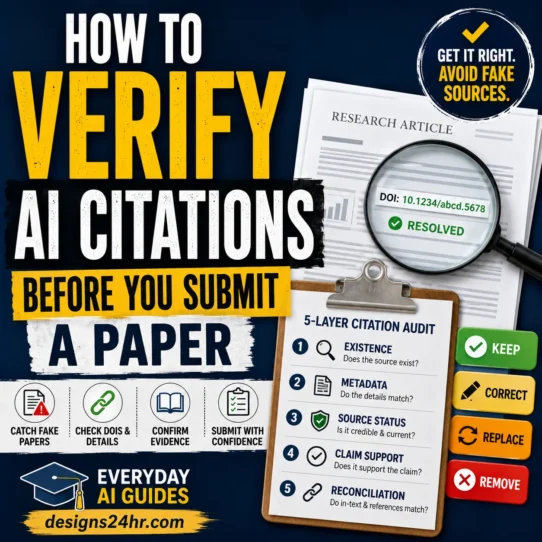
AI-generated references and citations also need independent verification. If you are working on research or a paper, use our checklist for verifying AI-generated citations before using them.
Common ChatGPT Study Mode Prompt Mistakes
1. Asking Something Too Broad
“Teach me chemistry” forces ChatGPT to guess your level, course, goal, and weak areas.
Better: Identify the exact topic, what you are preparing for, and what you need to be able to do.
2. Letting ChatGPT Answer Before You Try
If your normal workflow is question → instant AI answer → read explanation, you are giving yourself very little opportunity to retrieve or reason independently.
Better: Make an attempt first, even if you are unsure.
3. Requesting Unlimited Hints
Five large hints can quietly become a complete solution.
Better: Ask for one small hint, attempt the problem again, and request another only if needed.
4. Never Removing the Help
A concept can feel easy while the explanation is visible.
Better: finish with a fresh question and no hints.
5. Never Increasing the Difficulty
Repeatedly answering definition questions may test recognition without testing application.
Better: ask Study Mode to increase difficulty after successful answers.
6. Treating Every AI Answer as Correct
ChatGPT can misunderstand your material, make factual mistakes, or introduce information your class is not using.
Better: compare important details with your notes, textbook, instructor materials, or another appropriate primary source.
7. Using One Generic Prompt for Every Subject
Studying vocabulary, solving equations, analyzing historical evidence, and practicing a language require different kinds of thinking.
Better: tell Study Mode what successful performance looks like for that subject.
ChatGPT Study Mode Prompts: Final Checklist
- Define the exact topic.
- Tell ChatGPT your grade, course, or skill level when useful.
- Provide the permitted source material.
- State what you need to be able to do by the end.
- Attempt questions before receiving explanations.
- Ask for one hint at a time.
- Make yourself explain your reasoning.
- Retry without assistance.
- Increase the difficulty once basic questions become easy.
- Use Recall → Explain → Apply before declaring a topic mastered.
- Check important facts against the appropriate original source.
- Follow your instructor’s AI-use rules.
The most useful ChatGPT Study Mode prompts are not necessarily the longest or most complicated. They simply keep the responsibility for learning in the right place: you think first, AI helps second, and you prove what you learned without the AI at the end.
Use SOURCE → ATTEMPT → HINT → RETRIEVE → CHECK as your default loop, and Study Mode becomes much more useful as a structured tutor instead of an answer shortcut.
Frequently Asked Questions About ChatGPT Study Mode
What are the best prompts for ChatGPT Study Mode?
The best prompts tell ChatGPT your topic, level, goal, and tutoring rules. They also make you attempt questions before receiving help, limit hints, require independent recall, and finish with a new problem or explanation that you complete without assistance.
Is ChatGPT Study Mode available on every plan?
OpenAI currently says Study Mode is available across ChatGPT plans globally on web, iOS, and Android and works with all ChatGPT models. Availability of uploads, visuals, and other tools still depends on what is available in your chat.
Why can’t I find ChatGPT Study Mode?
Make sure you are using a regular ChatGPT conversation. OpenAI’s current documentation says Study Mode is not available in Temporary Chats, GPT conversations, or Project conversations. On the web, type @study or select + and search for Study. On mobile, open the + tools menu and search for Study if it is not immediately visible.
Can ChatGPT Study Mode quiz me?
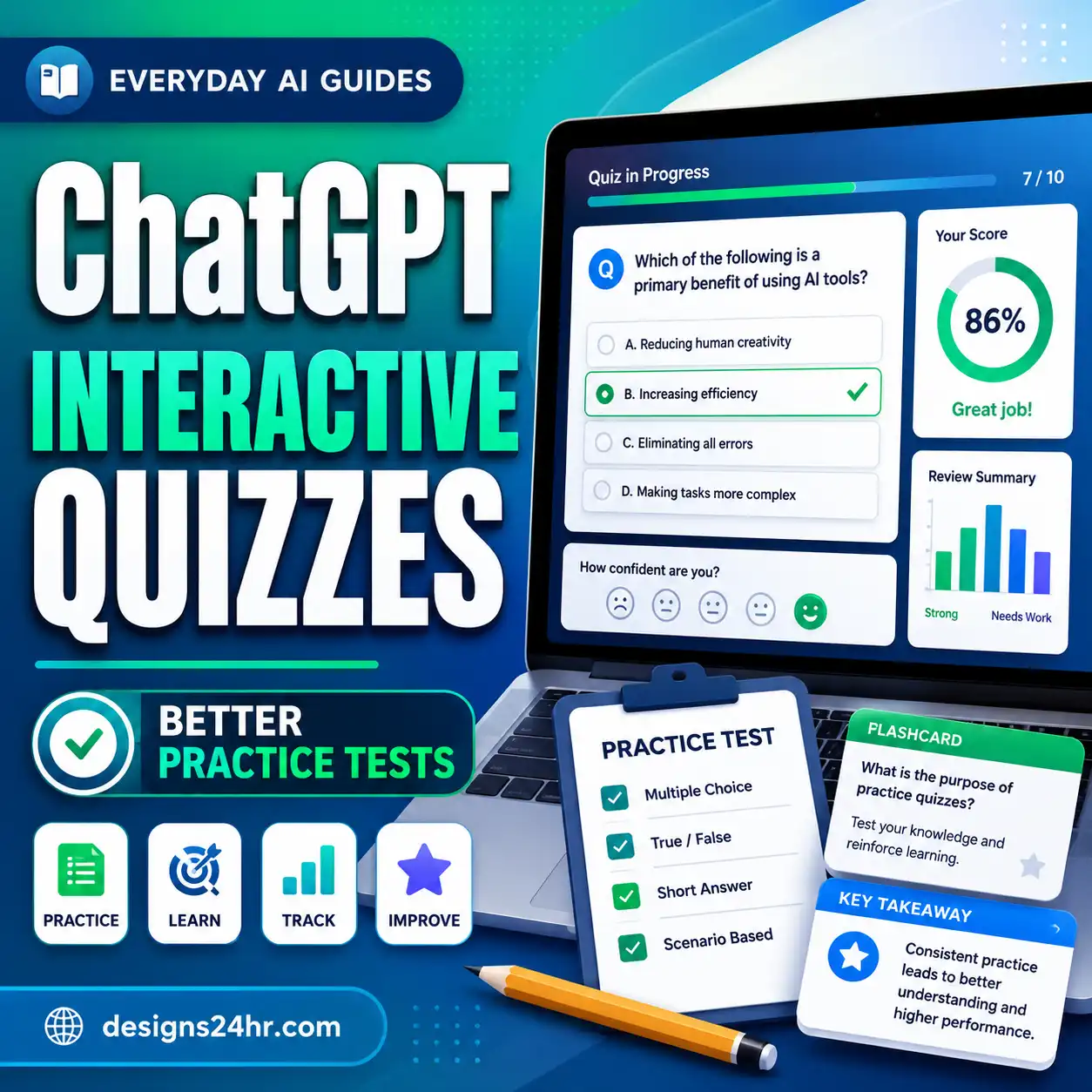
Yes. Study Mode can be used for knowledge checks and practice questions. For better learning, ask it to present one question at a time, wait for your answer, diagnose mistakes, and adjust the next question based on your response.
Can ChatGPT Study Mode use my class notes?
If file or image uploads are available in your ChatGPT experience, you can provide permitted study materials and instruct Study Mode to use them as the primary source. Always follow any rules that apply to private, copyrighted, confidential, or restricted course materials.
How do I make Study Mode give hints instead of answers?
Tell it explicitly not to reveal the solution. Ask for one small hint at a time and require it to wait for your next attempt before giving more help. You can also use a graduated hint ladder so the assistance becomes stronger only when necessary.
Is ChatGPT Study Mode good for exam preparation?
It can be useful for practice, self-testing, explaining difficult concepts, and identifying gaps. For exam preparation, finish each topic with questions you answer without hints so you can distinguish independent mastery from understanding something only while help is visible.
Can ChatGPT Study Mode make mistakes?
Yes. AI-generated explanations can contain errors or misunderstand the material you provide. Check important facts, formulas, quotations, requirements, and citations against the appropriate original or authoritative source.
Can I use ChatGPT Study Mode for homework?
You can use Study Mode as a learning aid when your instructor or institution permits it. A safer learning approach is to attempt the homework yourself, ask for hints or explanations when you are stuck, and make sure the submitted work follows the rules of your class.
How can I create my own ChatGPT study prompt?
Start with your subject, skill level, learning objective, permitted source material, and the amount of help you want. You can also use the Designs24hr AI Prompt Generator to build a more specific prompt.
Keep Learning With AI Without Skipping the Learning
Study Mode is only one way to use AI more deliberately. Explore more AI for Students & Learning guides for practical workflows covering study planning, verification, quizzes, notes, and other learning tasks.
If you want dedicated workflows rather than expanding this article into overlapping topics, see the AI Quiz Generator Checklist and AI Flashcard Maker Checklist.