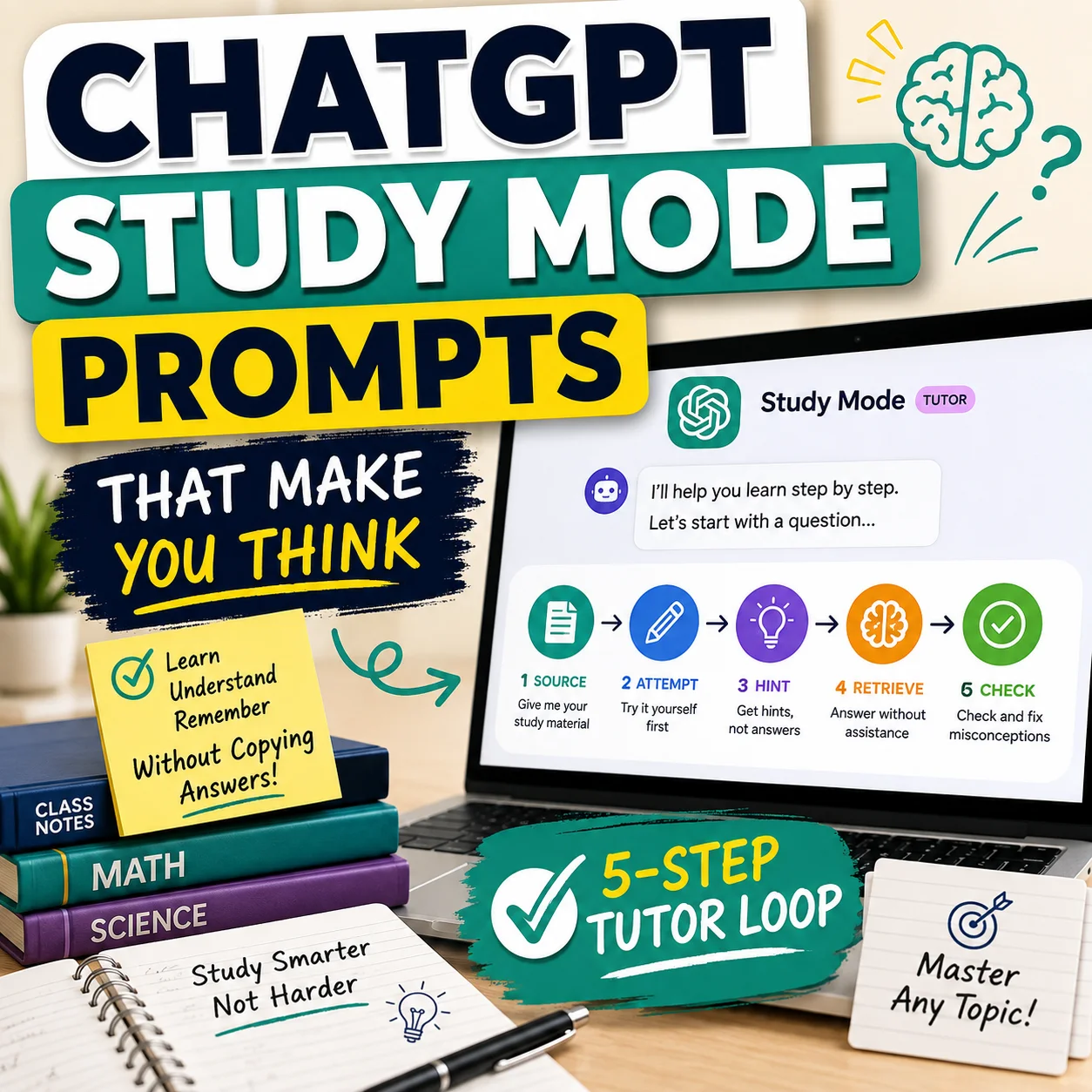
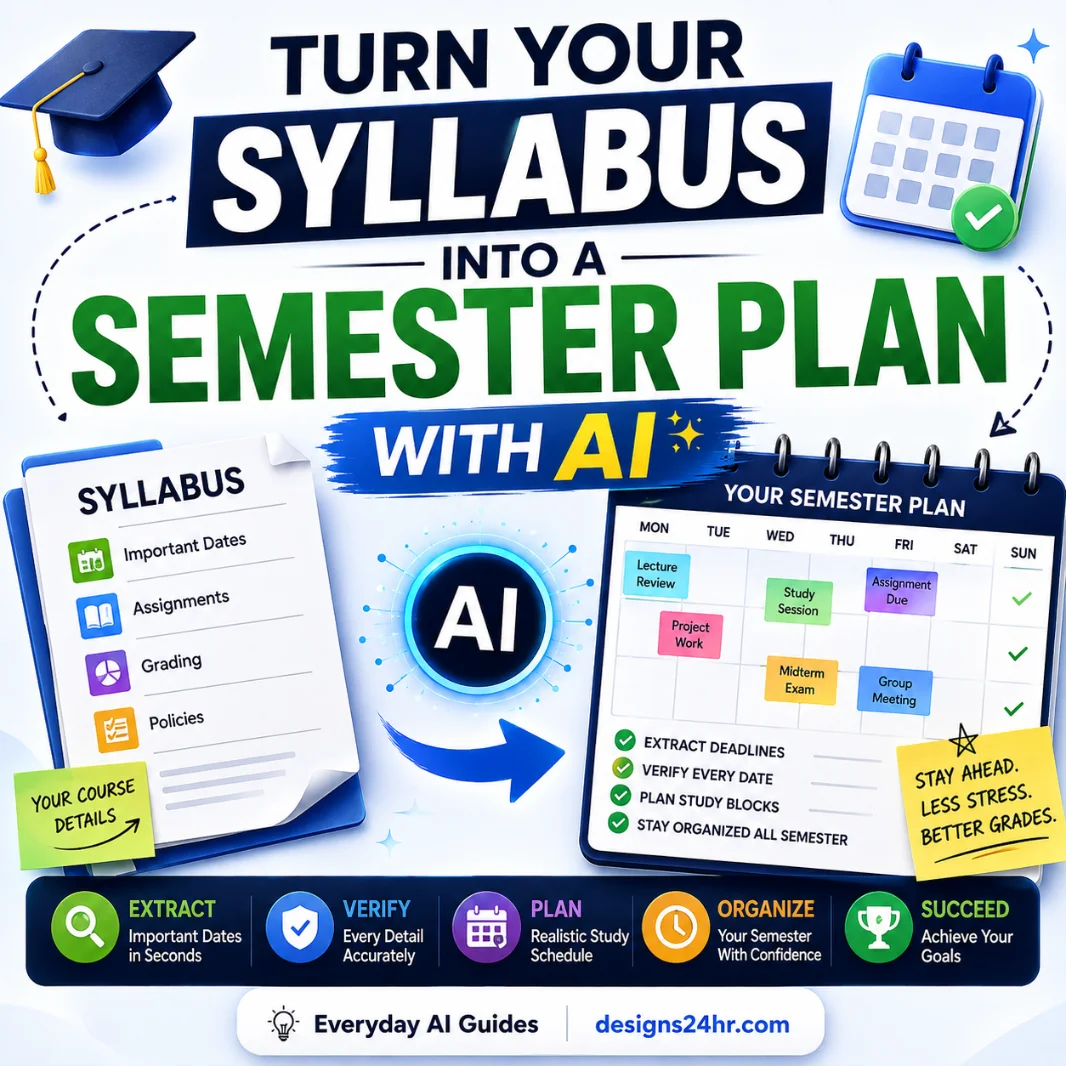
A Gemini Notebook interactive learning overview brings your study materials, summaries, quizzes, flashcards, and other learning resources together in one interactive report.
This guide explains how to create an interactive learning overview from your own notes and documents, customize the generated study materials, and use them to prepare for a quiz or exam. You’ll also learn what to check if the Interactive option is missing from Gemini Notebook.
Start with the creation steps below, or jump to troubleshooting if the feature isn’t available in your account.
Feature information reviewed: September 22, 2026. Availability and interface details may change as Google continues its rollout.
How Do You Create an Interactive Learning Overview?
Open Gemini Notebook in your web browser, open a notebook containing your study sources, and go to Studio → Reports → Interactive → Learning Overview. Generate the report, then select Add beside any suggested study resources you want to include.
Google introduced interactive learning overviews in September 2026 and announced a gradual rollout. If you don’t see the Interactive option yet, your account may not have received the feature.
What Is a Gemini Notebook Interactive Learning Overview?
A Gemini Notebook interactive learning overview is an AI-generated report that organizes information from your notebook sources into a structured learning resource. Unlike a traditional text-only study guide, it can bring together written explanations and interactive study aids inside the same report.
Google announced the feature on September 15, 2026, as part of its new learning tools for Gemini Notebook. The aim is to help readers move between understanding information and practicing what they have learned.
For example, you could upload your own biology notes, generate a learning overview about cell division, read the key concepts, complete a quiz, review relevant flashcards, and revisit the parts you found difficult.
The report is a starting point for studying—not a guarantee that every generated explanation or answer is accurate.
What Can an Interactive Learning Overview Include?
Topic Summaries
Organize the main ideas from your notebook sources into a shorter, easier-to-review report.
Practice Quizzes
Test your understanding with questions based on the source material and identify concepts that need another review.
Flashcards
Practice recalling definitions, relationships, formulas, and other important information without repeatedly reading the original notes.
Visual Learning Aids
Where suggested and supported, add resources such as infographics or mind maps to understand how important ideas connect.
Important: Creating the report does not necessarily mean that every suggested quiz, flashcard set, or visual aid has already been generated. Google’s instructions tell users to select Add beside the resources they want to embed.
The available suggestions and generated output can vary depending on your sources and the current version of the feature.
How to Create an Interactive Learning Overview in Gemini Notebook
You can create a Gemini Notebook interactive learning overview from an existing notebook or start a new notebook with relevant source materials.
For this walkthrough, use the web version rather than the mobile app. Google currently identifies interactive report generation as a web-only feature.
Open Gemini Notebook in Your Browser
Visit notebook.google.com and sign in with the Google account you want to use.
Open an existing notebook that you have permission to edit, or create a new notebook.
If you’re using a school or work account, your organization’s administrator may control access to Gemini Notebook.
Add Your Study Materials
Upload or add sources that match the subject you want to study.
Useful starting materials may include:
- Your own class notes and revision documents.
- Approved lecture slides and study handouts.
- Relevant PDFs and reading materials you may upload.
- Course objectives or an instructor-provided study outline.
- Other permitted materials that explain the same topic.
Keep the sources focused. A notebook containing unrelated subjects may produce a less useful study report.
Practical example: If you are studying photosynthesis, add the relevant chapter notes, lecture slides, and approved review questions. You do not need to upload material from every subject you are studying.
Open Reports in the Studio Panel
Find the Studio panel inside your notebook.
Select Reports, then choose Interactive.
Do not choose Document if your goal is to create an interactive learning overview. Document reports are a separate report format.
Select the Learning Overview Template
Under Template, select Learning Overview.
You can use the default settings or customize the generation instructions before creating the report.
If your sources cover several topics, consider focusing the report on one chapter, concept, or learning objective.
Generate Your Interactive Report
Select the available generation option and allow Gemini Notebook to prepare the learning overview.
Google notes that generating reports and their associated study resources can take some time.
Once the report is ready, read the introduction and section headings. Check that it addresses the correct topic and uses the intended sources.
Add the Suggested Study Resources
Find the suggested resources inside your generated report. Select Add beside any artifact you want to include.
Depending on the available suggestions, these resources may include quizzes, flashcards, mind maps, or other learning aids.
You can also find generated artifacts in the notebook’s Studio panel.
Start with the resources that match your learning goal. You do not need to add every suggested item to make the report useful.
Your First Learning Overview Is Ready. What’s Next?
Before studying from the report, compare its major sections with your original learning objectives. Check important facts and answers against the source material.
Then complete a short practice quiz or flashcard session without looking at the report.
The useful outcome is not simply generating a polished document. It is identifying what you understand and what you still need to learn.
How to Customize Quizzes, Flashcards, and Other Study Materials
The default learning overview can provide a useful starting point, but a focused report is often easier to study from than one that attempts to cover an entire course at once.
Customize the Learning Overview Before Generation
Google’s report-generation instructions describe an Edit option beside the selected template or suggested report format.
Where this option is available, use it to adjust the report’s focus before selecting Generate now or Generate later.
For example, you might ask the report to focus on one chapter, explain unfamiliar terminology, or organize material according to your course objectives.
Select and copy the prompt, then replace the bracketed details with your own course information. Use it in the appropriate customization field if that field is available in your account.
Customize the Quiz
Gemini Notebook also provides standalone quiz generation through Studio.
Google’s quiz documentation describes customization options for difficulty, question quantity, and written instructions before generation. Quiz controls can also provide hints, explanations, and review options.
If the suggested quiz inside your interactive report does not match your learning goal, look for the available customization controls or create a more focused quiz from Studio.
Do not assume that editing a standalone quiz will automatically update every embedded version of that artifact. Check the final report after making changes.
Customize the Flashcards
Focus your flashcards on facts or relationships that you need to recall without looking at your notes.
- Keep each question focused on one clear concept.
- Include enough context to prevent ambiguous answers.
- Check definitions, dates, formulas, and units.
- Remove cards that repeat the same information unnecessarily.
- Return to the cards you missed instead of only reviewing easy ones.
Google’s flashcard tools include progress indicators and options for practicing missed cards. Available controls may vary with the current interface.
For a more detailed quality review, use the AI study guide generator checklist before treating generated study material as accurate.
Feature distinction: Customizing an interactive report and customizing a standalone quiz or flashcard set are related but different actions. Use the controls available for the specific resource you are working with.
Reference: Google Help — Generate Flashcards or Quizzes .
How to Use Your Interactive Learning Overview to Study
Creating an interactive report organizes information, but it does not automatically mean you have learned it.
Use the following four-part workflow to turn your Gemini Notebook interactive learning overview into a focused study session.
1. Read One Section at a Time
Start with one topic from the interactive report. Read the summary and compare it with the original source material.
Write down unfamiliar terminology and identify any concept you cannot explain in your own words.
If an explanation is confusing, ask your notebook to clarify that specific idea using the relevant source material.
2. Test Your Memory Without Looking
Close or cover the explanation and attempt the relevant quiz or flashcards.
Try to answer each question before requesting a hint or reading the explanation.
If you can recognize an answer when you see it but cannot explain it without help, mark that concept for additional practice.
3. Verify Incorrect or Uncertain Answers
Review the questions you missed and compare the suggested answers with your original notes, approved course materials, or another appropriate authoritative source.
Do not assume that every generated question or answer key is correct simply because it appears inside a structured learning report.
When you find an error, correct your own study notes before practicing the concept again.
4. Repeat the Difficult Concepts
Return to the ideas you struggled with. Try a new question, explain the concept aloud, or work through a different example.
Continue until you can explain and apply the information without relying on the original report for every step.
How to Know Whether the Study Session Worked
At the end of your session, ask yourself:
- Can I explain the topic without opening the report?
- Can I answer a new question about the same concept?
- Can I identify and correct my previous mistakes?
- Do I know which learning objective needs more practice?
If you cannot answer these questions confidently, the next useful action is more focused practice, not generating a larger report.
Read how to study with AI without letting it do the learning for a broader method that keeps your own understanding at the center of the process.
Copyable Prompts and an Example Gemini Notebook Study Workflow
An effective study session begins with a specific question or learning objective.
These prompts are original examples for planning a study workflow. They are not claims that every prompt or feature combination has been tested in every Gemini Notebook account.
Example: Preparing for a Biology Quiz
Suppose you have a quiz about cell division. Your course materials include lecture notes, a textbook chapter, and a teacher-provided revision outline.
Rather than generating a report covering all of biology, organize your notebook around the specific topics included in the assessment.
| Stage | Your action | Useful outcome |
|---|---|---|
| Prepare | Add approved notes and the relevant chapter. | Keep the report focused on the actual quiz material. |
| Generate | Create a Learning Overview about cell division. | Organize the key ideas into a review resource. |
| Practice | Add relevant quizzes or flashcards. | Check which concepts you can recall. |
| Verify | Compare uncertain answers with course sources. | Correct errors before memorizing them. |
| Review | Practice missed concepts again. | Identify the topics that still need work. |
Prompt 1: Find the Most Important Concepts
Use this in notebook chat to plan what to review. Verify important explanations against the supplied sources.
Prompt 2: Identify Why You Missed a Question
This prompt is intended for notebook chat. Insert the question and your own attempted answer. Confirm corrections against the original course material.
Prompt 3: Create a Focused Revision Plan
Use actual quiz results and your own observations instead of assuming that the AI can access every previous study session.
If you want to create a more specialized instruction for another course or topic, the free AI prompt generator can help you organize the request before copying it into your preferred AI tool.
Gemini Notebook Interactive Learning Overview Not Showing? What to Check
If the Interactive option is missing from Gemini Notebook, the first step is to distinguish feature availability from an actual technical problem.
Google announced interactive learning overviews on September 15, 2026, with access rolling out to users over the following weeks.
That means an account may not display the feature immediately, even when other Gemini Notebook features are working correctly.
Do Not Assume You Need a Paid Upgrade
Google’s announcement describes a rollout to all users for interactive learning overviews. It does not establish that purchasing a subscription will immediately activate the option on an account that has not yet received the feature.
Check the rollout information and your account eligibility before considering any purchase.
1. Make Sure You Are Using the Web Version
Google’s report-generation help currently identifies interactive reports as a web-only feature.
Open notebook.google.com in a supported web browser and try the creation steps there.
The mobile app may offer ordinary document reports, quizzes, or other study resources without providing the same interactive report-creation workflow.
2. Check Whether the Rollout Has Reached Your Account
Google stated that the feature would become available progressively after the September 15 announcement.
If you can open Gemini Notebook but cannot find Reports → Interactive, your account may not have received the feature yet.
Check Google’s current feature announcement and official help documentation for updated availability information.
3. Open a Notebook That You Can Edit
Google’s instructions specify opening an existing notebook with edit access or creating a new notebook and adding sources.
If someone has shared a notebook with you in a view-only capacity, you may not have permission to generate or modify its study resources.
If you are permitted to do so, create your own notebook with eligible source materials and check whether the generation options appear there.
4. Check Age and Account Restrictions
Google states that some content in interactive reports requires users to be at least 18.
Account eligibility and available features can also depend on the account type and applicable organizational settings.
Use your correct account details. Do not attempt to bypass age restrictions or school access policies.
5. Check Your School or Workplace Settings
If you use a managed Google Workspace account, your administrator may control whether Gemini Notebook is enabled.
Google’s September 18 Workspace update states that the new learning features are available to eligible users in organizations where Gemini Notebook is enabled, subject to rollout.
If you cannot access Gemini Notebook at all, check with your organization’s administrator.
6. Distinguish a Missing Feature From a Generation Error
If the Interactive option is visible but the report does not generate, you are dealing with a different problem.
Try these basic checks:
- Confirm that your notebook contains relevant, readable sources.
- Check that you have permission to edit the notebook.
- Allow time for the report and its suggested artifacts to finish generating.
- Check whether Gemini Notebook displays an error message or a specific usage limitation.
- If the page appears unresponsive, reload it after preserving any unsaved information.
- Check Google’s official help and service information if the problem continues.
These are general troubleshooting checks. They do not guarantee that a feature which has not yet reached your account will appear.
7. Check Whether You Selected the Correct Report Type
Gemini Notebook distinguishes interactive reports from document reports.
If you select Document instead of Interactive, you may generate a text-based study document rather than the learning overview described in this guide.
Return to Studio → Reports and look for Interactive → Learning Overview, if the option is available in your account.
Quick Troubleshooting Table
| What you see | What it may mean | What to check |
|---|---|---|
| No Interactive option | The rollout may not have reached your account. | Check the official rollout information and web version. |
| Only document reports appear | You may be viewing a different report format or an interface without the new option. | Look for Reports → Interactive on the web. |
| You are using the mobile app | Interactive report creation is currently documented as web-only. | Open Gemini Notebook in your browser. |
| You cannot edit the notebook | Your sharing permissions may be limited. | Use a notebook you can edit. |
| The report is still generating | Report and artifact generation can take time. | Allow the current generation process to finish. |
| School account cannot access the tool | Organizational access may be restricted. | Ask your administrator about Gemini Notebook availability. |
Alternative while you wait: If interactive reports are not available yet, you may still be able to generate supported standalone quizzes, flashcards, or document reports in Gemini Notebook.
These resources can support a similar study routine, although they are not the same as an embedded interactive learning overview.
Interactive Learning Overview vs. Regular Reports and Study Notebooks
Google offers several notebook-based learning experiences with related names.
Understanding the difference can help you find the correct feature and avoid following instructions for a different product workflow.
| Feature | Main purpose | Where to start |
|---|---|---|
| Interactive Learning Overview | Combine a structured report with supported embedded study resources. | Gemini Notebook → Studio → Reports → Interactive. |
| Document Report | Generate a structured text-based document from notebook sources. | Gemini Notebook → Studio → Reports → Document. |
| Standalone Quiz or Flashcards | Practice selected information through individual study activities. | Gemini Notebook → Studio → Quizzes or Flashcards. |
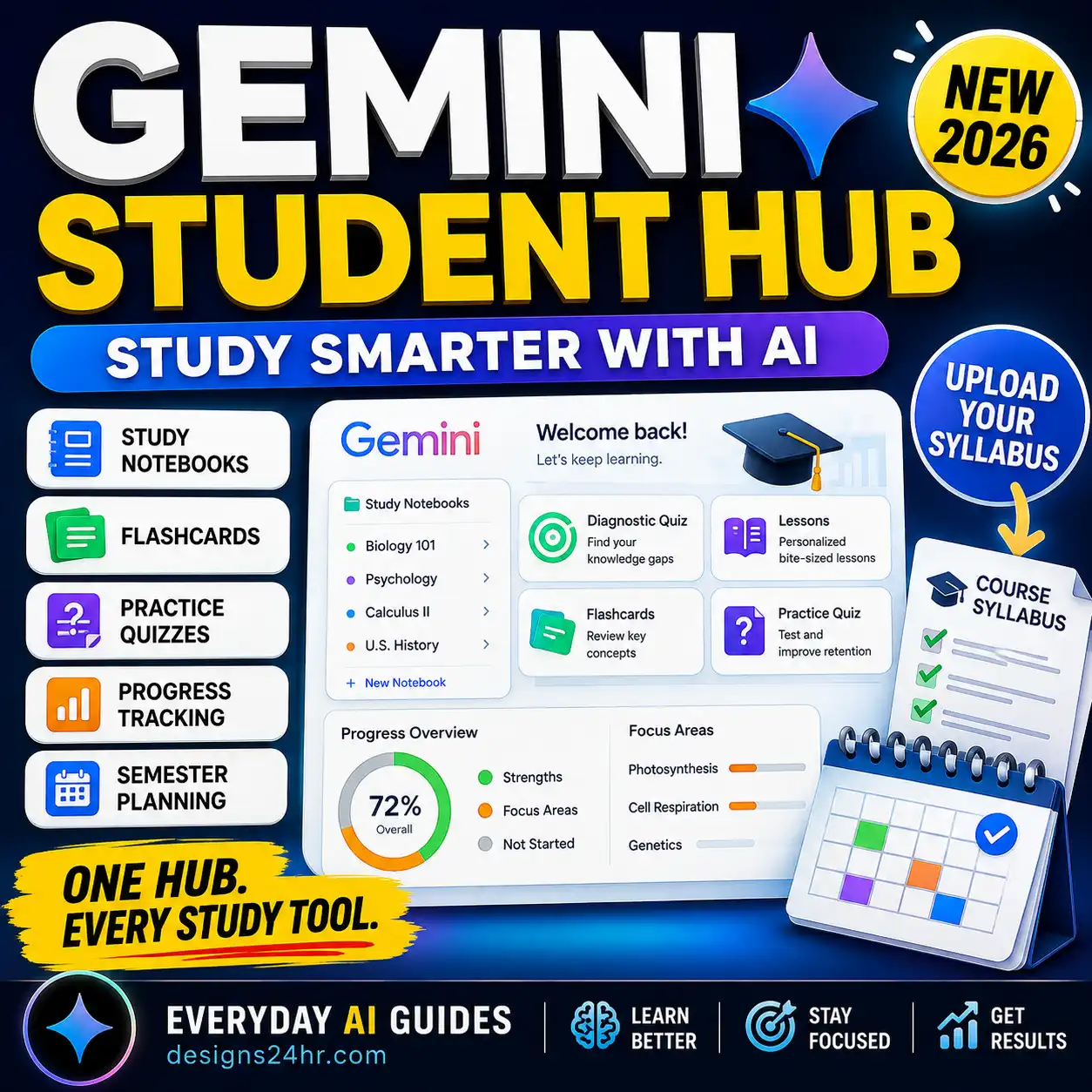
| Gemini App Study Notebook | Follow personalized lessons, diagnostic quizzes, and progress-based learning activities. | Gemini app → Notebooks → New notebook → Study and learn, where available. |
When Should You Use Each Option?
Choose an interactive learning overview when you want a structured report that connects explanations with available study activities.
Choose a document report when your immediate goal is to organize information into a readable written resource.
Choose standalone quizzes or flashcards when you want focused retrieval practice without generating a broader report.
A Gemini app study notebook may be more relevant when you want its dedicated learning-goal, diagnostic quiz, and progress-tracking workflow. Its interface and account requirements differ from Gemini Notebook’s Reports workflow.
For a broader guide to Google’s learning ecosystem, read the Gemini Student Hub guide .
A Simple Decision Framework
Need to understand a topic? Start with a source-based summary or learning overview.
Need to test your knowledge? Use a quiz or flashcards.
Need to connect several concepts? Use a suitable visual learning aid, where available.
Need an ongoing personalized study path? Explore the dedicated Gemini app study-notebook experience.
The useful choice depends on the learning task you need to complete.
Common Mistakes When Using AI-Generated Study Materials
Gemini Notebook can help organize your study sources, but the resulting reports and practice activities are AI-generated.
Google explicitly warns that generated reports can contain mistakes.
Use the following checks before making an interactive learning overview your main revision resource.
Mistake 1: Uploading Unrelated or Incomplete Sources
A report may look comprehensive while missing important course material.
Compare the uploaded sources with your syllabus and learning objectives.
If a required chapter or topic is absent from the sources, add the appropriate material before relying on the generated overview.
Mistake 2: Assuming Every Generated Answer Is Correct
Generated explanations, practice questions, and answer keys can be inaccurate or omit important conditions.
Check facts, dates, formulas, terminology, and numerical answers against the original course material.
A second AI response is not a substitute for independent source verification.
Mistake 3: Reading Without Testing Your Understanding
A polished report can make unfamiliar information feel recognizable even when you cannot recall or apply it independently.
Use quizzes, flashcards, explanations, and new practice problems to check your understanding.
Mistake 4: Practicing Questions That Do Not Match Your Course
An AI-generated quiz may emphasize material that your instructor does not intend to assess or overlook a required learning objective.
Compare generated questions with the actual course outline and assessment requirements.
Mistake 5: Uploading Restricted or Private Material
Before adding course documents, check that you are permitted to upload and process them.
Avoid uploading:
- Restricted exams or confidential answer keys.
- Private student records or personal information.
- Passwords and sensitive account details.
- Confidential workplace or research documents.
- Licensed or copyrighted material you are not authorized to upload.
Review your institution’s AI policy and the service’s current privacy terms before using it with sensitive or restricted material.
Five-Minute Study Material Accuracy Check
| Check | Question to ask |
|---|---|
| Coverage | Does the overview include every required learning objective? |
| Sources | Can I identify the original material supporting each important claim? |
| Accuracy | Have I verified key facts, formulas, definitions, and answers? |
| Practice | Can I answer questions without reading the report? |
| Privacy | Am I permitted to upload, process, and share these sources? |
For a complete source-checking process, follow the 12-point AI study guide accuracy checklist .
Gemini Notebook Interactive Learning Overview FAQ
What is a Gemini Notebook interactive learning overview?
It is an AI-generated interactive report that organizes information from notebook sources into a learning resource. It can combine written explanations with supported study activities such as quizzes, flashcards, and visual aids.
How do I create an interactive learning overview in Gemini Notebook?
Open Gemini Notebook in a web browser, select a notebook containing relevant sources, and go to Studio → Reports → Interactive. Choose Learning Overview, generate the report, and select Add beside any suggested study resources you want to embed.
Why is the Interactive option missing in Gemini Notebook?
The feature may not have reached your account yet. Google announced a gradual rollout beginning in September 2026. You may also be using the mobile app, have limited notebook permissions, or be subject to account or organizational restrictions.
Check the web version, your notebook permissions, and Google’s current availability documentation.
Can I create an interactive learning overview on my phone?
Google’s current documentation identifies interactive report generation as a web-only feature. The mobile app supports other notebook activities, including certain document reports and study aids, but those are not necessarily the same interactive learning overview workflow.
Can I add quizzes and flashcards to my learning overview?
Yes, the feature is designed to combine the report with supported study resources. After generating the overview, select Add beside the suggested artifacts you want to include.
The exact suggestions and available customization options may vary.
Is the interactive learning overview available to free users?
Google’s September 15, 2026 announcement describes a rollout of interactive learning overviews to all users over the following weeks. Availability may still vary during the rollout, and age, account, and organizational restrictions can apply.
Do not assume that purchasing a paid subscription will immediately enable a feature that has not yet reached your account.
Can I customize an interactive learning overview?
Google provides report-generation customization through the available Edit control beside a template or suggested format. Separate quiz and flashcard tools also have their own customization controls.
The specific editing options depend on the resource and current interface.
Can I share an interactive learning overview with classmates?
Google provides a report-sharing link, but the recipient also needs appropriate access to the underlying notebook.
Review the notebook’s sources, permissions, and your institution’s sharing rules before sending a link.
Is a Gemini Notebook learning overview the same as a Gemini app study notebook?
No. An interactive learning overview is a report generated inside Gemini Notebook. A Gemini app study notebook is a separate learning experience with features such as personalized lessons, diagnostic quizzes, and progress tracking.
The creation steps and supported features are different.
Can I rely on an AI-generated learning overview for exam preparation?
Use it as a study aid rather than an unquestioned source of truth. Compare the generated material with your syllabus, original notes, approved readings, and verified answer keys.
Correct errors, check missing topics, and test your understanding without looking at the report.
Make Your Interactive Learning Overview Part of a Better Study Routine
A Gemini Notebook interactive learning overview can help turn scattered study materials into a more organized learning resource.
Start with relevant sources, create the report, add the study activities that match your learning goals, and check important information against the original material.
Use quizzes and flashcards to find the concepts you cannot yet explain or apply independently. Then review those concepts rather than repeatedly generating more content.
If the Interactive option is missing, check the web version and current rollout information before assuming that your account or device has a technical problem.
Your Next Study Session: Four Simple Actions
- Choose one topic and collect the relevant, permitted study sources.
- Generate a focused learning overview if the feature is available.
- Complete a quiz or flashcard session without relying on the report for answers.
- Verify mistakes and schedule another review of the concepts you missed.
The goal is to improve what you understand, not simply how much AI-generated material you produce.
Sources and Editorial Notes
This guide uses Google’s official product announcements and help documentation for feature instructions and availability. The study workflows, decision framework, troubleshooting organization, and copyable prompts are original editorial resources from Designs24hr.
- Google Help — Generate Reports in Gemini Notebook . Official instructions for interactive reports, report customization, and sharing.
- Google — Sharpen Your Study Routine With New Gemini Notebook Tools . Published September 15, 2026. Official feature announcement and rollout information.
- Google Workspace Updates — New Back-to-School Features and Learning Tools . Published September 18, 2026. Information about Workspace availability, feature rollout, and supported learning tools.
- Google Help — Generate Flashcards or Quizzes . Official instructions for creating, customizing, and reviewing study aids.
- Google Help — Organize Your Projects With Notebooks in Gemini Apps . Official information about the separate Gemini app study-notebook experience.
Editorial note: This article does not claim first-hand testing of every account, interface, or feature variation. Product availability, controls, and account requirements can change. Always check the latest official documentation before relying on time-sensitive instructions.