Updated September 5, 2026
School newsletters, teacher updates, permission slips and event reminders can make a parent inbox feel like another job. If you want to summarize school emails with ChatGPT, the useful goal is not simply to make each message shorter. It is to turn selected messages into a clear list of actions, dates, forms, payments and details that you can verify before anything gets missed.
The safest beginner workflow is also one of the simplest: choose the messages you actually need, remove unnecessary personal information, ask ChatGPT for a structured action digest, and then check important details against the original school communication. This guide gives you the exact workflow and prompts.
How to Summarize School Emails With ChatGPT
A basic request such as “Summarize this email” can produce a shorter version of the message, but that is not necessarily what a busy parent needs. A useful school-email workflow should answer five practical questions:
- What do I need to do?
- When do I need to do it?
- Which child, class or school does it concern?
- Where did this information come from?
- What needs to be checked in the original message?
Use this simple flow instead:
The important difference is the verify step. AI can help sort and format information, but it should not silently become the final authority for a permission-slip deadline, payment, pickup instruction or school event.
Use the R.E.A.D. School Email Method
The R.E.A.D. School Email Method is a simple way to keep the process useful without letting the AI fill gaps on its own.
Strip unnecessary private or identifying information before sharing the text.
Pull out actions, dates, events, forms, payments and preparation.
Keep the source, class or child attached to each item when explicitly stated.
Confirm important details in the original school communication before acting.
R — Remove information the AI does not need
A school email may contain much more information than is needed to find a deadline. Signatures, phone numbers, email addresses, student identifiers, unrelated replies and information about other people may add no value to the task.
If removing a detail does not stop ChatGPT from understanding the action or date, consider leaving that detail out.
E — Extract the information that changes your next action
Ask specifically for practical information rather than a prose summary. Useful categories include:
- actions required from the parent;
- exact deadlines;
- school or class events;
- forms requiring completion;
- fees or payments mentioned;
- items the student needs to bring;
- preparation needed before an event;
- information that is FYI only.
A — Attribute each action to its source
This matters when you are processing several emails. If ChatGPT produces “Submit form by September 14,” you should still be able to see which message provided that instruction.
Ask it to identify the sender or your own simple source label, such as Email 1 — Classroom Newsletter. If the message does not clearly identify the relevant child or class, the AI should say so instead of guessing.
D — Double-check before you act
Return to the original message for consequential details. An organized digest is a planning aid; the school communication remains the source you should check.
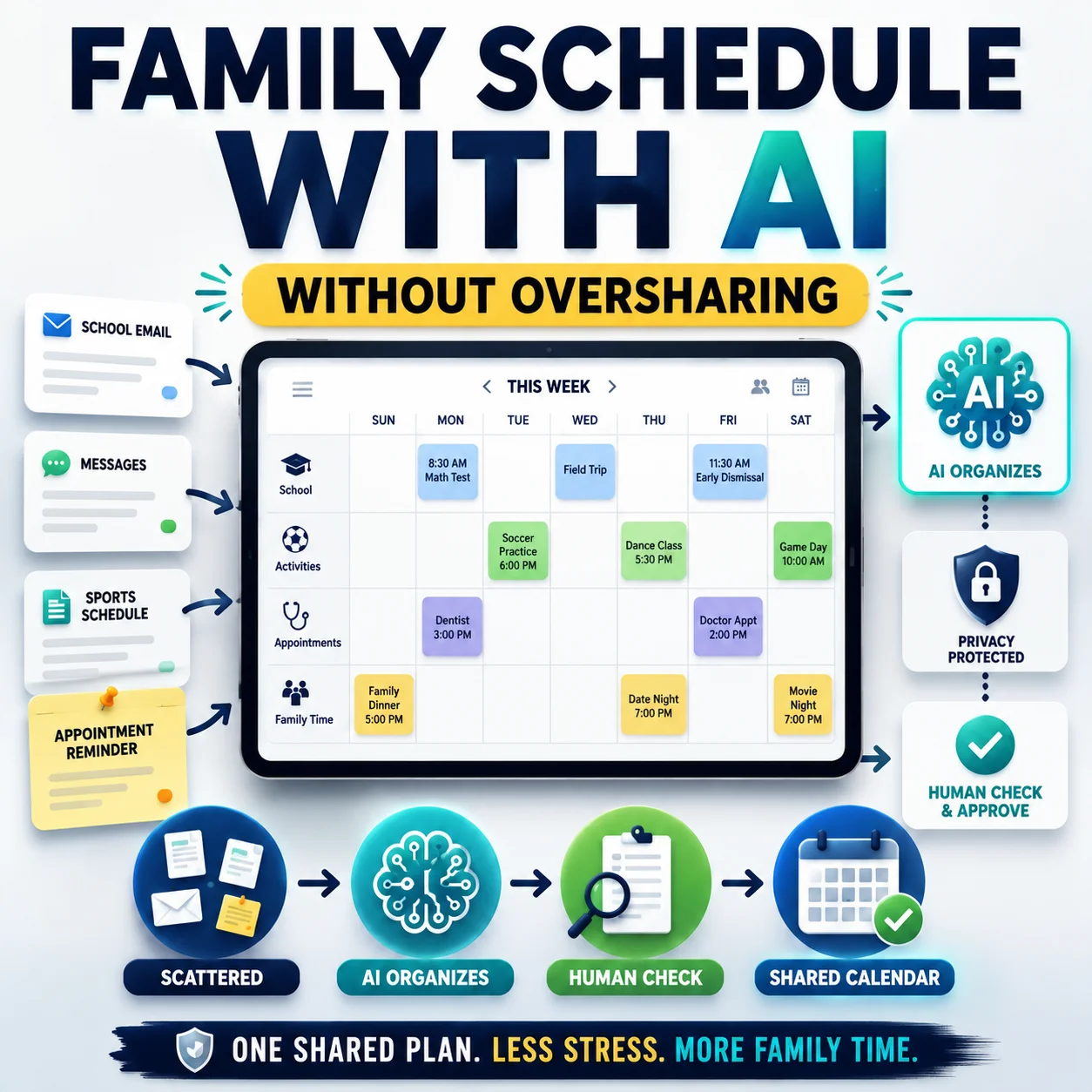
This approach also fits naturally with the Designs24hr guide on how to organize a family schedule with AI without sharing too much: organize first, verify, and only then move confirmed commitments into your family system.
What to Remove Before Pasting a School Email
You do not need to turn a routine email-summary task into a complicated privacy exercise. Use one practical rule:
Copy the entire thread, including previous replies, full signatures, personal contact details, student identifiers and unrelated information.
This creates extra noise and can expose details the summarization task does not require.
Copy only the relevant message body and replace unnecessary identifying details with simple labels where needed.
Example: [CHILD A], [TEACHER] or [SCHOOL].
Be especially cautious with passwords, account credentials, student ID numbers, medical information, financial details, disciplinary records, private information about another child, or anything else that is unnecessary for the task.
Copy This School Email Summary Prompt
This prompt is designed to do more than produce a paragraph. It forces the output into parent-friendly action categories and tells ChatGPT what it must not infer.
I will paste one or more school emails below.

Help me organize the information, but use only details explicitly stated in the messages.

Create these sections:

1. ACTION REQUIRED
2. DEADLINES AND EXACT DATES
3. UPCOMING EVENTS
4. FORMS OR PAYMENTS
5. ITEMS TO BRING OR PREPARE
6. FYI ONLY
7. DETAILS I NEED TO VERIFY

For every actionable item, show:
- What needs to be done
- Exact date or deadline if stated
- Child, class or grade only if explicitly stated
- Source email or sender

Important rules:
- Do not guess missing information.
- Do not assume which child an email belongs to.
- Do not connect separate messages unless the connection is explicit.
- Preserve exact dates when available.
- If a relative date such as "next Friday" is unclear, mark it VERIFY.
- Mark uncertain or incomplete details as VERIFY.
- Keep each action linked to the message it came from.

School emails:
[PASTE SELECTED, SANITIZED EMAIL TEXT HERE]
You can reuse this prompt whenever a long newsletter arrives. For several messages, label them Email 1, Email 2, and so on before pasting them.
What a Useful School Email Digest Should Look Like
Imagine a fictional classroom message says:
A useful output is not simply:
“The email is about an upcoming field trip and includes several important details.”
That is technically a summary, but it still leaves the parent doing the organizational work.
A better digest looks like this:
| Priority | Action | Date / Deadline | Source | Check |
|---|---|---|---|---|
| Action | Submit field trip permission form | September 14 | Field Trip Email | VERIFY |
| Prepare | Pack lunch for student | September 21 | Field Trip Email | VERIFY |
| FYI | Museum trip leaves school at 9:00 a.m. | September 21 | Field Trip Email | VERIFY |
The verification label is intentional. It reminds you that an AI-generated digest is not the official school record.
How to Summarize Several School Emails at Once
Batching messages can be useful when a week has produced a classroom newsletter, school-wide update, club reminder and event notice. The risk is that the AI may blur information from one message into another if your request is vague.
Give every message a clear source label:
Turn these school emails into one weekly action digest.

Keep every action attached to its source email.

Do not merge details from different emails unless the messages explicitly say they are connected.

Output a table with:
- Priority
- Action
- Child or class, if explicitly stated
- Exact deadline or event date
- Source email
- Verify / No action

Then create two short sections:
1. DO THIS WEEK
2. UPCOMING LATER

If a child, class, date, deadline or relationship between messages is unclear, write VERIFY instead of guessing.

EMAIL 1 — [LABEL]
[PASTE TEXT]

EMAIL 2 — [LABEL]
[PASTE TEXT]

EMAIL 3 — [LABEL]
[PASTE TEXT]
Keep “action required” separate from “FYI”
This is one of the easiest ways to reduce school-email overload.
An announcement about Spirit Week may be useful but require no action today. A field-trip form due tomorrow does. If both are mixed into one paragraph summary, the important item can disappear again.
Ask for at least these buckets:
How to Find Deadlines, Forms and Payments Faster
If your main problem is not understanding the message but locating the one sentence that creates work for you, use a narrower extraction prompt.
Review this school email and extract only items that require action, payment, a form, preparation, attendance or a deadline.

For each item show:
- Required action
- Exact date
- Exact time, if stated
- Amount, if a payment is explicitly stated
- What needs to be brought or submitted
- Source wording in a short paraphrase
- VERIFY if anything is unclear

Do not create a deadline that is not explicitly stated.
Do not guess missing dates.
Do not assume who the message concerns.

Email:
[PASTE SELECTED TEXT]
This narrower prompt is useful when a newsletter contains many paragraphs but only two or three items affect your calendar.
Prevent ChatGPT From Mixing Up Children, Classes or Dates
The biggest risk in a multi-email workflow is not an ugly summary. It is a clean-looking summary containing an incorrect assumption.
1. Do not let the AI infer which child an email belongs to
If you have more than one child, use neutral labels such as Child A and Child B only when the source itself makes the relationship clear.
If it is not clear, require the output:
Child/Class: VERIFY
2. Keep the source beside every action
“Picture Day — September 27” is more useful when it also says Source: School Newsletter — September 5. You can jump back to the right message instead of searching your inbox from scratch.
3. Prefer exact dates over relative language
Words such as “tomorrow,” “this Friday” or “next week” depend on the date the original email was sent. If that context is missing, the safest output is not an invented date. It is VERIFY.
4. Do not allow separate emails to become one invented story
A class newsletter mentioning a museum and another school email asking for a payment do not necessarily refer to the same event. Tell ChatGPT not to connect them unless the relationship is explicit.
Before you give it inbox access, read our guide on whether connecting Gmail to ChatGPT is safe.
5. Keep original links and attachments outside the AI summary when needed
If an action requires a specific school portal, attached permission form or official payment page, return to the original message. Do not rely on the AI to reconstruct a link, document or procedure from memory.
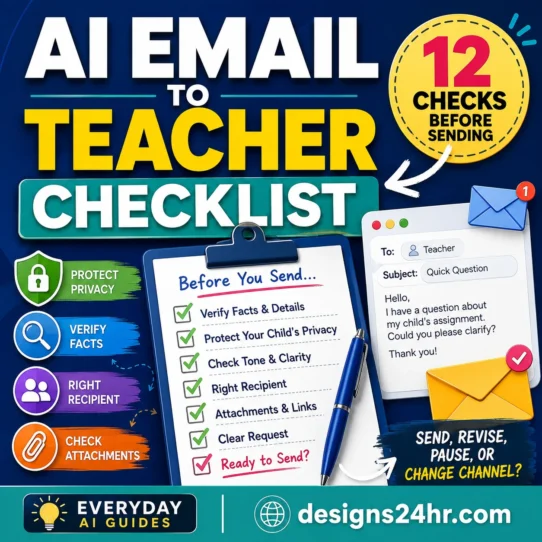
If you plan to reply to a teacher after reviewing the message, use the separate Designs24hr AI parent-teacher email checklist before you send. Incoming-email organization and outgoing-email writing are two different tasks.
Should You Connect Gmail to ChatGPT?
You do not need to connect an entire inbox to use this workflow. For a beginner, manually selecting and sanitizing one relevant message at a time is a reasonable low-access starting point.
ChatGPT can also work with connected apps when those apps and capabilities are available to your account, plan, workspace and region. OpenAI’s current documentation says apps can connect ChatGPT with external services so their information can be referenced or used in supported workflows. Availability and controls can vary. See the current OpenAI Apps in ChatGPT documentation before relying on a specific connection.
Connected Gmail data and manually pasted Gmail text are not exactly the same thing
This distinction matters.
OpenAI currently states that it does not train its generalized models on data accessed directly from connected Google apps or derivations of that data, except in the cases described in its policy. The same documentation separately identifies manually copied, pasted or uploaded Google data as a different situation. Read the current Google app data controls FAQ from OpenAI for the complete rules and exceptions.
Review the permissions before connecting an account
Google recommends reviewing exactly what information and permissions a third-party app requests before authorizing access. Google also states that linked apps can access only the data and services you authorize them to access. See Google’s guidance for sharing Google Account data with third-party apps.
Before connecting an inbox, ask:
- What problem am I trying to solve?
- Can I solve it by pasting one selected message instead?
- What information can the connection read?
- Can it only read, or can it also create, modify, send or delete?
- How do I disconnect it later?
- Am I comfortable with the information that may become available to the connected service?
For a more complete permission review, use the Designs24hr AI family organizer app checklist before connecting family calendars, inboxes or school information to an AI organizer.
Seven Things to Verify Before You Act
A polished summary can feel more authoritative than it really is. Before moving an AI-extracted item into your calendar, paying a fee, submitting a form or changing a routine, check these seven details against the original source.
When an item is confirmed, then move it into the system your household actually uses.
If dates are scattered across several places, the next useful step is to turn confirmed school dates into a safer family schedule.
Common School Email Summary Mistakes
Mistake 1: Asking only “summarize this”
A paragraph summary can still bury the required action. Ask for a structured digest instead.
Mistake 2: Pasting an entire email chain automatically
More text is not always better. Extra signatures, unrelated replies and unnecessary personal details can add noise without improving the result.
Mistake 3: Letting ChatGPT decide what an unclear date means
If the message says “next Friday” but you have not preserved the relevant date context, require VERIFY.
Mistake 4: Removing the source after summarization
A good action list should make it easy to return to the original communication.
Mistake 5: Mixing several children’s information without labels
Use neutral labels and require explicit attribution.
Mistake 6: Treating an AI-generated action as confirmed
AI extraction is useful for organization, but the original school message should be checked before consequential actions.
Mistake 7: Automating before the manual workflow works
Do not start by connecting every family account simply because automation is available. Test the workflow manually with a few low-risk messages first. If the result is genuinely useful, then decide whether more access is worth the convenience.
A Simple Weekly School Email Workflow for Busy Parents
You do not have to process every school message the moment it arrives. A short weekly reset can be easier to maintain.
A five-minute follow-up prompt
Using only the school-email information I provided, create my school-week review.

Show:

DO FIRST
- Actions due within the next 7 days

ADD TO CALENDAR
- Confirmed events and deadlines

PREPARE
- Forms, payments, supplies or items to bring

FYI
- Useful information that requires no action

VERIFY
- Anything with a missing, relative or unclear date
- Anything where the child or class is uncertain
- Anything that requires checking the original email

Do not add facts or dates that are not in the messages.
When ChatGPT Should Not Be the Final Authority
The system works best for sorting routine information. It is not a replacement for the school’s official procedure or a qualified person when the matter is consequential.
Go back to the school, teacher, portal or official instruction for issues such as:
- emergencies or immediate safety concerns;
- same-day dismissal or pickup changes;
- attendance reporting procedures;
- medical or health instructions;
- disciplinary or safeguarding matters;
- payments and refunds;
- formal school policies;
- records, grades or disputed information.
AI can help you organize what you already received. It cannot confirm what the school intended when the source itself is ambiguous.
More Everyday AI Help for School and Family Life
Frequently Asked Questions
Can ChatGPT summarize school emails?
Yes. ChatGPT can organize email text you provide and, where supported and authorized, can also work with information from connected apps. For school messages, a useful prompt should separate actions, deadlines, events, forms and informational notices rather than merely shorten the message. Important details should still be checked against the original communication.
Can ChatGPT find deadlines in emails?
ChatGPT can extract deadlines stated in the email text. Ask it to preserve exact dates, avoid inventing missing dates and mark ambiguous relative wording such as “next Friday” as something to verify.
Can I summarize several school emails at once?
Yes. Label every message before pasting it and require every extracted action to retain its source. Tell ChatGPT not to merge information across different messages unless the relationship is explicit.
Can ChatGPT organize a school newsletter?
Yes. A structured prompt can separate a long newsletter into actions, dates, events, forms, payments, preparation and FYI-only information. This is usually more useful than asking for a conventional paragraph summary.
Is it safe to connect Gmail to ChatGPT?
There is no useful one-word answer for every user. Review what the connection can access, your ChatGPT data controls and the Google permissions being requested. You can also use the lower-access workflow in this guide by manually copying only the selected, sanitized message text you need. OpenAI and Google both publish current documentation explaining connected-app data handling and authorization.
What should I remove before pasting a school email into ChatGPT?
Remove information that is unnecessary for the task, such as unrelated email history, student identifiers, private contact information, information about other students, passwords, account credentials and sensitive records. Keep only what is needed to understand the action, event or deadline.
How do I stop ChatGPT from mixing up information for different children?
Label messages clearly, require explicit source attribution and tell ChatGPT never to infer which child or class an item belongs to. When the source does not make the relationship clear, require the output to say VERIFY.
Start With One School Email
Do not automate your whole inbox on day one. Choose one routine school message, remove unnecessary private details, run the R.E.A.D. workflow, and compare every extracted action and deadline with the original email.
If the digest saves you time and stays accurate after verification, repeat it with the next message. Once the dates are confirmed, you can add them to a safer AI-assisted family schedule.
One useful digest is better than another inbox full of summaries you never check.
Get new AI guides every week
Short, practical how-tos and free tools from Designs24hr. No spam, unsubscribe anytime.