ChatGPT Sketch lets you draw a rough visual idea inside ChatGPT and use that drawing as a guide for a finished AI-generated image. Instead of trying to explain every object’s position with a long text prompt, you can sketch the composition first, then use words to control style, color, materials, lighting, texture and other details.
OpenAI introduced Sketch with ChatGPT Images 2.5 on September 8, 2026. Its current mobile instructions are simple: type @ in the message box, choose Sketch, draw the idea, confirm it, then add instructions describing the image you want ChatGPT to create.
The key to getting better results is understanding that the sketch and the text prompt do different jobs. This guide shows you what belongs in each, how to preserve the layout, what to do when ChatGPT ignores part of the drawing, how Sketch differs from Templates or uploading an existing drawing, and how to refine the generated image without starting over.
Quick Answer: How Does ChatGPT Sketch Work?
ChatGPT Sketch turns a rough drawing into a visual reference for ChatGPT image generation. On the ChatGPT mobile app, type @, choose Sketch, draw the composition, confirm it, then describe the finished image in words. Use the drawing for placement, scale and layout; use the written prompt for style, colors, materials, lighting and details. You do not need professional drawing skills—the sketch is a guide, not the final artwork.
| ChatGPT Sketch fact | Current status | Why it matters |
|---|---|---|
| Introduced | September 8, 2026 | Part of the new ChatGPT Images 2.5 creative workflow. |
| Purpose | Turn a rough drawing into an image reference | You can communicate composition visually instead of describing every position in text. |
| Documented Sketch entry flow | ChatGPT mobile app | OpenAI currently documents typing @ and selecting Sketch on mobile. |
| Images 2.5 availability | Desktop, mobile and web | Do not assume the exact Sketch interface is identical on every platform. |
| Drawing quality required | Rough is fine | The sketch is used as a visual guide, not judged as finished art. |
| Further edits | Supported | You can continue refining the generated image in the conversation. |
| Image-generation limits | Existing limits apply | Sketch does not create a separate unlimited image allowance. |
What Is ChatGPT Sketch?
ChatGPT Sketch is a creation tool in the ChatGPT Images 2.5 experience that lets you draw directly in ChatGPT and use the drawing as a reference for a generated image.
The important word is reference. Your drawing does not need to look polished. Its purpose is to communicate information that is often difficult to express efficiently with text alone, such as:
- where the main object should sit;
- which element should be larger;
- how much empty space should remain;
- what belongs in the foreground or background;
- which shapes overlap;
- where text or supporting elements should appear;
- the overall visual balance of the image.
OpenAI describes Sketch as another way to make the final image closer to what you already have in mind. After drawing, you add written instructions describing the desired subject, colors, style and other details.
What Should You Draw vs Describe in the Prompt?
This is the most useful rule for creating better ChatGPT images from sketches:
Put this in the Sketch
- main object position;
- relative sizes;
- overall composition;
- foreground/background relationships;
- empty copy space;
- rough silhouettes;
- overlaps;
- visual hierarchy.
Put this in the Prompt
- what each shape represents;
- color palette;
- materials;
- lighting;
- texture;
- visual style;
- exact wording;
- details that are hard to draw.
Example: product-display concept
In the sketch, draw one large rectangle in the center for the main product, two smaller supporting blocks on the left, and leave clean empty space on the upper right.
Then use the prompt to say that the central block represents an unbranded cream stone product box, the smaller blocks are geometric display plinths, the upper-right area must remain empty for later copy, and the finished scene should use soft daylight, warm neutral materials and a clean editorial style.
The drawing tells ChatGPT where. The prompt tells ChatGPT what the shapes mean and how they should look.
How to Use ChatGPT Sketch
OpenAI currently documents the following workflow on the ChatGPT mobile app.
- Open ChatGPT on mobile. Start a new conversation or open the conversation where you want to create the image.
- Type @ in the message box. This opens the available tool choices in the documented mobile workflow.
- Select Sketch. Open the drawing surface.
- Draw the rough composition. Focus on position, size, shape and empty space rather than decorative detail. OpenAI’s current help page says you can select a color, erase parts of the drawing and undo strokes.
- Confirm the sketch. Tap the checkmark when the visual structure communicates the layout you want.
- Add written instructions. Explain what each important shape represents and specify the finished colors, materials, style, lighting and details.
- Generate the image. Send the message so ChatGPT can use the sketch and instructions together.
- Compare the result with the sketch. Check object positions, proportions, hierarchy, empty space and missing or invented elements before judging only the visual style.
- Request a focused correction. Tell ChatGPT what to change and explicitly state which successful parts should remain unchanged.
Is ChatGPT Sketch Available on Desktop, Web and Mobile?
There are two different availability questions here.
ChatGPT Images 2.5 has broad availability. OpenAI says the Images 2.5 experience is available to ChatGPT, ChatGPT Work and Codex users across desktop, mobile and web.
The direct Sketch creation workflow is currently documented by OpenAI specifically for the ChatGPT mobile app: type @, select Sketch, draw, confirm, then add instructions.
That means it would be inaccurate to assume that every desktop or web interface must show the exact same Sketch controls.
Do You Need to Be Good at Drawing?
No. OpenAI explicitly says users do not need to be professional artists to use Sketch.
A useful drawing needs to communicate the composition clearly enough for ChatGPT to understand the intended relationships. It does not need professional shading, perspective or rendering.
Use the “Map, Not Artwork” rule
Prioritize:
- position;
- size;
- shape;
- spacing;
- overlap;
- negative space.
Leave these primarily to the written prompt:
- material realism;
- lighting;
- texture;
- surface finish;
- precise color;
- visual mood;
- detailed decoration.
If you have not yet decided the visual style, build that direction separately before overloading the Sketch prompt. Our AI mood board prompts guide helps define palette, materials, lighting and visual direction before image generation.
5 Things You Can Create With ChatGPT Sketch
The following examples use non-living subjects so the composition itself is easy to evaluate.
1. Poster layout
Sketch the headline zone, main visual block, secondary information and call-to-action area. Then describe the palette, typography direction, materials and lighting in text.
2. Product-display concept
Draw the location of the product, plinths, supporting props and empty copy area. In the prompt, define the product material, camera angle, surface, background and light.
3. Website hero composition
Sketch the headline block on one side, a large visual zone on the other, supporting cards below and the location of the main button. Then describe the interface style and color treatment.
4. Interior concept
Use rough shapes for furniture placement, an architectural opening, focal object and major empty areas. Use text for surface materials, lighting, colors and interior style.
For concepts that could influence real purchases or renovation decisions, remember that an AI-generated room image can alter scale or architecture. Treat it as visual exploration rather than a construction plan.
5. Infographic structure
Sketch a title area, three information sections, arrows and a summary panel. Then explain the data hierarchy, colors, exact labels and desired visual treatment.
If the image will present factual information, run a separate accuracy check before publishing. Our AI design critique workflow can help review hierarchy and visual problems after the first generation.
5 ChatGPT Sketch Prompts to Copy and Customize
The following prompts assume you have already drawn the rough layout. Replace the bracketed information with your own details.
1. Poster composition
2. Product hero image
3. Website hero concept
4. Interior concept
5. Infographic structure
Why Does ChatGPT Sometimes Ignore Part of the Sketch?
Sketch provides additional control, but it is still a generative workflow rather than a rigid tracing system. When the result drifts, diagnose the cause before redrawing everything.
| Problem | Likely cause | Better adjustment |
|---|---|---|
| Shapes become the wrong objects | The drawing is ambiguous | Explain what each important shape represents in the text prompt. |
| An object moves to a different position | The prompt does not reinforce placement | State the relationship explicitly: “keep X left of Y and below Z.” |
| Extra objects appear | The model filled empty space creatively | Tell ChatGPT that blank areas must remain empty and no additional objects should be added. |
| The result looks cluttered | The sketch contains too many small marks | Reduce the drawing to major shapes and hierarchy. |
| Text conflicts with the drawing | Sketch and written instructions disagree | Resolve the contradiction and state which instruction controls placement. |
| Later edits change the whole composition | The preservation rule is missing | Tell ChatGPT what must remain unchanged before requesting the edit. |
Problem 1: the sketch is too ambiguous
A circle might represent a lamp, product, table, graphic shape or architectural opening. ChatGPT should not have to guess if the object matters.
Fix it by writing:
Problem 2: the prompt contradicts the drawing
If your sketch clearly places the main object on the left but your text asks for a centered composition, the two instructions compete.
Decide which arrangement you actually want before generating.
Problem 3: you drew too much detail
A rough sketch is useful because it reduces the visual problem to structure. Dozens of tiny strokes can accidentally create objects or patterns you never intended.
If an area only needs to represent “supporting copy,” use one clean rectangle rather than drawing individual lines of text.
Problem 4: you never said what must stay unchanged
OpenAI says Images 2.5 improves editing consistency across multiple turns, but generative edits can still change more than expected.
Use a preservation instruction such as:
How to Refine an Image After Using ChatGPT Sketch
The best refinement workflow is:
OpenAI says ChatGPT Images 2.5 improves editing precision and consistency and supports more focused editing workflows. On mobile, generated images can also be opened full-screen for editing or comments.
Avoid vague follow-ups such as:
“Make it better.”
Instead, isolate the problem:
- “Keep everything else unchanged. Move the center object slightly lower.”
- “Preserve the composition. Remove only the extra object in the upper-left corner.”
- “Keep object positions and lighting unchanged. Make the background warmer.”
- “Do not alter the architecture. Increase the empty space around the headline zone.”
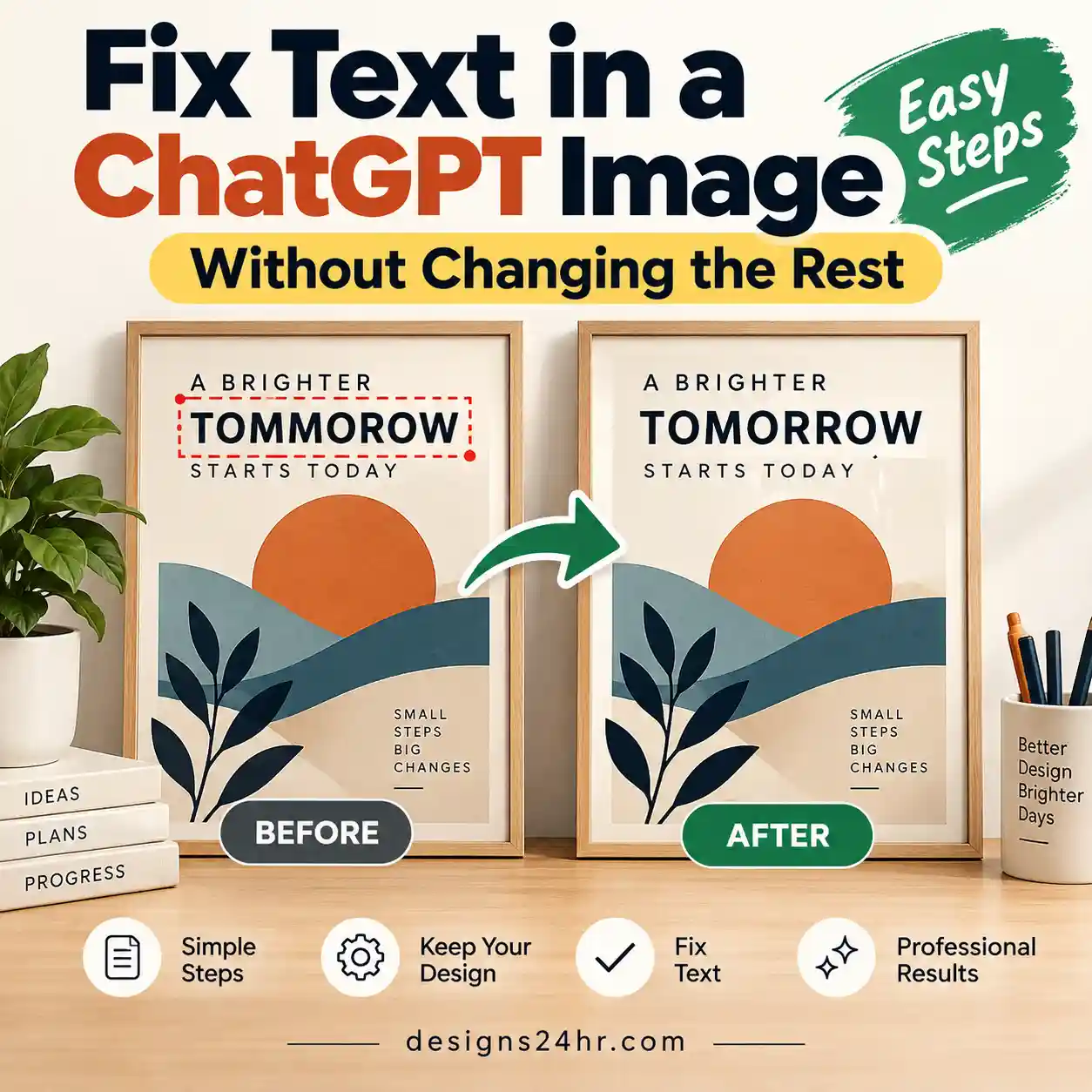
For image text specifically, broad regeneration can cause unnecessary visual drift. If generated copy is wrong, treat the text issue as a focused edit rather than asking ChatGPT to redesign the image.
ChatGPT Sketch vs Uploading an Existing Drawing
You do not need Sketch for every drawing-to-image workflow. If the reference already exists, uploading it may be simpler.
| Situation | Better starting method | Why |
|---|---|---|
| You need to communicate a fast layout idea | Sketch | No separate drawing file is required. |
| You already have a paper drawing | Upload the drawing | You can use the existing image instead of recreating it. |
| You have a detailed digital concept | Upload reference | A prepared reference contains more detail than a quick sketch. |
| You only know where objects should go | Sketch | Spatial guidance is the main requirement. |
| You need exact artwork fidelity | Use the original asset in a controlled editing workflow | Regenerating exact artwork can alter geometry, text or small details. |
| You do not need visual layout control | Normal text-to-image prompt | A sketch adds little value if the composition can be described simply. |
ChatGPT Sketch vs ChatGPT Image Templates
Sketch and Templates were both introduced as part of ChatGPT Images 2.5, but they solve different starting problems.
| You already know… | Better starting point |
|---|---|
| The exact composition you want | ChatGPT Sketch |
| The format, but not the composition | Image Template |
| You need a custom spatial arrangement | Sketch |
| You want a poster, flyer, merch or product-photo starting structure | Template |
| Your idea does not fit a common format | Sketch |
For the full format-based workflow, see our ChatGPT Image Templates guide. That page covers posters, flyers, merch and product-photo starting formats separately from Sketch. :chatgpt-content-reference{index=”1″}
ChatGPT Sketch Not Showing?
If ChatGPT Images works but you cannot find Sketch, check platform and availability before assuming your account has a technical problem.
| Problem | What to check |
|---|---|
| No Sketch option after typing @ | Confirm you are using the current ChatGPT mobile app and check whether the feature has reached your interface. |
| Images work but Sketch is missing | OpenAI currently documents the direct Sketch creation workflow on mobile, while broader Images 2.5 availability spans more platforms. |
| You can draw but image generation fails | Normal image-generation availability and usage limits still apply. |
| ChatGPT ignores the layout | Simplify the sketch, explain what each main shape represents and restate critical spatial relationships in text. |
| Unexpected objects appear | Explicitly tell ChatGPT not to add objects that are absent from the sketch and prompt. |
| Composition changes during editing | Add a preservation rule before requesting the specific edit. |
| Generated text is wrong | Correct the specific text area rather than regenerating the whole composition. |
How to Get Better ChatGPT Sketch Results
- One clear focal point: Is the most important object obvious?
- Simple shapes: Can each major shape be explained quickly?
- Relative size: Does the drawing show which element should dominate?
- Negative space: Have you intentionally left breathing room where needed?
- Shape labels: Does the prompt explain what ambiguous shapes represent?
- Style separation: Are style, materials and lighting described in words rather than overloaded into the drawing?
- Exclusions: Have you stated what ChatGPT should not add?
- Preservation rules: During later edits, have you said what must remain unchanged?
If the visual direction itself is weak, more detailed prompting may not solve the problem. Establish a coherent palette, material and lighting system first. The AI Mood Board Prompts guide can help define that direction before you create images with ChatGPT. :chatgpt-content-reference{index=”2″}
Copyright, Trademark and Commercial-Use Checks
Sketch makes it easy to convert a rough idea into a polished visual, but a polished result is not automatically safe to publish or sell.
For commercial work, start with visual material you have the right to use and review the finished output independently.
- Did you create the source sketch yourself or have permission to use it?
- Did the generated image introduce a recognizable logo or trademark?
- Did it recreate a protected character or distinctive commercial design?
- Did it add packaging, certification marks or product claims that are not real?
- Does the final image contain copied text or artwork you did not request?
- If you used a reference image, do you have the appropriate rights to transform or publish it?
- Have you reviewed the current platform terms for the way you plan to use the output?
For design exploration, a safer prompt usually describes general visual qualities—palette, materials, geometry, lighting, texture and composition—rather than requesting an exact copy of a protected commercial design.
Frequently Asked Questions About ChatGPT Sketch
What is ChatGPT Sketch?
ChatGPT Sketch is a ChatGPT Images 2.5 feature that lets you draw a rough visual reference and combine it with written instructions to generate a finished image.
How do I use Sketch in ChatGPT?
OpenAI currently documents the workflow on the ChatGPT mobile app: type @ in the message box, select Sketch, draw your idea, confirm it with the checkmark, add written image instructions and send the message.
Is ChatGPT Sketch free?
Sketch is part of the ChatGPT Images 2.5 experience. OpenAI says Images 2.5 is available to ChatGPT users, while existing image-generation limits still apply. Exact visible access can also depend on platform and rollout.
Do I need to be good at drawing to use ChatGPT Sketch?
No. OpenAI says professional drawing skill is not required. A rough sketch can work as long as it communicates the intended composition, relative sizes and placement clearly enough.
Can ChatGPT turn my drawing into an AI image?
Yes. That is the main purpose of Sketch. The drawing acts as a visual guide and the written prompt supplies the subject details, style, colors and other instructions for the final image.
Why is ChatGPT Sketch not showing?
First check your platform. OpenAI currently documents the direct @ → Sketch workflow on the ChatGPT mobile app. Also check that your app is current and that normal image-generation access and limits are available on your account.
Is ChatGPT Sketch available on desktop?
OpenAI says ChatGPT Images 2.5 has broad desktop, mobile and web availability, but its current help documentation specifically explains direct sketch creation through the mobile app. Do not assume the same Sketch interface appears identically on every platform.
What should I draw versus write in the prompt?
Use the drawing for placement, relative size, composition, overlaps and negative space. Use the text prompt for what each shape represents, visual style, colors, materials, lighting, texture, exact copy and other details.
Is ChatGPT Sketch the same as uploading a drawing?
No. Sketch lets you create the rough reference directly inside ChatGPT. If you already have a finished paper or digital drawing, uploading that existing reference may be a more efficient starting point.
Save This ChatGPT Sketch Rule
Draw WHERE. Describe WHAT and HOW.
Use the sketch for composition, scale and placement. Use the text prompt for subject meaning, style, color, materials, lighting and detail. During edits, tell ChatGPT what must stay unchanged.
Keep Learning About AI Image Creation
Continue with these related Designs24hr guides when the next problem is format, style direction or visual review rather than sketching:
- ChatGPT Image Templates: Posters, Flyers, Merch & Product Photos
- 12 AI Mood Board Prompts for Better Visual Ideas
- AI Design Critique Prompt: Get Useful Feedback in 5 Steps
- Browse AI for Design & Creativity Guides
Official Sources and Further Reading
- OpenAI — Introducing ChatGPT Images 2.5 : official launch information for Sketch, Images 2.5 editing improvements, faster generation and broader image availability.
- OpenAI — ChatGPT Release Notes : September 8, 2026 release notes and the documented mobile @ → Sketch workflow.
- OpenAI — Images in ChatGPT : current sketch-creation steps, drawing controls and post-generation editing guidance.
- OpenAI Deployment Safety Hub — ChatGPT Images 2.5 System Card : current system information on Images 2.5, sketch-based generation and editing consistency.