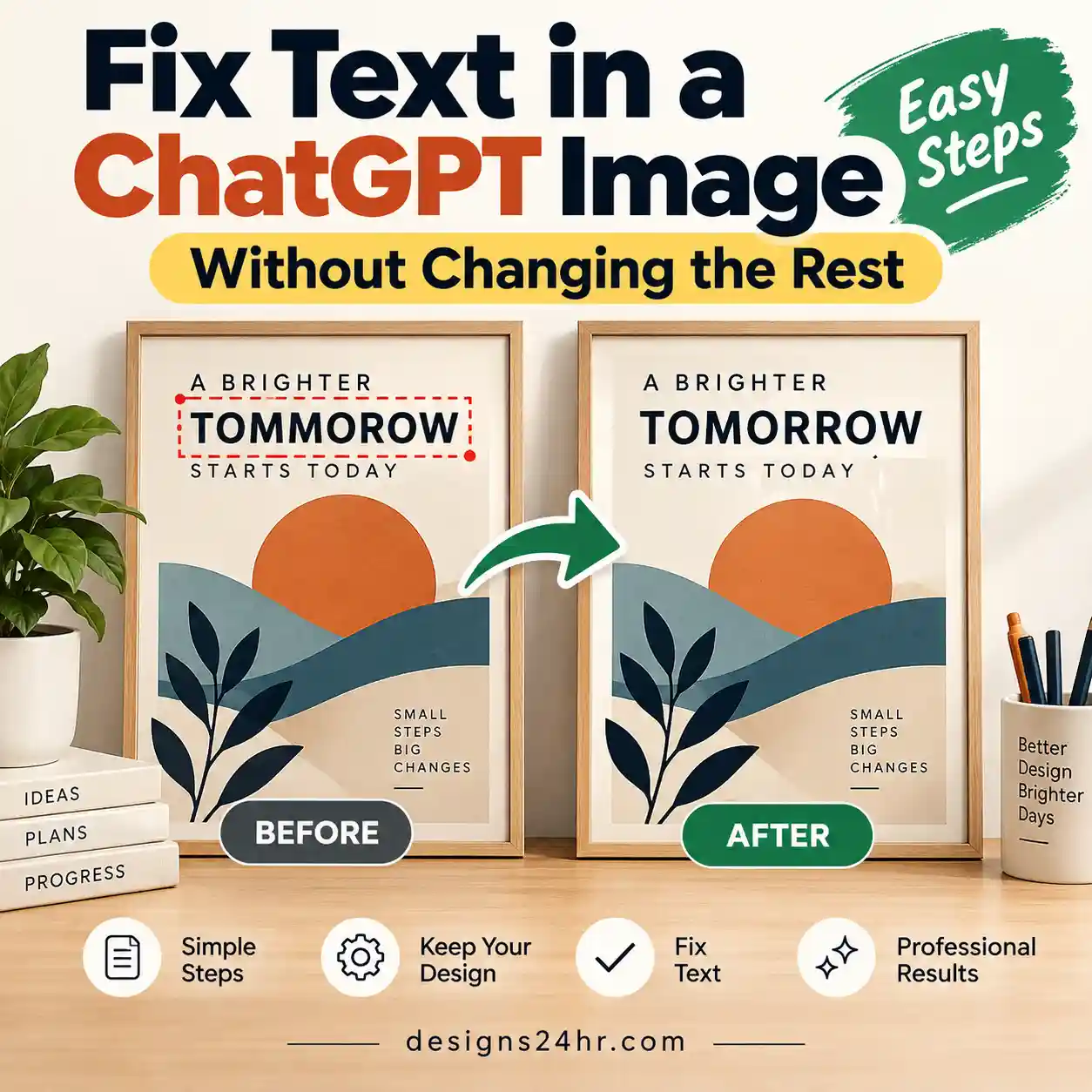
If ChatGPT creates an image that is almost right, you do not always need to regenerate the entire thing just to fix one word, move an object, change a color, or adjust the layout. You can now edit ChatGPT images in Canva by turning a flat AI-generated image into a layered Canva design that you can continue refining.
Canva’s Magic Layers can rebuild a flat AI-generated image as an editable Canva design. Text can become live text, detected objects can become selectable elements, and the background and layout can be reconstructed so you can make targeted changes instead of starting again.
The important limitation: treat the result as a reconstructed editable design, not as a guaranteed recovery of the original source file. Always inspect the converted layers before publishing or handing the design to someone else.
Can You Edit a ChatGPT Image in Canva?
Yes. Canva says Magic Layers can take a flat AI-generated image and rebuild it as a structured, editable design. Instead of treating the entire picture as one unchangeable bitmap, Canva analyzes elements such as text, objects, backgrounds, and layout relationships and reconstructs them inside the editor.
That makes the workflow especially useful when ChatGPT has already produced a composition you like but one or two details still need work.
How to Edit ChatGPT Images in Canva, Step by Step
The exact labels you see can vary by account and rollout. OpenAI moved app discovery to its Plugin directory in July 2026, although existing app connections continue to work and some accounts may still surface app-related controls differently.
Create or Open the Image in ChatGPT
Start with the image you actually want to improve. If you are generating a new visual, try to get the overall composition, subject placement, and general style close before moving into detailed editing.
If your initial prompt needs improvement, the free AI Prompt Generator can help you organize the purpose, composition, style, and constraints before you generate the image.
Connect Canva If Needed
If Canva is not already available in the conversation, you may need to connect the Canva app through the plugin or app controls available to your account.
Canva’s current guidance says you can also prompt @Canva when that integration is available. If the connection option does not appear, jump to the troubleshooting section below rather than repeatedly regenerating your image.
Ask to Turn the Image Into an Editable Canva Design
With the image in the conversation and Canva connected, give a direct instruction that describes the outcome you want.
Turn this image into an editable Canva design.
You do not need an enormous prompt. For this step, the important part is making the desired action clear.
Open the Rebuilt Design in Canva
Once the conversion is available, open the resulting design in Canva and inspect what Magic Layers has separated. Canva says the technology can reconstruct editable text, individual objects, backgrounds, and layout structure.
Edit the Parts That Actually Need Fixing
Instead of changing everything, work on the specific problem. Correct the wording, move a detected object, change a color, resize an element, replace a background, or adjust the layout.
Check Every Important Layer Before Exporting
Do not assume the reconstruction is perfect because the design looks correct at first glance. Click through the important elements and check text accuracy, object boundaries, spacing, backgrounds, alignment, and anything that could have changed during reconstruction.
Before spending time converting an image, look at its structure. Some designs naturally give an image-to-layers system a clearer job than others.
Usually easier to work with
- Large, readable text
- Clear object boundaries
- Simple backgrounds
- Distinct foreground elements
- Clean poster-style layouts
- Limited overlap between important elements
More likely to need cleanup
- Tiny AI-generated text
- Heavy text overlap
- Dense textures
- Complicated shadows
- Partially hidden objects
- Intricate decorative compositions
This is not a rule that simple images always work and complicated ones never do. It is a practical way to decide how much cleanup you should expect.
What Can You Change After Making the Image Editable?
Correct wording, rewrite a headline, adjust typography, or replace text that the original AI image generated incorrectly.
Reposition a detected element without regenerating an entirely new composition.
Make an object larger or smaller when the overall design is already working.
Refine colors after conversion instead of asking the image generator to recreate everything.
Modify or replace the background when it has been reconstructed as a workable part of the design.
Adapt the finished composition for another output size after checking that its important elements remain readable.
If you only need to prepare the final exported file for a website, thumbnail, or another dimension, you can also use the free Image Resizer & Converter after your design is finished.
Should You Edit the Image or Regenerate It?
Magic Layers is useful, but it should not become an extra step for every AI image. If the basic composition is wrong, regenerating may be faster. If the image is already strong and only a specific detail needs changing, editing is usually the more efficient path.
| What’s wrong? | Better next move | Why |
|---|---|---|
| One word is incorrect | Edit in Canva | The composition is already useful. |
| An object is slightly misplaced | Edit in Canva | A targeted adjustment is more efficient. |
| A color needs changing | Edit in Canva | No reason to regenerate the rest of the image. |
| You need another layout or size | Edit or resize | Preserve the useful creative direction and adapt it. |
| The entire composition is wrong | Regenerate | Editing a bad foundation creates unnecessary work. |
| The main subject is badly generated | Regenerate | The core visual problem is larger than a layer adjustment. |
| Most reconstructed layers are inaccurate | Regenerate or rebuild | Cleaning every element may take longer than making a better source image. |
| You need precise reusable typography | Rebuild key text in Canva | Manual typography gives you more reliable control. |
Useful Prompts for Editing ChatGPT Images in Canva
These prompts are starting points, not guaranteed commands for every account or interface. The available action still depends on whether Canva is connected and supported in your current ChatGPT setup.
Make the Image Editable
Turn this image into an editable Canva design.
Prepare It for Text Corrections
Open this image as an editable Canva design so I can change the text while keeping the overall composition.
Prepare It for Individual Object Changes
Make this image editable in Canva so I can adjust the text, move individual elements, and refine the layout.
Prepare It for Another Social Format
Turn this into an editable Canva design so I can refine the layout and prepare it for a different social media size.
Canva Magic Layers Not Working? Check These First
If you cannot edit ChatGPT images in Canva from your account, do not immediately assume something is broken. OpenAI says plugin availability can depend on the plan, workspace, role, region, supported surface, and the capabilities included in the plugin or connected app.
Canva Is Not Connected
Check the plugin or app controls available to your account and confirm that the Canva connection has been authorized.
You Cannot Find Canva
Look in the current Plugin directory or the app controls shown on your account. OpenAI moved app discovery to Plugins in July 2026.
Your Workspace Restricts It
Business, school, or managed accounts can have administrator-controlled plugin and app permissions.
The Image Converts Poorly
Complex overlap, tiny generated text, unusual effects, or unclear object boundaries may require more cleanup.
Text Is Rebuilt Incorrectly
Correct important wording manually and compare it with the original rather than trusting reconstructed text automatically.
Objects Are Combined
If important elements are not separated usefully, decide whether a manual rebuild or a cleaner regenerated source image is faster.
The Result Looks Different
Magic Layers reconstructs the design. Inspect spacing, typography, background details, edges, and object placement after conversion.
Your Controls Look Different
Do not rely on an older tutorial’s exact interface. Product labels and available controls can differ by rollout, plan, or surface.
A Better Workflow for AI Images You Plan to Edit Later
You can make the later editing stage easier by thinking about editability before you generate the image. This matters most for posters, social graphics, thumbnails, promotional images, and other compositions where text and layout will probably change.
- Keep important text minimal. Precise wording is often easier to add or correct in a dedicated design editor.
- Create clear visual hierarchy. Make the main element, supporting elements, and background visually distinct.
- Avoid unnecessary overlap. Important objects are easier to work with when their boundaries are visually clear.
- Generate near the intended aspect ratio. A closer starting composition usually requires less restructuring later.
- Move precision typography into Canva. Let the image generator establish the visual idea, then use editable text when accuracy matters.
- Make one targeted change at a time. If only the background is wrong, do not redesign every other part unnecessarily.
- Inspect the final export. AI-assisted editing saves time, but it does not remove the need for human quality control.
If you want to compare this approach with a more conversational AI-first editing workflow, see our guide to creating and editing images with Google Pics.
What to Check Before You Publish the Finished Image
A design can look polished while still containing a problem. Before you export or publish the final version, make a deliberate quality check.
- Read every visible word and verify spelling.
- Check whether any object changed shape unexpectedly.
- Inspect edges, shadows, repeated patterns, and reconstructed backgrounds.
- Make sure important elements have not shifted during resizing.
- Confirm the final dimensions fit the destination.
- Check uploaded or referenced source imagery for appropriate usage rights.
- Look for unwanted logos, trademarks, characters, or protected material.
- Do not assume AI-generated content is automatically exclusive or safe for every commercial use.
- Review any additional Canva assets under the applicable Canva licensing terms.
- Keep important factual information outside the image when accuracy is critical.
Privacy and Rights Matter Too
Image editing often involves more than your own generated artwork. You may be working with client assets, uploaded photographs, reference images, branded material, or licensed design elements.
- Do not upload confidential material unless you are permitted to use it in the service.
- Confirm that you have the right to use uploaded or referenced source images.
- Review generated outputs for unwanted brand marks, protected characters, or recognizable third-party material.
- Check the license that applies when you add Canva-provided assets to the final design.
- Do not assume an AI-generated image is automatically copyright-free or exclusive to you.
When Canva Is Better Than Regenerating the Image
The biggest advantage of this workflow is not that it makes every AI image perfect. It is that it gives you another option between accepting the generated picture exactly as it is and starting the generation process over again.
If ChatGPT has already produced the right composition, editing one imperfect detail can be much more practical than asking for another complete image and hoping everything else stays the same.
On the other hand, if the original image has the wrong composition, a badly generated central subject, or too many visual problems, editing every layer may create more work than generating a better foundation.
The best workflow is therefore simple: generate for the big idea, edit for precision, and verify before publishing.
Once the visual is finished, you can prepare the prompt, colors, dimensions, and final web file with other free Designs24hr tools.
Frequently Asked Questions
Can I edit a ChatGPT-generated image in Canva?
Yes. Canva says Magic Layers can turn a flat AI-generated image into an editable Canva design, including live text, individually selectable objects, backgrounds, and reconstructed layout structure. Availability of the Canva connection in ChatGPT can still depend on your account and workspace setup.
Can Canva separate a flat image into layers?
Magic Layers is designed for that job. Canva describes it as analyzing a flat image and rebuilding its text, objects, background, and layout as an editable structured design. You should still inspect the reconstruction because complex images may require manual cleanup.
Can I change text inside a ChatGPT image?
If Magic Layers successfully detects and reconstructs the text, Canva says it can become live editable text. Generated text should always be checked for spelling and reconstruction errors before publishing.
Why is Canva not showing in ChatGPT?
OpenAI says installing or invoking a plugin can depend on your plan, workspace settings, role, supported surface, region, and the capabilities included in the plugin. OpenAI moved app discovery into the Plugin directory on July 9, 2026, although some accounts may still show app-related controls.
Does Magic Layers perfectly recreate every image?
Do not assume that it will. Magic Layers reconstructs a flat visual as an editable design. Simple, clearly separated elements may require less cleanup than dense compositions with tiny text, overlapping objects, complicated effects, or detailed textures.
Should I edit the image or regenerate it in ChatGPT?
Edit when the overall image is already useful and only specific details need changing. Regenerate when the core composition, main subject, or overall visual direction is wrong. The goal is to choose the path that requires less corrective work.
Can I use the same approach with Gemini-generated images?
Yes, where the supported Canva integration is available. Canva currently documents Magic Layers workflows inside both ChatGPT and Google Gemini for turning AI-generated images into editable Canva designs.
Is Canva Magic Layers free?
Canva currently describes Magic Layers in ChatGPT and Gemini as available through supported integrations, but account access, connected services, product entitlements, and feature availability can change. Check the options shown in your Canva and ChatGPT accounts rather than relying on an older pricing or rollout article.
If you want to edit ChatGPT images in Canva, the most useful workflow is to get the overall image close in ChatGPT, turn the promising result into an editable Canva design, fix the specific parts that matter, and then inspect the rebuilt layers before exporting.
The goal is not to add another AI tool to your workflow. It is to avoid throwing away a good image just because one part of it needs changing.
Official Sources
Product capabilities and availability can change. This guide uses current primary-source information from Canva and OpenAI and should be refreshed when either company materially changes the workflow.
Canva: Magic Layers inside AI assistants
Canva: Introducing Magic Layers
OpenAI: Plugins in ChatGPT and Codex
Get new AI guides every week
Short, practical how-tos and free tools from Designs24hr. No spam, unsubscribe anytime.