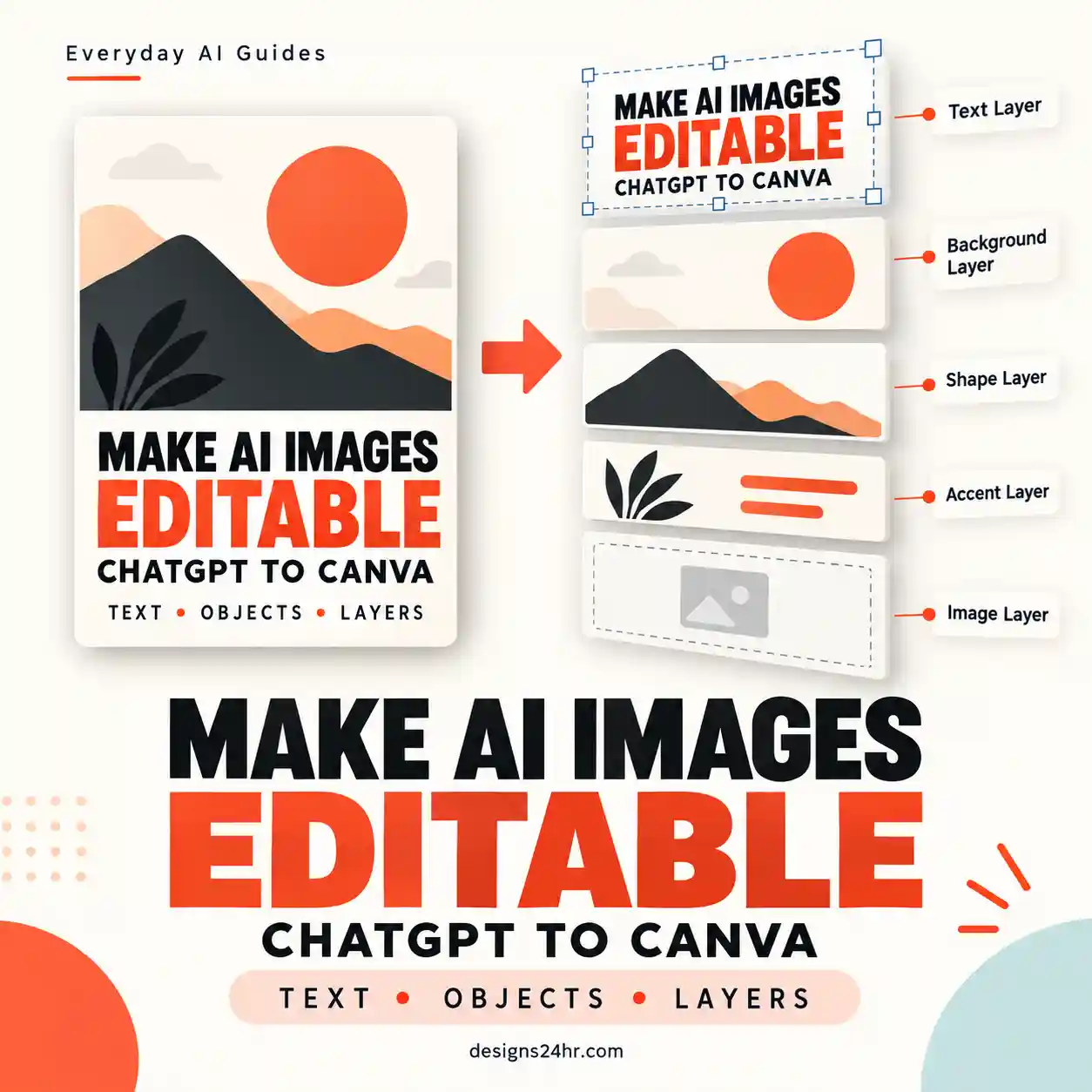
ChatGPT image templates give you a built-in starting point for common visual projects instead of forcing you to build every image request from a blank prompt.
OpenAI now lets you open Images → Templates, choose a starting format, customize the details, and then refine the generated image. The important distinction is that these are actual templates inside ChatGPT—not the reusable text-based “image prompt templates” that have existed online for years.
This guide shows you how to choose the right starting template, write a clearer creative brief, create posters, flyers, merch concepts and product photos, fix weak results, and check the final image before you publish or use it.
Quick Answer: How Do ChatGPT Image Templates Work?
Open ChatGPT's Images area, choose Templates, select a format that fits the visual you want to create, and customize the requested information, design elements and style. ChatGPT may ask follow-up questions to refine the request. Generate the first version, inspect it carefully, and then request focused corrections rather than restarting unnecessarily.
What Are ChatGPT Image Templates?
ChatGPT image templates are built-in starting points for popular creative formats in the ChatGPT Images experience. OpenAI introduced them with ChatGPT Images 2.5 to make it easier to begin a visual project without starting from a completely blank canvas.
You can also make ChatGPT stickers for WhatsApp and iMessage.
OpenAI gives Poster and Merch as examples of template formats and says templates make it easier to start creating formats such as flyers and product photos. You can then add the information you want to communicate, design elements and visual style to personalize the result.
The practical advantage is not that a template magically creates a finished design. It reduces the friction of choosing a starting structure. You still need to provide accurate content, visual direction and a useful review process.
ChatGPT Image Templates vs. Image Prompt Templates
This difference is important because older tutorials often use the phrase “ChatGPT image templates” to mean reusable prompts. That is now a separate concept from ChatGPT's built-in Templates interface.
| Built-in ChatGPT Image Templates | Image Prompt Templates |
|---|---|
| Available inside ChatGPT's Images experience | Reusable written instructions you save or copy |
| Start from a recognizable creative format | Start from reusable prompt wording |
| Can guide customization through the interface and follow-up questions | You normally replace variables manually |
| Examples include Poster and Merch | Can be written for almost any visual task |
| Useful when you want a faster structured starting point | Useful when you want repeatable detailed instructions |
You do not have to choose only one approach. A built-in template can establish the starting format while a structured prompt or creative brief gives ChatGPT the information it needs to produce a more useful result.
How to Use ChatGPT Image Templates
- Open ChatGPT.
- Go to Images.
- Choose Templates.
- Select the format that most closely matches your intended visual.
- Add the information, design elements and style direction requested.
- Answer useful follow-up questions if ChatGPT asks for clarification.
- Generate the first version.
- Inspect the output for incorrect text, missing details, unwanted objects and visual problems.
- Request focused changes instead of simply saying “make it better.”
Which ChatGPT Image Template Should You Choose?
Choose the starting point according to the job the finished visual needs to perform, not simply the template that looks most impressive.
| What you need | Starting direction | What to define |
|---|---|---|
| Promotional poster | Poster | Headline, supporting information, hierarchy, mood, dimensions and viewing distance |
| Flyer | Flyer-style format when available | Main message, offer, CTA, reading order, visual style and exact factual details |
| Merch concept | Merch | Artwork placement, print area, colors, motif, intended material and production constraints |
| Product image | Product-photo format | Exact product characteristics, material, background, lighting, angle and features that must not change |
If you do not yet know what the image should look like, define the creative direction first. The Designs24hr AI mood board prompts guide helps turn a vague visual idea into specific decisions about palette, materials, lighting, typography and composition.
Use the BRIEF Framework Before You Generate
Templates reduce blank-page friction, but they do not eliminate the need for a good creative brief. Use this five-part BRIEF framework before generating anything that you plan to publish, print, promote or sell.
B — Build the Purpose
Explain what the image needs to accomplish rather than relying on broad instructions such as “make it professional.”
Better: Create a promotional flyer that makes the workshop name, date, location and registration call to action understandable within a few seconds.
R — List Required Information
Separate information that must be accurate from decorative content. Provide exact wording for dates, prices, product names, event details, offers and calls to action whenever those details matter.
I — Define the Image Direction
Describe visible choices rather than vague adjectives. For example, “warm off-white paper, deep navy typography, restrained coral accents, soft studio light and generous negative space” communicates far more than “premium and modern.”
If you repeatedly create visuals for the same project or business, use the AI Brand Style Guide to turn those creative decisions into repeatable rules.
E — Specify the Exact Format
Tell ChatGPT where the final visual will appear. A square blog thumbnail, vertical Pinterest graphic, print flyer and ecommerce product photo require different compositions.
You can use the Designs24hr Design & Marketing Tools hub when you need supporting tools for image dimensions, aspect ratios, palettes, prompts or campaign preparation.
F — Add Forbidden Elements
Tell ChatGPT what it should not add or change. This is especially important for commercial work.
Examples include unwanted logos, unrelated objects, extra copy, incorrect packaging, unsupported claims, protected characters, invented certifications, inaccurate product details or anything else that would make the finished visual misleading.
Copyable ChatGPT Image Template Briefs
The following briefs are designed to work with a suitable ChatGPT image template. Replace the bracketed information with your own details rather than pasting the prompts unchanged.
1. Poster Template Brief
Use this poster template to create a clean promotional poster for [purpose].

Main headline:
"[headline]"

Required information:
[list the exact details that must appear]

Visual direction:
Use [palette], [materials or objects], [lighting], and [overall mood].

Hierarchy:
Make [most important element] the strongest focal point, followed by [secondary information].

Final use:
[platform, orientation, size or print destination]

Do not include:
[logos, people, characters, unrelated objects, unsupported claims or anything else that should not appear].

Keep the design clear at its intended viewing size and do not invent factual details.
2. Flyer Template Brief
Customize this flyer for [event, project or promotion].

Primary headline:
"[headline]"

Supporting details:
[exact details]

Call to action:
"[CTA]"

Visual direction:
[palette, objects, materials, lighting and mood]

Reading order:
1. Headline
2. Key information
3. Call to action

Keep generous spacing around the important text.

Avoid decorative elements that compete with the message.

Do not invent dates, prices, claims, contact details, logos or other factual information.
3. Product Photo Template Brief
Create a product-photo concept for [product].

The product must preserve:
[exact shape]
[material]
[color]
[important features]
[packaging or labels, if authorized and supplied]

Scene:
Place the product against [background] with [lighting] and [surface or environment].

Composition:
[camera angle, amount of negative space and intended crop]

Final use:
[shop listing, website, social graphic, advertisement or concept board]

Do not invent accessories, packaging, product features, logos, text, materials or claims that are not supplied.

Keep the actual product characteristics accurate.
4. Merch Template Brief
Use this merch template to explore an artwork concept for [item].

Artwork concept:
[describe the graphic, lettering or abstract motif]

Placement:
[front center, small chest placement, full panel or another position]

Color direction:
[approved colors]

Material:
[shirt, tote, packaging, notebook or other item]

Production considerations:
[print area, number of colors, negative space or other restrictions]

Avoid:
[logos, protected characters, unrelated artwork, tiny unreadable details or unsupported claims].

Treat this as a concept and check the final artwork against your real production requirements before using it commercially.
Four Practical Ways to Use ChatGPT Image Templates
Workshop Poster
Start with Poster and provide the exact event name, date, location and CTA. Keep decorative objects secondary so the core information remains readable at a glance.
Promotional Flyer
Use a flyer-style structure when the visual needs one dominant offer or announcement followed by supporting information and a clear next action.
Merch Concept
Use Merch to explore artwork placement and visual direction before preparing the actual production artwork. Define colors, print area and material constraints early.
Product Photo Concept
Describe the real product precisely and keep the surrounding scene secondary. The final image should not imply features, packaging or included accessories that do not exist.
How to Fix Weak ChatGPT Image Template Results
A disappointing first result does not always require starting again. Identify the exact failure, say what should remain unchanged, and request the smallest useful correction.
| Problem | Likely cause | Better correction |
|---|---|---|
| The layout feels crowded | Too many elements have equal visual priority | “Keep the headline dominant, reduce decorative elements and add more negative space around the CTA.” |
| Generated text is wrong | The design contains too much text or the wording was not clearly supplied | Provide shorter exact wording and manually check every generated word. |
| The style keeps changing | The creative direction is too broad | Lock the palette, materials, lighting, composition and image treatment. |
| Extra objects appear | The brief leaves room for invention | List the required objects and the specific elements that must not appear. |
| The product looks inaccurate | The model is interpreting product characteristics creatively | State the shape, material, color and features that must remain unchanged. |
| The result looks generic | The visual direction contains only vague adjectives | Add concrete palette, lighting, materials, hierarchy and composition instructions. |
| Templates do not appear | Availability or mode may differ | Check Images and the current OpenAI release notes. Templates are not yet available in Work mode as of September 9, 2026. |
Run the CHECK Test Before You Publish
A polished AI-generated visual can still contain incorrect copy, invented product characteristics or weak hierarchy. Run this five-part review before publishing, printing or selling the final image.
C — Check the Copy
Read all generated text manually. Check spelling, punctuation, dates, prices, product names, URLs, event information and calls to action.
H — Check the Hierarchy
View the image close to its intended display size. The main message should remain understandable without zooming in.
E — Check the Elements
Look for missing, duplicated, invented or altered objects. This matters particularly when the image represents a real product.
C — Check Consistency
Compare the result with the visual rules for the project. If you need a repeatable system, use the AI Brand Style Guide for consistent visuals.
K — Check Known Facts
Verify every real-world claim separately. A polished image is not evidence that a date, price, dimension, feature or promotional claim is accurate.
Be Especially Careful With AI Product Photos
Product imagery creates a higher accuracy requirement because an AI-generated scene can quietly change the thing being sold.
- Compare the generated item against an accurate product reference.
- Check shape, color, material, engraving, hardware and packaging.
- Check whether extra accessories have appeared.
- Do not present invented product features as real.
- Do not imply certifications, endorsements or results you cannot support.
- Use third-party logos, artwork and branded assets only when you have appropriate rights.
- Make sure the marketing image still represents the actual offer.
What If ChatGPT Image Templates Are Missing?
OpenAI currently describes the template path as Images → Templates. If that option is not visible, first confirm that you are looking in the Images experience and not expecting a Templates button in every ordinary chat.
There is also an important current limitation: OpenAI says Templates are not yet available in Work mode.
Because ChatGPT interfaces and availability can change, check OpenAI's latest release notes if your account looks different from this guide.
When Should You Use a Template Instead of Starting From Scratch?
Use a Template When…
- You already know the kind of visual you need.
- You want a faster starting structure.
- You are unsure how to organize the first image request.
- The template closely matches the final format.
Start More Freely When…
- Your composition is unusual.
- You already have a detailed creative brief.
- No available template fits the job.
- You need tighter control over many custom elements.
The useful question is not whether templates are universally better. It is whether a template gets you closer to the desired result with less unnecessary iteration.
How ChatGPT Image Templates Fit Into a Larger Design Workflow
Templates solve the starting-point problem. They do not replace ideation, visual consistency, final QA or production preparation.
A practical workflow looks like this:
- Define the visual direction.
- Choose the most suitable starting format.
- Build the BRIEF.
- Generate the first result.
- Make focused refinements.
- Run the CHECK review.
- Prepare the final image for its actual destination.
For visual exploration, continue with AI mood board prompts. For repeatable brand consistency, use the AI Brand Style Guide.
You can also compare the workflow with Google Pics for AI image creation and editing or explore the broader Google AI design tools comparison.
Save This ChatGPT Image Template Workflow
- Choose the closest template to the final task.
- Build the creative brief with BRIEF.
- Provide exact factual information.
- Generate a first version.
- Diagnose specific weaknesses.
- Refine only what needs changing.
- Run CHECK before publishing or selling.
The rule worth remembering: a template can speed up creation, but it does not replace the creative brief or the final review.
Frequently Asked Questions About ChatGPT Image Templates
What are ChatGPT image templates?
ChatGPT image templates are built-in starting points in the ChatGPT Images experience for popular creative formats. Instead of beginning with a blank prompt, you can choose a template and customize details such as the information to communicate, design elements and style.
How do I use ChatGPT image templates?
Open Images, choose Templates, select a suitable format and customize the details. ChatGPT may ask follow-up questions to refine your request. Generate the image, inspect the output and then request focused changes where needed.
Are ChatGPT image templates the same as image prompt templates?
No. Built-in ChatGPT Image Templates are part of the ChatGPT Images interface. Image prompt templates are reusable written instructions that you manually copy or customize.
Can ChatGPT image templates make posters?
Yes. OpenAI specifically gives Poster as an example of a template format introduced with ChatGPT Images 2.5.
Can I use ChatGPT templates for flyers and product photos?
OpenAI says Templates are designed to make it easier to start creating popular formats such as flyers and product photos. The exact templates and interface can change over time.
Why can't I see ChatGPT image templates?
Check the Images area and confirm that you are using a supported mode. OpenAI's current release notes state that Templates are not yet available in Work mode. If you still cannot see them, review OpenAI's latest release notes because availability may change.
Should I publish a generated template image without checking it?
No. Review all generated text, factual details, product characteristics, unwanted elements, final dimensions and any rights or licensing concerns before using the image publicly or commercially.
Turn Templates Into a Repeatable Creative Workflow
The strongest workflow is not simply choose template → generate.
Use:
Template → BRIEF → Generate → Refine → CHECK.
Then continue with the AI mood board workflow when you need a clearer visual direction, or use the AI Brand Style Guide when the finished assets need to stay consistent across multiple projects.
Official Sources
Feature availability and product interfaces can change. This guide reflects OpenAI's published information checked on September 9, 2026.
Get new AI guides every week
Short, practical how-tos and free tools from Designs24hr. No spam, unsubscribe anytime.