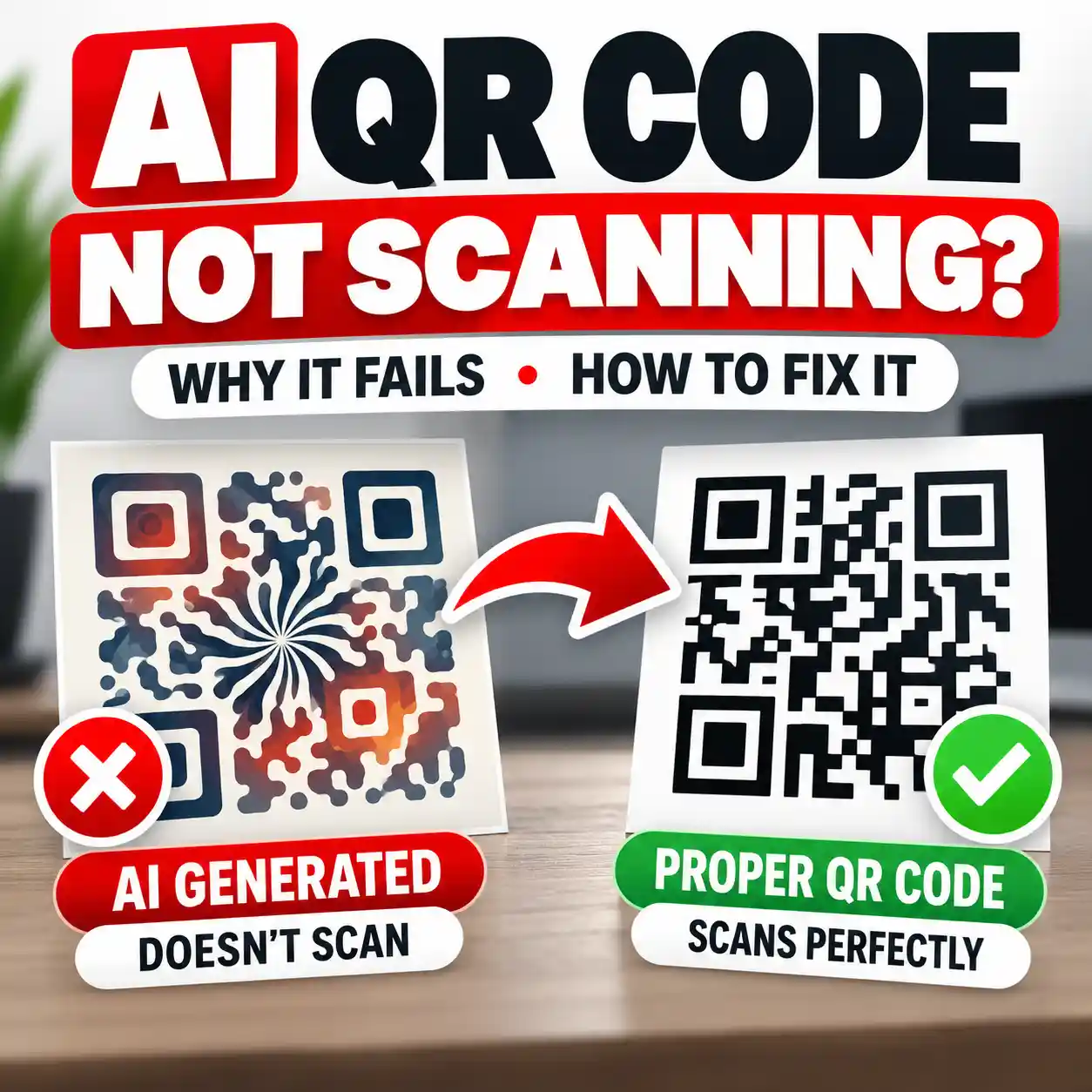
Is your ChatGPT transparent background not working even after requesting a transparent PNG? Sometimes ChatGPT produces an image with visible gray-and-white squares instead of genuine transparency. Those squares may be painted into the image rather than representing transparent pixels.
This guide explains how to identify a ChatGPT checkerboard background, check a downloaded image manually, remove fake transparency, and export usable graphics for presentations, websites, and digital products.
How do you fix a ChatGPT transparent background that is not working? Download the original image, open it in an editor that supports transparency, and place a contrasting color underneath. If checkerboard squares remain visible, they are likely part of the image. Remove the background or regenerate the artwork, export as a transparent PNG, and verify the saved result.
A checkerboard preview alone does not prove an image is transparent.
ChatGPT Transparent Background Not Working? Start Here
Image editors commonly display a gray-and-white checkerboard behind transparent areas. This pattern is a visual convention used to show where background pixels are absent.
However, a generated image may contain an imitation checkerboard that is actually part of the picture.
Background Shows Through
When the image is placed above a contrasting color, that color appears through genuinely transparent areas.
Checkerboard Remains Visible
Gray-and-white squares are ordinary image pixels that cover the lower background.
Three Things to Check First
- Download the actual image. Avoid using a screenshot of the preview.
- Place it over another color. Use a blue, black, or bright contrasting background.
- Examine the outer edges. Look for checkerboard fragments, white halos, and unwanted opaque pixels.
Adobe documents checkerboard grids as a standard way to display transparency inside image editing software.
Real Transparent PNG vs. Fake Checkerboard: Examples
These two original illustrations contain the same red geometric object. Both are displayed over a blue background, but their PNG pixel data is different.
The checkerboard is painted into the PNG and hides the blue surface. It does not disappear when the background changes.
Download Fake PNGThe PNG has genuine transparent pixels around the object. The blue surface is visible through the empty areas.
Download Transparent PNGThe two downloadable PNG examples are generated locally in supported browsers. If JavaScript is unavailable, simplified visual examples are displayed instead.
These are original synthetic demonstrations, not ChatGPT image-generation test results.
How to Check if a PNG Is Really Transparent
You do not need coding knowledge or an online image checker to verify the background. A standard image editor that supports transparency and layers is sufficient.
-
Open the downloaded image.
Use an image editor that supports transparency and layers.
-
Create a new colored layer.
Fill a separate layer with a bright color, such as blue or red.
-
Move the colored layer underneath.
Keep the image you want to check above the new color layer.
-
Inspect the background.
If the color shows through the intended empty areas, those areas contain transparency.
-
Look closely at the object.
Check for leftover checkerboard squares, halos, shadows, and damaged edges.
-
Export and reopen the image.
Verify the transparency in the final saved file, not just the editing preview.
Why Does ChatGPT Create a Checkerboard Background?
A generated image can sometimes reproduce the appearance of a transparency grid instead of returning the intended transparent pixels.
1. The Image Model Imitates an Editor Preview
Image editors display checkerboard patterns to indicate transparent areas. An image generator may reproduce that appearance as ordinary image content.
2. The Image Was Flattened
Flattening can merge foreground objects with a visible background. Once merged, the background may become part of the resulting image.
3. The File Was Converted to JPEG
JPEG does not support alpha transparency. Transparent regions are replaced with visible pixels when exported to JPEG.
4. Export Settings Added a Background
Some image applications replace transparency with white or another color during export.
5. The Original File Was Never Transparent
A picture can be saved as PNG while remaining completely opaque. The filename extension alone does not establish transparency.
For related image workflows, see our ChatGPT Image Templates guide .
How to Remove a Fake Checkerboard Background From an AI Image
If the checkerboard is part of the actual image, you must remove those pixels or generate a new transparent version.
Method 1: Use Background Removal
-
Make a copy of the original image.
Preserve the original file.
-
Open the copy in a suitable editor.
Choose an application with background removal or masking.
-
Select the foreground object.
Use a selection or background-removal feature to separate the subject.
-
Remove the unwanted background.
Use a layer mask where possible so the edit remains reversible.
-
Refine the edges.
Check small details, corners, shadows, and semi-transparent areas.
-
Export with transparency.
Use PNG or another supported format with transparent pixels.
-
Verify the final file.
Reopen it over a contrasting background color.
Method 2: Remove the Background Manually
Automatic removal can struggle when the subject has colors similar to the background.
Manually refine the mask around fine edges, small holes, shadows, and complex details.
Method 3: Regenerate the Image
If checkerboard pixels overlap important details, creating a new image may be easier than fixing every unwanted pixel.
Request genuine transparency, download the result, and verify the actual exported file.
How to Make ChatGPT Generate a Transparent Background
A clear prompt can describe the intended result, although it cannot guarantee that every output will have usable transparency.
Prompt 1: New Transparent Image
Prompt 2: Remove an Existing Background
For more AI image creation workflows, see our ChatGPT Sketch guide .
How to Fix Transparency Lost After Downloading or Saving
Problem: You Saved a Screenshot
Screenshots capture the visible display, including any checkerboard or background shown on screen. Download the original image instead of taking a screenshot.
Problem: You Converted to JPEG
JPEG does not support alpha transparency. Return to the original image and export in a suitable transparent format.
Problem: You Flattened the Image
Flattening may combine the foreground and visible background into a single opaque layer. Return to the layered source and export without the background.
Problem: The Image Appears White
A viewer may display transparent areas over white, or the file may have a real white background. Place it over another color to distinguish the two.
Problem: Gray or White Halos Remain
Background removal sometimes leaves fragments around the object. Refine the mask and inspect at the final intended display size.
Learn more about image quality in our AI Image Upscaler Checklist .
PNG vs JPEG vs WebP: Which Supports Transparency?
| Format | Transparency | Common Use |
|---|---|---|
| PNG | Yes, in appropriate color modes. | Transparent graphics and illustrations. |
| JPEG | No alpha transparency. | Opaque photographs. |
| WebP | Yes, when encoded appropriately. | Efficient web graphics. |
| SVG | Yes, through transparent vector areas. | Scalable vector graphics. |
| AVIF | Yes, in supported encodings. | Modern web images. |
Remember: A file format may support transparency without the individual image actually containing transparent pixels.
Reference: MDN image format documentation .
The CLEAR Method: Diagnose a Fake Transparent Background
Use this original Designs24hr framework to decide whether an image needs editing before publication.
Check the Download
Examine the actual saved image instead of its preview.
Layer Over a Color
Place the image above a contrasting background.
Examine the Pixels
Look for persistent checkerboards, halos, and unwanted opacity.
Adjust the Image
Remove the background, refine the mask, or regenerate.
Recheck the Export
Inspect the final image over light and dark backgrounds.
Approve or Revise
Use the image only when its transparency and edges meet your requirements.
CLEAR is an original Designs24hr editorial framework, not an official OpenAI testing method.
Transparent PNG Verification Checklist
Review these items before placing a transparent image in a design, product listing, website, or presentation.
Frequently Asked Questions About ChatGPT Image Transparency
Why is my ChatGPT transparent background not working?
The image may contain opaque checkerboard pixels or a solid background. Some export workflows can also remove transparency.
Why does ChatGPT generate a checkerboard background?
An image generator may reproduce the visual appearance of a transparency grid as ordinary pixels.
How do I know whether my PNG is really transparent?
Open the image in an editor, place a solid color underneath, and check whether it shows through the intended empty areas.
Can a PNG contain fake transparency?
Yes. PNG can contain opaque background pixels even though the format supports transparency.
How do I remove a checkerboard background?
Use background removal or masking, refine the object’s edges, and export in a format that preserves transparency.
Can ChatGPT create transparent PNG images?
Yes. ChatGPT supports transparent backgrounds, but the downloaded image still needs verification.
Why does my transparent PNG show white?
The viewer may display transparent areas over white, or the file may contain an opaque white background. Test against another color.
Does JPEG support transparency?
No. Standard JPEG does not support alpha transparency.
Does WebP support transparency?
Yes, when the file is encoded with transparent pixels.
Why does transparency disappear after saving?
Flattening, background replacement, or conversion to a format without alpha transparency may cause this.
Can an automatic background remover fix every image?
No. Some images require manual cleanup, especially around fine details and soft edges.
Does renaming JPG to PNG create transparency?
No. Changing the extension does not remove background pixels.
Final Thoughts: Verify the Pixels, Not Just the Preview
If your ChatGPT transparent background is not working, begin by checking the downloaded file rather than relying on the preview.
A checkerboard can represent transparency in an editor, but it can also be painted directly into the picture.
Use the CLEAR method: Check, Layer, Examine, Adjust, and Recheck.
For important design work, inspect the final file before publishing or selling it.
Make Better AI-Generated Designs
Explore practical tutorials covering image generation, editing, and everyday AI workflows.
Explore More AI GuidesOfficial Sources and Further Reading
This article uses published technical guidance and publicly reported product behavior. It does not claim independent testing of ChatGPT image-generation failures.
- OpenAI — Images in ChatGPT
- Adobe — Transparency Display Preferences
- MDN — Image File Types and Formats
- OpenAI Developer Community — Transparency Reports
Documentation reviewed: October 8, 2026. Product interfaces and image-generation behavior can change.
Editorial disclaimer: Designs24hr is an independent educational website and is not affiliated with or endorsed by OpenAI or Adobe. The comparison PNGs are original synthetic demonstrations. Verify image quality, licensing, and technical compatibility before commercial use.