ChatGPT App Permissions Explained: How to Control What Connected Apps Can Do
ChatGPT connected apps can make everyday work easier, but they also raise an important privacy question: when can ChatGPT read from an app, ask for approval, or take an action for you?
This beginner-friendly guide explains ChatGPT app permissions, connected apps permissions, safer settings, approval prompts, and how to stay in control before apps access messages, files, calendars, records, or other personal data.
Quick answer: ChatGPT app permissions control when ChatGPT must ask before using a connected app. Depending on the app and account, options may include Always ask, Any changes, Important actions, and Never ask. For most everyday users, Always ask gives the most control, while Important actions can balance convenience with safety checks.
What are ChatGPT app permissions?
ChatGPT app permissions are settings that control when ChatGPT asks for your approval before using a connected app. A connected app may be something like email, calendar, cloud storage, workplace files, documents, messages, notes, or other third-party tools available in your ChatGPT account.
These settings matter because connected apps can be useful and sensitive at the same time. For example, asking ChatGPT to find a document, summarize a calendar, draft an email, or update a file may involve personal information, work data, contacts, messages, or financial context.
The simple rule
App permissions do not mean “safe forever.” They decide how much ChatGPT should pause and ask before using access that already exists. If an app contains private or important information, choose a permission level that gives you enough review time before anything happens.
ChatGPT connected apps permissions explained
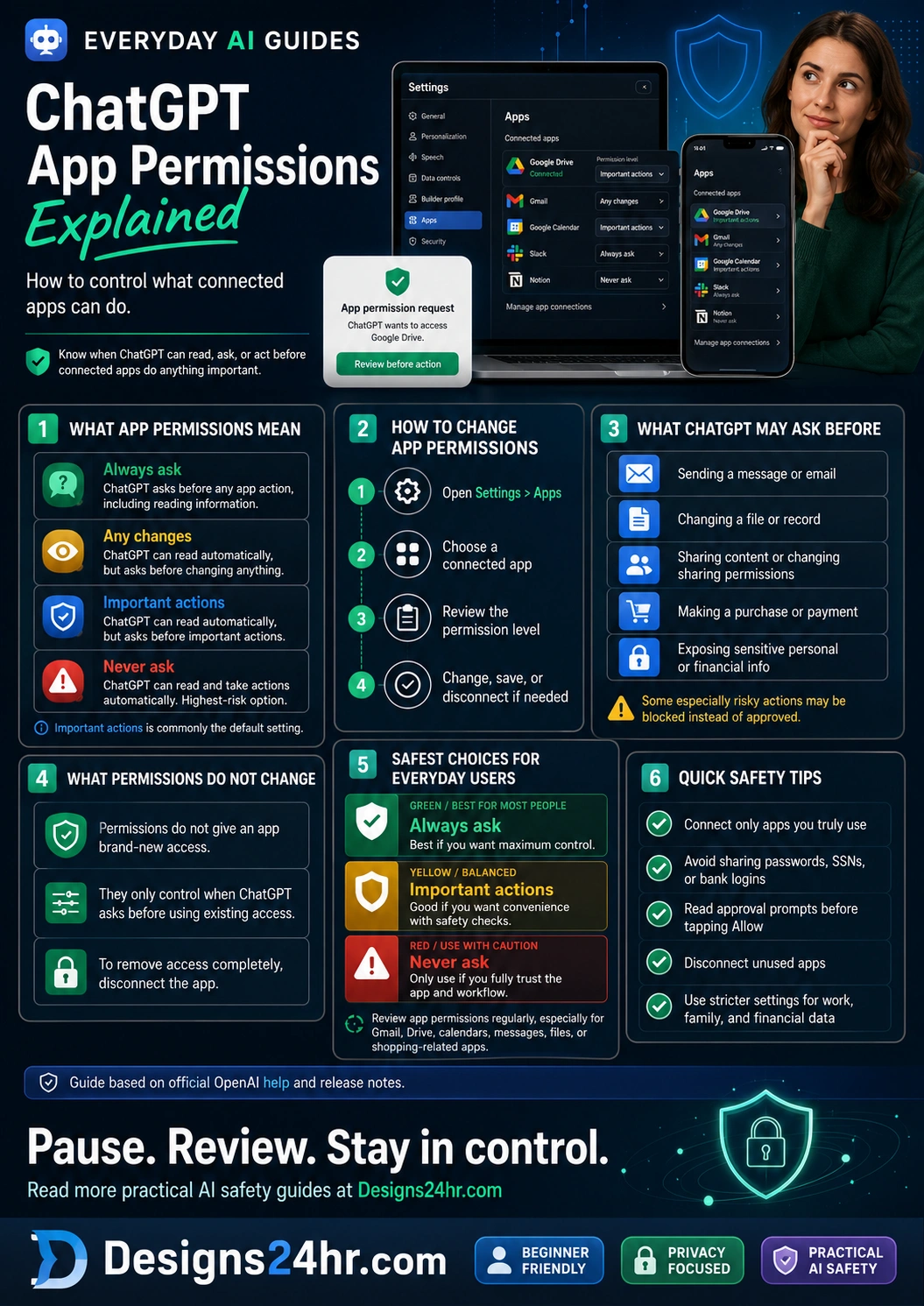
The permission options you see can vary by app, account type, workspace rules, and rollout status. In general, ChatGPT app permissions may include four main levels: Always ask, Any changes, Important actions, and Never ask.
| Permission level | What it means | Best everyday use |
|---|---|---|
| Always ask | ChatGPT asks before any app action, including reading information. | Best when you want maximum control, especially for email, files, calendars, family data, or financial context. |
| Any changes | ChatGPT can read automatically, but asks before changing anything. | Useful when reading is low-risk but edits, sends, updates, or changes should require approval. |
| Important actions | ChatGPT can read automatically, but asks before important actions. | A balanced option for people who want convenience but still want safety checks before higher-impact actions. |
| Never ask | ChatGPT can read and take actions automatically without confirmation prompts. | Highest-risk option. Only consider it for apps and workflows you fully understand and trust. |
Important: “Important actions” is commonly treated as a safer middle ground because it can allow routine reading while still asking before actions that may have a meaningful effect outside ChatGPT, expose sensitive information, or be difficult to undo.
What ChatGPT may ask before doing
When a connected app action needs approval, ChatGPT may show a permission or approval card before the action runs. You should read that card carefully before tapping or clicking allow.
How to change ChatGPT app permissions
If you have connected apps in ChatGPT, it is worth reviewing them regularly. The goal is not to disconnect everything. The goal is to make sure each app has the right level of access for how you actually use it.
Step-by-step app permission check
- Open ChatGPT settings. Look for the settings area in your ChatGPT account.
- Go to Apps. Open the app settings or connected apps area where available.
- Choose a connected app. Review apps such as email, calendar, cloud storage, documents, messaging, or workspace tools.
- Check the permission level. Look for options such as Always ask, Any changes, Important actions, or Never ask.
- Change the setting if needed. Use stricter settings for apps with sensitive personal, financial, family, work, or identity data.
- Disconnect apps you do not use. If you no longer need an app connected, remove access instead of only changing the permission level.
Simple self-check question:
Would I be comfortable with ChatGPT reading from or acting in this app without me reviewing the details first?
What app permissions do not change
A common mistake is thinking that changing a permission level removes all access. It does not. App permissions mostly control when ChatGPT asks before using access that was already granted when the app was connected.
Remember these three points
- Permissions do not give an app brand-new access. The app’s available data and actions depend on the app connection, original authorization, and any workspace controls.
- Permissions control when ChatGPT asks. A stricter setting means ChatGPT should ask more often before using the app.
- To remove access completely, disconnect the app. If you do not want ChatGPT to use an app at all, disconnect it or ask your workspace administrator to disable it.
Safest ChatGPT app permission choices for everyday users
The safest choice depends on the app and the type of data inside it. A shopping app, email account, cloud drive, calendar, or work tool may each deserve a different level of caution.
Use stricter settings for sensitive apps
- Email accounts with private messages, receipts, family conversations, or business contacts
- Cloud storage with tax files, contracts, identity documents, school files, or client work
- Calendars with medical appointments, family routines, travel plans, or private meetings
- Workplace tools with customer data, CRM records, internal files, or team messages
- Shopping, payment, booking, or billing-related apps
Quick safety tips before using connected apps in ChatGPT
Connected apps can save time, but the safest users treat them like any other account connection: useful, powerful, and worth reviewing.
Practical safety checklist
- Connect only apps you truly use. Fewer connected apps means fewer things to manage.
- Read approval prompts before tapping Allow. Check what app is involved, what action will happen, and whether the result makes sense.
- Avoid sharing passwords or login codes. Never paste passwords, one-time passcodes, recovery codes, SSNs, bank logins, or private IDs into ChatGPT.
- Use Always ask for sensitive apps. This gives you a review step before ChatGPT reads or acts.
- Disconnect unused apps. If you no longer need the connection, remove it instead of leaving it active.
- Review permissions after major life or work changes. New job, new client, new school year, shared family accounts, or financial changes can all affect privacy risk.
Examples: which permission should you choose?
Use these examples as a practical starting point, not a strict rule. Your best setting depends on your comfort level, account type, app sensitivity, and what the app can do.
| Connected app type | Safer starting point | Why it matters |
|---|---|---|
| Personal email | Always ask | Email can include receipts, family details, medical messages, banking alerts, account resets, and private conversations. |
| Cloud drive or documents | Always ask or Important actions | Files may include contracts, IDs, tax documents, client work, school files, or private notes. |
| Calendar | Any changes or Important actions | Reading calendar events may be useful, but creating, moving, or deleting events should usually require review. |
| Messaging or team chat | Always ask | Sending or sharing messages can affect other people and may expose private or work information. |
| Shopping or payments | Always ask | Purchases, billing, shipping, and financial details deserve extra caution. |
| Low-risk personal notes | Important actions | This may be acceptable if the notes are not sensitive and you still want approval before major changes. |
When should you disconnect a ChatGPT app?
Changing permission levels is helpful, but sometimes the safest move is to disconnect the app completely. This is especially true if you connected something for a one-time task and no longer need it.
Disconnect an app if any of these are true
- You do not recognize the app or do not remember connecting it.
- You no longer use the workflow that required the app.
- The app contains sensitive data you do not want ChatGPT to access.
- You connected the app while testing and forgot to remove it.
- You are using a shared device, shared account, family account, school account, or work account with extra privacy concerns.
- Your workplace or organization has a policy about AI tools and connected apps.
If you need help thinking through whether to keep an app connected, use the Decision Helper. If permission language feels confusing, try Explain This For Me to break it into plain English without sharing sensitive private details.
Best practice: review connected apps monthly
A simple monthly review can prevent permission creep. Apps you trusted for one task may not need to stay connected forever, and permission settings that once made sense may become too loose as your data changes.
5-minute monthly app permission review
- Open ChatGPT settings and go to Apps.
- Review every connected app on the list.
- Disconnect apps you no longer use.
- Set sensitive apps to Always ask.
- Check approval prompts carefully the next time ChatGPT uses a connected app.
For more simple AI privacy and tool explainers, visit the Everyday AI Guides hub on Designs24hr.
FAQs about ChatGPT app permissions
What are ChatGPT app permissions?
ChatGPT app permissions are settings that control when ChatGPT asks before using a connected app. They can affect whether ChatGPT asks before reading information, making changes, performing important actions, or taking actions automatically.
What does Always ask mean in ChatGPT app permissions?
Always ask means ChatGPT should ask before any app action, including reading information. It is a strong choice for users who want maximum control over connected apps.
What does Any changes mean?
Any changes means ChatGPT can read from the connected app automatically, but it should ask before changing anything. This can be useful when reading is acceptable but edits, sends, updates, or modifications need approval.
What does Important actions mean?
Important actions means ChatGPT can read automatically, but it asks before actions that may have a meaningful effect outside ChatGPT, expose sensitive information, or be difficult to undo.
What does Never ask mean?
Never ask means ChatGPT can read and take actions automatically without a confirmation prompt. This is the highest-risk option and should only be used if you fully trust the app and workflow.
Do app permissions remove an app’s access?
No. App permissions mainly control when ChatGPT asks before using existing app access. To remove access completely, disconnect the app or ask your workspace administrator to disable it.
Should I use Always ask for Gmail, Google Drive, or Calendar?
For many everyday users, Always ask is a safer starting point for Gmail, Google Drive, calendars, messages, files, and shopping-related apps because these can contain sensitive personal, family, financial, or work information.
Where do I change ChatGPT connected apps permissions?
Where available, you can manage connected app permissions from ChatGPT settings under Apps. Choose the connected app, review the permission level, and change or disconnect it if needed.
Helpful official sources
These official OpenAI resources are useful for checking the latest connected app permission options, release notes, and workspace controls.
Pause. Review. Stay in control.
ChatGPT connected apps can save time, but the safest setup is the one you understand. Review your connected apps, use stricter permissions for sensitive data, and disconnect anything you no longer need.
For more beginner-friendly AI safety guides and simple free tools, visit Designs24hr.com.