ChatGPT Scheduled Tasks Explained: How to Use AI Reminders, Recurring Prompts, and Smart Check-Ins
ChatGPT scheduled tasks can help you turn simple prompts into reminders, recurring check-ins, daily briefings, and useful alerts. Instead of remembering to ask ChatGPT every time, you can ask it to follow a schedule and notify you when something needs your attention.
This beginner-friendly guide explains what ChatGPT Scheduled Tasks can do, how to set them up, the best everyday use cases, smart prompt examples, privacy tips, and the key limits to know before you rely on them.
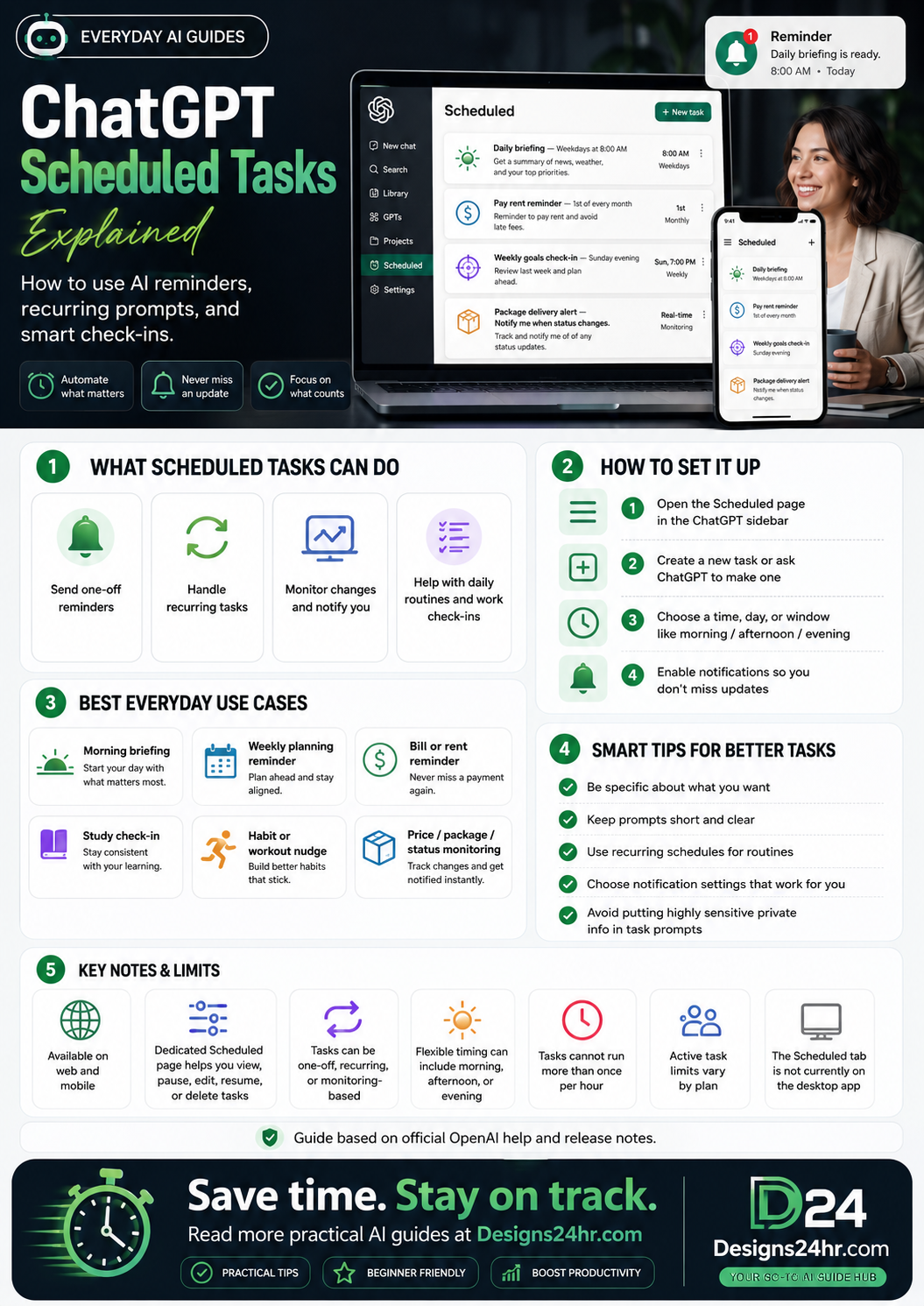
Quick answer: ChatGPT scheduled tasks let you ask ChatGPT to do something later, repeat something on a schedule, or monitor for meaningful changes. You can use them for reminders, daily briefings, weekly planning, habit nudges, package updates, price checks, and other recurring prompts. They are managed from the Scheduled page on ChatGPT web and mobile, with task availability and limits depending on your plan.
What are ChatGPT Scheduled Tasks?
ChatGPT scheduled tasks are prompts you set up to run later or repeat automatically. Instead of typing the same request every morning, every Sunday night, or every month, you can create a task and tell ChatGPT when to run it.
A scheduled task can be simple, like “Remind me to pay rent on the first of every month,” or more useful, like “Every Friday afternoon, help me review what I finished this week and plan my top three priorities for Monday.” Some tasks can also monitor for changes and notify you only when there is something meaningful to report.
Simple way to think about it
A normal reminder tells you, “Do this.” A ChatGPT scheduled task can tell you, “Here is the reminder, plus the context, checklist, plan, or next step you asked for.” That is what makes it more flexible than a basic calendar alert.
What ChatGPT Scheduled Tasks can do
Scheduled tasks are useful when you want ChatGPT to help at the right time without needing to start from scratch. They are especially helpful for routines, planning, learning, follow-ups, and lightweight monitoring.
How to set up ChatGPT scheduled tasks
You can create a task from the Scheduled page in ChatGPT or simply ask ChatGPT to create one during a conversation. The exact options you see may depend on your plan, platform, and notification settings.
Step-by-step setup
- Open the Scheduled page. Look for Scheduled in the ChatGPT sidebar on web or mobile.
- Create a new task. You can start from the Scheduled page or ask ChatGPT directly, such as “Remind me every Friday to review my weekly goals.”
- Choose the schedule. Pick a specific time, day, recurring pattern, or broader window such as morning, afternoon, or evening.
- Confirm the task. Review what ChatGPT will do, when it will run, and whether it should be one-time, recurring, or monitoring-based.
- Enable notifications. Check push, email, browser, or device notification settings so you actually receive the task update.
Helpful tip: If you create a task but do not receive alerts, the issue may be your ChatGPT notification settings, browser notification permissions, or mobile push notification permissions.
Best everyday use cases for ChatGPT recurring tasks
The best ChatGPT recurring tasks are not just reminders. They include a small amount of helpful thinking, structure, or context. That is where ChatGPT can be more useful than a basic alarm.
For extra planning support, you can also pair scheduled tasks with free productivity tools like the AI Daily Task Planner, What To Do Next, or Decision Helper from Designs24hr.
ChatGPT scheduled task prompt examples you can copy
Good scheduled task prompts are clear, short, and specific. Tell ChatGPT what to do, when to do it, and what kind of output you want.
Daily briefing task:
Every weekday morning, give me a short daily briefing with my top priorities, one focus tip, and one thing I should avoid wasting time on. Weekly planning task:
Every Sunday evening, help me review the past week and choose three realistic priorities for the upcoming week. Keep it short and practical. Bill reminder task:
Remind me on the first day of every month to review rent, utilities, subscriptions, and any upcoming payments. Include a quick checklist. Study check-in task:
Every Monday, Wednesday, and Friday evening, remind me to study for 30 minutes and ask me what topic I want to review next. Monitoring task:
Check once a day for meaningful updates about this topic and notify me only if there is something important, new, or action-worthy. ChatGPT scheduled tasks vs. calendar reminders vs. to-do apps
Scheduled tasks are useful, but they do not replace every productivity tool. The right choice depends on what you need the reminder to do.
| Tool | Best for | Where ChatGPT helps most |
|---|---|---|
| Calendar reminder | Appointments, meetings, fixed times, and simple alerts. | ChatGPT can add context, preparation steps, or a short checklist. |
| To-do app | Task lists, projects, deadlines, and manual tracking. | ChatGPT can help prioritize, summarize, and turn messy tasks into next steps. |
| ChatGPT scheduled task | AI reminders, recurring prompts, smart check-ins, and monitoring updates. | ChatGPT can generate a useful response at the scheduled time, not just a notification. |
Smart tips and key limits to know
Before relying on scheduled tasks, it helps to understand how to make them clear, safe, and realistic. A good task should be specific enough to run without confusion and simple enough that you can trust the result.
Smart tips for better ChatGPT tasks
- Be specific about the outcome. Instead of “Help me be productive,” ask for “three priorities, one reminder, and one next action.”
- Use recurring schedules for routines. Daily briefings, weekly reviews, and monthly bill checks are ideal recurring tasks.
- Keep the prompt short and reusable. The task should make sense every time it runs.
- Choose notification settings that fit your routine. A useful task is only useful if you notice it at the right time.
- Review old tasks regularly. Pause or delete tasks that are no longer helpful so your Scheduled page stays clean.
Important limits and privacy notes
- Availability can depend on plan and platform. OpenAI says scheduled tasks are available on ChatGPT web and mobile for supported plans.
- Active task limits vary by plan. If you hit your active task limit, you may need to pause or delete an existing task before creating another.
- Tasks cannot run more than once per hour. Do not use them for minute-by-minute alerts or urgent monitoring.
- Some tools are not supported with tasks. OpenAI’s help page notes that voice chats and GPTs are not supported with tasks.
- Tasks created in projects may not access project files. Do not assume a scheduled task can use every file or context from a project.
- Do not include highly sensitive private information. Avoid putting SSNs, banking details, passwords, private IDs, medical records, or confidential business data into task prompts.
How to manage, pause, edit, or delete a scheduled task
Once a task is created, you should be able to view and manage it from the Scheduled page or from the task itself inside ChatGPT. This is useful when your routine changes or a reminder becomes unnecessary.
Task management checklist
- View all tasks: Open the Scheduled page to see active tasks and upcoming runs.
- Edit a task: Change the prompt, schedule, or notification behavior if the original setup is not working.
- Pause a task: Temporarily stop a task without deleting it completely.
- Resume a task: Restart a paused routine when you want it back.
- Delete a task: Remove tasks you no longer need so your list stays focused.
If you delete a chat connected to a scheduled task, the task may automatically pause. Deleting the task itself does not necessarily delete the original chat, so manage both carefully when cleaning up old workflows.
Best practices for U.S. readers using AI reminders
For everyday U.S. routines, scheduled tasks can be especially helpful around work planning, school schedules, rent reminders, subscription checks, package updates, appointment prep, and family organization. The goal is not to automate your whole life. The goal is to reduce the small things you keep forgetting.
FAQs about ChatGPT scheduled tasks
What are ChatGPT scheduled tasks?
ChatGPT scheduled tasks are prompts that run later, repeat on a schedule, or monitor for meaningful changes. They can be used for reminders, recurring prompts, daily briefings, planning check-ins, and alerts.
How do I create a scheduled task in ChatGPT?
You can create a task from the Scheduled page in the ChatGPT sidebar on web or mobile, or you can ask ChatGPT directly to create a task for a specific time, date, routine, or monitoring need.
Can ChatGPT scheduled tasks repeat every day or every week?
Yes. Scheduled tasks can be one-off or recurring. You can ask for daily, weekly, monthly, or routine-based reminders depending on what your ChatGPT plan and task settings support.
Can ChatGPT monitor things for me?
Yes, supported monitoring tasks can check for changes and notify you only when there is something meaningful to report. This can be useful for package updates, price changes, news topics, or other status changes.
How often can ChatGPT scheduled tasks run?
OpenAI’s help page says tasks cannot run more than once per hour. That means they are useful for reminders and periodic checks, but not for constant real-time monitoring.
Are ChatGPT scheduled tasks available on desktop?
OpenAI’s help page says the Scheduled tab is available on ChatGPT web and mobile, and is not currently available on the ChatGPT desktop app or Codex app. Availability can change, so check your current ChatGPT interface.
What should I avoid putting in scheduled task prompts?
Avoid highly sensitive personal or financial information, including passwords, Social Security numbers, bank logins, private IDs, medical records, and confidential business details. Keep prompts useful but privacy-conscious.
Helpful official sources
These official OpenAI resources are useful for checking the latest Scheduled Tasks availability, setup steps, notification behavior, and plan limits.
Save time. Stay on track.
ChatGPT scheduled tasks are most useful when you use them for small, repeatable moments that matter: planning your week, remembering bills, staying consistent with learning, checking for updates, and getting helpful nudges before things slip.
For more beginner-friendly AI productivity guides and simple free tools, visit Designs24hr.com.