ChatGPT Pinned Chats Explained: How to Organize Important Chats and Projects
ChatGPT pinned chats help you keep important conversations, reusable prompts, active projects, and everyday workflows easy to find instead of losing them inside a crowded sidebar.
This beginner-friendly guide explains how ChatGPT pinned chats work, what to pin, when to use Projects instead, how to reduce sidebar clutter, and how to build a simple weekly reset routine.
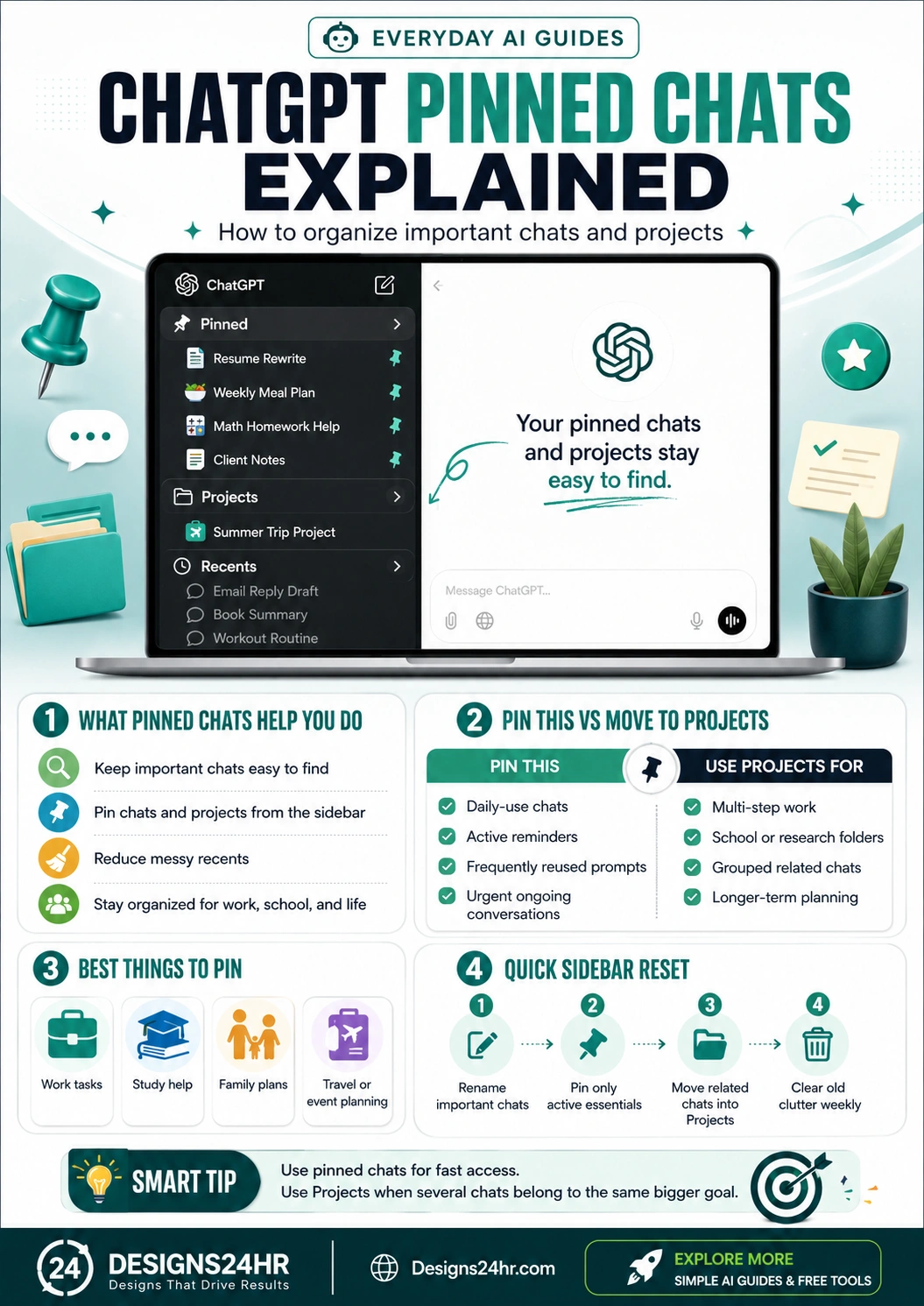
Quick answer: ChatGPT pinned chats let you keep important conversations close in the sidebar so you can reopen them faster. OpenAI’s recent sidebar organization update lets users pin chats and projects directly from the sidebar, with a Pinned section that can include both chats and projects. Use pinned chats for active, frequently used conversations, and use Projects when several related chats, files, or instructions belong to one bigger goal.
What are ChatGPT pinned chats?
ChatGPT pinned chats are important conversations you keep at the top of your ChatGPT sidebar so they are easier to find later. Instead of scrolling through Recents or trying to remember an old chat title, pinned chats act like shortcuts to conversations you use often.
OpenAI’s release notes say users can pin chats and projects directly from the sidebar, and that the Pinned section now includes both chats and projects. This makes pinned chats more useful for everyday organization, especially if you use ChatGPT for work, school, family planning, writing, research, or repeat prompts.
Simple way to think about it
A pinned chat is like putting a sticky note on an important conversation. A Project is more like a folder for a bigger goal. Use pins for fast access. Use Projects when several conversations belong together.
Why pinned chats help with ChatGPT sidebar organization
The more you use ChatGPT, the faster your sidebar fills up. You may have one chat for a resume, another for meal planning, another for homework help, another for client notes, and another for travel planning. Without a system, useful conversations can disappear under newer chats.
How to pin chats in ChatGPT
The exact interface can change by account, device, and rollout status, but the basic idea is simple: find the chat or project in the sidebar, open its menu, and choose the pin option where available.
Basic pinning workflow
- Open the ChatGPT sidebar. Find the chat or project you want to keep close.
- Open the chat menu. Look for a three-dot menu, right-click option, or sidebar action depending on your device.
- Choose Pin. The chat should move into your Pinned section if the feature is available in your account.
- Rename the chat if needed. A clear title makes pinned chats easier to scan later.
- Unpin when it is no longer active. Keep your Pinned section focused on what you actually use.
Helpful tip: If you do not see the same pinning option yet, check whether your ChatGPT app or browser experience is updated. Feature rollouts can vary by platform and account.
ChatGPT pinned chats vs. Projects: what should you use?
Pinned chats and Projects both help you organize ChatGPT, but they solve different problems. The easiest mistake is pinning everything. When that happens, your Pinned section becomes another messy Recents list.
| Use case | Pin a chat when… | Use a Project when… |
|---|---|---|
| Daily planning | You have one recurring planning chat you open every morning. | You are managing a bigger routine with multiple related planning chats and files. |
| School work | You need quick access to one homework helper or study chat. | You have a semester, course, research paper, or study system with multiple chats. |
| Work tasks | You keep returning to one active draft, meeting prep chat, or client note. | You are managing a multi-step client, report, campaign, or team workflow. |
| Personal life | You often reuse one meal planning, travel, or family checklist chat. | You are planning a trip, event, move, renovation, or long-term family project. |
| Reusable prompts | You have one prompt template chat you reuse frequently. | You need a full prompt library with related chats, instructions, or files. |
Fast rule
Pin it if you need fast access to one conversation. Move it into a Project if several chats belong to the same bigger goal.
Best things to pin in ChatGPT
A good Pinned section should feel like a clean dashboard. It should show only the conversations that still matter this week, not every chat you once liked.
For daily planning, pair pinned chats with the AI Daily Task Planner. If you are deciding what deserves priority, use What To Do Next or the Decision Helper.
What not to pin
Pinning is most useful when it stays selective. If you pin too many chats, you lose the speed benefit. Keep old, finished, random, or low-value chats out of the Pinned section.
Avoid pinning these
- Finished one-time chats: If the task is done and you will not reuse it, do not keep it pinned.
- Duplicate conversations: Keep the best version and unpin the weaker copy.
- Chats with unclear titles: Rename first so you can understand the value later.
- Old research you no longer trust: If facts may be outdated, avoid pinning it as a go-to source.
- Private or sensitive chats on shared devices: Be careful pinning conversations that reveal personal, family, financial, school, or work details.
How to name pinned chats so they stay useful
A pinned chat with a vague title is easy to ignore. A pinned chat with a clear title becomes a shortcut. Rename important conversations with words that match the job they do.
| Weak title | Better pinned title | Why it works |
|---|---|---|
| New chat | Weekly Meal Plan | Clear, reusable, and easy to recognize. |
| Resume help | Resume Rewrite for Marketing Jobs | Explains the goal and context. |
| School stuff | Math Homework Helper | Specific enough to reopen quickly. |
| Ideas | Content Ideas for Designs24hr | Connects the chat to a real workflow. |
| Trip | Summer Trip Planning | Useful for travel planning and follow-up questions. |
Reusable title prompt:
Suggest five short, clear titles for this ChatGPT conversation so I can pin it and recognize it later. You can also use the AI Prompt Generator to create reusable prompts for your pinned chats.
Example pinned chat setup for everyday users
Here is a simple structure that works for students, workers, creators, parents, and busy everyday users who want ChatGPT to feel less scattered.
Privacy and safety tips for pinned chats
Pinned chats are convenient, but convenience can also make sensitive conversations more visible. Be careful with chats that include private documents, personal details, workplace information, school records, family issues, or financial planning.
Pin safely with these habits
- Do not pin sensitive chats on shared devices. If other people can see your screen, pinned chats may reveal more than you expect.
- Use clear but not overly private titles. A title should help you, but it does not need to expose personal details.
- Unpin outdated research. Old AI answers may no longer be accurate, especially for fast-changing topics.
- Keep private files in the right place. If a chat depends on sensitive uploads, review your file and Library settings separately.
- Review pinned chats regularly. If a chat no longer needs fast access, unpin it.
FAQs about ChatGPT pinned chats
What are ChatGPT pinned chats?
ChatGPT pinned chats are important conversations you keep close in the sidebar so you can find and reopen them faster. They are useful for active work, reusable prompts, planning routines, school help, and ongoing conversations.
How do I pin a chat in ChatGPT?
Where available, open the ChatGPT sidebar, find the conversation, open its menu, and choose the pin option. The exact interface may vary by account, device, and rollout status.
Can I pin ChatGPT Projects?
OpenAI’s release notes say users can pin chats and projects directly from the sidebar, and the Pinned section can include both chats and projects. Availability may vary by platform and account.
What should I pin in ChatGPT?
Pin chats you actively use or need to reopen often, such as daily planning, resume help, homework support, meal planning, travel planning, client notes, reusable prompts, or important current work.
Should I pin a chat or use a Project?
Pin a chat when you need fast access to one conversation. Use a Project when multiple related chats, files, or instructions belong to one bigger goal.
Can pinned chats reduce sidebar clutter?
Yes, pinned chats can reduce clutter if you use them selectively. Pin only active essentials, rename important chats clearly, move bigger workflows into Projects, and unpin finished conversations.
Are pinned chats private?
Pinned chats follow your ChatGPT account and interface behavior, but they may be easier to see in your sidebar. Be careful pinning sensitive conversations on shared devices or in environments where others can view your screen.
How often should I clean up pinned chats?
A weekly reset works well for most users. Rename useful chats, keep only active essentials pinned, move related work into Projects, and unpin conversations that are finished or outdated.
Helpful official source
This source is useful for checking the latest ChatGPT sidebar, pinned chats, and project organization updates.
Find chats faster. Stay organized.
ChatGPT pinned chats are most useful when you keep them focused: pin what you use often, move bigger goals into Projects, rename important conversations, and clean up your sidebar weekly.
For more beginner-friendly AI guides and simple free tools, visit Designs24hr.com.