Gemini Omni on Pixel Explained: How Google’s AI Video and Music Tools Work
Gemini Omni on Pixel brings Google’s newer AI creation tools closer to everyday creators. This guide explains how Pixel AI video editing, Gemini music generation, camera roll remixing, templates, and responsible AI creation can help students, families, creators, and small businesses make better mobile content.
What is Gemini Omni on Pixel?
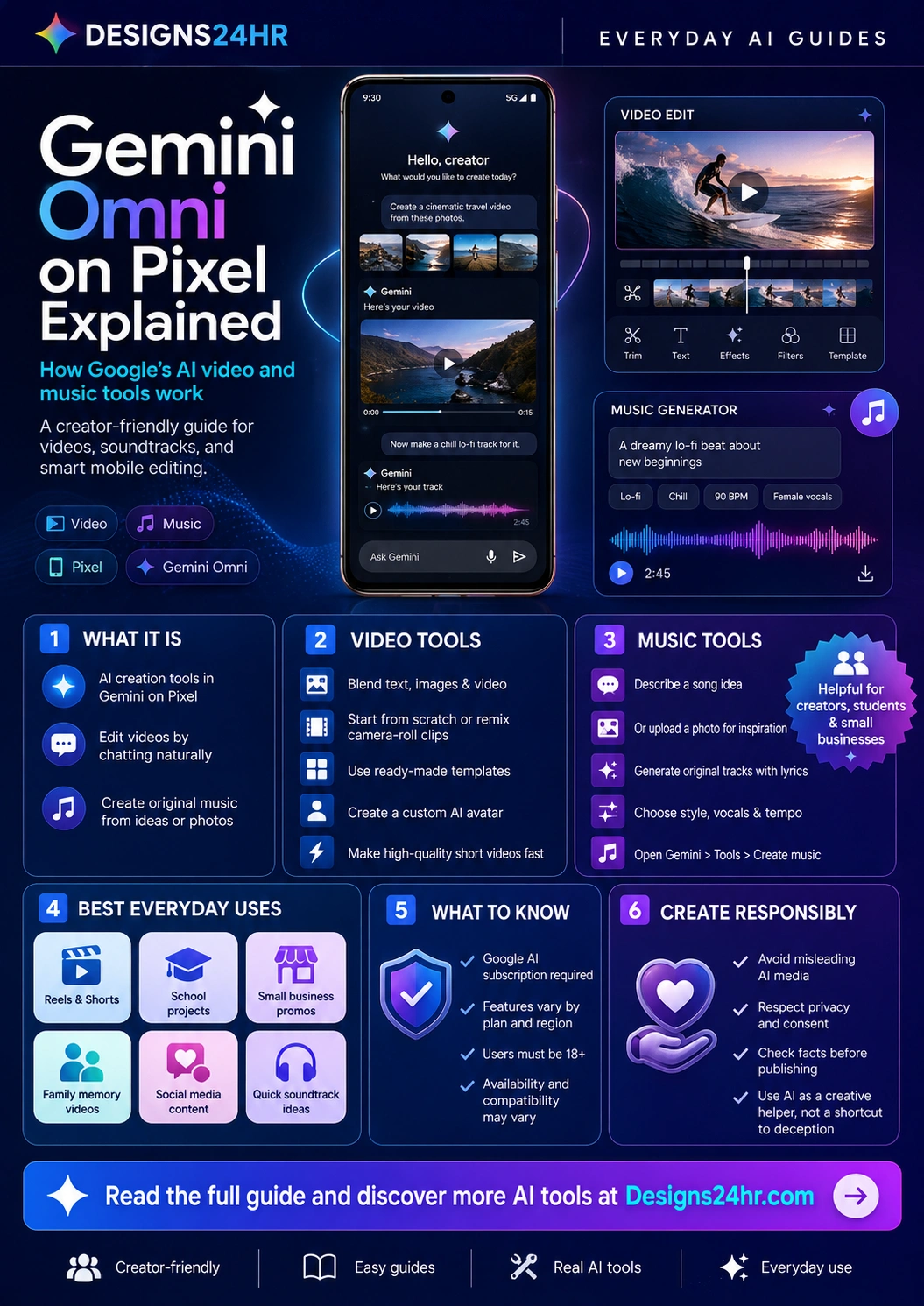
Gemini Omni on Pixel refers to Google’s AI creation experience for Pixel users that helps people create and edit videos by chatting naturally with Gemini. Google’s official June Pixel Drop says users can blend text, images, and video, start from scratch, remix photos and clips from the camera roll, use premade templates, and even create a custom AI avatar.
The same Pixel Drop also describes music generation in Gemini on Pixel. Users can describe a music idea or upload a photo, then customize the style, vocals, and tempo to create an original track with lyrics.
For everyday users, the simple takeaway is this: Gemini Omni on Pixel is not just a fun AI feature. It can become a mobile creator workflow for short videos, social posts, school projects, family memories, small business promos, and fast soundtrack ideas.
AI video creation
Use natural language to help create, remix, and edit videos with text, images, video clips, templates, and camera roll media.
AI music generation
Describe a song idea or use a photo for inspiration, then customize the sound with style, vocals, tempo, and lyrics.
Why Gemini Omni on Pixel matters
Most people already have videos, screenshots, photos, and ideas sitting on their phones. The hard part is turning that raw media into something polished enough to share. Gemini Omni on Pixel matters because it moves more of that creative process into a phone-based AI workflow.
Instead of opening multiple apps, learning a complicated editing timeline, hunting for music, and guessing what looks good, users can describe what they want and use Gemini as a creative helper. That is useful for beginners, but also helpful for busy creators who need to move faster.
In plain language, it can help you:
- Create videos faster from ideas, photos, video clips, and prompts.
- Remix existing media from your camera roll into more polished content.
- Try templates when you do not want to start from a blank screen.
- Generate music ideas for short videos, presentations, reels, or personal projects.
- Use AI as a creative assistant while still making your own final decisions.
Simple example: turning phone photos into a short video
Imagine you have a few vacation photos, a short beach clip, and an idea for a 20-second travel video. Instead of manually building everything from scratch, you could ask Gemini to create a cinematic travel video from those photos and clips, then request an upbeat soundtrack to match the mood.
That is the kind of workflow Gemini Omni on Pixel is built around: describe the result you want, use your existing media, refine the output, and make the final version feel shareable.
Before uploading or publishing, you can use the Aspect Ratio Calculator to choose the right dimensions for Shorts, Reels, TikTok, YouTube, Instagram, or a website thumbnail.
What Gemini Omni on Pixel can do
The most useful way to understand Gemini Omni on Pixel is to divide it into two creative jobs: video creation and music creation.
| Feature | What it means | Everyday example |
|---|---|---|
| Natural chat editing | You can describe what you want in normal language instead of only using manual editing tools. | “Make this hiking clip feel more cinematic and add a calm intro.” |
| Text, image, and video blending | You can combine different input types to create a finished video idea. | Use a product photo, a short clip, and a written prompt to create a social promo. |
| Camera roll remixing | You can start with existing photos and videos already on your Pixel. | Turn weekend photos into a family memory video. |
| Premade templates | You can use ready-made formats when you do not want to design everything manually. | Create a quick school project recap or event promo. |
| Custom AI avatar | You may be able to create an AI avatar that looks and sounds like you and use it in video content. | Add a personal presenter-style intro to a tutorial. |
| AI music generation | You can describe a song idea or upload a photo to create a track with lyrics, then customize style, vocals, and tempo. | Create a short upbeat song idea for a video montage. |
How Pixel AI video editing works in a beginner workflow
Pixel AI video editing with Gemini Omni is designed to feel more like a conversation than a traditional editing dashboard. You describe the video you want, provide media or context, and then refine the result.
Start with a clear idea
Decide what the video should do. Is it a travel recap, school project, product promo, tutorial, family memory, or social post?
Add your media
Use photos, video clips, or other available media from your Pixel camera roll. Choose only the clips that support the story.
Describe the video style
Ask for a specific mood, format, length, pace, audience, and platform. A clear prompt usually produces a better starting point.
Refine the result
Ask Gemini to adjust the pacing, add or remove sections, change the tone, try a different style, or make it clearer for your audience.
Review before publishing
Check facts, visual accuracy, permissions, music use, privacy, and whether the video could mislead viewers before you post it.
How Gemini music generation on Pixel works
Google says music generation in Gemini on Pixel can create original tracks when you describe an idea or upload a photo. You can then customize the track by choosing the style, vocals, and tempo you want.
Useful music prompt details include:
- Mood: upbeat, calm, cinematic, playful, nostalgic, dramatic, or relaxing.
- Style: pop, lo-fi, acoustic, electronic, country, ambient, or orchestral.
- Tempo: slow, medium, fast, energetic, soft, or background-friendly.
- Vocals: instrumental, male vocal, female vocal, group vocal, or spoken style.
- Use case: short video, family montage, product promo, school project, or social post.
For best results, describe the video or project the music is meant to support. A song idea for a family memory video should sound different from a soundtrack for a small business product teaser.
What to know before using Gemini Omni on Pixel
Before building a content workflow around Gemini Omni on Pixel, check the latest availability and requirements in your account. Google notes that features can vary by plan, geography, compatibility, and rollout timing. Some Gemini Omni and music generation features may require a Google AI subscription and age eligibility.
Before you start, check:
- Whether your Pixel model supports the feature.
- Whether the feature has rolled out to your region.
- Whether a Google AI subscription is required.
- Whether the feature is available for your account age and plan.
- Whether the final output is allowed for your intended personal, school, creator, or business use.
For fast planning, use the AI Prompt Generator to structure a cleaner video or music prompt before asking Gemini to create anything.
Important: AI creation still needs human review
Gemini Omni on Pixel can help you create faster, but that does not mean every output is ready to publish. AI-generated video, music, avatars, and edited media should be reviewed for accuracy, privacy, consent, and possible confusion.
If a video changes how a real person looks, sounds, acts, or appears in a scene, be extra careful. Do not use AI tools to mislead viewers, impersonate someone without permission, create fake evidence, or make content that could damage someone’s reputation.
Best everyday uses for Gemini Omni on Pixel
The strongest use cases are practical, creative, and low-risk. Think of Gemini Omni as a mobile helper for turning everyday ideas into more polished media.
Creators and social posts
Create short-form videos, content drafts, intros, hooks, visual concepts, and soundtrack ideas for platforms like YouTube Shorts, Instagram Reels, and TikTok.
Small business promos
Turn product photos, service clips, event shots, and behind-the-scenes media into quick promotional videos or campaign concepts.
School projects
Use AI video tools to organize visual explanations, project recaps, study presentations, or class-friendly media with clear labels and accurate information.
Family memories
Remix photos and short clips into birthday recaps, vacation montages, celebration videos, or personal keepsakes without needing advanced editing skills.
Prompt examples for Gemini Omni on Pixel
A better prompt gives Gemini more useful direction. Use these as starting points and adjust them based on your actual content.
For a travel video
“Create a 20-second cinematic travel video from these beach and mountain clips. Use a warm, adventurous mood, fast but smooth pacing, and a short upbeat soundtrack.”
For a small business promo
“Turn these product photos into a clean 15-second promo for a small online shop. Make it modern, bright, simple, and friendly. Include space for a product name and call to action.”
For a school project
“Create a simple explainer video from these images. Keep it educational, clear, and beginner-friendly. Use calm background music and avoid anything dramatic or misleading.”
For a family memory video
“Make a warm 30-second family memory video from these birthday photos and clips. Keep it cheerful, gentle, and natural. Add a soft soundtrack without making it too loud.”
For music generation
“Create a short upbeat lo-fi track for a 20-second travel montage. Use bright synths, soft drums, no distracting vocals, and a hopeful mood.”
How creators can make better AI videos
Good AI content still starts with a good creative plan. Before asking Gemini Omni to create a video, decide what the viewer should understand, feel, or do after watching.
Use this simple creator checklist:
- Goal: What is the video trying to do?
- Audience: Who is the video for?
- Platform: Where will it be posted?
- Format: Should it be vertical, square, or horizontal?
- Mood: Should it feel calm, fun, premium, educational, or urgent?
- Proof: Does the video need real facts, dates, claims, or product details?
After creating the video, use the Image Resizer & Converter and Aspect Ratio Calculator to prepare supporting thumbnails, cover images, previews, or website visuals.
How small businesses can use Gemini Omni on Pixel
Small businesses can use Gemini Omni on Pixel to move faster with simple marketing media. A restaurant could turn food photos into a short daily special video. A local service business could turn before-and-after clips into a short promo. An Etsy seller or online shop could create product teasers from camera roll images.
The key is to stay honest. Do not use AI edits to exaggerate results, fake testimonials, alter product details, or misrepresent what customers will receive. AI should make your content clearer and more engaging, not deceptive.
Good small business uses include:
- Product launch teasers.
- Before-and-after project recaps with real context.
- Event announcements.
- Simple social media ads.
- Educational clips explaining a service.
- Short soundtracks for brand-friendly videos.
Before publishing a business post, check your headline and metadata with the Title/Meta Previewer and optimize supporting text with the Keyword Density Checker.
How students and families can use it safely
Students and families can use Gemini Omni on Pixel for creative projects, school presentations, memories, birthday recaps, club videos, travel clips, and simple explainer content. These are good beginner-friendly use cases because they focus on communication and creativity.
Use extra caution with:
- Videos that include children or classmates.
- School names, addresses, schedules, or private locations.
- AI avatars that imitate real people.
- Music or lyrics that may not fit a school or family setting.
- Generated content that could be mistaken for real footage.
For school projects, label AI-assisted media clearly when your teacher or school policy requires it. For family content, get permission before posting someone else’s face, voice, or private moment online.
Design tips for better AI video outputs
Even if Gemini helps generate the video, design basics still matter. A clean visual system can make the final result look more professional.
Keep colors consistent
Use a small color palette so the video feels intentional. The Color Palette Generator can help you choose a clean set of colors.
Use gradients carefully
Gradients can make titles, covers, and thumbnails feel more modern. Try the CSS Gradient Generator for web-ready visual inspiration.
Quick visual rules:
- Use fewer fonts and fewer colors.
- Keep text readable on mobile screens.
- Do not overload short videos with too many scenes.
- Use captions when the video needs clarity without sound.
- Make the first three seconds easy to understand.
Responsible AI creation checklist
AI video and music tools can be powerful, so use them carefully. Before publishing anything made or edited with Gemini Omni on Pixel, run through this checklist.
- Did I use only media I have the right to use?
- Did I get permission from people shown or represented?
- Could anyone mistake this AI-generated content for real footage?
- Does the content need an AI disclosure?
- Are all claims, dates, prices, and facts accurate?
- Does the soundtrack fit the audience and platform?
- Am I avoiding impersonation, deception, and harmful edits?
Use AI as a creative helper, not as a shortcut to mislead people.
Common mistakes to avoid
Using vague prompts
A prompt like “make a cool video” gives Gemini very little direction. A better prompt includes the audience, platform, length, mood, style, and purpose.
Publishing without checking details
AI tools can generate impressive results, but they can also create visual errors, inaccurate context, strange edits, or misleading moments. Always review before posting.
Forgetting platform sizes
A video that looks good horizontally may not work for Shorts, Reels, or TikTok. Choose the aspect ratio before final export when possible.
Using AI avatars carelessly
AI avatars should not be used to impersonate people, fake endorsements, or create confusion about who is speaking.
Ignoring subscriptions and availability
Some Gemini Omni on Pixel features may depend on subscription tier, region, device compatibility, and rollout timing. Check current Google details before promising the workflow to a client, class, or team.
Recommended Designs24hr tools to use with this guide
These free tools can help you plan, size, polish, and publish stronger AI-assisted creative content.
Frequently asked questions about Gemini Omni on Pixel
What is Gemini Omni on Pixel?
Gemini Omni on Pixel is Google’s AI creation experience that helps Pixel users create and edit videos by chatting naturally with Gemini. It can combine text, images, video clips, templates, camera roll media, and creative prompts.
Can Gemini Omni on Pixel create videos?
Yes. Google says Gemini Omni on Pixel can help users create and edit videos, start from scratch, remix camera roll photos and videos, use premade templates, and create custom AI avatar-style content where available.
Can Gemini on Pixel generate music?
Yes. Google’s June Pixel Drop says music generation in Gemini on Pixel can create original tracks from a described idea or an uploaded photo, with options for style, vocals, and tempo.
Does Gemini Omni on Pixel require a subscription?
Some Gemini Omni on Pixel features may require a Google AI subscription and may vary by plan, geography, device compatibility, account eligibility, and rollout timing. Check the latest Google details before relying on a feature.
Who is Gemini Omni on Pixel best for?
It is best for creators, students, families, small business owners, and everyday Pixel users who want faster mobile tools for videos, music, short-form content, presentations, and creative projects.
Is Pixel AI video editing safe to use?
It can be safe when used responsibly. Review outputs before publishing, respect privacy and consent, avoid impersonation, check facts, and do not use AI-generated video or audio to mislead viewers.
Can I use Gemini Omni on Pixel for business content?
You may be able to use it for small business promos, product teasers, social posts, and campaign ideas, but you should review Google’s current terms, subscription requirements, and usage rules before using outputs commercially.
Use Gemini Omni on Pixel as a creative assistant
Gemini Omni on Pixel can help turn everyday photos, clips, prompts, and music ideas into stronger content. Use it for faster drafts, better creative direction, and mobile-first editing, but always review the final output for accuracy, privacy, consent, and responsible AI use.
Explore more Everyday AI Guides