Microsoft 365 Copilot AI Video Creator: 7 Powerful Benefits for U.S. Small Businesses
Microsoft 365 Copilot AI Video Creator can help U.S. small businesses turn existing documents, decks, notes, PDFs, and brand assets into short marketing videos with less manual editing.
Most U.S. small businesses already have useful content sitting inside Word documents, PowerPoint decks, PDFs, meeting notes, service pages, sales proposals, and OneDrive folders. The hard part is turning that information into videos people will actually watch.
That is where Microsoft 365 Copilot AI Video Creator becomes important. Microsoft is bringing stronger AI video creation tools into the Microsoft 365 Copilot app, giving teams a faster way to create short videos from prompts, files, and existing business content.
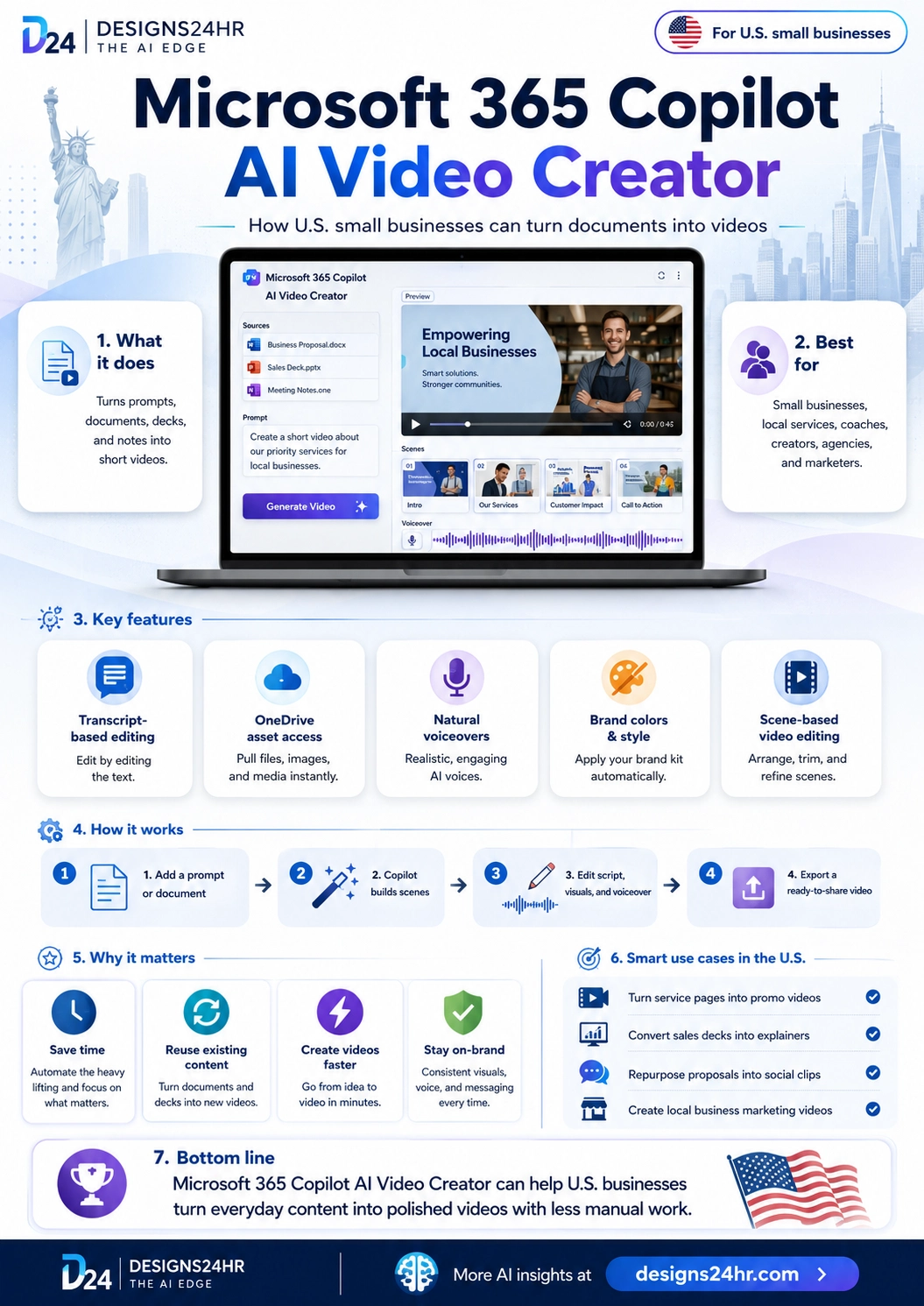
Simple explanation: Microsoft 365 Copilot AI Video Creator helps turn business content into video drafts. A small business can start with a prompt, document, deck, PDF, or notes, then edit the script, scenes, brand colors, media, and voiceover before sharing the final video.
What Is Microsoft 365 Copilot AI Video Creator?
Microsoft 365 Copilot AI Video Creator is part of Microsoft 365 Copilot’s Create experience. It helps users create videos by describing what they want and, when available, attaching files that help Copilot understand the content.
For U.S. small businesses, the value is practical. Instead of starting from a blank video timeline, a team can use existing content such as a sales deck, proposal, product document, service description, training notes, or PDF guide as the starting point.
Microsoft says Copilot Create can help users make videos in the browser with OneDrive integration, and official support pages note that Clipchamp must be enabled by the organization to see and use video creation in Copilot Create. That means availability can depend on your Microsoft 365 setup, license, admin settings, and rollout status.
Why Microsoft 365 Copilot AI Video Creator Matters for U.S. Small Businesses
Video is one of the hardest content formats for small businesses to produce consistently. A local service company, real estate team, coach, restaurant, agency, clinic, contractor, nonprofit, or online creator may know what they want to say, but not have the time, budget, or editing skills to make polished videos every week.
Microsoft 365 Copilot AI Video Creator matters because it can reduce the heavy lifting. It gives small teams a way to repurpose work they have already done instead of creating every video from scratch.
7 Powerful Benefits of Microsoft 365 Copilot AI Video Creator
- Faster video creation: Turn prompts, documents, decks, and PDFs into video drafts more quickly.
- Better content reuse: Repurpose proposals, sales notes, service pages, and training materials.
- Less editing pressure: Use transcript-based and scene-based editing to refine videos more easily.
- More consistent branding: Apply brand kits, colors, assets, and approved style rules where supported.
- Useful voiceovers: Add natural-sounding narration without hiring a voice actor for every small project.
- OneDrive asset access: Pull business files, media, and visuals from connected Microsoft storage.
- Stronger small business marketing: Create short videos for services, social posts, explainers, training, and local campaigns.
What Can U.S. Businesses Turn Into Videos?
The best use case for Microsoft 365 Copilot AI Video Creator is repurposing content your business already owns. Many small companies have strong information buried in documents, but customers will never read a long PDF or sales deck.
AI video creation helps convert that information into a more watchable format. A video can introduce a service, explain a process, summarize a proposal, promote an event, train employees, or answer customer questions.
| Existing Content | Video Idea | U.S. Small Business Use Case |
|---|---|---|
| Word document | Turn a service explanation into a short customer video. | A local HVAC company explains seasonal maintenance before summer. |
| PowerPoint deck | Convert a sales deck into a visual explainer. | A B2B agency turns a pitch deck into a LinkedIn promo video. |
| PDF guide | Summarize a guide into a quick educational clip. | A tax advisor creates a short video about filing reminders for U.S. clients. |
| Meeting notes | Create an internal update or training video. | A retail team turns manager notes into a weekly employee briefing. |
| OneDrive media | Use approved images, logos, and visuals in a branded video. | A real estate team creates a neighborhood listing video with brand assets. |
Key Features in Microsoft 365 Copilot AI Video Creator
Microsoft’s upgraded AI Video Creator is designed to make video editing easier inside business workflows. Instead of forcing small teams to learn complicated editing software first, Copilot can help generate a starting draft, then let users refine the result.
Features small businesses should watch
- Prompt-to-video: Describe the video you want and let Copilot create a starting point.
- File-based creation: Use attached business documents, PowerPoint files, Word files, or PDFs as source material.
- Transcript-based editing: Edit video structure by editing the transcript, making revisions easier for non-editors.
- Scene-based editing: Arrange, trim, and refine video scenes in a cleaner workflow.
- OneDrive asset access: Use existing files, images, and media stored in Microsoft 365.
- Brand colors and style: Use brand kit support where available to keep content more consistent.
- Natural-sounding voiceovers: Add narration to make a video easier to follow.
How Microsoft 365 Copilot AI Video Creator Works
The workflow for Microsoft 365 Copilot AI Video Creator is built around a simple idea: give Copilot the goal and the source material, then review and refine the result before using it publicly.
Start with a prompt, document, deck, PDF, notes, or business content from Microsoft 365.
Copilot builds a video draft with scenes, text, visuals, and a suggested structure.
Review the transcript, scenes, voiceover, branding, visuals, and message accuracy.
Export or use the finished video for marketing, training, updates, or customer education.
Best U.S. Small Business Use Cases
Microsoft 365 Copilot AI Video Creator is most useful when the video has a clear purpose. Small businesses should avoid making random AI videos just because the tool exists. The best results usually come from a specific message, audience, and call to action.
| Business Type | Video Idea | Why It Works |
|---|---|---|
| Local service business | “How our service works” explainer | Helps customers understand pricing, process, and next steps before calling. |
| Real estate team | Neighborhood or listing video | Turns property notes and local details into shareable marketing content. |
| Coach or consultant | Educational tip video | Repurposes frameworks, PDFs, and workshop notes into short authority-building clips. |
| Agency or freelancer | Client proposal summary | Turns a deck or proposal into a more engaging pitch follow-up. |
| Restaurant or retail shop | Seasonal promotion video | Creates quick content for holidays, events, sales, or local campaigns. |
| Internal team | Training or policy update video | Makes employee communication easier to understand and repeat. |
Why AI Video Tools Are Becoming Important in the U.S.
U.S. customers are used to short videos on social media, websites, email campaigns, local ads, and search results. But many small businesses still rely only on text-heavy pages or static graphics because video production takes time.
Microsoft 365 Copilot AI Video Creator can help close that gap. It gives teams a practical way to turn existing work into video assets for Facebook, Instagram, YouTube Shorts, LinkedIn, websites, presentations, employee onboarding, and local promotions.
U.S. marketing takeaway: Small businesses do not always need more content ideas. They need easier ways to reuse the documents, decks, notes, and brand assets they already have.
Microsoft 365 Copilot AI Video Creator vs Traditional Video Editing
Traditional video editing gives creators full control, but it can be slow for small teams. AI video creation is not always as flexible as professional editing software, but it can help businesses move faster when the goal is a simple, polished business video.
| Comparison | Traditional Video Editing | Microsoft 365 Copilot AI Video Creator |
|---|---|---|
| Starting point | Manual timeline, script, footage, and design work. | Prompt, document, deck, PDF, or existing business content. |
| Skill level | Often requires editing experience. | Designed to be easier for business users and non-editors. |
| Speed | Can take hours or days depending on complexity. | Can create a draft faster, then let users refine it. |
| Brand consistency | Depends on manual setup and design discipline. | Can use brand kits, approved colors, and business assets where supported. |
| Best use | High-end campaigns, custom edits, complex storytelling. | Short business videos, explainers, updates, social clips, and training drafts. |
How to Get Better Results From Microsoft 365 Copilot AI Video Creator
The quality of an AI video depends on the quality of the instruction and source material. Microsoft 365 Copilot AI Video Creator will work better when you give it a clear audience, purpose, tone, length, and call to action.
Prompt checklist for better videos
- Audience: Say who the video is for, such as homeowners, local clients, parents, employees, or small business owners.
- Goal: Explain whether the video should educate, promote, train, summarize, or sell.
- Length: Ask for a short format such as 30 seconds, 45 seconds, or 60 seconds.
- Tone: Choose a tone such as friendly, professional, local, trustworthy, energetic, or simple.
- Source file: Attach a document, deck, notes, or PDF with the key information.
- Branding: Ask Copilot to use approved brand colors, logo, and style where available.
- Call to action: Tell viewers exactly what to do next, such as call, book, visit, subscribe, or request a quote.
Example Prompt for U.S. Small Businesses
A strong prompt gives Copilot a clear video direction. Here is an example a local business could adapt:
Create a 45-second promotional video for a U.S. local home services company. Use the attached service document and brand colors. The audience is homeowners who need seasonal maintenance. Keep the tone friendly, professional, and trustworthy. Include three short benefit sections, a simple voiceover, and a final call to action to schedule an appointment.
What to Review Before Publishing
Microsoft 365 Copilot AI Video Creator can make video creation faster, but businesses should still review every output before publishing. AI can misunderstand details, choose the wrong emphasis, or create copy that sounds polished but is not accurate.
Publishing checklist
- Facts: Check service details, prices, dates, claims, and contact information.
- Brand: Confirm colors, logo usage, tone, and visuals match your business.
- Voiceover: Listen for pronunciation, pacing, clarity, and tone.
- Audience fit: Make sure the video speaks to U.S. customers in a practical way.
- Legal and compliance: Review regulated claims for finance, health, insurance, legal, or tax topics.
- Call to action: Make sure viewers know what to do next.
- Accessibility: Add captions or readable text where appropriate.
Limitations to Keep in Mind
Microsoft 365 Copilot AI Video Creator is useful, but it is not a full replacement for professional video production. A polished brand campaign, high-end commercial, complex animation, or emotional customer story may still need human creative direction, filming, editing, and strategy.
Availability can also depend on Microsoft 365 licensing, organization settings, Clipchamp availability, rollout timing, and admin controls. Businesses should check their Microsoft 365 setup before building a full marketing workflow around the feature.
Quick note: Use Microsoft 365 Copilot AI Video Creator as a fast drafting and repurposing tool. For high-stakes campaigns, always add human review, brand review, and compliance review before publishing.
Bottom Line
Microsoft 365 Copilot AI Video Creator gives U.S. small businesses a practical way to turn documents, decks, PDFs, notes, and OneDrive assets into short videos faster. It can help teams create service explainers, promotional clips, training videos, proposal summaries, and social content without starting from scratch every time.
The biggest benefit is content reuse. Small businesses already have useful information inside everyday files. AI video creation can help turn that existing work into more engaging content, as long as teams review the output carefully and keep the message accurate, local, and on-brand.
Turn business content into better marketing ideas
Before creating a video, make your message clear. You can use Designs24hr tools like Text Summarizer, Title Meta Previewer, AI Daily Task Planner, and Decision Helper to refine your script, title, campaign plan, and call to action.
For more practical AI updates for U.S. readers, visit The AI Edge.
FAQ: Microsoft 365 Copilot AI Video Creator
What is Microsoft 365 Copilot AI Video Creator?
Microsoft 365 Copilot AI Video Creator is a video creation experience inside Microsoft 365 Copilot Create that can help users create short videos from prompts, files, documents, decks, PDFs, and business assets.
Can Microsoft 365 Copilot AI Video Creator turn documents into videos?
Yes. Microsoft says users can create videos from prompts and attached files, including formats such as Word, PowerPoint, and PDF files where supported.
Who should use Microsoft 365 Copilot AI Video Creator?
It is useful for U.S. small businesses, local service companies, coaches, agencies, real estate teams, marketers, creators, and internal teams that need faster videos from existing content.
Does Microsoft 365 Copilot AI Video Creator replace professional video editing?
No. It can help create drafts and simple business videos faster, but high-end campaigns, custom filming, complex storytelling, and regulated content still need human creative and compliance review.
Do businesses need Clipchamp enabled for Copilot video creation?
Microsoft support notes that Clipchamp must be enabled for an organization to see and use video creation in Copilot Create. Availability can depend on licensing, admin settings, and rollout status.
How can small businesses get better AI video results?
Small businesses should provide a clear audience, goal, length, tone, source file, brand direction, and call to action. They should also review facts, branding, voiceover, and compliance before publishing.