Google Pics is Google’s AI image creation and editing tool for Google Workspace, designed to help people create and edit visuals for flyers, social posts, presentation graphics, digital illustrations, and everyday design work.
For non-designers, the hard part of visual creation is usually not the idea. It is turning the idea into a clean, usable graphic without jumping between too many tools, fighting with layers, rewriting prompts, or starting over every time one small detail looks wrong.
Google Pics aims to make that process easier by combining AI image generation, precise editing controls, Workspace integration, and shareable canvases so users can create, refine, and use visuals more naturally inside the Google tools they already know.
This guide from Designs24hr explains Google Pics in plain English: what it is, how Google’s AI image editor works, what it can create, how it helps with Slides and Drive, and how creators, teachers, marketers, students, and small businesses can use it responsibly.
What Is Google Pics?
Google Pics is an AI image generator and editor built for Google Workspace. Google describes it as a tool that lets users add and edit images directly within Google Slides, while also saving creations to Google Drive for easy access and sharing.
Instead of being only a standalone image generator, Google Pics is designed to fit into everyday work. That means you can create visuals for a presentation, edit an image you already have, refine one part of a graphic, and use the result inside Workspace apps without building the entire design workflow from scratch.
Google has also said Pics will be integrated into Workspace apps starting with Slides and Drive, with shareable canvases that allow people to edit the same image together. That makes it especially useful for teams, classrooms, marketers, and business users who already collaborate in Google Workspace.
Simple example: A teacher could create a classroom poster, a small business could design a summer sale flyer, and a marketer could make a presentation graphic — then edit the text, background, or objects without rebuilding the whole image.
Why Google Pics Matters
AI image tools are everywhere now, but many still have the same problem: they are good at creating something new, yet frustrating when you want to make a small, exact change.
You may get an image that is almost right, but the text is wrong, the background does not match, one object is in the wrong place, or the style feels slightly off. In many AI image tools, fixing that means writing another long prompt and hoping the entire image does not change too much.
Google Pics is important because it focuses on more precise AI editing. The stronger idea is not only “generate an image.” The stronger idea is “create, select, edit, refine, and use the visual where you need it.”
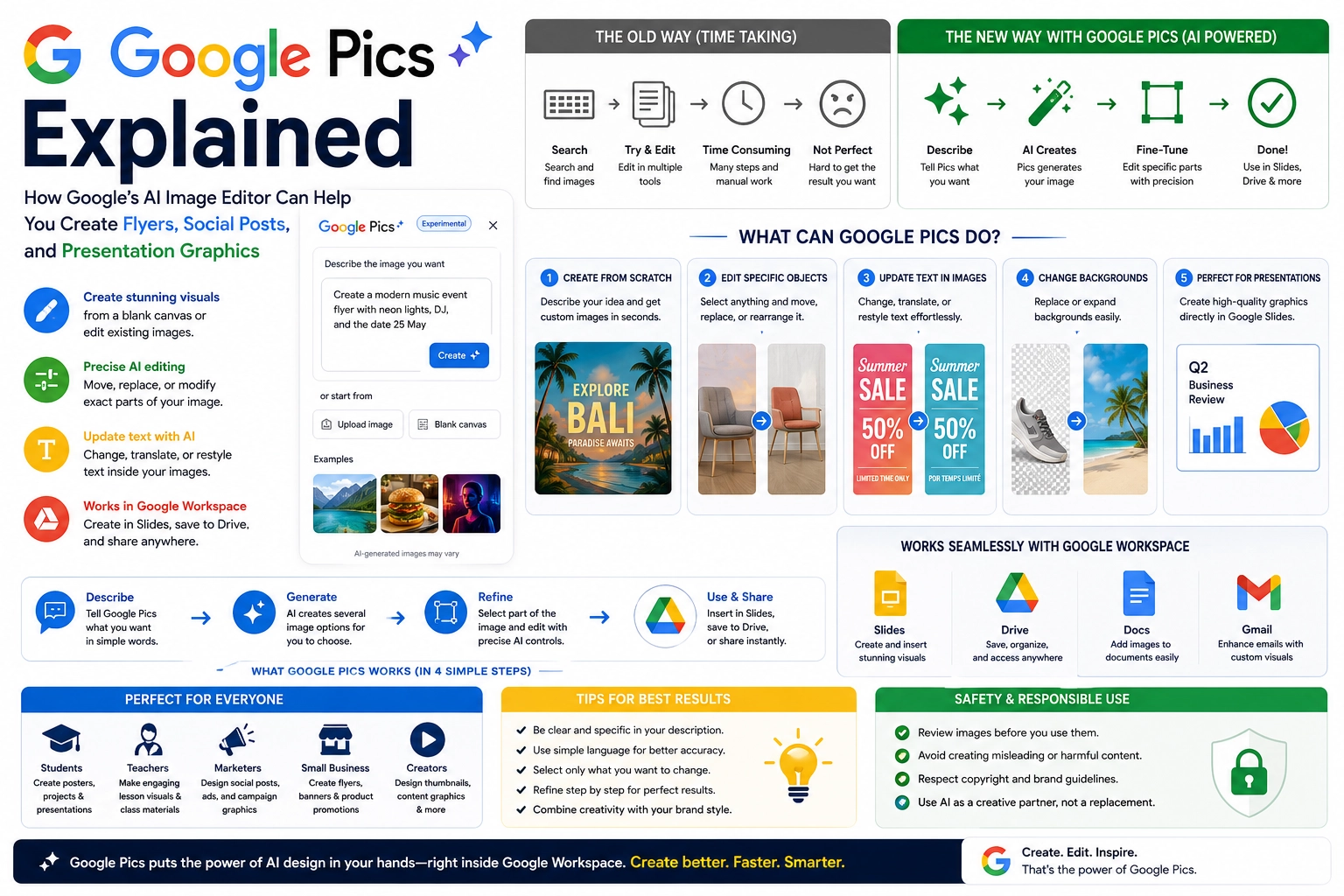
What Can Google Pics Do?
Google Pics is built for everyday design tasks. It can help users create images from a blank canvas, edit existing photos, adjust specific parts of an image, update text inside visuals, change backgrounds, and create graphics that fit into Workspace workflows.
1. Create visuals from scratch
You can describe the image you want, and Google Pics can help generate a new visual. This is useful for flyers, event graphics, presentation visuals, social media posts, thumbnails, posters, concept images, and simple marketing graphics.
2. Edit specific objects
One of the biggest benefits of Google Pics is more targeted editing. Instead of changing the entire image, users can focus on one object or area and adjust it more precisely.
3. Update text inside images
Google has positioned Pics as a tool that can help with image text editing, which is especially useful for flyers, sale graphics, presentation visuals, posters, and other graphics where words need to be readable and easy to update.
4. Change or expand backgrounds
Google Pics can help users replace, expand, or update backgrounds so an image fits a new layout, campaign, slide, or social format better.
5. Work inside Google Workspace
Because Pics connects with Google Slides and Drive, it can reduce the need to export, upload, download, and reinsert assets repeatedly. That can make AI design faster for people already working in Google Workspace.
| Feature | What It Helps With | Best For |
|---|---|---|
| Create from scratch | Turns a written idea into a new visual design. | Flyers, posters, social posts, thumbnails, and concepts. |
| Edit objects | Moves, changes, replaces, or adjusts parts of an image. | Fixing details without starting over. |
| Update image text | Changes words inside graphics more easily. | Sales graphics, presentation images, event flyers, and announcements. |
| Change backgrounds | Replaces or extends visual backgrounds. | Product visuals, slides, posters, and resized designs. |
| Workspace integration | Lets users add, edit, save, and share visuals through Google apps. | Teams, teachers, students, marketers, and business users. |
Google Pics vs Normal Image Editing
Traditional image editing tools are powerful, but they can feel intimidating for people who do not design every day. You may need to understand layers, masks, selections, export settings, typography, backgrounds, and manual retouching.
Google Pics takes a more natural-language approach. Instead of manually editing every detail, you can describe what you want, select what needs to change, and refine the image step by step.
That does not mean professional design tools disappear. Designers will still need advanced tools for brand systems, polished campaigns, detailed layouts, and production-ready work. But for everyday visuals, Google Pics could make image editing much easier for normal users.
The real shift: Google Pics is not only about creating pretty images. It is about giving everyday users more control over AI-generated visuals so they can create something useful faster.
Who Should Use Google Pics?
Google Pics can help many types of users because visual content is no longer only a designer’s job. Teachers, students, marketers, small business owners, content creators, office teams, and presenters all need visuals now.
Teachers and students
Teachers can use Google Pics for classroom posters, lesson visuals, activity graphics, slides, and simple educational illustrations. Students can use it to support presentations, projects, and visual storytelling when allowed by school policy.
Small business owners
Small businesses can use Google Pics to create sale flyers, product announcement graphics, event posters, service visuals, social posts, and simple brand-friendly promotional images.
Marketers and social media creators
Marketers can use Google Pics to quickly draft campaign visuals, test ideas, create social content, update text, and adapt graphics for different messages.
Presentation builders
People who build slide decks can use Google Pics to create custom graphics directly for Google Slides instead of searching for generic stock images or building visuals from scratch.
Teams using Google Workspace
Teams that already work in Slides, Drive, Docs, and Gmail may benefit from having image creation and editing closer to their everyday workflow.
How Google Pics Can Help With Flyers
Flyers are one of the clearest use cases for Google Pics because they combine images, backgrounds, text, and quick edits. A user might need a school event flyer, small business promotion, church announcement, webinar graphic, or local sale poster.
With Google Pics, the workflow can be faster: describe the flyer, generate a first design, adjust the background, fix the text, move objects, and then use the image in Slides, Drive, or another Workspace flow.
Example prompt: “Create a clean summer sale flyer with tropical colors, bold readable text, space for a discount, and a modern layout for a small business Instagram post.”
How Google Pics Can Help With Social Posts
Social media graphics need to be fast, clear, and attention-grabbing. Creators often need several variations of the same idea: one for Instagram, one for a story, one for a LinkedIn post, one for a campaign, or one for a presentation preview.
Google Pics can help users create social post concepts, refine the image, adjust text, swap backgrounds, and generate visuals that match a message more closely. This can save time for creators who need content regularly but do not want every graphic to start from a blank design tool.
How Google Pics Can Help With Presentation Graphics
Presentation graphics are another strong use case because Google Pics is built into the Workspace ecosystem. Many people create slides but struggle to find the right visuals. Generic icons and stock photos often make slides look ordinary.
Google Pics can help create custom slide images for business reviews, classroom lessons, strategy decks, training materials, reports, and product presentations. Because it connects with Slides and Drive, it can fit naturally into a presentation workflow.
For example, a user creating a quarterly business review could generate a clean visual for growth, customer support, marketing performance, or product planning directly for their slide deck.
A Simple Google Pics Workflow
The best way to use Google Pics is to treat it like a creative partner. Start broad, then refine specific details.
- Describe the visual. Explain what you want to create, who it is for, and where it will be used.
- Generate a first version. Let Google Pics create an initial design or image idea.
- Select what needs changing. Focus on one object, text area, background, or visual detail.
- Refine the image. Ask for specific changes instead of regenerating everything.
- Use and share. Add the image to Slides, save it to Drive, or share it through your Workspace workflow.
This workflow matters because AI design is rarely perfect on the first try. The best results usually come from guided refinement.
Prompt Tips for Better Google Pics Results
Clear prompts can make a major difference. A vague prompt may create a generic image. A specific prompt gives the AI a stronger creative direction.
A strong Google Pics prompt should include:
- The purpose of the image
- The target audience
- The format, such as flyer, social post, slide graphic, or poster
- The style, such as clean, modern, colorful, minimal, playful, or professional
- The text that should appear in the image
- The mood or message
- Any brand colors or visual direction
- What should not appear in the image
Better prompt: “Create a modern Google Slides presentation graphic for a small business marketing report. Use a clean white background, blue and green accents, a simple growth chart, and clear space for a headline. Make it professional and easy to read.”
Google Pics and Collaboration
One of the most interesting parts of Google Pics is collaboration. Google says Pics will offer shareable canvases so people can edit the same image together.
That could make AI image creation more useful for teams. Instead of one person creating a graphic, exporting it, sending it for feedback, and editing another version later, collaborators may be able to work together more directly.
For businesses and schools, this can reduce friction. A teacher team could review classroom visuals, a marketing team could adjust campaign graphics, and a presentation team could refine slide images in the same Workspace ecosystem.
Responsible Use: What to Check Before Publishing
AI image editors can make design faster, but users should still review every image carefully before posting or presenting it. AI can create mistakes, misleading visuals, strange details, incorrect text, or graphics that do not match the intended message.
Check the text
If your image includes words, read every word carefully. Make sure spelling, dates, prices, names, and calls to action are correct.
Check the visuals
Look for distorted objects, strange hands, unclear product details, odd shadows, unrealistic scenes, or anything that could confuse viewers.
Check copyright and brand safety
Avoid creating misleading designs, copying protected brand styles, using logos without permission, or generating visuals that could confuse people about who created or endorsed the content.
Check the message
Make sure the final image supports the real purpose. A beautiful image is not enough if the message is unclear.
Important: Google Pics can help create and edit images faster, but the user is still responsible for checking accuracy, permissions, brand safety, and whether the final design is appropriate to publish.
Google Pics vs Other AI Image Editors
Google Pics enters a crowded space, but its biggest advantage may be Workspace integration. Many AI image tools are strong at generation, but they often sit outside the workflow where people actually use the image.
Google Pics is different because it connects with Slides and Drive. That could make it easier for everyday users to create an image and immediately use it in a presentation, document, shared folder, or team project.
The other advantage is precision. Google’s direction for Pics focuses on making AI image editing feel less frustrating when users want to change one specific part instead of regenerating the whole image.
| Tool Type | Main Strength | Possible Limitation |
|---|---|---|
| Traditional design tools | Advanced control for professional designers. | Can be slow or difficult for beginners. |
| Basic AI image generators | Fast image creation from prompts. | Small edits may require repeated regenerations. |
| Google Pics | AI creation, targeted editing, and Workspace integration. | Users still need to review quality, text, and accuracy carefully. |
The Bigger Shift: Design Is Becoming More Editable With AI
Google Pics is part of a bigger change in creative work. AI design is moving from simple prompt generation toward editable visual workflows.
That matters because most people do not need one random AI image. They need a usable visual that fits a message, a presentation, a campaign, a classroom activity, or a business goal.
The future of AI design will be less about typing one perfect prompt and more about creating, selecting, commenting, editing, collaborating, and refining. Google Pics fits directly into that shift.
Best mindset: Use Google Pics to speed up visual creation, but keep human judgment in control. AI can help you create faster, but you still decide what looks clear, accurate, useful, and on-brand.
Keep learning with Designs24hr: For more simple AI design and creativity explainers, visit The AI Edge. You can also use the Keyword Density Checker to review SEO content before publishing, or try the Title Meta Preview Tool to improve your search snippet.
Frequently Asked Questions About Google Pics
What is Google Pics?
Google Pics is Google’s AI image creation and editing tool for Google Workspace. It helps users create, edit, refine, save, and share images for use cases like flyers, social posts, presentation graphics, and digital illustrations.
Is Google Pics part of Google Workspace?
Yes. Google describes Pics as a Workspace tool that can add and edit images directly within Google Slides and save creations to Google Drive for access and sharing.
Can Google Pics edit existing images?
Yes. Google has positioned Pics as both an image creation and editing tool, which means users can create from a blank canvas or edit existing photos and visuals.
Can Google Pics help with Google Slides?
Yes. Google says Pics is built to work with Workspace apps starting with Slides and Drive, making it useful for creating presentation graphics and editing visuals inside slide workflows.
Can Google Pics update text inside an image?
Google has highlighted text editing and precise image controls as part of the value of Pics, which can help users update flyer text, slide graphics, posters, and social visuals more easily.
Who should use Google Pics?
Google Pics can help teachers, students, marketers, creators, small business owners, presentation builders, and teams that need faster visual creation without advanced design skills.
Does Google Pics replace professional designers?
No. Google Pics can speed up everyday design tasks, but professional designers still bring brand strategy, layout expertise, visual judgment, originality, and production-level polish.
What should users check before publishing AI images?
Users should check spelling, text accuracy, visual quality, copyright concerns, brand safety, misleading details, and whether the final image clearly supports the intended message.
The Bottom Line
Google Pics could make AI image editing more practical for everyday users because it focuses on the parts of design people actually struggle with: creating a first draft, fixing specific details, updating text, changing backgrounds, and using the final visual inside real work tools.
For flyers, social posts, presentation graphics, classroom visuals, and business designs, Google Pics may help users move faster from idea to usable image without needing to master complex design software.
At Designs24hr, we believe the future of AI design is not just about generating images. It is about helping people create clearer, more useful visuals with better control. Share your thoughts in the comments, and come back to Designs24hr whenever you want to learn something new about AI and design.
Sources: This article is based on Google’s official Google Pics product page, Google’s Workspace announcement New ways to create and get stuff done in Google Workspace, and The Verge coverage of Google Pics as a new AI image generation and editing app for Workspace.