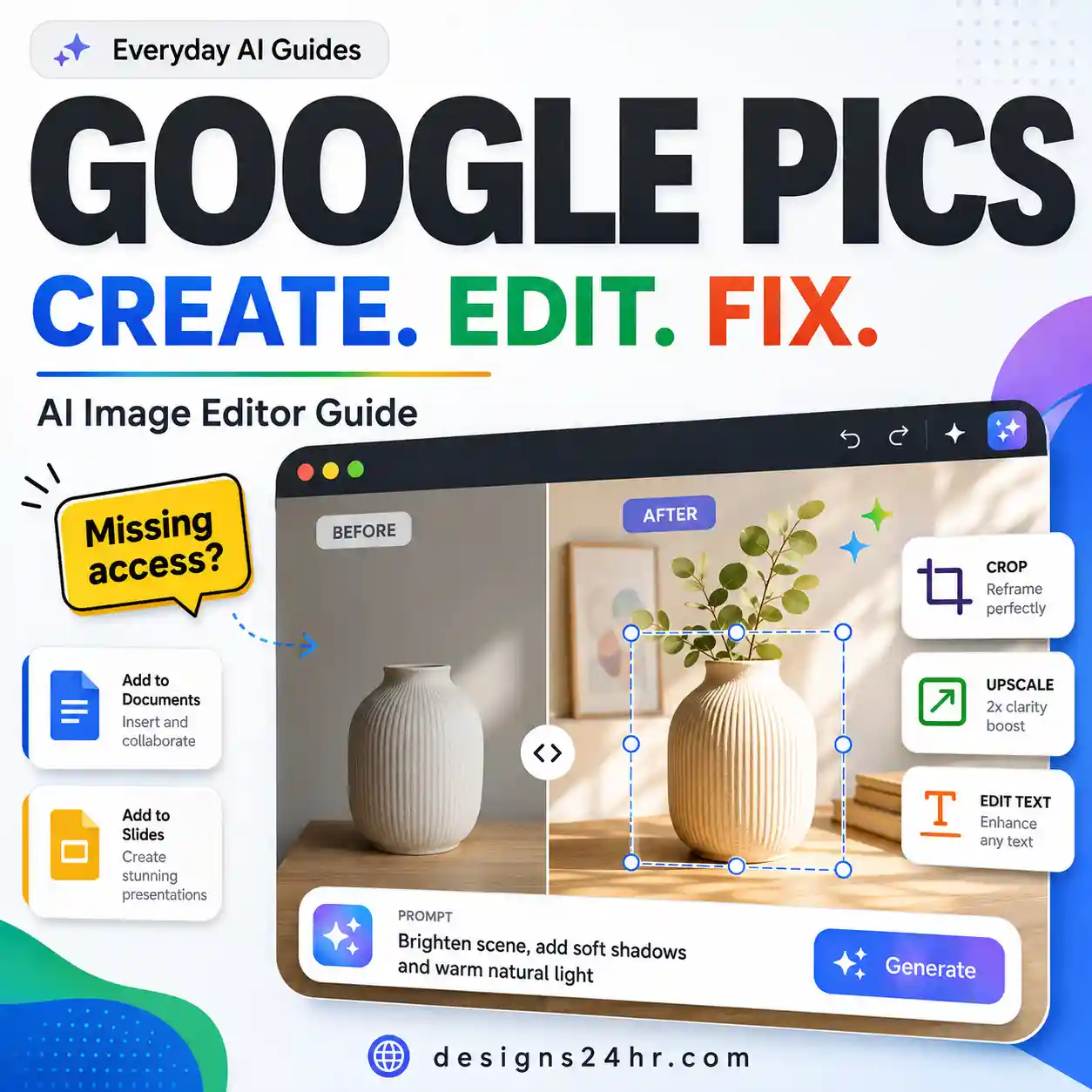
Google Pics is Google’s Gemini-powered image creation and editing tool for generating visuals from prompts, modifying existing images, changing individual objects or text, and using other images as references. This guide explains how Google Pics works, how to create and edit images with it, what accounts and file types it supports, and what to check if Google Pics is not showing up for you.
What Is Google Pics?
Google Pics is an image creation and editing product in Google Workspace. It uses Gemini, including Google’s Nano Banana image technology, to let you work with images conversationally instead of relying only on traditional editing controls.
You can start with a blank canvas and describe what you want, or bring in an existing image and tell Google Pics what you want changed. You can also work more precisely by selecting particular elements, modifying detected text, changing an image’s crop or aspect ratio, and using another image as a reference.
Describe the visual you want and choose from the generated options.
Upload or import an image and describe the changes you want to make.
Select an individual object or text element instead of changing the entire visual.
Reference another visual when you want to reuse a style, element or visual direction.
Who Can Use Google Pics?
Google Pics requires an eligible Google Workspace or Google AI plan. Google’s September 2026 rollout includes several paid consumer and Workspace tiers rather than every standard Google account.
| Account type | Current documented access |
|---|---|
| Google AI consumer plans | Google AI Pro and Google AI Ultra are included in the current rollout. |
| Google Workspace Business | Business Standard and Business Plus are listed as eligible. |
| Google Workspace Enterprise | Enterprise Standard and Enterprise Plus are listed as eligible. |
| Education | Google AI Pro for Education is listed among the supported add-ons. |
| Other eligible access | Google also lists AI Expanded Access and Workspace Experiments in relevant availability documentation. |
Is Google Pics available on iPhone or Android?
Not as a full Google Pics editing experience right now. Google’s current help documentation lists Google Pics as desktop-only. If you see mobile workflows discussed elsewhere, check whether they refer to another Google image feature rather than the standalone Pics editor.
Where do you open Google Pics?
Eligible users can open the standalone Google Pics experience from Google’s Pics web app. Google is also connecting Pics with other Workspace surfaces, including image-editing workflows in Google Docs and Google Slides for supported accounts.
How to Use Google Pics to Create an Image
The easiest way to understand Google Pics is to start with a new image. You do not need to manually build every element. Instead, describe the result, inspect the generated choices, and then refine the best option.
Open Google Pics
Open Pics on a supported desktop browser and sign in with the account that has access.
Describe the image you want
Use the prompt field to explain the subject, composition, visual style, background, colors and intended use. More useful context generally gives the model a clearer creative target.
Create a clean square promotional graphic for a productivity guide. Use a warm off-white background, strong dark typography space on the left, abstract blue and violet geometric shapes on the right, soft depth, and generous empty space. Do not include people, logos, brand marks or copyrighted characters.
Compare the generated versions
Google Pics can provide multiple generated options. Compare the composition, text accuracy, object placement and overall usefulness instead of selecting the first result automatically.
Refine the best version
Once you have a promising starting point, make focused edits. It is often more efficient to fix one specific issue than to regenerate the entire image repeatedly.
Inspect before you export
Check spelling, unwanted objects, visual inconsistencies, crop, proportions and any material you do not have permission to publish before treating an AI-generated visual as final.
How to Edit an Existing Image With Google Pics
Google Pics can work with existing images as well as generated ones. Google’s current documentation says you can bring images into Pics from your computer, Google Drive or Google Photos and then edit them with prompts, reference images or element-level controls.
1. Edit the Whole Image With a Prompt
Use a full-image prompt when the overall visual direction needs to change. This works well for broader adjustments such as mood, lighting, background treatment, color direction or overall presentation.
The composition is already useful, but the visual feels too dark, busy or inconsistent with the project.
Keep the main composition and object placement unchanged. Make the background brighter and cleaner, reduce unnecessary visual clutter, improve contrast around the central subject, and use a softer professional lighting style.
The key phrase in that example is “keep the main composition and object placement unchanged.” When you care about preserving something, say so explicitly rather than assuming the model knows which details matter.
2. Change One Object Without Changing Everything Else
Google Pics supports more precise object-based editing. This is useful when most of the image is already correct and only one identifiable element needs attention.
Change only the selected cube from blue to a muted violet. Keep its size, position, shadows, surrounding objects and background unchanged.
This is usually safer than telling the AI to “make the image purple,” which gives it permission to reinterpret far more of the scene.
3. Edit a Specific Area
When a problem is localized, make the instruction localized too. A region-specific edit can be useful for cleaning up a distracting section, changing part of a background or adjusting a visually isolated area.
4. Edit or Translate Text Inside an Image
One of the more useful Google Pics features is its ability to detect text elements inside an image. Google documents controls for changing existing wording and adjusting its styling. It also highlights text translation as part of the product’s editing workflow.
For example, you could select a heading inside a visual, replace the wording, or ask for a formatting change without rebuilding the entire image.
5. Use Another Image as a Reference
Google Pics can use existing imagery as a reference when creating a new visual. That can be useful when you want to carry over a style direction, color treatment or selected visual element.
Use this when you care about the visual treatment, mood, palette or aesthetic direction.
Use this when a specific visual component from the reference matters to the new result.
Which Google Pics Editing Method Should You Use?
Do not use the broadest editing method for every job. Choose the narrowest method that solves the problem while protecting parts of the image that already work.
| If you want to… | Best starting approach | Why |
|---|---|---|
| Change the overall look | Full-image prompt | Useful when the entire visual direction needs refinement. |
| Modify one object | Element or object edit | Reduces the chance of unnecessary changes elsewhere. |
| Fix one visual area | Localized or region edit | Keeps the instruction focused on the problem area. |
| Change existing wording | Text editing | Avoids rebuilding the complete visual just to change copy. |
| Reuse an aesthetic direction | Style reference | Gives the model a visual reference rather than relying only on descriptive words. |
| Use characteristics from another visual | Image reference | Useful when specific visual elements need to influence the new result. |
Use the CREATE Method for Better Google Pics Results
The easiest mistake with an AI image editor is to keep regenerating until something looks acceptable. A more controlled workflow is to create a good starting point and then progressively narrow the edits.
A weak prompt vs a better prompt
| Weak instruction | Better direction |
|---|---|
| Make this better. | Keep the composition unchanged. Reduce background clutter, increase contrast around the headline area and preserve the main object’s size and position. |
| Make it professional. | Use a cleaner background, restrained shadows, more visual breathing room and a simple editorial look. Keep the current object arrangement. |
| Change the colors. | Change only the selected blue accents to muted violet. Preserve the background, text, shadows and all other colors. |
If you need help turning a rough idea into a more structured instruction, try the Designs24hr AI Prompt Generator.
What Image Files Does Google Pics Support?
Google’s current help documentation lists four supported image types for uploads from your computer or Google Drive:
Commonly used for photographs and compressed web imagery.
Common for graphics, screenshots and images that may need transparency.
An older bitmap image format that Google currently lists as compatible.
A higher-quality raster format frequently used in image and print workflows.
If you need to resize or prepare visual assets before uploading them, you can also explore the free Design and Marketing Tools on Designs24hr.
Which Browsers Work With Google Pics?
Google currently recommends using Google Pics on a computer with one of the two most recent versions of the following browsers:
- Google Chrome
- Mozilla Firefox
- Microsoft Edge on Windows
Google notes that other browsers may work, but some Pics features may not be available. If something behaves unexpectedly, testing the current version of a supported browser is a better troubleshooting step than repeatedly changing the prompt.
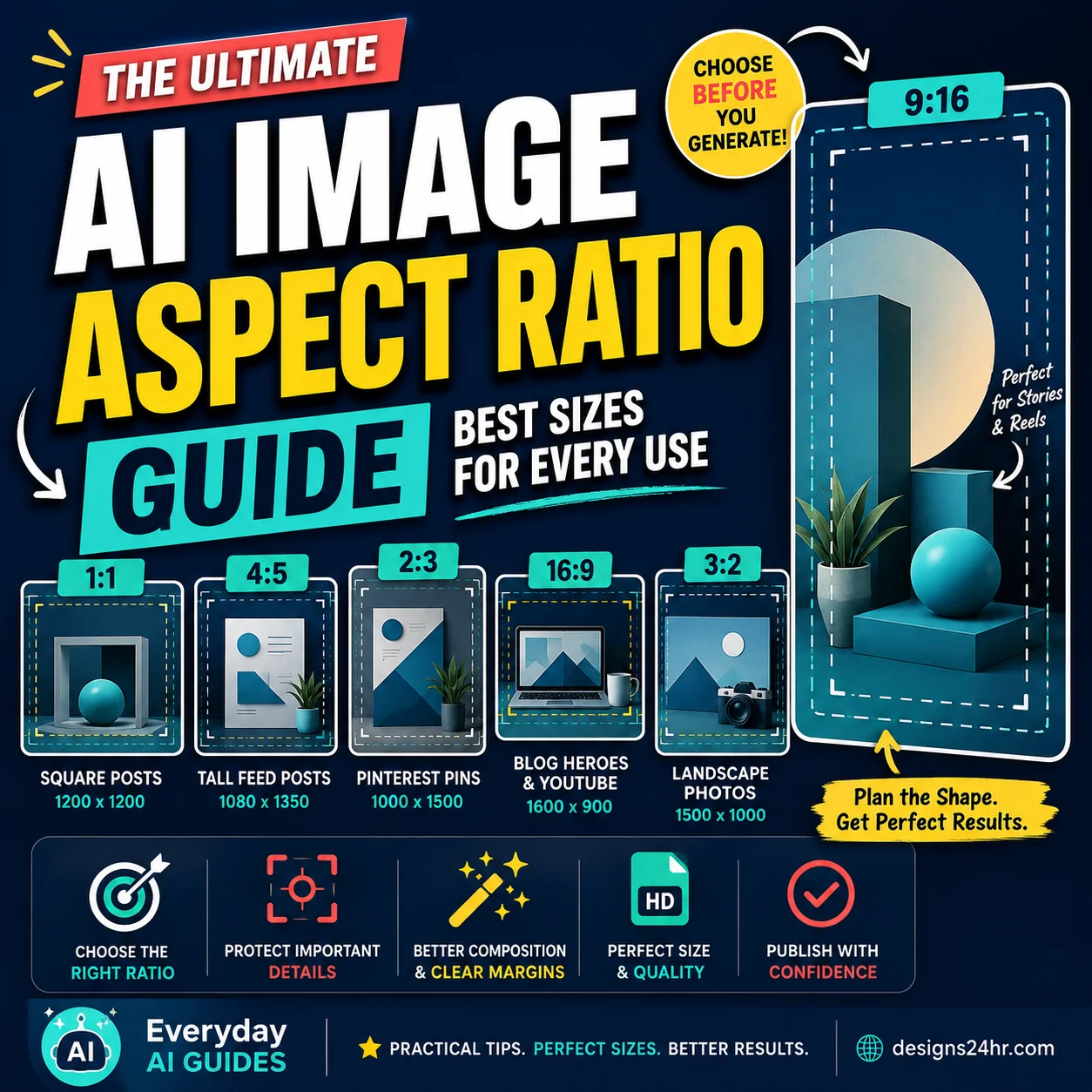
Can Google Pics Crop or Change an Image’s Aspect Ratio?
Yes. In addition to generative AI editing, Google documents standard image controls for cropping, rotating and changing aspect ratio.
Current aspect-ratio examples in Google’s help documentation include formats such as 16:9, 1:1 and 4:3. That makes it easier to prepare different versions of a visual for presentations, web content or square social graphics without relying entirely on a generative prompt.
Google Pics Not Showing? Check These 7 Things
If Google Pics is missing, do not assume the product is broken. In September 2026, access depends on account eligibility, device, Workspace settings and a gradual rollout.
Check your plan
Google Pics currently requires an eligible Google AI or Workspace plan. A standard personal Google account does not automatically guarantee access.
Check whether your rollout has reached the account
Google began general availability on September 1, 2026, but Workspace rollout is gradual rather than instantaneous.
Check your Workspace release track
Rapid Release domains began rollout on September 1. Scheduled Release domains are scheduled to begin rollout on September 15. Google says visibility can take up to 15 days from the applicable rollout start.
Use a desktop computer
Google’s current support pages describe Google Pics as a desktop feature. Switching between phone browsers is unlikely to solve a desktop-only availability issue.
Try a supported browser
Use a current version of Chrome, Firefox or Microsoft Edge on Windows. An unsupported or outdated browser may not expose every feature.
Check Workspace administrator controls
On managed work or school accounts, the organization can control access to products and AI features. If your plan is eligible but Pics remains unavailable after rollout, your Workspace administrator may need to confirm the relevant settings.
Check account and regional availability
Availability can vary by account type and region. Google’s current documentation, for example, says Google Pics is not available for personal-use accounts in Germany.
Can You Edit Google Docs and Slides Images With Google Pics?
Google is integrating Pics with its broader Workspace environment. Google’s Learning Center documents image-editing workflows that can open supported images from Google Docs and Google Slides in Pics for eligible users.
This matters because you may not always need to export an image, edit it in another application and upload it again. As Workspace integration expands, Pics can become part of the document or presentation workflow itself.
Google Pics vs Canva: Which Should You Use?
Google Pics and Canva overlap in some creative jobs, but they should not be treated as identical products.
| Need | Google Pics | Canva |
|---|---|---|
| Prompt-first image generation | Strong fit | Available alongside a broader design environment |
| Conversational image editing | Core workflow | One part of a larger creative platform |
| Object and text changes with AI | Core Google Pics use case | Available through Canva’s broader editing toolset |
| Large template ecosystem | Not the main value proposition | Stronger traditional use case |
| Complex multi-page layout workflows | Image-focused | Generally better suited to template and layout-heavy projects |
| Google Workspace integration | Major advantage for eligible Workspace users | Separate design ecosystem |
Our recommendation: use Google Pics when the main job is generating or modifying imagery conversationally and especially when the result belongs in a Google Workspace workflow. Use a broader design platform when the job depends heavily on templates, manual page layout, reusable brand systems or a mature end-to-end publishing workflow.
There is no reason to force every project into one tool. Choose the workflow based on the actual job.
Google Pics Safety and Quality Checklist
AI image generation can make a visual look finished before it is actually ready to publish. Run through this quick review first.
- Read every visible word and check spelling carefully.
- Look for objects that changed unintentionally during editing.
- Check edges, shadows, reflections and repeated patterns for obvious AI errors.
- Confirm the image dimensions and aspect ratio fit the destination.
- Make sure important content is not cropped too close to an edge.
- Check that you have the right to use any uploaded or referenced source imagery.
- Review the output for unwanted logos, brand marks or protected characters.
- Do not assume an AI-generated image is automatically safe for every commercial use.
- Keep important factual or instructional text separate from the image when accuracy matters.
- Give the final result a human quality review before publishing or handing it to a client.
The same principle applies across AI design tools: speed does not replace quality control. Our Figma AI Design Checklist explains a broader human-review workflow for AI-assisted creative work.
Google Pics Prompt Tips That Actually Matter
You do not need an enormous “magic prompt.” A useful Google Pics instruction should tell the model what outcome matters and what constraints it should preserve.
Include these details when they matter
- Purpose: thumbnail, presentation graphic, product visual, infographic or another use.
- Composition: where important objects and empty areas should sit.
- Visual direction: clean, editorial, playful, technical, minimal or another clear direction.
- Background: simple, textured, transparent-looking, studio or environmental.
- Color direction: specify important colors instead of saying only “make it colorful.”
- Restrictions: identify elements that should not appear.
- Preservation: state which existing parts must remain unchanged.
Refine this image for a clean web article thumbnail. Preserve the central object, its current size and the overall layout. Simplify the background, create more empty space around the headline area, increase subject contrast and keep the lighting soft. Do not add people, logos, text, extra objects or decorative clutter.
Google Pics FAQ
What is Google Pics?
Google Pics is a Gemini-powered image creation and editing tool in Google Workspace. It can generate new images from prompts, edit existing images, modify individual objects or text, and use other images as visual references.
Does Google Pics use Nano Banana?
Yes. Google’s current product documentation describes Google Pics as powered by Gemini and Nano Banana for AI image creation and editing.
Is Google Pics free?
Google currently requires an eligible Google Workspace or Google AI plan for standard access. Availability depends on the specific account and plan, so a basic Google account does not automatically include Pics.
How do I access Google Pics?
Sign in on a desktop with an eligible account and open the Google Pics web experience. If it is missing from an eligible Workspace account, check the rollout schedule, release track and administrator settings.
Can Google Pics edit existing images?
Yes. You can bring in an existing image and use prompts, references and element-level editing controls to modify it.
Can Google Pics edit text inside an image?
Yes. Google documents text detection and editing inside images, including changing wording and formatting. Google also promotes text translation as part of the Pics editing experience.
Can Google Pics use another image as a reference?
Yes. Pics can use existing images as references for style or visual elements when generating and refining images.
What file types does Google Pics support?
Google’s current documentation lists JPG, PNG, BMP and TIFF for image uploads from your computer or Google Drive.
Is Google Pics available on iPhone or Android?
Google’s current help documentation lists the full Google Pics experience as desktop-only. Mobile availability may change later, so check Google’s current support pages if you are reading this after the initial rollout.
Why don’t I have Google Pics yet?
The most common reasons during the initial rollout are an ineligible plan, a rollout that has not reached your account, a Scheduled Release Workspace domain, mobile usage, browser compatibility, administrator restrictions or regional availability.
Can Google Pics work with Google Docs and Slides?
Yes, Google is integrating Pics into Workspace workflows, and its current Learning Center documents image editing from Google Docs and Google Slides for eligible users. Feature visibility can still vary during rollout.
Is Google Pics better than Canva?
Neither is universally better. Google Pics is particularly compelling for prompt-first image creation, conversational editing and Google Workspace workflows. Canva is a broader design platform with a mature template and layout ecosystem. Choose based on the job you need to complete.
Bottom Line
Google Pics is most useful when you want to move from an idea to an editable image through natural-language instructions. It combines prompt-based generation with more targeted controls for objects, text, references, crop and aspect ratio, so you do not have to regenerate an entire visual every time something needs adjusting.
The better workflow is not “prompt until something looks good.” Start with a clear direction, use references only when appropriate, edit the smallest part that needs changing, inspect the result carefully and verify that the final image is suitable and safe for its intended use.
If Google Pics is not showing yet, check your account eligibility and rollout status before assuming something is wrong. The September 2026 launch is gradual for Workspace accounts.