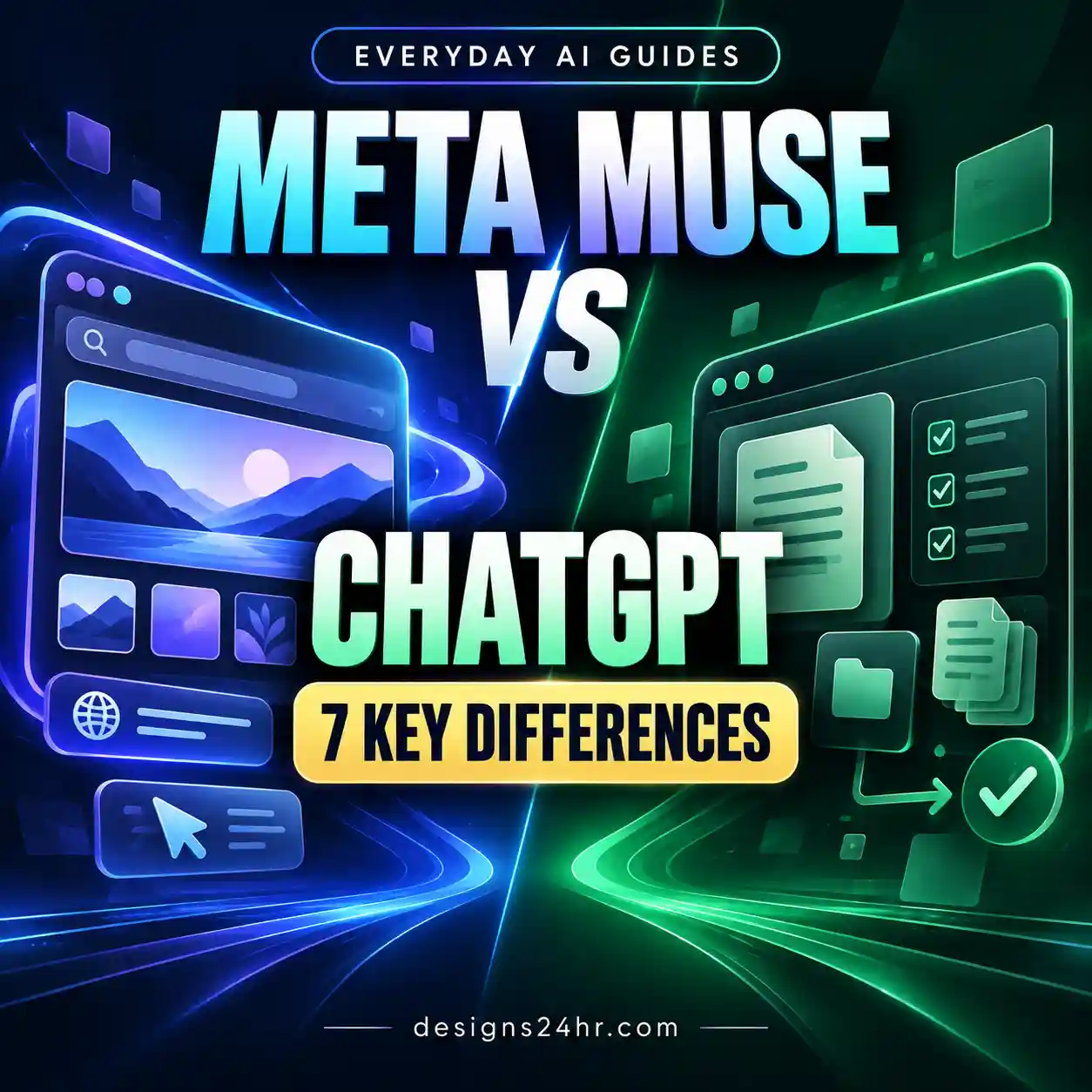
If you are trying to learn how to use Meta Muse AI, the most important question is not simply what this new agent can do. It is which everyday tasks are worth delegating—and where you should keep control.
Meta Muse can go beyond a normal AI chat by browsing websites, working through supported multi-step tasks and using connected services when you allow it. That can make research, email, shopping, travel and planning easier, but it also means permissions and approval checkpoints matter more.
What Is Meta Muse AI?
Meta Muse is a personal AI agent from Meta. The important word is agent. A standard chatbot typically answers a question, generates text or suggests what you might do next. An AI agent can potentially continue through several steps toward an outcome and interact with tools or services when you give it permission.
Meta says Muse runs inside a dedicated cloud-based virtual computer with its own browser. That makes it possible for the agent to work across websites and supported services instead of only producing answers inside a chat window.
For ordinary users, the practical difference is simple:
A chatbot can tell you which flight options look strongest. An agent may be able to research those options, compare them against your constraints, prepare the next step and stop when a booking needs your approval.
If AI agents are new to you, see our guide to everyday AI agent examples for a clearer explanation of when an agent is useful and when a regular chatbot is enough.
What Can Meta Muse Do?
The phrase “what can Meta Muse do?” sounds simple, but the answer depends on three things: the task, the services connected to Muse and the permissions you grant.
Based on Meta’s current launch documentation, Muse is designed for practical actions such as browsing, research, email, shopping, travel, forms, longer-running tasks and creation of useful outputs.
Browse and research
Muse can use its browser to search websites, navigate pages and gather information required for a task.
Compare options
You can use Muse to research several choices, apply your criteria and build a shortlist instead of manually opening every page yourself.
Work with email
When a supported email service is connected, Muse can use permitted email information and may support actions such as drafting or sending depending on the access you grant.
Help with shopping
Muse can research products, compare possibilities and assist with a shopping workflow before a purchase reaches an approval point.
Plan and book travel
Meta lists travel booking among Muse’s practical uses. Final names, dates, locations, policies and prices should still be checked manually.
Fill forms
Muse can work through supported web workflows and forms, which can save time but makes field-by-field verification important before submission.
Continue multi-step work
Meta says certain Muse tasks can keep running in the background and return when the job is finished or additional input is required.
Create useful outputs
Meta describes Muse as capable of producing practical results such as documents, PDFs, trackers, web pages and other task-oriented outputs.
How to Use Meta Muse AI: A 6-Step Beginner Workflow
The safest and most useful way to learn how to use Meta Muse AI is to increase delegation gradually rather than handing over a complicated task immediately.
- Begin with a task that does not need private account access Ask Muse to research, compare or organize public information. This lets you judge the quality of its work before introducing email, calendar or payment-related permissions.
- Define exactly what you want Give Muse your goal, constraints, important criteria and desired output. “Find three options under $200 and compare them” is better than “find me something good.”
- Tell Muse where to stop Agent instructions should include a stopping point. For example: “Prepare the booking options but do not book anything.”
- Connect only the service needed for this task Do not grant extra access simply because a connector is available. If the job needs a calendar, it does not automatically need your inbox.
- Review important details before approval Check the recipient, item, booking, form field, total price or account change before an external action happens.
- Verify the final result After Muse finishes, check the actual service or website. An agent can reduce manual work, but it should not remove verification when a mistake would matter.
The Designs24hr R-P-R-A Rule
A simple workflow you can reuse with Muse or almost any future AI agent:
Meta Muse App and Web Access: Where to Start
Meta says the Meta Muse app experience is rolling out in the United States on iOS and Android, with access also available through the web at muse.ai.
The interface may evolve quickly because Muse is newly launched. Instead of relying on a screenshot that may become outdated, focus on the controls that matter regardless of layout:
- the task or chat area;
- connected-service settings;
- read and write permissions where available;
- approval requests;
- activity history; and
- privacy or data controls.
Your first session does not need a connected account. Use the Meta Muse app or web interface for a research-only task first, then decide whether a service connection creates enough value to justify the extra access.
How to Use Meta Muse on WhatsApp
Meta says people can also interact with Meta Muse through WhatsApp. That makes the agent potentially more convenient for everyday tasks because you may not need to switch into a separate workflow every time you want to continue a task.
The same delegation rules still apply. Using Meta Muse on WhatsApp does not mean every request should be allowed to trigger an external action.
Good Meta Muse WhatsApp tasks
- continue a research task;
- ask for a summary of options;
- refine an itinerary;
- request a checklist;
- ask Muse to prepare a draft;
- check the status of a longer-running task.
Use more caution when a WhatsApp request could trigger an action
If the task can send a message, submit information, create a booking, place an order or change an account, stop and inspect the approval details rather than treating a conversational instruction as harmless.
How to Use Meta Muse for Email
Meta Muse email workflows are a useful example of why read and write access should be treated differently.
Reading relevant email can help an agent understand context. Sending an email is an external action performed as you. Those are not equivalent levels of trust.
Lower-risk email tasks
- find a relevant message;
- summarize a thread;
- extract dates or action items;
- identify unanswered questions;
- draft a reply without sending it.
Higher-risk email tasks
- sending a reply;
- forwarding private information;
- adding attachments;
- emailing a new recipient;
- committing to a date, price or decision.
Let Muse read the necessary context and draft the response. You check the wording, recipient and factual details. Only then decide whether sending should happen.
How to Use Meta Muse for Shopping
Meta Muse shopping becomes most useful before checkout. Product research, filtering and comparison are time-consuming but relatively easy to review.
Ask Muse to compare products using criteria you define rather than simply requesting “the best” option.
Useful comparison criteria
- total price;
- size or compatibility;
- important specifications;
- delivery date;
- return policy;
- warranty;
- recurring fees;
- important limitations.
Keep the initial shopping task focused on research → shortlist → recommendation. Add purchasing only when you have checked the exact item, merchant, quantity, address and final amount.
Before allowing any AI agent to browse stores or reach a checkout process, use our AI browser safety checklist.
How to Use Meta Muse for Travel Planning and Booking
Meta lists travel as one of Muse’s real-world use cases. A useful Meta Muse travel workflow starts with research and itinerary building rather than immediately asking the agent to book.
A safer travel workflow
- Give Muse your dates and departure location.
- Add your budget and important preferences.
- Ask for a shortlist of suitable options.
- Have Muse explain meaningful tradeoffs.
- Check the original flight, hotel or booking pages.
- Verify every booking detail before approval.
For travel, manually verify:
- traveler names;
- departure and return dates;
- airports or stations;
- time zones;
- baggage rules;
- room type;
- cancellation conditions;
- fees and taxes; and
- final total.
Meta Muse Permissions: Use the Lowest Level That Works
Meta Muse permissions determine how much of your information the agent can use and whether it can only read or can also perform supported actions.
Meta’s technical documentation says Muse can distinguish between read and write access where the connected service supports that separation. That makes a gradual permission strategy practical.
What Should You Let Meta Muse Do?
The right level of supervision depends more on the consequence of a mistake than on how impressive the AI feature looks.
| Task | Risk | Recommended approach |
|---|---|---|
| Research public information | Low | Usually suitable for delegation. Verify important factual claims. |
| Compare products or services | Low | Let Muse compare; you make the final decision. |
| Create a plan or shortlist | Low | Good early use case. |
| Read calendar or email information | Medium | Limit access to the service genuinely required. |
| Draft an email | Medium | Review the full draft before sending. |
| Fill a form | Medium | Check every important field before submission. |
| Send a message | Higher | Confirm recipient, content and attachments. |
| Make a purchase | Higher | Verify merchant, item, quantity, delivery and final total. |
| Book travel | Higher | Check names, dates, locations, policies and price. |
| Change sensitive account settings | High | Prefer direct human control for difficult-to-reverse changes. |
Meta Muse Privacy and Safety: What to Check Before Connecting Accounts
Meta Muse privacy is not a single setting. Your practical privacy risk depends on what information the agent can access, what websites it visits, what actions it can take and whether you review those actions.
Meta says Muse includes scoped permissions, approval controls, protected credential handling, an activity trail and a separate safety system called Sentinel. Meta also says users can revoke connections.
Those controls are useful, but they should not be read as a promise of perfect reliability. Meta’s own technical security documentation says Muse can still make mistakes and that prompt injection remains an open industry problem.
Before connecting a service, ask these six questions
-
Does the task actually need this account?
Public information may be enough. -
Can read access solve the useful part?
If yes, there may be no reason to enable write access yet. -
What private information becomes visible?
Email, calendar and account histories can reveal more context than the immediate task needs. -
What can Muse change outside the chat?
Sending, submitting, buying and modifying deserve greater scrutiny. -
Is the action reversible?
A bad shortlist is easy to correct. A sent message or confirmed booking may not be. -
Can you inspect the final outcome?
Check the underlying service after the task completes.
For important factual claims, do not rely solely on an AI summary. Use our guide to fact-checking AI answers before acting on information that could affect money, travel, work or other important decisions.
What Meta Says About Muse Data and Account Control
According to Meta’s current documentation, users choose which supported services Muse can connect to and can modify or revoke access.
Meta also says credentials are stored through protected mechanisms rather than being directly exposed to the main agent.
Meta states that conversations and data in the Muse virtual machine are not shared with Meta’s advertising systems. However, Meta also notes that activity Muse performs on third-party websites may still look like your activity to those websites. Visiting a retailer through Muse, for example, may have similar effects to visiting that site yourself.
Meta says users can opt out of having Muse interactions used for model training. Because controls may change, review the current product settings whenever you connect an important service.
5 Useful Meta Muse Prompts for Everyday Tasks
Good Meta Muse prompts do two things: define the result and define the stopping point.
Compare these options based on price, reliability, ease of use and the requirements I give you. Create a short comparison table, identify the main tradeoffs and recommend the strongest option. Show the original sources for important facts. Do not purchase, subscribe, submit or change anything.
Use only the information relevant to this email conversation and draft a concise reply. Do not send it. Show me the complete draft first and flag any detail you are uncertain about.
Find products that meet these requirements: [requirements]. Compare total cost, important specifications, drawbacks, return conditions and anything that could make an option unsuitable. Do not place an order or enter payment details. Stop after giving me the shortlist and recommendation.
Help me plan this trip using my dates, budget, departure point and preferences. Compare the strongest options and flag important restrictions, extra fees and cancellation conditions. Build a clear itinerary, but do not book anything. Stop after showing me the final options.
Complete the research and preparation steps needed for this task using only the information and services required for the goal. Stop before sending, submitting, publishing, purchasing, booking, deleting, canceling or changing anything. Show me what you completed and exactly which next action requires my approval.
A Good First 15 Minutes With Meta Muse
You do not need to test every Muse feature on your first day. A more useful sequence is:
- Ask one research-only question Use public information and avoid account connections.
- Check two or three important sources Confirm that Muse represented the source material accurately.
- Ask Muse to turn the research into a plan A shortlist, comparison table or itinerary is easy to evaluate.
- Review the available Meta Muse permissions Understand the difference between reading information and acting on it.
- Connect one useful service only if the task requires it Start with the least access available.
- Review the activity afterward Check whether Muse followed your boundaries and whether the output was genuinely useful.
When a Regular Chatbot Is Better Than Meta Muse
An AI agent is not automatically the best tool for every request.
A standard chatbot is often simpler when you only need:
- an explanation;
- a rewrite;
- a summary;
- brainstorming;
- a checklist;
- a simple calculation;
- a draft based on information you already provide.
Muse becomes more interesting when the work requires several changing steps, external information, connected services or repeated follow-up.
Meta Muse Availability: Where Can You Use It?
As of September 9, 2026, Meta says Meta Muse availability is initially focused on the United States.
Meta says Muse is rolling out on:
- iOS;
- Android;
- the web at muse.ai; and
- WhatsApp for direct interaction with Muse.
Meta has also said support for its AI glasses will come later.
A staged rollout can reach eligible users at different times. Avoid unofficial downloads, browser extensions or websites claiming to provide early Muse access.
Why Meta Muse Matters for Everyday AI
The important shift is not simply that Meta has launched another AI product. It is that mainstream consumer AI is moving from answering questions toward operating inside the places where everyday digital tasks actually happen.
That makes delegation judgment increasingly important.
Users need to decide:
- which part of a task is worth delegating;
- what information the agent really needs;
- what permission level is appropriate;
- which actions deserve approval; and
- what should be checked afterward.
This is part of the larger shift toward AI becoming part of ordinary everyday life rather than existing only inside obvious chatbot windows.
Frequently Asked Questions About Meta Muse AI
How do I use Meta Muse AI?
Start with a clearly defined task, tell Muse what outcome you want and where it should stop, connect only the services required for that task, review important actions and verify the final result afterward.
What can Meta Muse do?
Meta says Muse can browse websites, work across supported connected services, handle multi-step tasks, assist with email, help with shopping, plan or book travel, fill forms, create useful outputs and continue some work in the background.
Is there a Meta Muse app?
Yes. Meta says Muse is rolling out in the United States on iOS and Android and is also available through the web at muse.ai.
Can I use Meta Muse on WhatsApp?
Meta says users can interact with Muse directly through WhatsApp. Availability may still vary during the initial U.S. rollout.
Can Meta Muse send emails?
Meta lists email among Muse’s supported workflows and describes separate read and write permissions where the underlying service allows them. Review your current account settings before enabling sending.
Can Meta Muse shop for me?
Meta says Muse can assist with shopping and purchase-related tasks. A safer starting workflow is to let Muse research and compare products while keeping checkout under your control.
Can Meta Muse book travel?
Yes. Meta includes travel booking among Muse’s real-world capabilities. Always check traveler names, dates, locations, policies and final cost before approving a booking.
What permissions does Meta Muse need?
Meta Muse permissions depend on the task and connected service. Meta says users can choose which supported services to connect and describes separate read and write permissions where supported.
Is Meta Muse safe?
Meta has built multiple safeguards into Muse, including approval controls, scoped access and its Sentinel safety system. Meta also acknowledges that Muse can still make mistakes and that risks such as prompt injection remain an open problem. Use bounded tasks, limited permissions and human review for consequential actions.
Is Meta Muse private?
Meta describes several privacy and data controls for Muse, including service permissions, protected credential handling and an option to opt out of using Muse interactions for model training. Privacy still depends partly on what you connect and what external sites Muse interacts with.
Where is Meta Muse available?
As of September 9, 2026, Meta says Muse is initially rolling out in the United States through iOS, Android, muse.ai and WhatsApp, with additional device support planned later.
Sources and verification
The product capabilities, availability and security details in this guide were checked against Meta’s current primary documentation and independent reporting. Muse is newly launched, so individual features, connectors and controls may change.
- Meta Newsroom — Introducing Muse
- Meta AI Research — Security and Safety for AI Agents: Muse
- Meta’s current Muse product-design documentation and user-facing controls.
- Reuters independent reporting on the September 8, 2026 Muse launch and pre-launch testing.
Last fact-check: September 9, 2026. Designs24hr is not affiliated with or endorsed by Meta. Product names are used only to identify the products discussed.
Continue With These Everyday AI Guides
The Best Way to Use Meta Muse AI
The best way to use Meta Muse AI is not to hand over every task as soon as the feature becomes available.
Start with research, comparison and preparation. Add a Meta Muse app connection only when it creates real value. Use the lowest useful permission level. Let Muse draft before it sends. Let it compare before it buys. Let it plan before it books.
Most importantly, keep yourself at the checkpoint before an AI action creates a real-world consequence.
That is how an AI agent becomes genuinely useful in everyday life: less repetitive work for you, without giving up the judgment that still matters.
Get new AI guides every week
Short, practical how-tos and free tools from Designs24hr. No spam, unsubscribe anytime.