iPhone Parental Controls Explained: 7 New iOS 27 Safety Features Parents Should Know
Last updated: June 10, 2026
iPhone parental controls are becoming more important as kids spend more time on phones, tablets, apps, games, websites, and social platforms. With iOS 27, Apple is adding new family safety tools designed to help parents create safer digital experiences, manage screen time, approve browsing, limit apps, and better understand how children use their devices.
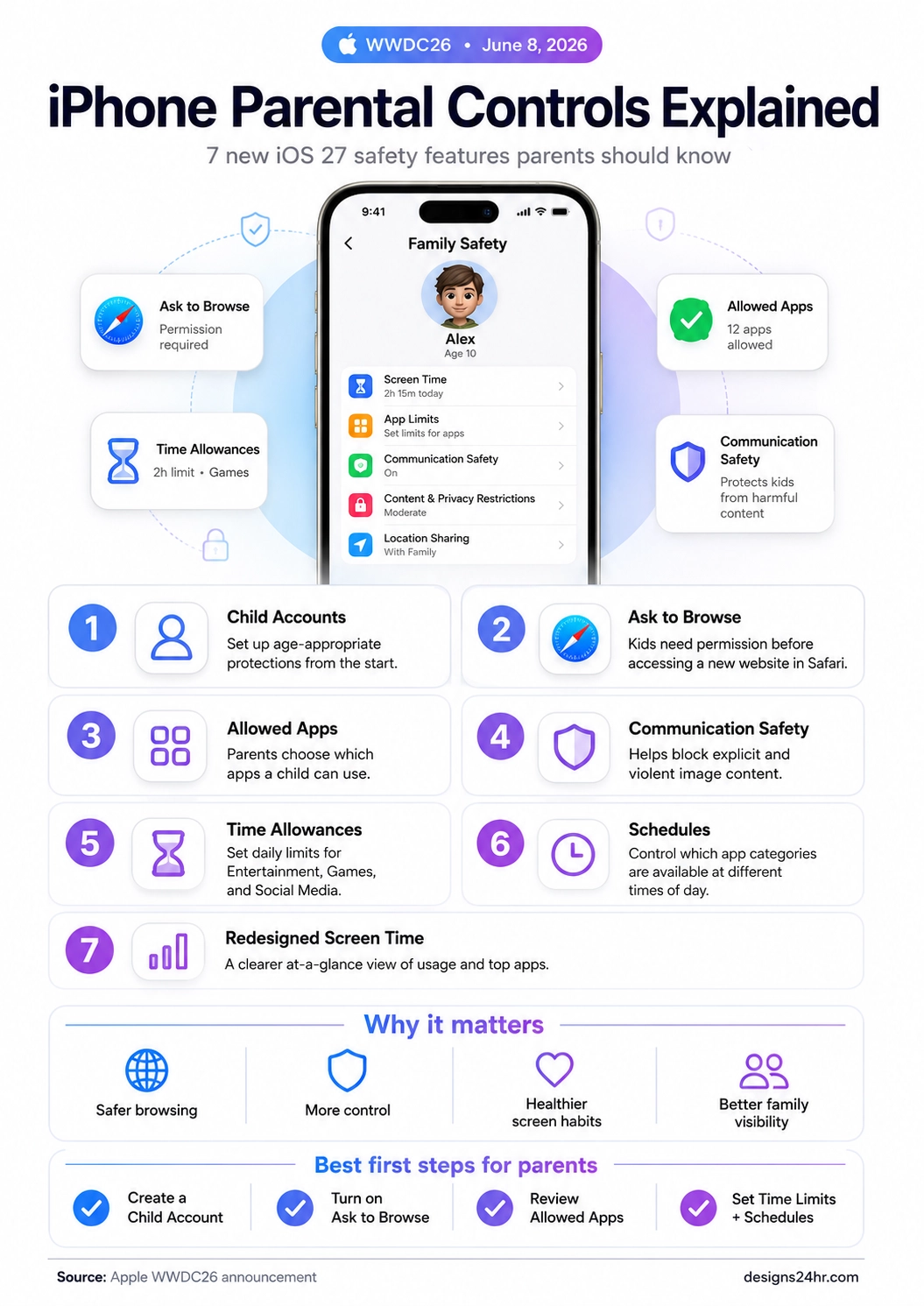
Quick answer: iPhone parental controls in iOS 27 include new and improved child safety features such as Child Accounts, Ask to Browse, Allowed Apps, Communication Safety, Time Allowances, Schedules, and a redesigned Screen Time view. These Apple parental controls are designed to give parents more visibility, more control, and easier ways to guide kids online.
What Are iPhone Parental Controls?
iPhone parental controls are Apple’s built-in tools that help parents manage what a child can access on an iPhone, iPad, or other Apple device. These controls can help with screen time limits, app access, browsing permissions, communication safety, content restrictions, and family visibility.
The goal is not just to block everything. The better goal is to help families create safer digital habits. Parents need simple tools that make it easier to guide children, reduce harmful exposure, set reasonable limits, and adjust rules as kids grow.
Apple’s latest iOS 27 parental controls make this direction clearer. Instead of forcing parents to search through confusing settings, Apple is focusing on easier setup, clearer visibility, and stronger child safety features that are more practical for everyday families.
iOS 27 Parental Controls: What Is New?
Apple announced new family safety updates at WWDC26, including tools to help parents create age-appropriate protections, manage web browsing permissions, choose allowed apps, improve communication safety, set screen time allowances, create schedules, and view device usage more clearly.
This matters because many parents do not have time to manually check every app, message, website, and screen time habit. Better Apple parental controls can make family device management more realistic, especially for busy parents managing multiple children or multiple devices.
Simple way to understand the update
iOS 27 parental controls are designed to make family safety easier to set up and easier to monitor. Parents get more tools to decide what children can access, when they can access it, and how their device use fits into healthier daily routines.
iPhone Parental Controls: 7 Smart iOS 27 Safety Features
If you are searching for iPhone child safety features, these are the seven iOS 27 updates parents should understand first. Each one helps solve a different part of family device safety.
1. Child Accounts
Child Accounts help parents set up age-appropriate protections from the start. This makes iPhone parental controls easier because safety settings can be connected to the child’s age and family setup.
2. Ask to Browse iPhone
Ask to Browse lets kids request permission before accessing a new website in Safari. This can help parents guide web access instead of leaving children to explore unfamiliar sites alone.
3. Allowed Apps
Allowed Apps gives parents more control over which apps a child can use. This can be useful for school hours, bedtime, family time, or when a parent wants to limit distractions.
4. Communication Safety
Communication Safety helps protect children from harmful image content, including explicit and violent content. This is one of the most important iPhone child safety features for families.
5. Time Allowances
Time Allowances help parents set daily limits for categories like Entertainment, Games, and Social Media. This gives families a clearer way to manage how much time kids spend on certain types of apps.
6. Schedules
Schedules let parents control which app categories are available at different times of day. For example, families may want different rules for school hours, homework time, bedtime, and weekends.
7. Redesigned Screen Time
The redesigned Screen Time experience gives parents a clearer at-a-glance view of usage and top apps. This can help parents notice patterns without digging through complicated menus.
Why These Features Matter
Together, these iPhone parental controls can help parents build safer browsing habits, healthier screen routines, and better family visibility across Apple devices.
Screen Time Parental Controls Explained
Screen Time parental controls are one of the most useful parts of Apple’s family safety system. Screen Time helps parents understand how much time a child spends on a device, which apps are used most, and where better limits may be needed.
With the iOS 27 updates, Apple is making Screen Time more helpful for parents by improving visibility and adding more practical ways to guide daily device use. Time Allowances and Schedules are especially important because they let families move beyond one simple daily limit.
| Parent Need | Helpful iPhone Parental Control | Why It Helps |
|---|---|---|
| Limit games and entertainment | Time Allowances | Sets daily limits for categories like Games, Entertainment, and Social Media. |
| Control device use by time of day | Schedules | Lets parents decide which app categories are available during different parts of the day. |
| See what kids use most | Redesigned Screen Time | Provides a clearer view of usage and top apps. |
| Guide web browsing | Ask to Browse | Requires permission before a child accesses a new website in Safari. |
| Control app access | Allowed Apps | Lets parents choose which apps are available to a child. |
These tools are helpful because they turn screen time management into a daily routine families can adjust. A younger child may need stricter limits, while an older child may need more flexibility with clear boundaries.
Best First Steps for iPhone Parental Controls
Parents do not need to set up every feature at once. The best approach is to start with the most important safety controls, then adjust over time based on the child’s age, maturity, school needs, and family rules.
Start with this simple setup plan
- Create a Child Account: Start with age-appropriate settings from the beginning.
- Turn on Ask to Browse: Give kids a safer way to request access to new websites.
- Review Allowed Apps: Decide which apps are appropriate for your child right now.
- Set Time Allowances: Create daily limits for Entertainment, Games, and Social Media.
- Use Schedules: Build different rules for school time, homework time, bedtime, and weekends.
- Check Screen Time weekly: Review top apps and adjust limits when needed.
- Talk with your child: Explain why the settings exist so controls feel like guidance, not punishment.
The most effective iPhone parental controls work best when they are combined with conversation. Settings can reduce risk, but kids also need guidance about privacy, strangers, websites, app downloads, screen habits, and what to do when something feels unsafe.
Why Apple Parental Controls Matter
Apple parental controls matter because children are using connected devices at younger ages, and online experiences can change quickly. Parents need tools that are easy to understand, easy to adjust, and strong enough to help reduce exposure to harmful content.
These iOS 27 parental controls focus on four practical benefits: safer browsing, more control, healthier screen habits, and better family visibility. That combination is important because digital safety is not only about blocking apps. It is also about helping children build healthier routines over time.
| Benefit | What It Means for Parents |
|---|---|
| Safer browsing | Ask to Browse can help parents guide access to new websites before kids visit them. |
| More control | Allowed Apps and Child Accounts make it easier to choose what a child can use. |
| Healthier screen habits | Time Allowances and Schedules help families create better routines around games, entertainment, and social media. |
| Better family visibility | Redesigned Screen Time helps parents understand device usage and top apps more clearly. |
For many families, the biggest win is simplicity. If Apple can make child safety settings easier to set up and easier to monitor, more parents may actually use them consistently.
Real-Life Examples of iPhone Child Safety Features
The easiest way to understand iPhone child safety features is to imagine normal family situations where these tools could help.
- A child opens a new website: Ask to Browse can require parent permission first.
- Games are taking too much time: Time Allowances can set daily limits for Games.
- Apps are distracting during homework: Schedules can limit certain categories during study time.
- A parent wants fewer app choices: Allowed Apps can keep only approved apps available.
- A child receives harmful image content: Communication Safety can help protect against explicit or violent images.
- A parent wants a weekly check-in: Screen Time can show usage patterns and top apps.
These examples show why iPhone parental controls are useful for more than one type of family. Different ages need different rules, but every family benefits from clearer safety settings and better visibility.
Should Parents Use iPhone Parental Controls?
Yes, parents should use iPhone parental controls if their child uses an iPhone, iPad, or other Apple device. These settings can help reduce unsafe browsing, manage screen habits, limit app access, and create better family routines around technology.
Parents should also remember that controls are not a replacement for communication. The best approach is a mix of safety settings, regular check-ins, clear expectations, and age-appropriate conversations about online behavior.
Final takeaway
iPhone parental controls in iOS 27 give parents smarter ways to manage child accounts, web browsing, app access, screen time, schedules, and communication safety. For families, these tools can make Apple devices safer, clearer, and easier to manage.
Helpful Related Guides and Tools
If you are learning how AI, apps, phones, and smart devices are changing everyday family life, these related Designs24hr resources can help:
Official Source
For official details about Apple’s WWDC26 child safety and parental control updates, read Apple’s announcement: Apple WWDC26 Apple Intelligence, Siri AI, and child safety announcement.
iPhone Parental Controls FAQ
What are iPhone parental controls?
iPhone parental controls are Apple’s built-in family safety settings that help parents manage app access, web browsing, screen time, communication safety, content restrictions, and device usage for children.
What are the new iOS 27 parental controls?
iOS 27 parental controls include updates such as Child Accounts, Ask to Browse, Allowed Apps, Communication Safety, Time Allowances, Schedules, and a redesigned Screen Time view.
What is Ask to Browse on iPhone?
Ask to Browse is an iPhone child safety feature that lets kids request permission before accessing a new website in Safari. It gives parents more control over web browsing.
How do Screen Time parental controls help?
Screen Time parental controls help parents view device usage, identify top apps, set limits, manage app categories, and create healthier screen time routines for children.
What are Allowed Apps in Apple parental controls?
Allowed Apps let parents choose which apps a child can use. This can help reduce distractions, limit inappropriate access, and create different app rules for different situations.
What is Communication Safety on iPhone?
Communication Safety is an Apple child safety feature designed to help protect kids from harmful image content, including explicit and violent content.
Should every parent turn on iPhone parental controls?
Parents should consider using iPhone parental controls when a child uses an Apple device. The right settings depend on the child’s age, maturity, family rules, and how the device is used.
Are iPhone parental controls enough by themselves?
iPhone parental controls are helpful, but they work best with regular family conversations. Parents should also talk with children about privacy, online safety, healthy screen habits, and what to do when something feels unsafe.
Source: This article is based on Apple’s official WWDC26 announcement about iOS 27 child safety, Screen Time, and parental control updates.