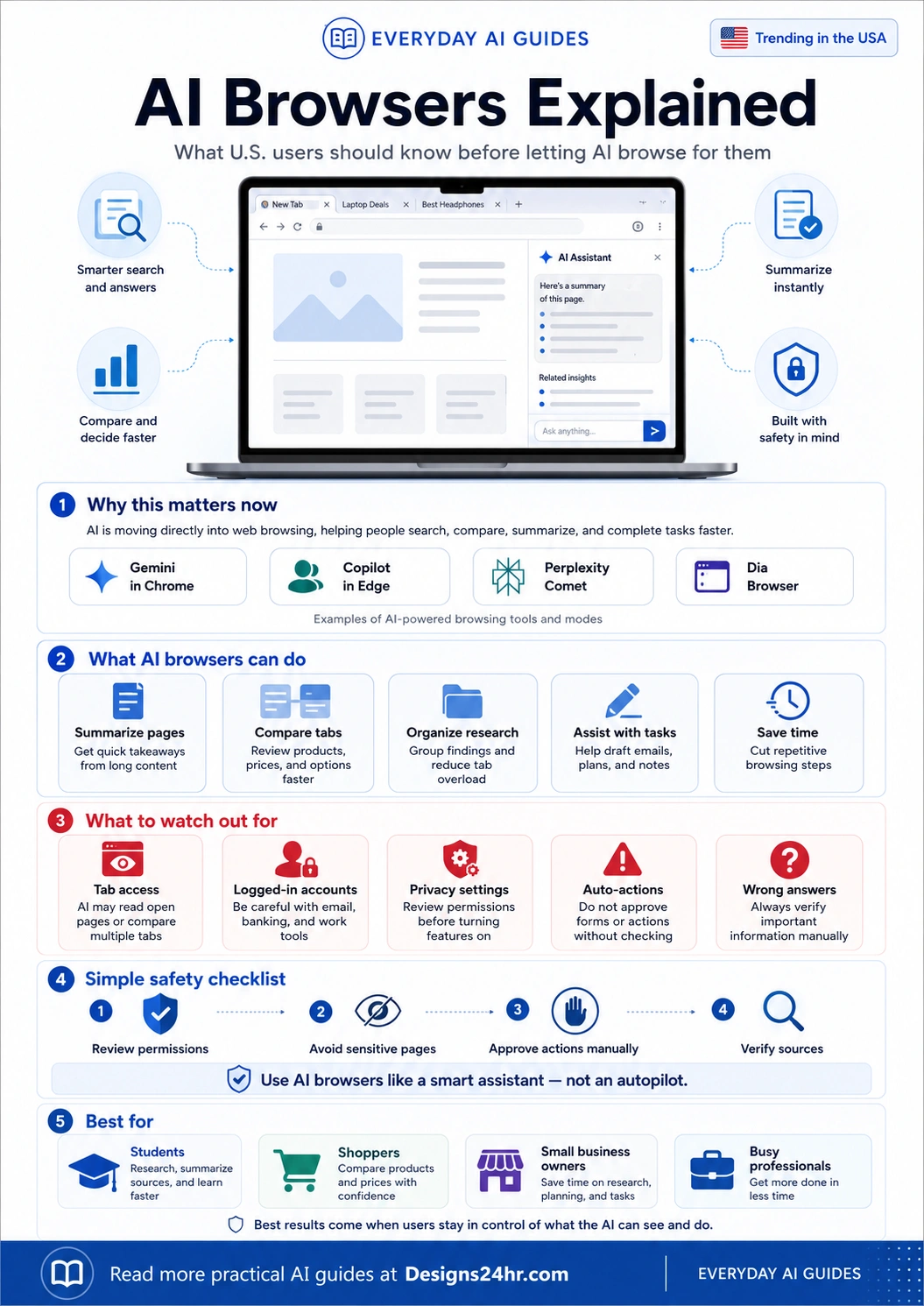
AI Browsers Explained: What U.S. Users Should Know Before Letting AI Browse for Them
AI browsers are becoming one of the biggest everyday AI trends because they move artificial intelligence directly into the place where people already search, shop, research, study, and work: the web browser.
Quick answer: An AI browser is a web browser, browser mode, or browser assistant that uses AI to help you understand pages, summarize content, compare tabs, organize research, and sometimes assist with online tasks. Instead of copying text into a separate chatbot, the AI works closer to the page you are already viewing.
That sounds helpful, and it can be. But it also raises a simple question every U.S. user should ask before turning these features on: what can the AI see, what can it remember, and what can it do on my behalf?
What is an AI browser?
An AI browser is a browsing experience with an AI assistant built into the workflow. That assistant may appear as a side panel, search box, browser mode, toolbar button, or dedicated browser app. Its job is to help you make sense of the web faster.
In a normal browser, you open pages, read tabs, search again, copy details, compare options, and decide what to do next. In an AI browser, the assistant may help summarize a long page, compare multiple open tabs, explain a product review, organize research, draft a note, or guide you through a repetitive task.
The important difference is context. A chatbot usually sees only what you paste into it. A browser AI may be able to use the page, tab, or browsing context you allow it to access. That is what makes AI browsers powerful, but it is also why permissions matter.
Why AI browsers are trending now
AI is moving from separate chat windows into everyday software. The browser is a natural next step because it already sits between users and almost everything they do online: Google searches, online shopping, school research, work dashboards, email, travel planning, recipes, news, and financial information.
Major companies are now building AI directly into browsing experiences. Google describes Gemini in Chrome as browser-based AI assistance that can help with key takeaways, concepts, answers, and page context. Microsoft describes Copilot in Edge as a way to compare, decide, and finish tasks without leaving the browser. Perplexity describes Comet as an AI browser that acts like a personal assistant. Dia positions itself as a browser for work, suggestions, and context across tabs and tools.
For everyday users, this means the browser is no longer just a place to visit websites. It is becoming a workspace where AI may help read, compare, explain, and act.
Smarter search
Instead of opening ten pages and scanning everything manually, an AI browser can help pull out key points, explain confusing terms, and suggest what to check next.
Faster summaries
Long articles, product pages, research documents, help pages, and policy pages can be turned into shorter takeaways so you can decide whether the page is worth deeper reading.
Tab comparisons
Some AI browsing tools can help compare information across tabs, which is useful for product research, travel planning, software choices, insurance reading, and school projects.
More permission decisions
The more helpful a browser AI becomes, the more important it is to understand what it can access, whether it can use open tabs, and whether it can help perform actions.
Examples of AI browsers and browser AI tools
AI browsers are not all the same. Some are full browser apps. Some are AI modes inside existing browsers. Some focus on search, while others focus on work, tabs, or task assistance.
| Tool or browser | What it focuses on | What users should check |
|---|---|---|
| Gemini in Chrome | AI help inside Chrome, including summaries, answers, page context, and task support depending on availability and settings. | Check account requirements, availability, activity settings, page context access, and whether any auto-browse features are enabled. |
| Copilot in Microsoft Edge | AI assistance inside Edge for comparing, deciding, working across tabs, and helping users stay in their browsing flow. | Review Copilot permissions, tab access, history controls, and whether the feature is optional or enabled for your account. |
| Perplexity Comet | A dedicated AI browser experience built around a personal assistant that can help research, organize, and assist with tasks. | Check privacy settings, assistant behavior, account access, and whether it can take actions you need to approve. |
| Dia Browser | A work-focused browser designed around context, suggestions, productivity, and answers across tabs and connected work tools. | Be careful with work accounts, private documents, connected apps, Slack, email, calendar, and company data policies. |
This does not mean one AI browser is automatically better than another. The best choice depends on what you need: simple summaries, shopping comparison, work context, research organization, or a more assistant-like browser experience.
The big shift: AI is moving from “answer my question” to “help me use the web”
The first wave of everyday AI tools helped users ask questions and generate text. AI browsers are different because they bring AI into active web sessions. That means the AI may help with what you are reading, what you have open, and what you are trying to finish.
That shift is useful for productivity, but it also changes the trust level. A browser assistant is closer to your real online life than a blank chatbot window. Treat it like a helpful assistant that needs boundaries, not like a silent autopilot.
What AI browsers can do for everyday U.S. users
Most users will not use AI browsers for advanced technical work. They will use them for normal tasks that already take too much time: reading, comparing, organizing, deciding, and writing.
Summarize long pages
AI browsers can turn long pages into quick takeaways. This can help with news articles, product pages, school material, policy pages, how-to guides, and support documents.
Compare products
When shopping online, AI can help compare features, prices, reviews, warranties, and return policies. You should still verify final details before buying.
Support studying
Students can ask for simple explanations, study outlines, source summaries, and vocabulary help. Original sources still matter, especially for assignments.
Help with work research
Busy professionals can use browser AI to review competitor pages, summarize reports, organize notes, compare software options, and draft follow-up messages.
Assist with emails and notes
Some tools can help turn research into a draft email, meeting note, summary, or action list. Always review tone, facts, and private details before sending.
Reduce tab overload
AI can help group messy research, identify repeated information, and suggest the next step when you have too many pages open and no clear decision.
What to watch out for before using an AI browser
The biggest AI browser risks are not only about whether the answer is right or wrong. They are also about access, context, permissions, actions, and user control.
“`Tab access
If a browser AI can use open tabs, it may be able to compare or summarize pages you did not realize were part of the task. Close sensitive tabs before asking for help.
Logged-in accounts
Email, banking, healthcare portals, tax accounts, school accounts, and work dashboards can contain private information. Avoid using AI assistance on sensitive pages unless you fully understand the settings.
Privacy settings
Review activity settings, personalization settings, history controls, connected apps, and any permission that allows the AI to use page or tab context.
Auto-actions
Some AI browsing experiences are moving toward task assistance. Do not let AI submit forms, send messages, purchase items, unsubscribe, schedule, or change settings without your manual review.
Simple rule: if a page includes money, health, legal details, private family information, student records, passwords, business data, or personal identity details, keep the AI assistant out unless you know exactly what it can access and store.
AI browser safety checklist
Before letting AI browse with you, use this checklist. It keeps the benefits while reducing unnecessary risk.
“`- Start with low-risk pages. Try AI browsing on articles, recipes, public product pages, travel ideas, or general research before using it near private accounts.
- Read the permission screen. Look for words like tabs, browsing history, page content, connected apps, email, calendar, files, memory, activity, and automation.
- Close sensitive tabs first. Do not leave banking, healthcare, legal, tax, work, or private family pages open if the AI can view multiple tabs.
- Use manual approval. Let AI suggest actions, but you should click, submit, buy, send, approve, or change settings yourself.
- Verify important answers. AI can summarize quickly, but it can still miss details, misunderstand a page, or give outdated information.
- Check source links. If the browser AI gives an answer, open the original page and confirm the detail before relying on it.
- Turn off features you do not understand. If a setting sounds unclear, disable it until you have time to review what it does.
- Separate personal and work use. Do not connect work tools, Slack, email, drives, or business dashboards without checking company policy.
Who should try AI browsers first?
AI browsers can help many people, but they are most useful when the task involves reading, comparing, researching, or organizing information.
Students
Students can use AI browsers to summarize sources, explain difficult concepts, create study notes, and organize research. They should still read original sources and follow school AI rules.
Shoppers
Shoppers can compare products, reviews, pricing pages, return policies, and feature lists. This is helpful for laptops, appliances, subscriptions, travel, and other research-heavy purchases.
Small business owners
Small business owners can research competitors, compare tools, summarize marketing ideas, review customer questions, and draft simple content outlines.
Busy professionals
Professionals can reduce browser clutter, summarize industry updates, compare software, organize notes, and turn research into a clear next step.
When you should avoid AI browsing
AI browsers are not the right choice for every page. In some situations, old-fashioned manual browsing is safer.
Banking and payment pages
Do not let AI assist with private banking pages, payment forms, credit card details, or account recovery screens.
Medical or insurance portals
Health portals, insurance claims, medication pages, and private medical messages should be handled carefully and manually.
Legal or tax documents
AI may help simplify public information, but it should not replace a qualified professional for legal, tax, or financial decisions.
Private work systems
Company dashboards, customer records, internal documents, and private Slack or email threads may be restricted by workplace policy.
How to use an AI browser wisely
The best way to use an AI browser is to keep the AI focused on a narrow task. Instead of saying “help me with everything,” give it a specific instruction and limit the context.
| Use case | Better prompt | Safety step |
|---|---|---|
| Summarizing a long article | “Summarize this page in five bullets and list anything I should verify.” | Open the original source and confirm the main claims. |
| Comparing products | “Compare only these three product tabs by price, warranty, return policy, and major drawbacks.” | Check final price, shipping, reviews, and return policy manually before buying. |
| Studying | “Explain this page at a beginner level and create a short study checklist.” | Use original sources for citations and follow school AI rules. |
| Work research | “Summarize these public pages and turn them into a neutral comparison table.” | Do not include private company pages unless approved by your workplace. |
| Email drafting | “Draft a polite reply based only on this public information. Do not send it.” | Review names, facts, tone, and private details before sending. |
Helpful Designs24hr tools to use with this guide
After learning how AI browsers work, you can use free Designs24hr tools to stay in control of the final output.
Explain This For Me
Use this when an AI browser summary still feels confusing. Paste difficult wording and turn it into plain language.
Decision Helper
Use this after comparing tabs, products, subscriptions, or choices so you can turn research into a clearer next step.
AI Email Reply Generator
Use this when your browser research needs to become a careful work email, customer reply, or follow-up message.
Title Meta Previewer
Use this if you are a creator, blogger, or small business owner turning research into SEO content.
You can also explore more beginner-friendly explainers in Everyday AI Guides, browse the AI Trends Made Simple category, or review related privacy topics in AI Safety, Privacy & Trust.
Simple AI browser rules for everyday users
If you remember nothing else, remember these five rules:
- Use AI browsers for public information first. Articles, public pages, product pages, help pages, and research sources are safer starting points.
- Never assume the AI is right. Summaries are useful, but they are not the same as verification.
- Keep sensitive accounts separate. Avoid using AI browsing around banking, medical, school, legal, or private work information.
- Approve every action yourself. AI can suggest. You should decide.
- Review settings often. Browser AI features can change, so revisit privacy, activity, and permission controls regularly.
Final takeaway
AI browsers are not just another chatbot trend. They are a new way to search, read, compare, and work across the web. For U.S. users, the opportunity is real: faster research, less tab overload, easier summaries, and better decision support.
But the safest approach is simple: use AI browsers like a smart assistant, not an autopilot. Let them help you understand the web faster, but keep control over private information, permissions, purchases, forms, messages, and important decisions.
Frequently asked questions about AI browsers
What is an AI browser?
An AI browser is a web browser, browser mode, or browser assistant that uses AI to help summarize pages, answer questions, compare tabs, organize research, and assist with browsing tasks.
Are AI browsers safe to use?
AI browsers can be safe for many everyday tasks if users understand the permissions, avoid sensitive pages, manually approve actions, and verify important answers from original sources.
Can an AI browser read my open tabs?
Some AI browser tools or modes may use open tabs or page context when you allow that feature. Users should check each tool’s settings and close sensitive tabs before asking the AI to compare or summarize pages.
What can AI browsers do for everyday users?
AI browsers can help summarize long webpages, compare products, explain confusing content, organize research, draft notes, reduce tab overload, and support online tasks.
Should students use AI browsers?
Students can use AI browsers for summaries, study outlines, source organization, and explanations. They should still read original sources, cite properly, and follow school rules about AI use.
What should I check before using an AI browser?
Before using an AI browser, check privacy settings, tab access, history controls, connected apps, activity settings, auto-action permissions, and whether the AI can use sensitive pages or accounts.
Is an AI browser better than a regular browser?
An AI browser can be better for summaries, comparisons, research, and task support. A regular browser may be better for private, sensitive, or high-stakes activity where you do not want AI involved.
Can AI browsers make mistakes?
Yes. AI browsers can misunderstand pages, miss important details, summarize too aggressively, or give incorrect answers. Users should verify important information manually.
Official sources and further reading
For current details, always check the official product pages and safety resources:
Keep learning AI in plain English
AI browsers are only one part of the fast-moving AI trend. For more simple, practical, U.S.-focused guides, visit Everyday AI Guides and explore more topics from Designs24hr.