Config 2026 • Everyday AI Guides
Figma AI Motion Graphics Explained
Figma’s new AI design updates are making motion, shader effects, code, and creative tools feel more connected inside one design workspace. For U.S. creators, students, freelancers, and small businesses, that could mean faster visual ideas, quicker client mockups, and more polished digital content.
Quick Answer: What Are Figma AI Motion Graphics?
Figma AI motion graphics refers to the new wave of creative tools inside Figma that help designers and everyday creators make visuals feel more alive. Instead of only designing static screens, users can now explore timeline-based motion, animated effects, shader fills, 3D-style depth, and code-connected design ideas in one canvas.
The important point is simple: these tools are not just for professional animation studios. They can also help social media creators, marketing teams, students, startup founders, and small business owners test motion ideas before spending time on full video editing or custom development.
Simple meaning: Figma is moving from a static design workspace into a more expressive creative canvas where motion, visual effects, code, and AI-assisted design can work together.
What Figma Announced at Config 2026
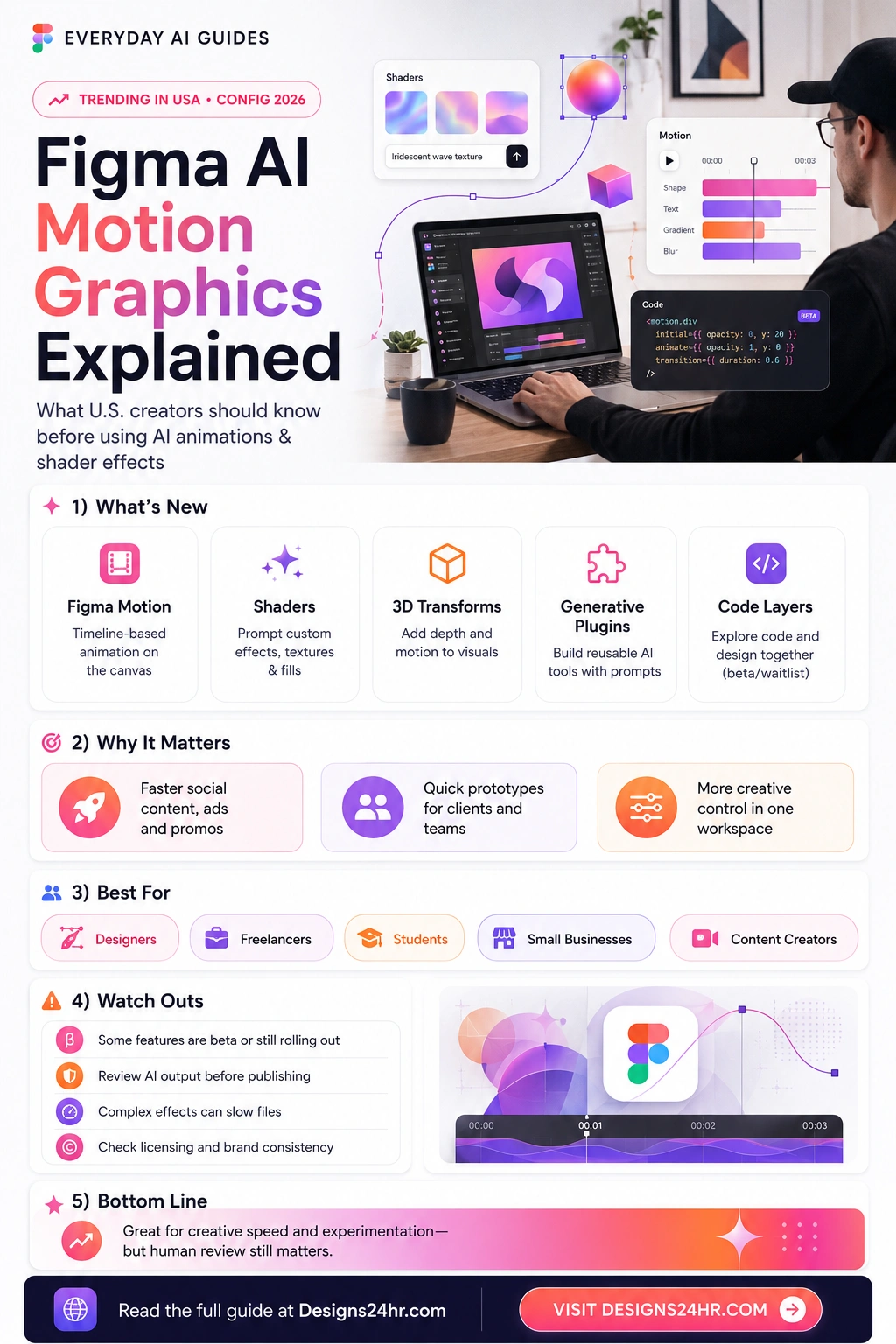
At Config 2026, Figma introduced several updates focused on making the canvas more flexible and expressive. The most important features for everyday creators include Figma Motion, shader fills and effects, Code Layers, generative plugins, Weave tools, and updates to the Figma agent.
Some of these features may be in beta, waitlist-based, or rolling out gradually, so users should always check the latest availability inside their own Figma account before building a full workflow around them.
Figma Motion
A timeline-based motion system that helps creators animate design elements directly inside the Figma canvas.
Shader Effects
Creative visual effects and fills that can add texture, lighting, depth, waves, gradients, and stylized looks to designs.
3D Transforms
Depth and perspective controls that can make flat designs feel more dimensional and dynamic.
Code Layers
A way to work with interactive code-like design layers on the canvas, useful for exploring more realistic product ideas.
Figma Agent
An AI assistant inside Figma that can help generate, remix, review, and support design work.
Generative Plugins
Prompt-based reusable tools that teams may be able to create and share for repeat design tasks.
Why This Matters for U.S. Creators
Many creators in the United States are trying to make more content with fewer tools. A small business owner may need a promo graphic, a student may need a class presentation, a freelancer may need a client mockup, and a social media manager may need a moving visual for a campaign.
Before tools like this, a creator might design in one app, animate in another app, export assets, move them into a video editor, then rebuild the same idea again for a website or pitch deck. Figma’s new direction could reduce that friction by keeping more of the creative process in one place.
- ✓ Faster content testing: Creators can quickly test whether a visual idea works before building a full video or animation.
- ✓ Better client previews: Freelancers can show movement, visual effects, and interactive ideas earlier in the design process.
- ✓ More polished presentations: Students, teams, and small businesses can make static visuals feel more premium and modern.
- ✓ Less jumping between apps: Motion, design, effects, and code exploration can happen closer together.
What Is Figma Motion?
Figma Motion is a motion tool built around a timeline. That means creators can animate design elements over time, similar to how video editors and animation tools use keyframes. The difference is that the motion work happens closer to the original design file, which can make the process easier for teams that already use Figma.
For beginners, the biggest advantage is that motion can become part of the design conversation earlier. Instead of saying “imagine this button moves” or “this card should slide in,” a creator can show a more realistic version of the idea inside the same workspace.
Best examples for everyday use
- ✓ Animated social media graphics for product launches, sales, or event announcements.
- ✓ Motion mockups for app screens, website hero sections, landing pages, and onboarding flows.
- ✓ Simple animated visuals for pitch decks, school projects, creator portfolios, and brand presentations.
What Are Shader Effects in Figma?
Shader effects are visual effects that can add more depth, texture, lighting, distortion, gradients, and movement to a design. In simple terms, shaders can help a design look less flat and more expressive.
For example, a creator might use shader effects to make a background feel more cinematic, add a glowing gradient to a product image, create a wavy animated texture, or give a design a more futuristic look. Used well, these effects can make thumbnails, banners, app mockups, and ads feel more eye-catching.
Creator tip: Shader effects should support the message, not overpower it. If the headline becomes harder to read, the effect is probably too strong.
What Are Code Layers?
Code Layers are one of the more advanced Figma updates. The basic idea is that code can become a creative material on the design canvas, not only something that happens later in a developer’s separate workspace.
For everyday users, this does not mean every creator suddenly needs to become a programmer. It means designers, developers, and product teams may be able to explore more realistic interactive ideas earlier. A startup founder could test a product concept. A designer could compare interactive directions. A team could review design and code ideas side by side.
Who benefits most?
Code Layers will likely be most useful for product designers, app teams, startup builders, agencies, and advanced freelancers. Beginners can still learn from the concept, but they should not feel pressured to use every advanced feature immediately.
Figma AI Motion Graphics: Best Use Cases
The best use cases are the ones where motion and visual polish help explain an idea faster. For most everyday users, that means content, marketing, education, product previews, and lightweight creative testing.
| User Type | Useful For | What to Avoid |
|---|---|---|
| Content creators | Animated thumbnails, short-form visuals, promo graphics, channel branding, and social posts. | Using effects that make text unreadable or distract from the main message. |
| Freelancers | Client previews, ad concepts, landing page ideas, pitch visuals, and faster creative mockups. | Promising final production animation before checking export quality and client requirements. |
| Small businesses | Sale graphics, product explainers, website hero concepts, email visuals, and simple campaign assets. | Publishing AI-assisted visuals without checking brand consistency, licensing, and accuracy. |
| Students | Presentations, design projects, portfolio pieces, class demos, and visual storytelling. | Submitting AI-assisted work without following school rules or disclosure requirements. |
| Design teams | Prototypes, interaction ideas, design system motion, internal reviews, and product exploration. | Replacing team review with AI output. Human judgment still matters. |
What to Watch Out For Before Using These Tools
Figma’s new AI and motion features can be exciting, but creators should still use them carefully. AI-assisted design tools can speed up work, but they do not automatically make a design accurate, on-brand, accessible, or legally safe to publish.
- ! Some features may still be beta or waitlist-based. Check current access before planning a client deadline around a new feature.
- ! Motion can slow down workflows. Complex effects may make files harder to manage, especially for larger teams or older devices.
- ! AI output still needs review. Always check text, layouts, brand colors, claims, accessibility, and final export quality.
- ! Licensing still matters. Before publishing, confirm that images, fonts, assets, plugins, and generated content are allowed for your intended use.
- ! Readable design beats flashy design. If motion or shaders reduce clarity, simplify the effect.
Simple Checklist Before Publishing AI-Assisted Designs
Before using Figma AI motion graphics in real posts, ads, websites, or client work, run through a quick review checklist. This helps protect your brand and keeps the final design useful for real people.
- 1 Check the message: Is the main headline still clear in the first few seconds?
- 2 Check the brand: Do the colors, fonts, tone, and visual style match the brand?
- 3 Check readability: Can someone read the text on mobile without zooming?
- 4 Check motion: Does the movement support the idea instead of distracting from it?
- 5 Check rights: Are the images, fonts, plugins, and generated assets safe for your use case?
- 6 Check export quality: Test the design on the platform where it will actually be posted.
How Beginners Should Start
If you are new to Figma, do not start by trying every advanced AI feature at once. Start with one simple project, such as a social post, a hero banner, a YouTube thumbnail concept, or a product announcement graphic.
First, create the static version. Then add one small motion idea. After that, test one shader or visual effect. This keeps the process simple and helps you learn what actually improves the design.
Beginner workflow: Static design first, motion second, shader effects third, final review last.
Helpful Designs24hr Tools for This Workflow
Before publishing any AI-assisted creative, you can use free Designs24hr tools to clean up the final details. These tools are especially useful when preparing thumbnails, blog images, social posts, ads, and landing page visuals.
Color Palette Generator
Use the Color Palette Generator to test matching colors before building your final Figma design.
CSS Gradient Generator
Use the CSS Gradient Generator when you need clean gradient ideas for backgrounds, cards, and hero sections.
Image Resizer
Use the Image Resizer and Converter to prepare visuals for thumbnails, blog images, and social media sizes.
Title/Meta Previewer
Use the Title/Meta Previewer to check how your blog title and meta description may look in search results.
Keyword Density Checker
Use the Keyword Density Checker to make sure your article stays natural and does not overuse keywords.
Everyday AI Guides
Explore more simple AI explainers inside Everyday AI Guides.
Final Takeaway
Figma AI motion graphics could be a major shift for everyday creative work because it brings design, motion, effects, AI help, and code exploration closer together. For U.S. creators, that can mean faster visual testing, better client previews, and more polished content without immediately jumping into several different apps.
The best way to use these tools is not to let AI make every decision. Use AI and motion features to speed up exploration, then use human judgment to check clarity, brand fit, accessibility, accuracy, and publishing quality.
Bottom line: Creative speed is useful, but human review still matters.
Figma’s new AI tools can help creators move faster, but the strongest results will still come from clear ideas, readable design, and careful final checks.
Frequently Asked Questions
What are Figma AI motion graphics?
Figma AI motion graphics are creative workflows that use Figma’s motion, AI, shader, and design tools to make visuals more dynamic. They can help creators animate design elements, test visual effects, and create more polished design previews.
Is Figma Motion beginner-friendly?
Figma Motion may be easier for people who already use Figma, but beginners should start with simple animations first. A basic moving card, button, or headline is a better starting point than a complex multi-layer animation.
What are shader effects in Figma?
Shader effects are visual effects and fills that can add texture, lighting, gradients, depth, waves, or other stylized looks to a design. They can make creative assets feel more polished when used carefully.
Can Figma AI replace designers?
No. Figma AI can help speed up parts of the creative process, but it does not replace strategy, taste, brand judgment, accessibility review, or human decision-making. Designers still need to guide and review the work.
Who should use Figma’s new AI design tools?
These tools may be useful for designers, freelancers, content creators, students, startup teams, marketing teams, and small businesses that want to create better visuals faster.
Are Figma Code Layers useful for non-developers?
Code Layers may be more useful for product designers and teams working with developers, but non-developers can still benefit by seeing more realistic interactive ideas earlier in the design process.
What should creators check before publishing AI-assisted designs?
Creators should check readability, brand consistency, licensing, accessibility, accuracy, export quality, and whether any AI-assisted content needs disclosure based on the platform or project rules.
Sources and Further Reading
For the latest availability and official details, check Figma’s own product updates because beta access and rollout timing can change.