Gemini Family Link not working? Start by checking whether Gemini Apps is actually enabled for your child’s supervised Google Account. In Family Link, select your child, open Controls → Gemini → Gemini Apps, and make sure access is turned on. If it is already enabled, restart Gemini and give the change a little time to apply. Google says access can also depend on the child’s account, device, language, region, feature eligibility, and the gradual rollout of Gemini for supervised accounts.
If Gemini Family Link is not working: confirm Gemini Apps is turned on, restart Gemini, wait a few hours after changing the setting, make sure your child is using the correct supervised account, and verify that Gemini is available on that device, in that language and region. If the Gemini control itself is missing, update Family Link and check the older Content restrictions → Gemini path.
Gemini Family Link Not Working? Try These 7 Fixes
When a child cannot open Gemini, it is tempting to assume that Family Link is broken. In practice, several different issues can produce the same result: the Gemini Apps toggle may be off, the setting may not have finished updating, the wrong Google Account may be active, supervised access may not yet be available, or the child may be trying to use a feature with additional age or device requirements.
Work through these fixes in order. Do not start deleting accounts, changing birthdays, or removing supervision just to make Gemini appear.
Make Sure Gemini Apps Is Enabled in Family Link
Open the Family Link app or Family Link on the web, choose the supervised child, and look for the Gemini Apps access control.
Turn Gemini Apps on if you want to allow access, or off if you want to remove the child’s access.
Google documents this as the current parent-management path for eligible supervised child accounts.
Restart Gemini and Give the Setting Time to Update
If you just enabled Gemini through Family Link and your child still sees an error, do not repeatedly toggle the setting on and off.
Google says the change can take a few hours to take effect. It also recommends restarting Gemini if access does not appear immediately.
Enable Gemini once, close and restart Gemini on the child’s device, verify that the correct Google Account is active, and then allow time for the change to propagate.
Check That Your Child Is Using the Correct Supervised Account
Family Link controls apply to the Google Account you are supervising. If the device is signed in to multiple Google Accounts, make sure Gemini is being opened with the same child account that appears under your Family Link family group.
This is especially worth checking on shared tablets, Chromebooks, Android devices, or browsers where more than one Google Account has been used.
Compare the child’s Google Account shown inside Gemini with the account you selected in Family Link before changing any other settings.
Check Device, Language and Regional Availability
Turning on Gemini Apps in Family Link gives permission for an eligible child account to use Gemini. It does not override every other availability requirement.
If the setting is on but Gemini still does not work, check whether the child’s device, language and region are supported. Google specifically points parents to availability requirements when troubleshooting the message that Gemini is not available for the account.
Remember That Supervised Gemini Access Is Still Rolling Out
Google says access to Gemini Apps for supervised accounts is being released gradually. That means a parent can have Gemini Apps enabled in Family Link and the child may still not have access yet.
This distinction matters because it prevents a common troubleshooting mistake: repeatedly changing Family Link settings when the problem is actually availability on Google’s side.
Enabled does not always mean immediately available. If the account, device, language and region look correct, rollout availability may be the remaining reason.
Update Family Link or Check the Older Settings Path
If you cannot find a Gemini section directly under Controls, your version of Family Link may show the option differently.
Google documents an older route:
Before assuming the setting is missing entirely, update Family Link and check both locations.
Make Sure You Are Fixing Gemini Apps, Not Gemini for Home
Gemini Apps and Gemini for Home have related but different parent-control workflows.
If the problem is Gemini on a child’s phone, tablet, browser, or ordinary Gemini experience, use the Gemini Apps control in Family Link. If you are trying to manage Gemini on compatible Google Home or Nest devices, use the Google Home parental controls and Digital Wellbeing settings instead.
Mixing these two systems is one reason instructions found online can appear to contradict each other.
Gemini Family Link Troubleshooting Matrix
Use this table to jump directly from the symptom you see to the most useful next check.
| What you see | Most likely issue | What to check next |
|---|---|---|
| Gemini option is missing in Family Link | App version, settings location, or availability | Update Family Link and check Controls → Content restrictions → Gemini. |
| Gemini Apps is on, but the child still cannot use Gemini | Setting delay or supervised-account rollout | Restart Gemini, wait a few hours, then verify availability. |
| “Gemini isn’t available for your account” | Account or availability requirement | Check the supervised account, device, language, region and rollout status. |
| Gemini works, but a specific feature is missing | Feature-specific age or supervised-user restriction | Check that feature’s requirements rather than assuming all of Gemini is blocked. |
| Settings changed but nothing happened | Propagation delay | Restart Gemini and allow time before changing the setting again. |
| Gemini works on a phone but not a home speaker, or vice versa | Different Gemini product surface | Separate Gemini Apps troubleshooting from Gemini for Home controls. |
How to Enable Gemini in Family Link
If you want to allow your child to use Gemini Apps with an eligible supervised Google Account, Google currently gives parents an on/off control through Family Link.
- Open the Family Link app or Family Link on the web.
- Select the child whose account you want to manage.
- Open Controls.
- Select Gemini.
- Select Gemini Apps.
- Turn Gemini Apps on.
- If access does not appear immediately, restart Gemini and allow a few hours for the change to take effect.
The Family Link toggle controls whether the supervised child account is permitted to access Gemini Apps. It does not guarantee that every Gemini feature is available to the account, nor does it bypass device, region, language, age or rollout requirements.
How to Block or Turn Off Gemini in Family Link
If you decide that your child should not use Gemini Apps, use the same parent control and switch access off.
This wording is important: you are turning off the child’s access to Gemini Apps. Do not assume that this one setting automatically removes every AI-powered feature from every Google product, device, search experience or smart-home service.
If your real goal is broader device-level control, combine the relevant Google account setting with the parental controls available on the device and in the services your family actually uses.
Why Does Gemini Say “Gemini Isn’t Available for Your Account”?
This message does not have one universal cause. For a supervised account, Google recommends checking two broad areas:
- Family Link permission: Is Gemini Apps actually enabled for the child?
- Gemini availability: Is the child’s account eligible on the device, in the language and region being used?
There is also a third possibility: Google’s supervised-account access may not have reached the account yet because the rollout is gradual.
Why Older Gemini Family Link Advice May Be Wrong Now
If you search older forum threads or tutorials, you may find advice saying that supervised child accounts simply cannot use Gemini. That information can be outdated.
Google’s current documentation says parents can give a child under 13—or the applicable age in the child’s country—access to Gemini Apps through Family Link where supervised access is available.
That does not mean every supervised account automatically has Gemini. Google is still gradually releasing access, and some features have their own age or availability requirements.
Old assumption: “Family Link account = Gemini cannot be used.”
Current reality: Eligible supervised child accounts can use Gemini Apps when a parent enables access, but availability still depends on Google’s current rollout and requirements.
Can Children Under 13 Use Gemini With Family Link?
Yes—Google’s current help documentation says a parent can give a child under 13, or under the applicable age in their country, access to Gemini Apps through a supervised Google Account.
The important qualification is availability. Parent approval does not make Gemini available in every region, on every device, in every language or for every feature.
Google also says younger users receive additional protections designed to reduce inappropriate content, but it explicitly warns that filters are not perfect.
Do not treat “parent-controlled” as meaning “guaranteed child-safe.” Google advises parents to help children understand that Gemini is an AI tool, not a person, and that inappropriate or incorrect responses can still occur.
If your child is beginning to use conversational AI more broadly, our AI companion safety checklist for parents covers privacy, emotional boundaries, content controls, time limits and warning signs worth reviewing before regular chatbot use.
What Family Link Can and Cannot Control About Gemini
A useful way to avoid confusion is to separate permission from availability and safety.
| Parent question | What Family Link does |
|---|---|
| Can I turn Gemini Apps access on or off? | Yes. Google provides a parent-controlled Gemini Apps toggle for eligible supervised accounts. |
| Does turning Gemini on guarantee immediate access? | No. Google says access for supervised accounts is rolling out gradually and changes may take time. |
| Can Family Link make an unsupported feature available? | No. Individual Gemini features can still have separate age or availability requirements. |
| Does turning Gemini Apps off automatically disable every Google AI feature? | Do not assume this. Google offers different AI experiences and separate controls across products. |
| Does parental control guarantee every Gemini response is appropriate? | No. Google says its protections and filters are not perfect. |
| Does Family Link replace family rules about AI? | No. Technical access controls work best alongside clear privacy and usage rules. |
Gemini Apps vs. Gemini for Home: Don’t Mix Up the Controls
One of the easiest mistakes to make while troubleshooting Gemini Family Link is treating every Gemini product as the same thing.
Gemini Apps
This is the Gemini experience managed through the child’s supervised Google Account. The parent can turn Gemini Apps access on or off in Family Link.
Gemini for Home
Gemini for Home is Google’s AI voice-assistant experience for compatible smart-home devices. Google documents a separate parental-control workflow that can involve:
- adding the supervised child to the Google Home;
- Family Link;
- Voice Match;
- parental controls and Digital Wellbeing;
- response filtering; and
- Downtime settings.
For Gemini for Home, Google says Voice Match is required for child-specific parental controls to work correctly, and Downtime can be used to limit access for supervised children.
Phone, tablet, browser or ordinary Gemini account problem? Start with the Gemini Apps control in Family Link.
Speaker, display or smart-home voice assistant problem? Check Gemini for Home, Google Home parental controls and Digital Wellbeing.
What About Gemini Privacy for Children?
For users under 13—or the applicable age in their country—Google says the Keep Activity setting is not available. This is another reason parents should avoid treating an under-13 Gemini account as simply a smaller version of an adult account.
More broadly, teach children not to enter private information simply because a chatbot sounds friendly or conversational. Useful household rules include avoiding home addresses, school details, passwords, private family information, financial information and other sensitive details.
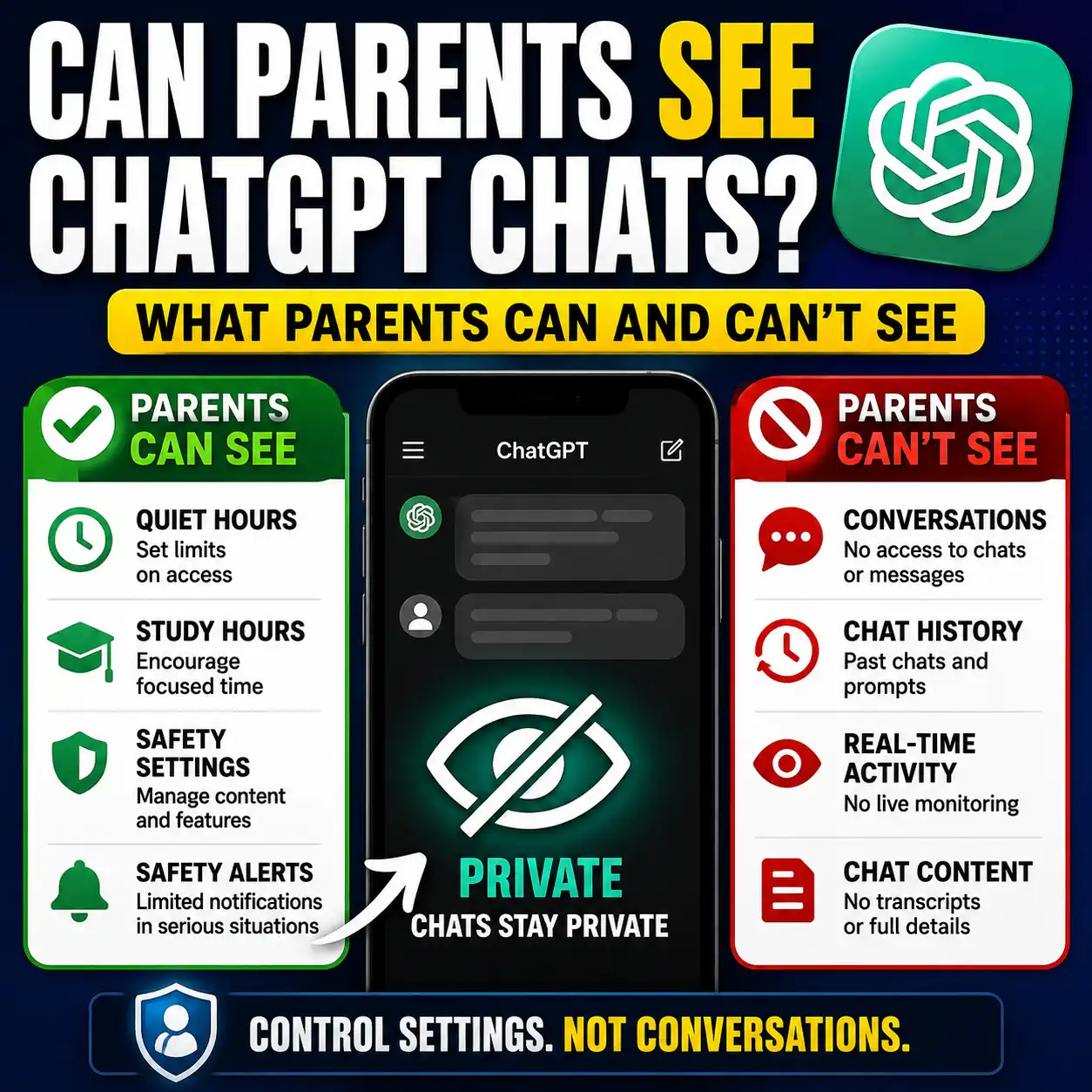
If you are comparing how different AI systems handle parent controls, see our guide explaining what ChatGPT parental controls can and cannot show parents. The controls are different, but the same general lesson applies: always verify what a parent-control feature actually manages instead of assuming it provides complete monitoring.
Parent Checklist Before Giving a Child Gemini Access
Getting the toggle to work is only the technical part. Before regular use, walk through this short checklist with your child.
For schoolwork specifically, continue with our AI homework rules for kids to set clearer boundaries around brainstorming, explanations, checking work and completing assignments.
A Simple Parent Conversation Prompt
If you want help turning those rules into language that fits your child’s age, use this prompt as a starting point. Review the result yourself before sharing it.
What to Do If Gemini Still Doesn’t Work
If you have completed the seven fixes and your child still cannot access Gemini, stop repeating the same Family Link toggle. Use the remaining symptom to decide what kind of problem you actually have.
The goal is to identify the failing layer rather than making random account changes. A Family Link permission problem, an availability problem and a feature-specific restriction can all look similar from the child’s screen, but they need different fixes.
Save This 30-Second Gemini Family Link Checklist
If another parent says “Gemini Family Link is not working”, send them these checks before they start changing accounts:
- Check Controls → Gemini → Gemini Apps.
- Use the older Content restrictions path if needed.
- Confirm the correct supervised child account.
- Restart Gemini after enabling access.
- Allow a few hours for the setting to update.
- Check device, language and region availability.
- Remember that supervised access is still rolling out.
- Use separate controls for Gemini for Home.
More AI Guidance for Parents
Family Link can manage access, but safer everyday AI use also depends on privacy rules, homework boundaries and knowing when a chatbot should not replace a trusted person.
For more practical household AI guidance, browse AI for Families & Kids.
Frequently Asked Questions
Can Gemini be used with Family Link?
Yes. Google currently allows parents to manage Gemini Apps access for eligible supervised child accounts through Family Link. Availability is still subject to Google’s account, device, language, region and rollout requirements.
Why is Gemini not working with Family Link?
Common reasons include Gemini Apps being turned off, a delay after enabling the setting, the wrong Google Account being used, unsupported device or language conditions, regional availability, feature-specific restrictions, or the gradual rollout of Gemini for supervised accounts.
How do I enable Gemini in Family Link?
Open Family Link, select your child, then go to Controls → Gemini → Gemini Apps and turn Gemini Apps on. On older versions, the setting may appear under Controls → Content restrictions → Gemini → Gemini Apps.
How do I block Gemini in Family Link?
Open the same Gemini Apps control in Family Link and turn it off. This removes the supervised child’s Gemini Apps access. Do not assume that the setting disables every AI-powered feature across every Google product.
Why does Gemini say “Gemini isn’t available for your account”?
First confirm Gemini Apps is enabled in Family Link. If it is, check whether Gemini is available for that supervised account on the device, in the language and region being used. Google also says supervised-account access is being released gradually.
How long does Gemini take to work after I enable it in Family Link?
Google says it may take a few hours for the change to take effect. If access does not appear after enabling Gemini Apps, restart Gemini before doing more invasive troubleshooting.
Can a child under 13 use Gemini?
Google says parents can give children under 13—or the applicable age in their country—access to Gemini Apps through an eligible supervised account. Availability is not universal, and some Gemini features have separate age requirements.
Are Gemini Apps and Gemini for Home controlled the same way?
No. Gemini Apps access for a supervised child is managed through Family Link, while Gemini for Home has additional Google Home parental controls and Digital Wellbeing settings. Voice Match also matters for child-specific Gemini for Home controls.
The Bottom Line
If Gemini Family Link is not working, begin with the Gemini Apps permission rather than changing the child’s account. Make sure access is enabled, restart Gemini, allow the setting time to update, and then check the account, device, language, region and Google’s supervised-account rollout.
If you want to block access, turn Gemini Apps off through Family Link. If your problem involves a smart speaker or display, troubleshoot Gemini for Home separately instead of assuming the ordinary Gemini Apps control manages the entire experience.
Most importantly, treat Family Link as an access-control tool, not a guarantee that every AI answer will be accurate or appropriate. Google itself says the protections for younger users are not perfect. Clear household rules about privacy, homework, fact-checking and asking a trusted adult remain important even when the technical controls are working correctly.
Get new AI guides every week
Short, practical how-tos and free tools from Designs24hr. No spam, unsubscribe anytime.