Everyday AI Guides · AI Tools & Beginner Guides
Hit the ChatGPT file upload limit, or ChatGPT just won’t let you upload files at all? The cause is usually one of six things: a daily or rolling upload cap, a file that’s too big or the wrong type, a full storage allowance, a project that’s out of file slots, a phone app without permission to see your files, or a temporary problem on OpenAI’s side. This guide lists the official limits for each plan, helps you match your symptom to its cause, and walks through the fix for each one. Every number comes from OpenAI’s own Help Center, checked on October 26, 2026.
According to OpenAI’s help page Uploading files and audio to ChatGPT:
- Free plan: 3 file uploads per day.
- Upload rate: up to 80 files every 3 hours, and OpenAI may lower that at peak hours.
- File size: 512 MB per document or presentation, about 50 MB per spreadsheet, 20 MB per image.
- Storage: 25 GB of upload storage per user.
If you see “upload limit reached,” check that you’re signed in to the right account, wait until any retry time shown in the message, and check OpenAI Status. ChatGPT doesn’t show how much of the rolling upload quota you’ve used, so waiting is often the only fix.
ChatGPT file upload limit: the official numbers
OpenAI publishes several separate limits, and you can hit any one of them. This table collects them in one place. It covers documents, spreadsheets, presentations, text files and images, not audio.
| Limit | What OpenAI says | Who it applies to |
|---|---|---|
| Daily uploads on Free | 3 file uploads per day | Free plan |
| Upload rate | Up to 80 files every 3 hours; may be lowered during peak hours | All users |
| Documents and presentations | 512 MB per file | All plans |
| Text and document content | 2 million tokens per file (not spreadsheets) | All plans |
| Spreadsheets and CSV files | About 50 MB, depending on row size | All plans |
| Images | 20 MB per image | All plans |
| Total upload storage | 25 GB per user, 100 GB per organization | All plans |
| Files per project | Free: 5 · Go and Plus: 25 · Edu, Pro, Business and Enterprise: 40 | Projects |
| Files in a custom GPT’s knowledge | Up to 20 files | GPT builders |
Two of these limits are easy to confuse. The upload rate limit counts how many files you send in a time window. The storage limit counts how much space your saved files take up. OpenAI says Library storage is separate from upload-rate limits, so deleting saved files frees space but won’t reset a rate limit. Your Library also has its own storage allowance by plan: Free 500 MB, Go 4 GB, Plus and Business 20 GB, and Pro 100 GB (Using Library to manage files in ChatGPT).
Why ChatGPT won’t let me upload files: match your symptom
Find the line that matches what you see, then jump to that fix.
| What you see | Most likely cause | Try first |
|---|---|---|
| “Upload limit reached” or a retry time | Daily Free cap or the rolling upload-rate limit | Fix 1: wait for the retry time; confirm your account |
| No + button, or file uploads aren’t offered | Account, workspace setting, app version, region or selected model | Fix 2: update the app and check your account and model |
| Upload spins, then “An unknown error occurred” | Service incident, browser extension or a damaged file | Fix 3: check OpenAI Status; test a small PDF in a private window |
| File is rejected right away | Unsupported type or over the size cap | Fix 4: check the format and size |
| The phone app can’t see your photos or files | App permission is off | Fix 5: allow access in phone settings |
| A project or GPT won’t accept more files | Per-project or per-GPT file cap | Fix 6: remove files or merge them |
| An error about storage | 25 GB user cap or Library storage full | Fix 7: check Settings > Storage |
Fix 1: ChatGPT upload limit reached
An “upload limit reached” message means you’ve used up an upload allowance, or ChatGPT thinks you have. OpenAI’s troubleshooting steps for this message, even when you’ve uploaded few or no files, are:
- Check the account. Make sure you’re signed in to the account and plan you expect. A second login, such as a free personal account instead of a paid work account, is an easy way to land on the 3-per-day Free cap.
- Wait for the retry time. If the message shows a time, wait until then before you try again. OpenAI notes that failed upload attempts can sometimes count toward the upload-rate limit, so retrying the same file over and over can make it worse.
- Check storage. On the web, open Settings > Storage to see your Library usage. Remember that storage and upload rate are separate limits.
- Check for an outage. Open status.openai.com. ChatGPT has its own “File uploads” component there.
- Contact support if it keeps happening (see the checklist below).
OpenAI doesn’t publish a fixed reset time for the Free daily ChatGPT upload limit, and ChatGPT doesn’t show how much of your rolling quota is left. If you upload often, combine related pages into one PDF before you upload, so one upload does the work of several.
Also check whether you even need a new upload. OpenAI’s Library page says files you’ve already uploaded are saved to your Library, and you can reuse one from + > Add from library. If you’ve connected Google Drive, you can add a Drive file to a conversation with an @mention without uploading it again. Our guide on how to use Google Drive in ChatGPT shows the setup.
Fix 2: The upload button is missing or file uploads aren’t available
OpenAI says document, spreadsheet, presentation, text and image uploads are available on Free and paid plans, on the web and in supported mobile apps. It also says availability can vary by workspace settings, region, client version and the selected model. Work through those four in order:
- Client version: update the ChatGPT app from the App Store or Google Play, or reload the website. On desktop, try ChatGPT in a different browser.
- Selected model: switch to another model in the model picker and check whether the upload option comes back.
- Workspace settings: if you use a Business, Enterprise or Edu workspace, an admin may control file uploads. OpenAI also notes uploads may fail in read-only workspaces. Ask your admin, or try your personal account for non-work files.
- Where to look: the upload option lives under + in the prompt area, then Add photos & files. On the web you can also drag a file into the chat or paste an image.
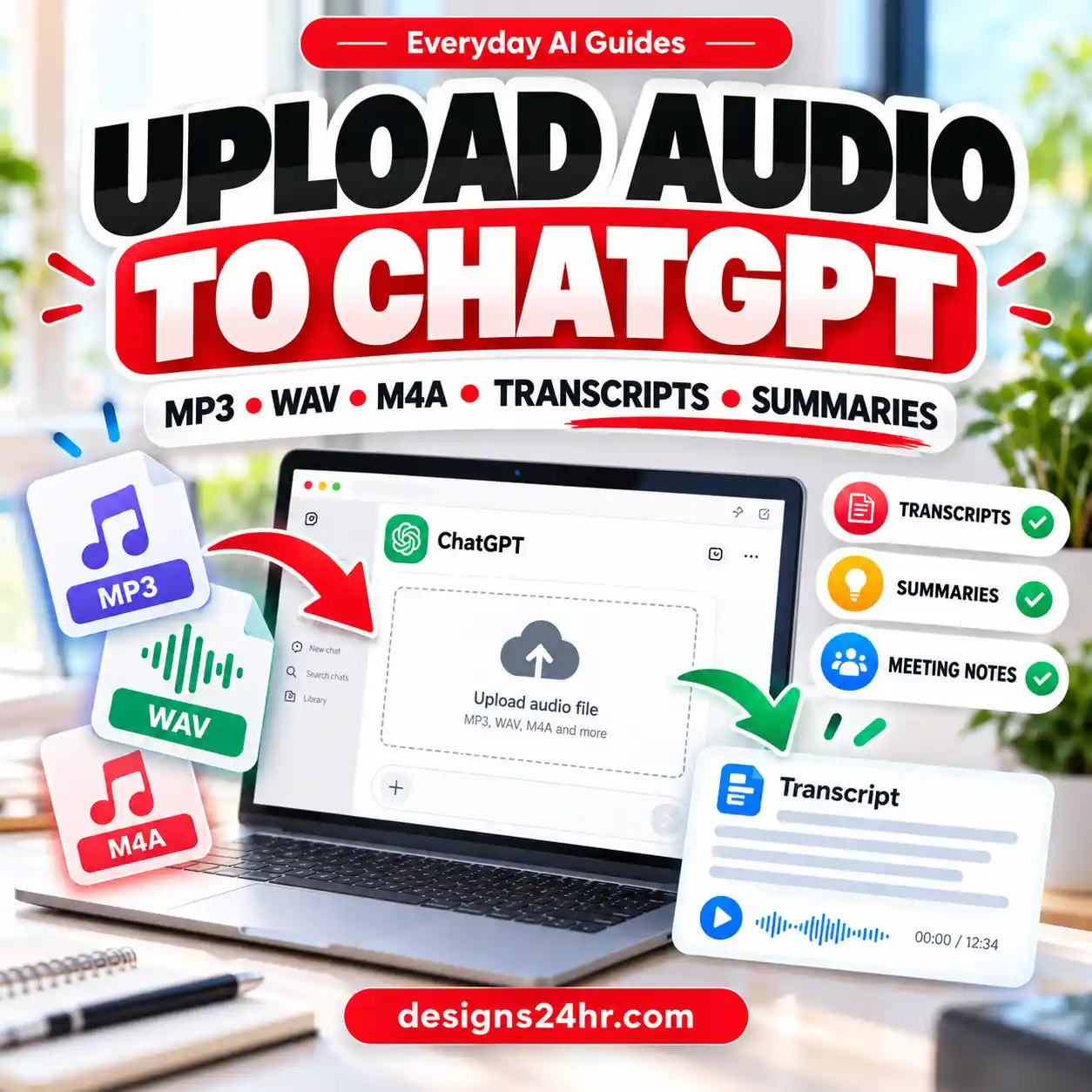
Audio is a special case. OpenAI says audio uploads aren’t available on the Free plan at this time. If it’s only audio that won’t upload, see our guide on how to upload audio to ChatGPT.
Fix 3: Upload stuck or “An unknown error occurred”
If a file starts uploading, hangs, and then fails with a red “unknown error” message, the cause is often outside your control. In September 2026, OpenAI’s status page logged an incident titled “File uploads are delayed or failing,” and users on the OpenAI Developer Community reported exactly this error for PDF and other non-image files while images still worked.
- Check OpenAI Status first. If “File uploads” shows an incident, wait for it to be resolved instead of retrying.
- Run a clean test. OpenAI Support suggested this on the community forum in October 2026: upload a small PDF in a new chat, using a private or incognito window with browser extensions turned off. If that works, an extension or your browser data is the likely problem.
- Try another file. If a small test file works but your file doesn’t, the problem is probably the file. Try saving or exporting it again as a fresh PDF or DOCX. Some users report this helps with damaged or unusual PDFs, but it’s a community tip, not an official OpenAI fix.
- Write down the details. If it still fails, note the date, time and time zone, plus a request ID if one appears, for OpenAI Support.
If ChatGPT is misbehaving on your phone in other ways too, our guide to why ChatGPT isn’t working on your phone covers app-wide fixes.
Fix 4: The file type or size isn’t supported
ChatGPT rejects files that aren’t on OpenAI’s supported list or that go over a size cap. The supported formats are:
| File type | Supported formats | Watch out for |
|---|---|---|
| Documents and text | DOCX, PDF, TXT | A Google Docs .gdoc file can’t be uploaded directly. Export it as PDF or DOCX first. |
| Spreadsheets | XLSX, XLS, CSV, TSV | About 50 MB, depending on row size |
| Presentations | PPTX | 512 MB per file |
| Images | PNG, JPEG, non-animated GIF | 20 MB per image |
| Audio (paid plans) | WAV, MP3, M4A, FLAC, OGG and others | 512 MB; video files aren’t accepted as audio |
Large text files can also hit the 2 million token cap even when they’re under 512 MB. If a long PDF or text file is rejected, split it into parts and upload them in separate messages. For images, OpenAI’s Image Inputs FAQ lists PNG, JPEG and non-animated GIF. If your picture is in another format, save or export it as JPEG or PNG first.
Fix 5: The ChatGPT phone app can’t see your photos or files
If the app opens but your photo library or files look empty, your phone may be blocking access.
- iPhone: Apple’s iPhone User Guide says to go to Settings > Privacy & Security, tap a category such as Photos, and turn access on or off for each app on the list. Check the entry for ChatGPT.
- Android: Google’s Android Help says to open Settings > Apps, tap the app, tap Permissions, and choose Allow or Don’t allow. Menu names can vary by phone maker.
- Videos: OpenAI’s Image Inputs FAQ says that if a video won’t attach through Photos, try choosing it in the Files app instead. Video attachments also count toward your file limits.
Fix 6: A project or GPT won’t take more files
Projects and custom GPTs have their own file caps, separate from the ChatGPT file upload limit for chat attachments. Projects hold up to 5 files on Free, 25 on Go and Plus, and 40 on Edu, Pro, Business and Enterprise. A custom GPT’s knowledge can hold up to 20 files. To make room, remove files the project no longer needs, or merge several short files into one before adding them. OpenAI also notes that images inside PDFs saved as project or GPT files may not be read automatically, so attach the PDF directly in the chat or upload the image on its own if you need ChatGPT to see a chart.
Fix 7: ChatGPT says your storage is full
OpenAI caps shared upload storage at 25 GB per user and 100 GB per organization, and ChatGPT shows an error when you reach it. Your Library also has a plan-based allowance (500 MB on Free). On the web, open Settings > Storage, or the Storage button in Library, to see what’s using space. Removing a chat doesn’t remove a file saved in Library, so clear old files in Library itself. Our guide on whether deleting a ChatGPT chat deletes uploaded files explains what goes and what stays.
When to contact OpenAI Support
If none of the fixes work, contact OpenAI Support through the OpenAI Help Center. OpenAI asks you to include:
- The email address on your ChatGPT account
- A screenshot of the error
- The date and time it happened, with your time zone
- The platform or browser you used (for example, iPhone app or Chrome on Windows)
- The request ID, if one is shown
Before you upload: files you upload to ChatGPT can stay in your Library and in the chat that used them. If a file has names, account numbers or other private details, remove them first. Our guide on how to redact a PDF before uploading it to ChatGPT shows how.
ChatGPT file upload limit FAQ
How many files can I upload to ChatGPT for free?
OpenAI says Free users are limited to 3 file uploads per day. Free projects can hold up to 5 files, and the Free Library has 500 MB of storage.
When does the ChatGPT upload limit reset?
OpenAI doesn’t publish a fixed reset time. The 80-file limit works over a rolling 3-hour window, and ChatGPT doesn’t show how much of that quota you’ve used. If the error shows a retry time, that’s the best guide.
Does ChatGPT Plus have an upload limit?
Yes. OpenAI’s rate limit of up to 80 files every 3 hours isn’t listed as Free-only, and the per-file size caps apply to every plan. Plus projects hold up to 25 files, and Plus Library storage is 20 GB.
Why can I upload images but not PDFs?
When images work but PDFs fail, check OpenAI Status first, since past upload incidents have hit non-image files while images kept working. Then test a small PDF in a private window with extensions off, and check that your PDF is under 512 MB and 2 million tokens.
Can I upload a Google Doc to ChatGPT?
Not as a .gdoc file. OpenAI says to export it as PDF or DOCX and upload that. If you connect the Google Drive app, OpenAI says you can add Drive files to a chat without uploading them again.
Sources and editorial note
This guide to the ChatGPT file upload limit and upload errors is a documented guide based on official help pages, checked on October 26, 2026. Designs24hr did not test every fix on every plan or device, and OpenAI can change limits at any time, including lowering them at peak hours. Sources used:
- Uploading files and audio to ChatGPT (OpenAI Help Center)
- ChatGPT Image Inputs FAQ (OpenAI Help Center)
- Using Library to manage files in ChatGPT (OpenAI Help Center)
- OpenAI Status
- File uploads fail with “Unknown error” (OpenAI Developer Community, including an OpenAI Support reply)
- Control access to information in apps on iPhone (Apple iPhone User Guide)
- Change app permissions on your Android phone (Android Help)
This article was created with the help of AI, one of the many ways AI is making useful knowledge easier for everyone to create and access. It is provided for educational purposes only, to help readers understand and use AI tools better.
ChatGPT and OpenAI are trademarks of OpenAI. iPhone and App Store are trademarks of Apple Inc. Android, Google Play, Google Docs and Google Drive are trademarks of Google LLC. Other product names are trademarks of their respective owners. Designs24hr is not affiliated with or endorsed by OpenAI, Apple or Google, and no affiliation or endorsement is implied.
Get new AI guides every week
Short, practical how-tos and free tools from Designs24hr. No spam, unsubscribe anytime.