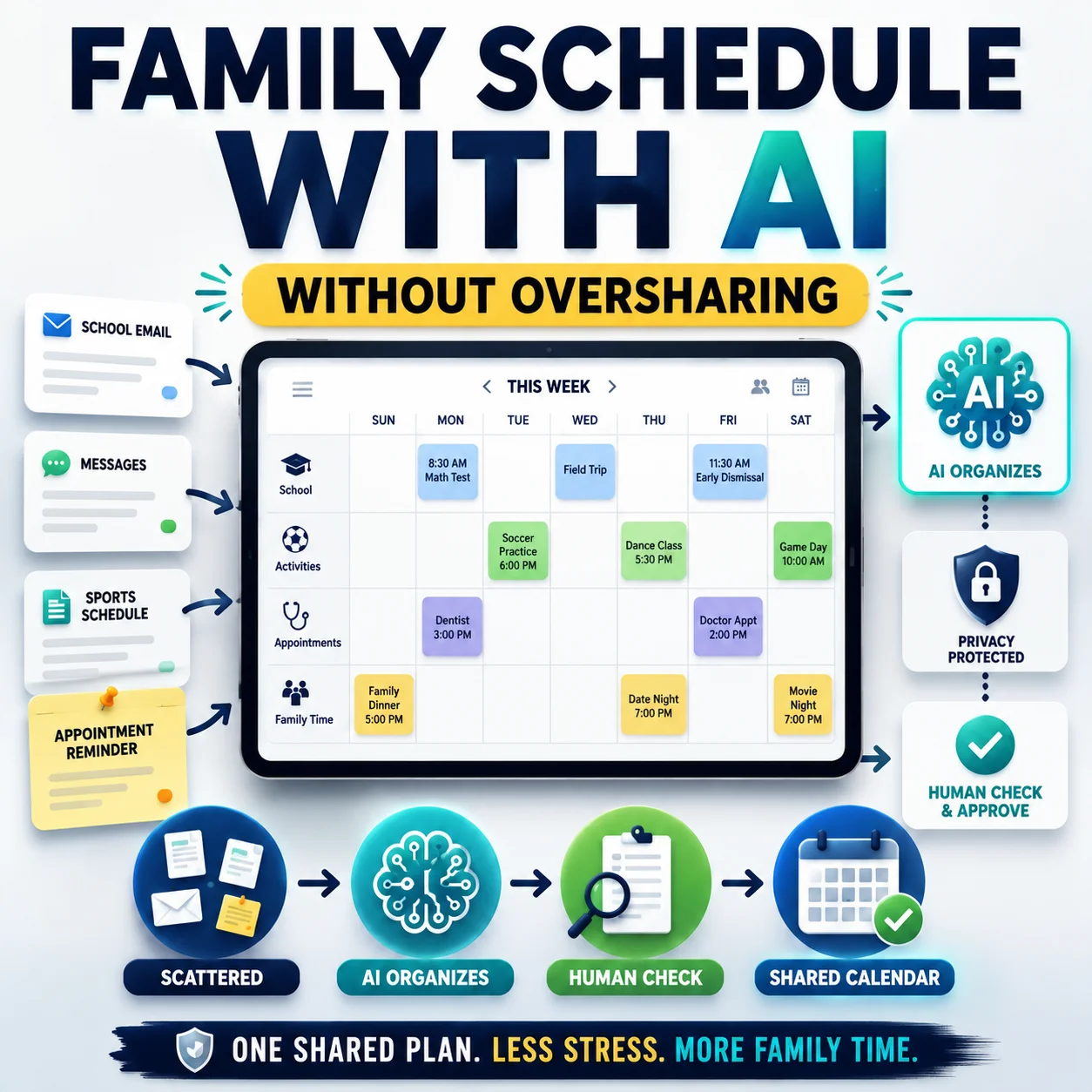
An AI family organizer app can combine calendars, reminders, school messages, grocery lists and household tasks in one place. That convenience can be useful, but it may also require access to information about several people—not only the person installing the app.
Use this AI family organizer app checklist before connecting calendars, inboxes, contacts, shopping accounts or children’s information. You do not need to understand every technical setting. You need to know what the organizer can see, what it can change and how you can stop its access later.
The Quick Answer
Start with the smallest amount of access possible. Connect one low-risk calendar in read-only mode, keep children’s accounts, payment methods and precise location data disconnected, and require human approval before the app sends messages, edits events, makes bookings or completes purchases.
Quick AI Family Organizer App Checklist
Review these 12 points before giving an AI organizer access to your family’s routines, messages or connected accounts.
- Define the exact household problem the app should solve.
- List every calendar, inbox, contact list or service it wants to connect.
- Separate read access from permission to create, edit, send or delete.
- Protect children’s names, schedules, schools, photos and locations.
- Get agreement from every household member whose information is affected.
- Keep passwords, IDs, medical, legal and financial records outside the app.
- Require approval before messages or calendar events are changed.
- Keep purchases, bookings and subscription changes manual.
- Review the app’s data collection, retention, sharing and AI-training terms.
- Protect the main account with a unique password and multifactor authentication.
- Confirm how to revoke access, export information and request deletion.
- Run a limited seven-day test before connecting the rest of the household.
What Can an AI Family Organizer Access?
The answer depends on the app and the permissions you approve. A simple organizer may only store tasks you type manually. A connected organizer may request access to calendars, email, contacts, files, shopping services, location information or voice features.
Do not assume that “calendar access” means viewing dates only. Some permission levels can also allow an app to create, edit or delete information. Google’s official linked-app guidance, for example, explains that authorized apps may receive different levels of access, including permission to view, modify, create or delete certain account data.
| Access type | Possible benefit | Main concern | Safer starting point |
|---|---|---|---|
| Shared calendar | Combines appointments, activities and family reminders. | May reveal routines, locations and private appointment details. | Use one household calendar in read-only mode during testing. |
| Email or school messages | Finds dates, forms, deadlines and event information. | May expose unrelated private conversations and attachments. | Forward selected messages or use a dedicated folder when possible. |
| Contacts | Adds people to events or helps prepare messages. | Shares other people’s names and contact information. | Add contacts manually or allow only the smallest available scope. |
| Shopping account | Builds grocery lists and suggests repeat purchases. | May expose order history, address details or payment-related data. | Use a plain shared list without automatic checkout. |
| Precise location | Creates location-based reminders or arrival alerts. | Can reveal household movements and daily routines. | Keep precise location disabled unless a necessary feature requires it. |
| Voice or microphone | Allows hands-free task and reminder entry. | May capture private household conversations or recordings. | Use push-to-talk or manual entry instead of continuous listening. |
| Children’s information | Organizes activities, school dates and pickup schedules. | May expose names, ages, schools, photos, health details or locations. | Enter only the minimum information and avoid child accounts initially. |
The 12-Check AI Family Organizer App Checklist
Define What You Actually Need the App to Do
Start with a specific household problem. Examples include combining two work calendars, creating one grocery list, collecting school deadlines or reminding family members about recurring chores.
A clear purpose makes it easier to reject unrelated permission requests. An app that only needs to display a shared calendar should not automatically need access to every inbox, contact, file, location and payment method.
List Every Account the Organizer Wants to Connect
Write down each requested connection before selecting “allow.” Depending on the product, the list may include:
- Personal and work calendars
- Email inboxes and attachments
- Contacts and address books
- Cloud-storage folders
- School portals or forwarded school messages
- Shopping, grocery or delivery accounts
- Smart-home devices
- Voice assistants and microphones
- Location services
- Payment methods or subscriptions
Check which signed-in profile is being connected. A family task should not accidentally expose a work inbox, confidential client calendar or another household member’s private account.
For a broader review of connected apps, see the Designs24hr AI agent safety checklist .
Separate Read Access From Editing Access
Reading a calendar is different from creating, moving or deleting its events. Reading a message is different from replying to it. Preparing a shopping list is different from completing a purchase.
During the first test, choose read-only, view-only or draft-only access whenever those options are available. Turn on editing only after you have confirmed that the app handles dates, time zones, duplicate events, recurring appointments and private details correctly.
For additional scheduling checks, use the AI calendar assistant checklist .
Protect Children’s Personal Information
A family organizer may work without storing a child’s full name, birth date, school, classroom, health information, photograph or precise location. Use initials, general labels or manually entered events when those details are not necessary.
The Federal Trade Commission explains that the Children’s Online Privacy Protection Rule places requirements on certain online services directed to children under 13, as well as certain services that knowingly collect personal information from children under 13. That does not mean every family-oriented app is automatically suitable for your child or that a brief compliance statement answers every privacy question.
Parents should still review the app’s current age requirements, privacy policy, permission requests and child-account controls. Avoid creating a child profile during the initial trial unless the app cannot be evaluated safely without it.
Get Consent From Other Household Members
Installing an app on your phone does not automatically mean that every family member expects their calendar, messages, location or routines to be analyzed by it.
Tell affected household members what the organizer will access, what it can change and who will be able to view the combined information. Give adults and older children a meaningful opportunity to object or request limits.
A simple family rule can prevent misunderstandings: no one connects another person’s private account without their knowledge and agreement.
Keep Sensitive Information Outside the App
Convenience does not require putting every household record in one system. Keep the following information outside a general-purpose AI organizer unless there is a clear, necessary and trusted reason to include it:
- Passwords, recovery codes and security answers
- Passports, licenses and identification numbers
- Banking, tax and detailed financial records
- Medical reports, prescriptions and insurance documents
- Legal agreements and custody documents
- Confidential work or client information
- Private school records and assessments
- Intimate photographs, recordings or messages
The safest information is often the information you never upload. Replace unnecessary details with a short manual note such as “appointment” rather than including a diagnosis, account number or confidential description.
Require Approval Before Messages or Events Change
An AI organizer can misunderstand a date, identify the wrong contact, confuse time zones or interpret an informal message as a confirmed plan. Keep important actions behind a review screen.
Require confirmation before the app:
- Sends or replies to a message
- Contacts a school, teacher, doctor or caregiver
- Creates, moves or cancels an event
- Changes a recurring appointment
- Adds outside guests to a family calendar
- Deletes a reminder or task
- Shares location or private household information
Keep Purchases and Bookings Under Human Control
A family organizer may suggest groceries, compare options or prepare a shopping list. It should not need unrestricted authority to spend money during an initial test.
Keep checkout, payment changes, subscriptions, reservations and bookings manual. Review the exact item, quantity, seller, price, delivery address, cancellation terms and final total yourself.
The AI shopping assistant checklist provides additional checks for substitutions, seller information, recurring orders and final purchase approval.
Review Data Use, Retention, Sharing and AI Training
Read the current privacy policy and any separate AI-data disclosure. Privacy terms can change, so review the version available when you connect the service rather than relying on an old review or social-media post.
Look for clear answers to these questions:
- What personal information does the app collect?
- Which connected accounts can it read or modify?
- Why is each category of information needed?
- Is information shared with service providers or other companies?
- How long is account and activity data retained?
- Is user content used to train or improve AI systems?
- Can you opt out of optional data uses?
- Can you export your information?
- How do you request deletion?
- Does revoking account access also delete previously copied data?
The NIST Privacy Framework is a voluntary resource designed to help organizations identify and manage privacy risks. For families, the useful practical principle is to avoid collecting or sharing more personal information than a task requires and to consider how that information is handled throughout its lifecycle.
Secure the Main Account
The organizer account may become a map of your family’s schedules, contacts and routines. Protect it with a unique password that is not reused on another service.
Turn on multifactor authentication when it is available. CISA describes multifactor authentication as an extra verification layer that makes unauthorized access more difficult than relying on a password alone.
- Use a unique password stored in a trusted password manager.
- Enable multifactor authentication.
- Review the recovery email and phone number.
- Turn on login or security alerts.
- Check recent sessions and signed-in devices.
- Limit administrator privileges to the people who need them.
- Remove former household members or unused profiles promptly.
Confirm How to Disconnect, Export and Delete
Locate the controls before you connect an account. You should know how to:
- Disable an individual integration
- Revoke permission through the connected account
- Remove household members
- Export calendars, tasks or lists
- Delete imported content
- Delete the organizer account
- Contact the developer about retained information
Google’s linked-app guidance says users can review and remove an app’s access to their Google Account. It also warns that removing access stops future access but may not erase information the outside developer already received. You may need to contact that developer separately and request deletion.
Run a Limited Seven-Day Test
Do not connect the entire household on the first day. Test the organizer with low-risk information and observe how it behaves.
- Connect one shared calendar only.
- Use read-only access where available.
- Do not connect payments or shopping checkout.
- Keep precise location access disabled.
- Do not connect a child’s account initially.
- Create several harmless test events.
- Check every proposed message or change manually.
- Review connected-app settings at the end of the week.
Watch for duplicate events, incorrect times, missing context, private information appearing in shared views, unexpected notifications or actions that occur without confirmation.
AI Family Organizer Red Flags
A broad permission is not automatically malicious, but the developer should clearly explain why it is necessary. Slow down when you see any of the following warning signs.
A Safer Permission Setup for Most Families
The exact settings will depend on the app, but this limited configuration is a reasonable starting point for many households.
An organizer that cannot provide a useful trial under limited permissions may not be the right tool for a privacy-conscious household.
A Simple Seven-Day Family Organizer Test
Use harmless test information rather than real private records. The purpose is to learn how the organizer behaves before relying on it for important family coordination.
What to Record During the Test
- Did the organizer understand dates and time zones correctly?
- Did it create duplicate or incorrect events?
- Did any action occur before human approval?
- Did private details appear in a shared view?
- Could every connection be reviewed and removed easily?
- Was the organizer genuinely more useful than a normal shared calendar?
- Would a smaller permission set provide the same benefit?
What to Do If You Already Connected Too Much
Do not panic. Work through the connections methodically and remove anything the organizer no longer needs.
- Open the organizer’s integrations page. List every connected account and permission.
- Disconnect unnecessary services. Start with payments, precise location, private inboxes and children’s accounts.
- Revoke access from the original account. Check the security or linked-app settings of the calendar, email or cloud provider.
- Review recent actions. Look for messages, calendar edits, invitations, purchases and subscription changes.
- Export information you need. Save lists or events before closing an account.
- Request deletion where appropriate. Revoking future access may not delete information previously copied by the developer.
- Secure affected accounts. Change passwords when compromise is suspected and enable multifactor authentication.
- Tell affected family members. Explain what was connected and what you changed, especially when their information was involved.
Questions to Ask Before Choosing an AI Family Organizer
Use these questions while reading the product page, permission screen and privacy policy:
- What exact household problem does this app solve?
- Which accounts are required and which are optional?
- Can I use read-only or draft-only access?
- Can the app send messages, edit events or delete information?
- Does it collect children’s names, ages, schools, photos or locations?
- Is user content used to train or improve AI systems?
- Can I disable optional data sharing?
- How long is imported information retained?
- Can I export my calendar, tasks and lists?
- How do I revoke access and delete stored information?
- Does the account support multifactor authentication?
- Can I test the app without connecting payments or a child account?
Copy This AI Safety Question
I am considering connecting an AI family organizer to my household accounts. Help me review the permission screen in simple language. Explain what the app can read, create, edit, send, delete, buy or share. Identify which permissions are necessary for the feature, which are optional or risky, and how I can test it using read-only access, human approval and no payment or precise-location access.
Do not paste passwords, account numbers, medical information, private school records or other sensitive family details into an AI tool while asking for help.
What If the Organizer Uses Voice Commands?
Voice input can make adding reminders easier, but it introduces another category of household information. Check whether recordings are stored, reviewed, transcribed, linked to a profile or used to improve the service.
Prefer push-to-talk, a visible microphone indicator and easy recording-history controls. Avoid discussing private health, financial, school or legal matters near an always-listening device.
Use the Designs24hr AI voice assistant privacy checklist for a more detailed review of microphones, recordings, wake words and household privacy settings.
Frequently Asked Questions
What is an AI family organizer app?
An AI family organizer app helps coordinate household information such as calendars, tasks, reminders, school dates, meal plans or shopping lists. Some apps work only with information you enter manually, while others connect to calendars, email, contacts or other services and use AI to extract, summarize or organize information.
Are AI family organizer apps safe?
Safety depends on the product, its current privacy and security practices, the permissions you approve and the information you provide. No app should be treated as completely risk-free. A safer approach is to start with limited, read-only access, keep sensitive information disconnected and require human approval for important actions.
What information can a family organizer app access?
Depending on the permissions you grant, an organizer may access shared calendars, email, contacts, task lists, files, shopping information, location services or voice recordings. Review the exact permission screen because access levels can range from viewing one category of information to creating, editing or deleting account data.
Should I connect my email to a family organizer?
Connect an inbox only when the benefit clearly justifies the exposure. Full email access may reveal unrelated private conversations, attachments, receipts and contacts. A safer alternative may be forwarding selected messages, using a dedicated folder or manually entering important dates rather than granting access to the entire inbox.
Can an AI family organizer access my child’s information?
It may receive a child’s information if you enter it, create a child profile or connect an account containing school, schedule, photo or location details. Review the product’s age requirements and privacy terms, enter only what the feature needs and avoid connecting a child account during the initial test.
Should an AI organizer be allowed to change calendar events?
Begin with read-only access. Allow editing only after you have tested how the organizer handles dates, time zones, recurring events, private notes and shared invitations. Keep confirmation enabled for cancellations, guest invitations and important family, school, medical or work events.
Can a family organizer make purchases automatically?
Some connected services may support shopping or booking actions, but families should keep payment and checkout under human control. Let the organizer prepare a list or recommendation, then manually review the item, seller, price, quantity, delivery address and final total before completing the purchase.
How do I remove an AI organizer’s account access?
Disconnect the integration inside the organizer, then review the linked-app or security settings of the original calendar, email or account provider. Remove the organizer’s permission there as well. Revoking access may not delete data already copied, so review the developer’s deletion process and submit a separate request when needed.
The Safe Family Organizer Rule
Connect the smallest amount of information, keep consequential actions under human approval and know how to disconnect before you begin.
A useful AI family organizer should make coordination easier without pressuring your household to surrender unnecessary privacy or control. When the requested access feels broader than the benefit, use a simpler shared calendar, manual list or limited workflow instead.
Sources and Further Reading
- Federal Trade Commission: Children’s Online Privacy Protection Rule
- Federal Trade Commission: Protecting Your Child’s Privacy Online
- CISA: Multifactor Authentication
- National Institute of Standards and Technology: Privacy Framework
- Google Account Help: Sharing Account Data With Linked Apps
- Google Account Help: Managing and Removing Linked-App Access
This guide provides general educational information and is not legal, cybersecurity or professional privacy advice. App features, permissions, age requirements and privacy policies can change. Review the current documentation and settings for the specific service before connecting personal or family information.
Get new AI guides every week
Short, practical how-tos and free tools from Designs24hr. No spam, unsubscribe anytime.