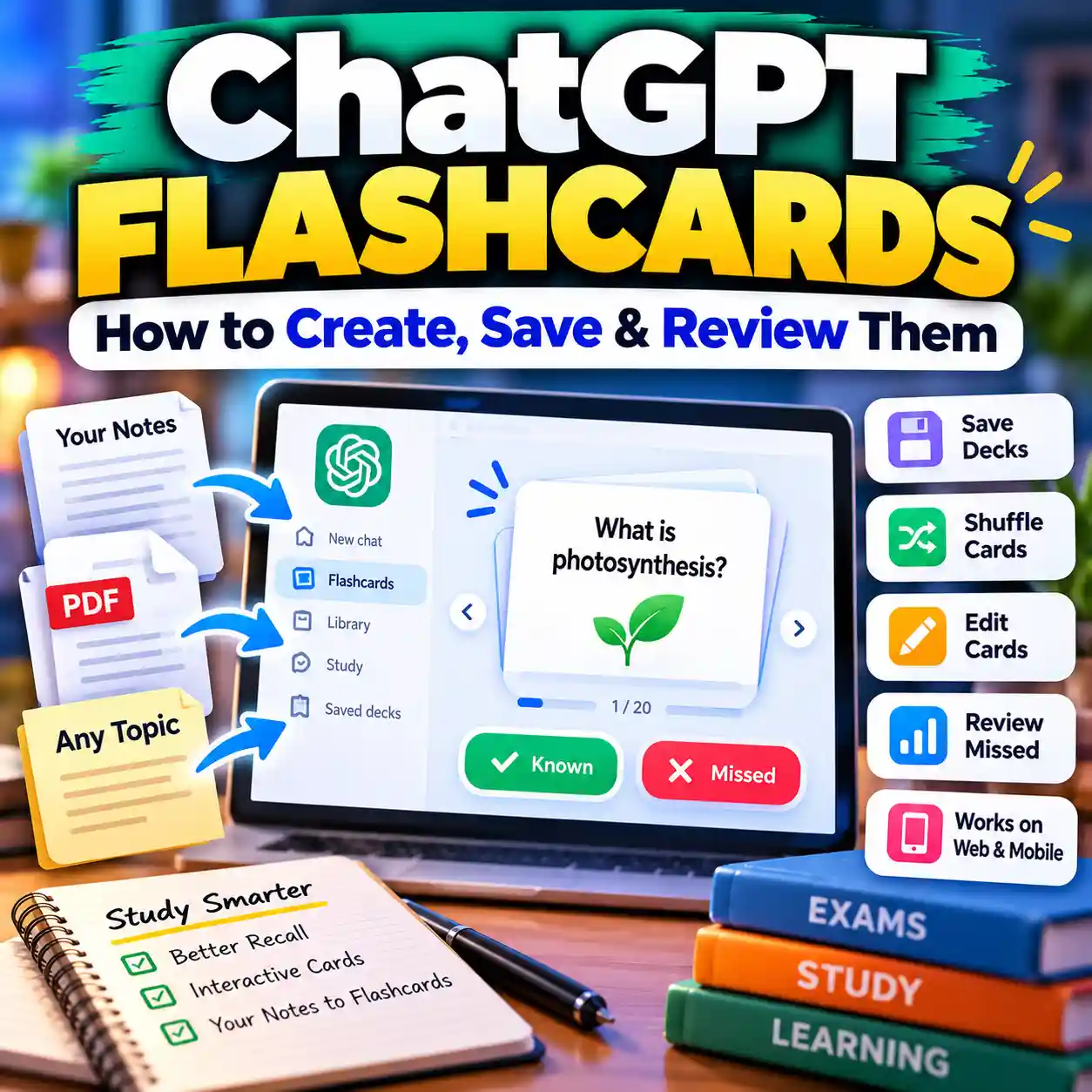
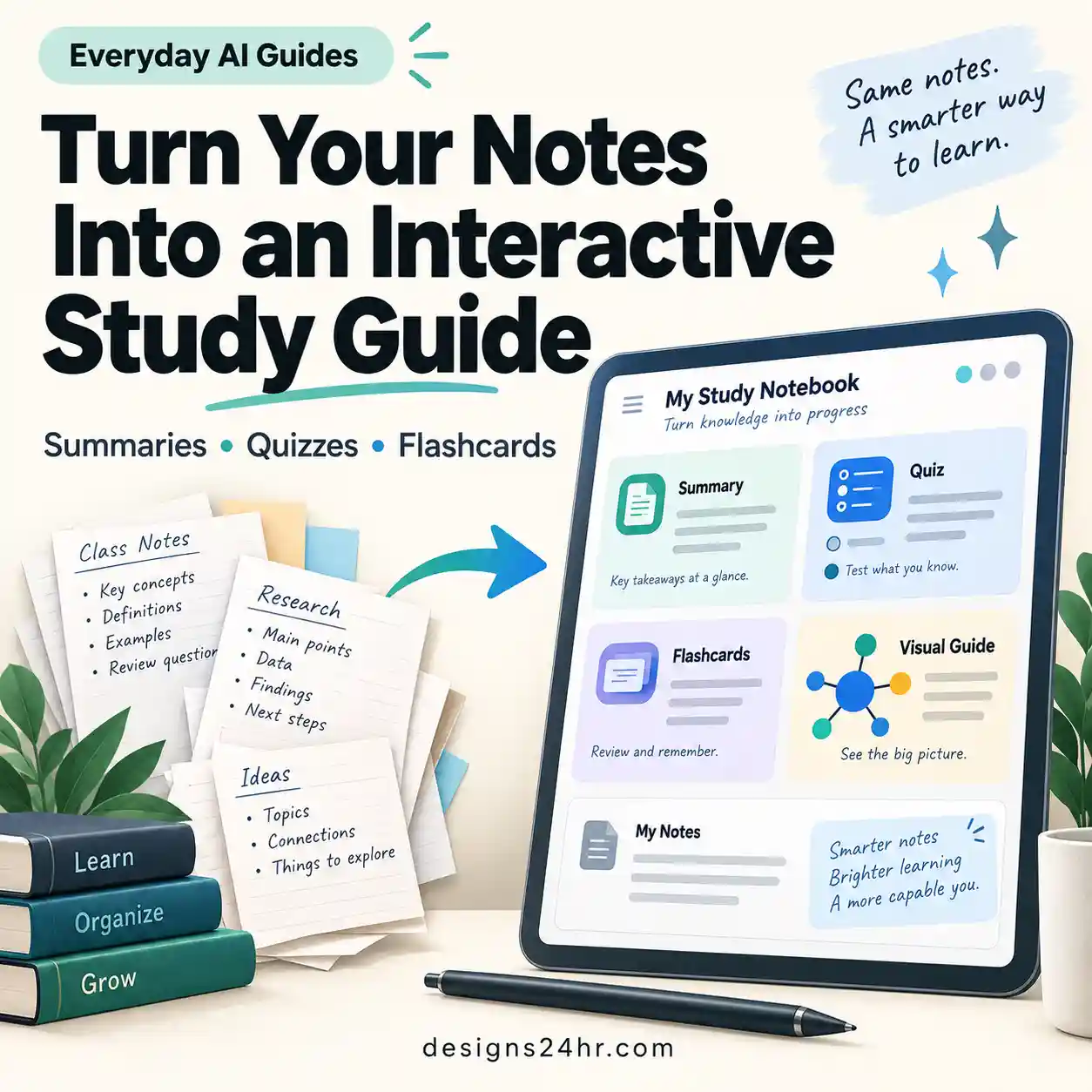
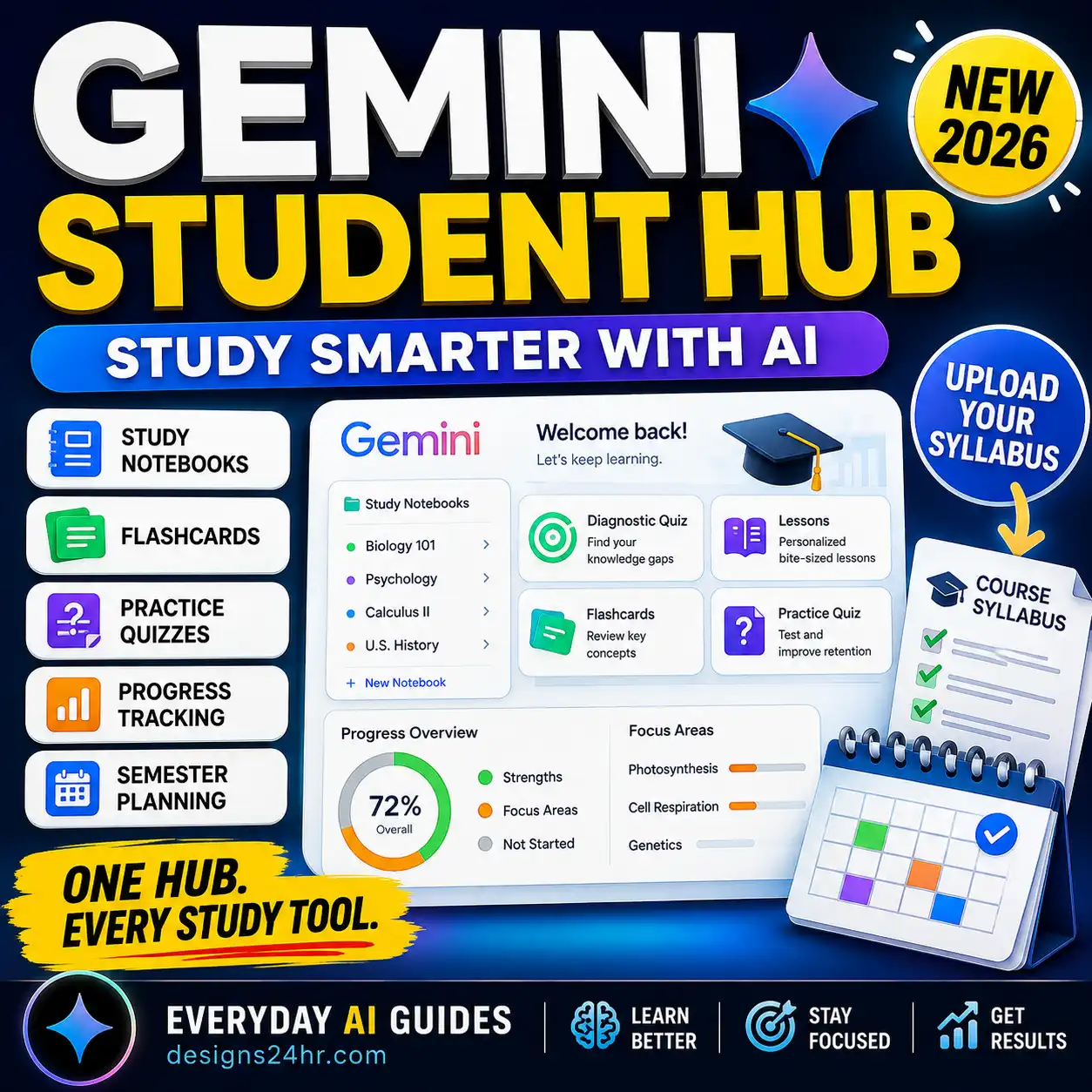
ChatGPT Interactive Quizzes let you turn a normal conversation into active practice instead of simply asking ChatGPT for explanations or answers. You can choose a topic, answer questions inside the conversation, review mistakes, raise the difficulty, and test weak areas again with new questions.
What Are ChatGPT Interactive Quizzes?
ChatGPT Interactive Quizzes are a way to practice a subject by answering questions during the conversation rather than receiving an entire worksheet and answer key at once.
A useful interactive quiz should behave more like a practice session: ChatGPT presents a question, you answer, it checks your response, explains an important mistake when needed, and then moves to the next question.
The biggest advantage is not simply generating questions. It is being able to change the quiz while you are taking it. You can ask ChatGPT to make the next questions harder, focus only on concepts you missed, switch from multiple choice to short answer, or stop giving hints.
That makes the feature especially useful for exam revision, self-testing, certification practice, vocabulary review, concept checks, and studying from your own notes.
How to Start an Interactive Quiz in ChatGPT
You do not need a complicated setup. Start with a regular ChatGPT conversation and tell it what you want to practice.
Quiz me on [topic] at a [beginner/intermediate/advanced] level.

Use [10] questions and show only one question at a time. Wait for my answer before continuing.

Use a mix of [multiple choice / short answer / scenario questions].

After each answer:
- Tell me whether I am correct.
- Briefly explain an important misunderstanding if I am wrong.
- Do not reveal future answers.
- Track the topics I struggle with.

At the end, show my strongest areas, weakest areas, and what I should review before a second quiz.
How to Create a Better ChatGPT Practice Test
The quality of a ChatGPT practice test depends heavily on the instructions you give it. “Quiz me on chemistry” gives ChatGPT too much freedom. A stronger setup defines the scope, level, format, feedback rules, and retest method.
| Goal | Question Style | Difficulty | Recommended Setup |
|---|---|---|---|
| Quick review | Multiple choice | Easy–medium | 10–15 questions with short feedback |
| Exam preparation | Mixed formats | Medium–hard | Match the real exam structure when known |
| Concept mastery | Short answer | Adaptive | Require explanations, not just final answers |
| Memorization | Recall questions | Progressive | Repeat concepts, not identical questions |
| Weak-area practice | Targeted questions | Adaptive | Generate new questions only from missed concepts |
Use the TEST → CHECK → REVIEW → RETEST Method
A quiz is most useful when the score changes what you study next. For that reason, use this simple four-stage Designs24hr workflow instead of repeatedly generating random questions.
The Designs24hr Quiz Loop
Use each round to decide what happens in the next one.
1. TEST: Answer Before Seeing Explanations
Ask for one question at a time. This prevents later questions, explanations, or answer choices from accidentally giving away information you have not tested yet.
2. CHECK: Separate Mistakes From Guesses
A correct answer is not always evidence of strong understanding. If you guessed, tell ChatGPT. Ask it to track incorrect answers, uncertain answers, and correct-but-guessed answers separately.
3. REVIEW: Fix the Concept, Not Just the Question
When you miss a question, do not memorize the original answer. Ask ChatGPT to identify the underlying concept and explain only what you need to understand before trying again.
4. RETEST: Demand Different Questions
Retesting with the exact same wording can create false confidence because you may remember the answer rather than understand the concept. Ask for a new question that tests the same idea in a different way.
Review the quiz I just completed.

Separate my results into:
1. Concepts I understand well
2. Concepts I partly understand
3. Concepts I got wrong
4. Questions I answered correctly but was unsure about

Briefly review categories 2–4.

Then give me a new quiz covering only those weak areas. Do not reuse the previous questions or wording. Test the same concepts from different angles and make the difficulty slightly higher where appropriate.
How to Create a Quiz From Your Notes or Files
ChatGPT can also work with uploaded study materials when file uploads are available in your chat. OpenAI’s Study Mode documentation specifically describes working with materials such as notes, worksheets, slides, images, and PDFs.
The important step is telling ChatGPT to stay inside the material when that is what you need. Otherwise it may combine your notes with its broader knowledge.
Use the uploaded [notes / PDF / slides] as the primary source for this quiz.

Before starting:
1. Tell me which sections or pages you can reliably use.
2. Identify the main concepts covered.
3. Flag anything that appears unclear or unreadable.

Then quiz me with [number] questions, one at a time.

Base the questions only on information supported by the uploaded material unless I explicitly ask you to add outside knowledge.

After the quiz, list the sections I should review based on my mistakes.
Choose the Right Difficulty and Question Style
A useful practice test should not stay at one difficulty forever. If every question feels easy, the quiz may be confirming what you already know instead of exposing gaps.
You can make ChatGPT adapt the difficulty as you answer.
Run an adaptive quiz on [topic].

Start at intermediate difficulty.

If I answer two questions correctly with a clear explanation, increase the difficulty.

If I miss a concept, give me one short explanation and then test the same concept again using a different question.

Do not lower the difficulty just because of one careless error.

Continue until you can identify:
- what I consistently understand,
- what I understand only at an easy level,
- and what needs more review.
When to Use Multiple Choice
Multiple-choice questions are useful for quick coverage, terminology, classification, and exam formats that actually use answer choices. They are less useful if you can recognize an answer but cannot produce it yourself.
When to Use Short Answer
Short-answer questions force you to retrieve information without seeing possible answers. They are often better when you want to know whether you truly remember a definition, process, argument, or relationship.
When to Use Scenario Questions
Scenario questions are useful when your goal is application rather than memorization. Ask ChatGPT to give you a new situation and require you to decide which principle, method, or concept applies.
ChatGPT Interactive Quizzes vs Study Mode
These features overlap, but they are not identical. The best choice depends on whether you mainly want to test yourself or learn through guided instruction.
Interactive Quizzes
Choose this when you already know the material and want questions, answers, scores, mistake review, or repeated practice.
Study Mode
Choose this when you want ChatGPT to guide your reasoning, ask questions, give hints, explain concepts step by step, and check understanding.
Regular Chat
Choose this when you want maximum freedom to mix explanations, summaries, questions, brainstorming, and other tasks in the same conversation.
You can also combine them. For example, learn a difficult concept in Study Mode, then finish with an interactive quiz that tests the same material without hints.
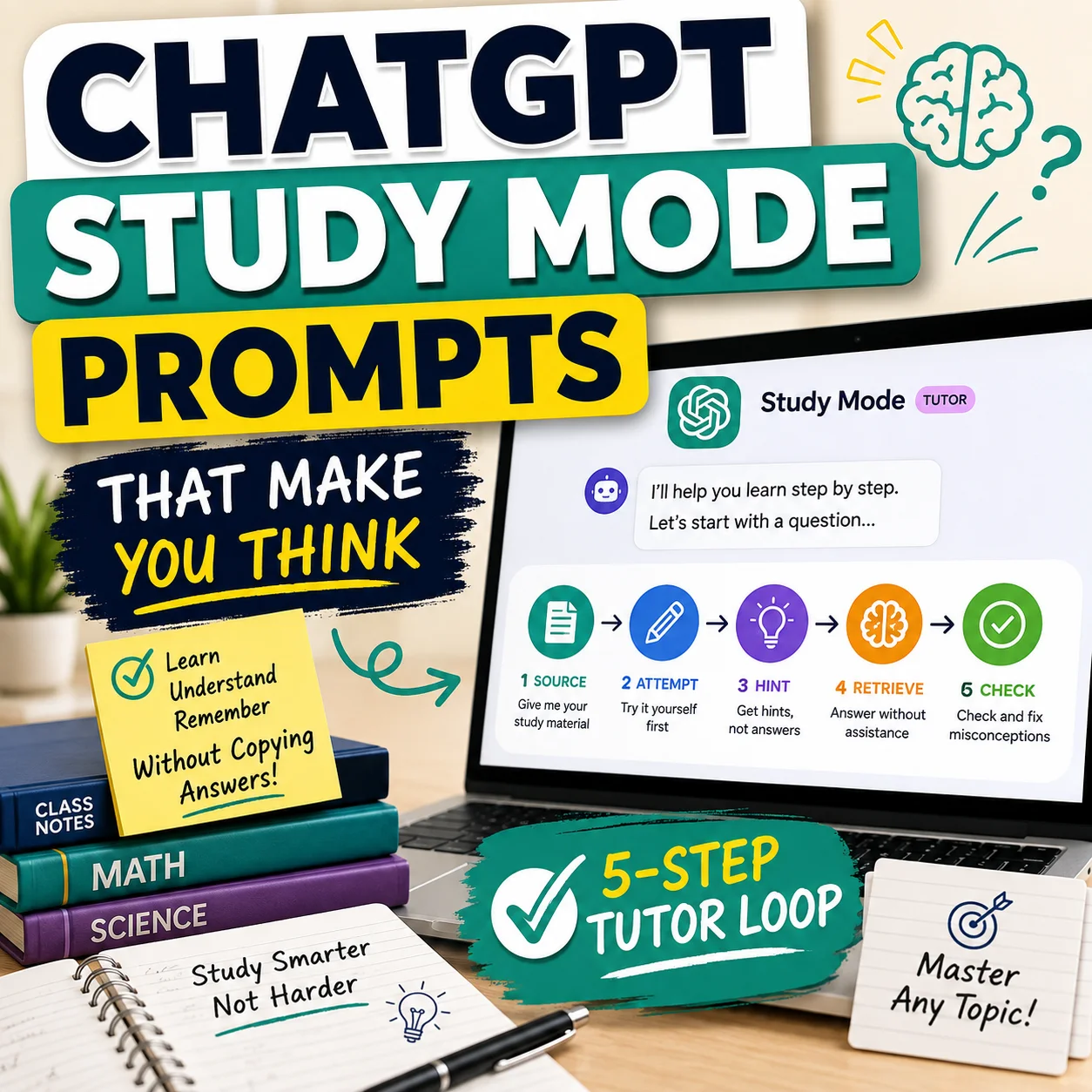
If you want a deeper learning workflow rather than just a quiz, see our guide to ChatGPT Study Mode prompts.
How to Make ChatGPT Test Understanding Instead of Memorization
A score can look impressive while hiding weak understanding. To make a ChatGPT practice test harder to game, ask for questions that require explanation, comparison, application, or reasoning.
- Ask “why?” after selected answers.
- Require a short explanation before accepting an answer.
- Use new examples rather than repeating definitions.
- Mix familiar and unfamiliar scenarios.
- Ask ChatGPT to include common misconceptions.
- Retest uncertain answers even when they were technically correct.
Do not test me only on definitions.

For [topic], create questions that test whether I can:
- explain why something happens,
- compare similar concepts,
- recognize common misconceptions,
- apply the idea to a new example,
- and justify my answer.

Ask one question at a time.

For some correct answers, ask me to explain my reasoning before you mark the concept as mastered.
How to Retest Yourself Without Repeating the Same Questions
After your first quiz, tell ChatGPT not to repeat question wording, answer order, examples, or scenarios. The goal is to test the same knowledge with a fresh retrieval attempt.
A useful second round might turn a definition question into a scenario, convert multiple choice into short answer, or ask you to explain why a tempting wrong answer is incorrect.
What to Do If the Quizzes Shortcut Does Not Appear
Do not assume something is broken just because you cannot find a button labeled “Quizzes.” OpenAI says learning shortcuts can vary by account or app.
Try these options instead:
- Ask directly: type a request such as “Quiz me on photosynthesis with 10 questions, one at a time.”
- Try Study Mode: open a regular ChatGPT conversation and select Study if it is available in your interface.
- Update the app: if you use ChatGPT on mobile or desktop, make sure you are using a current version.
- Try the web version: feature menus can differ between platforms.
- Check again later: interface shortcuts can change as ChatGPT features roll out and evolve.
The key point is that you do not need the dedicated shortcut to create an interactive practice test. ChatGPT can quiz you when you ask for the behavior directly.
Common Mistakes That Make AI Practice Tests Less Useful
Generating the Entire Answer Key Immediately
If the answers appear beside the questions, you lose much of the retrieval benefit. Ask for one question at a time and delay feedback until after you respond.
Using Only Easy Multiple-Choice Questions
Recognition is easier than recall. Mix in short-answer and application questions when you need stronger evidence of understanding.
Treating ChatGPT as the Final Authority
AI-generated quizzes can contain errors, ambiguous wording, or assumptions that do not match your course. OpenAI also warns that Study Mode can make mistakes. Verify important material, particularly for graded, professional, technical, or high-stakes learning.
Before trusting an AI-created assessment, you can also use our AI Quiz Generator Checklist to review question quality, accuracy, difficulty, and human-review needs.
Studying Only What ChatGPT Chooses
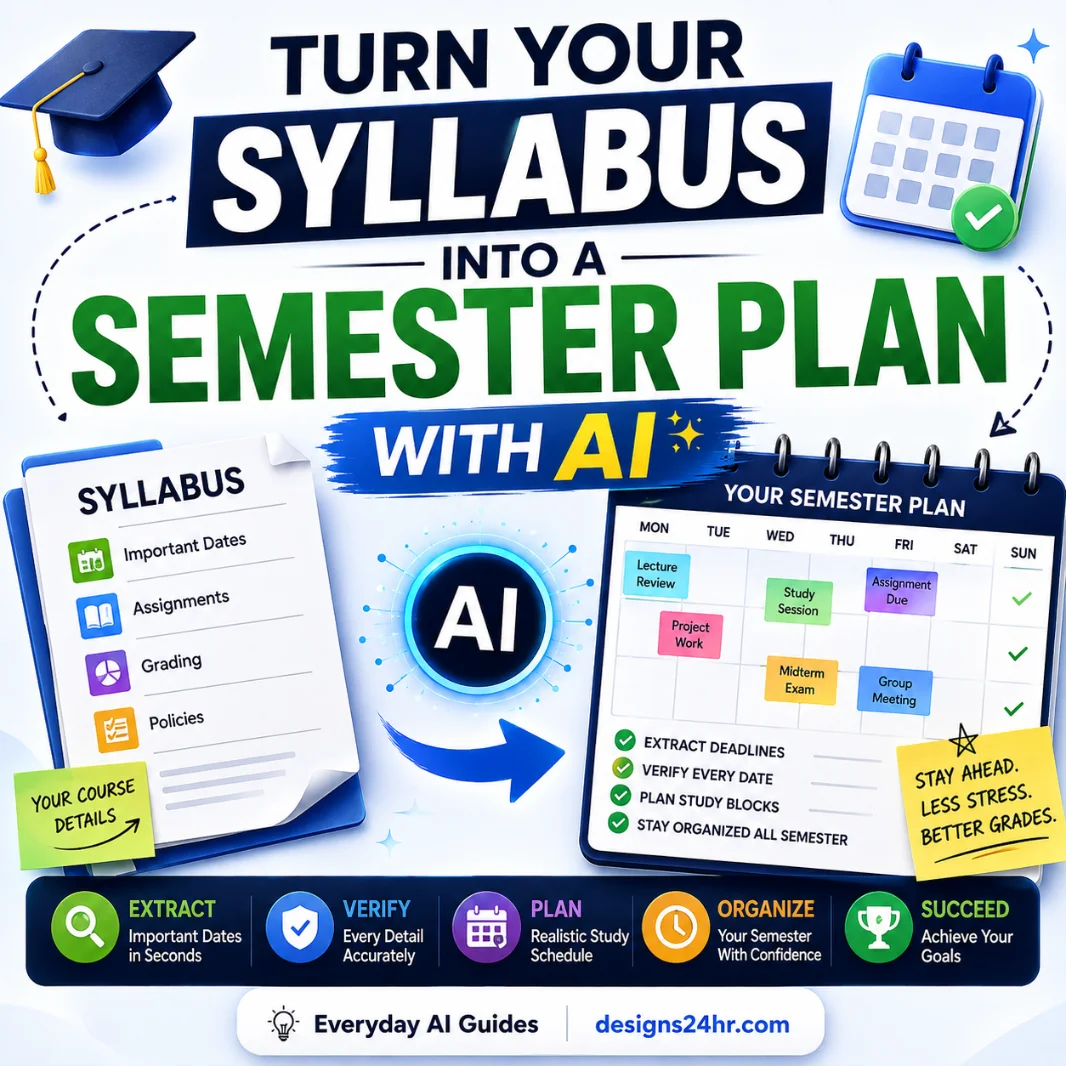
If you have a syllabus, official learning objectives, instructor guide, or exam specification, use it to define the quiz scope. Otherwise ChatGPT may emphasize topics differently from the assessment you are preparing for.
Best Ways to Use ChatGPT Interactive Quizzes
- Run a short diagnostic quiz before studying to identify gaps.
- Quiz yourself after reading instead of immediately rereading notes.
- Turn uploaded notes into targeted practice questions.
- Use scenario questions to test application.
- Track uncertain answers as well as incorrect answers.
- Retest weak concepts with different wording.
- Raise difficulty only after demonstrating consistent understanding.
- Finish a study session with a short no-hints knowledge check.
Frequently Asked Questions
What are ChatGPT Interactive Quizzes?
How do I start a quiz in ChatGPT?
Why don’t I see a Quizzes button in ChatGPT?
Can ChatGPT create a quiz from a PDF or my notes?
Are ChatGPT quizzes accurate?
Are ChatGPT Interactive Quizzes the same as Study Mode?
Can ChatGPT make a quiz harder as I improve?
Final Takeaway
The most useful way to use ChatGPT Interactive Quizzes is not to generate a long list of questions and chase a score. Use the quiz to discover what you genuinely know, identify weak or uncertain concepts, review those gaps, and then test them again with different questions.
Remember the simple loop: TEST → CHECK → REVIEW → RETEST. That turns ChatGPT from a question generator into a much more useful practice system.