AI Email Reply Checklist: 7 Best Ways U.S. Workers Can Write Better Emails Without Sounding Robotic
AI can help you reply to emails faster, but the final message still needs to sound clear, human, accurate, and appropriate for the situation.
This AI email reply checklist is written for U.S. workers, freelancers, remote employees, small business owners, customer support reps, job seekers, and everyday professionals who want better replies without sounding fake or robotic.
The goal is not to let AI send messages for you without thinking. The goal is to use AI as a drafting assistant, then review the reply for tone, privacy, accuracy, and next steps before you send it.
Trust note: AI can help you draft and improve email replies, but it may miss context, use the wrong tone, or include details you did not mean to say. Always read the full message, verify facts, and edit the reply before sending.
What Is an AI Email Reply Checklist?
An AI email reply checklist is a simple review process you use before asking AI to draft an email and before sending the final reply. It helps you clarify who you are replying to, what the email needs to accomplish, what tone is appropriate, and what private details should stay out of the AI tool.
For example, a reply to your boss should sound different from a reply to a customer complaint, a recruiter, a teacher, a landlord, or a client who is waiting on a project update. AI can help with the first draft, but your judgment decides what is right for the situation.
- Know who you are replying to.
- Decide what the reply needs to accomplish.
- Choose the right tone before asking AI.
- Remove private details before pasting anything into an AI tool.
- Review the final message before sending.
Why AI Email Replies Still Need a Human Review
Work communication can take up a large part of the day. Microsoft’s Work Trend Index reported that the average employee spent 57% of time communicating across meetings, email, and chat in Microsoft 365 activity, and the heaviest email users spent 8.8 hours per week on email. That helps explain why many workers are looking for faster ways to reply clearly.
AI email tools can reduce blank-page stress, but they do not understand every workplace relationship, customer promise, company policy, deadline, attachment, legal concern, or emotional tone. A professional email reply should still be checked by a person before it goes out.
If you want a starting point, you can use the AI Email Reply Generator from Designs24hr to draft a professional, polite, friendly, firm, short, or direct reply. Then use this checklist to make the final message accurate and human.
Quick Answer: When Should You Use AI for Email Replies?
Drafting a polite reply when you know what you want to say but need clearer wording.
Letting AI send a sensitive work, customer, legal, financial, or HR email without review.
Turning a long, confusing email into a shorter response with clear next steps.
Pasting private customer records, payment information, passwords, or confidential business details into an AI tool.
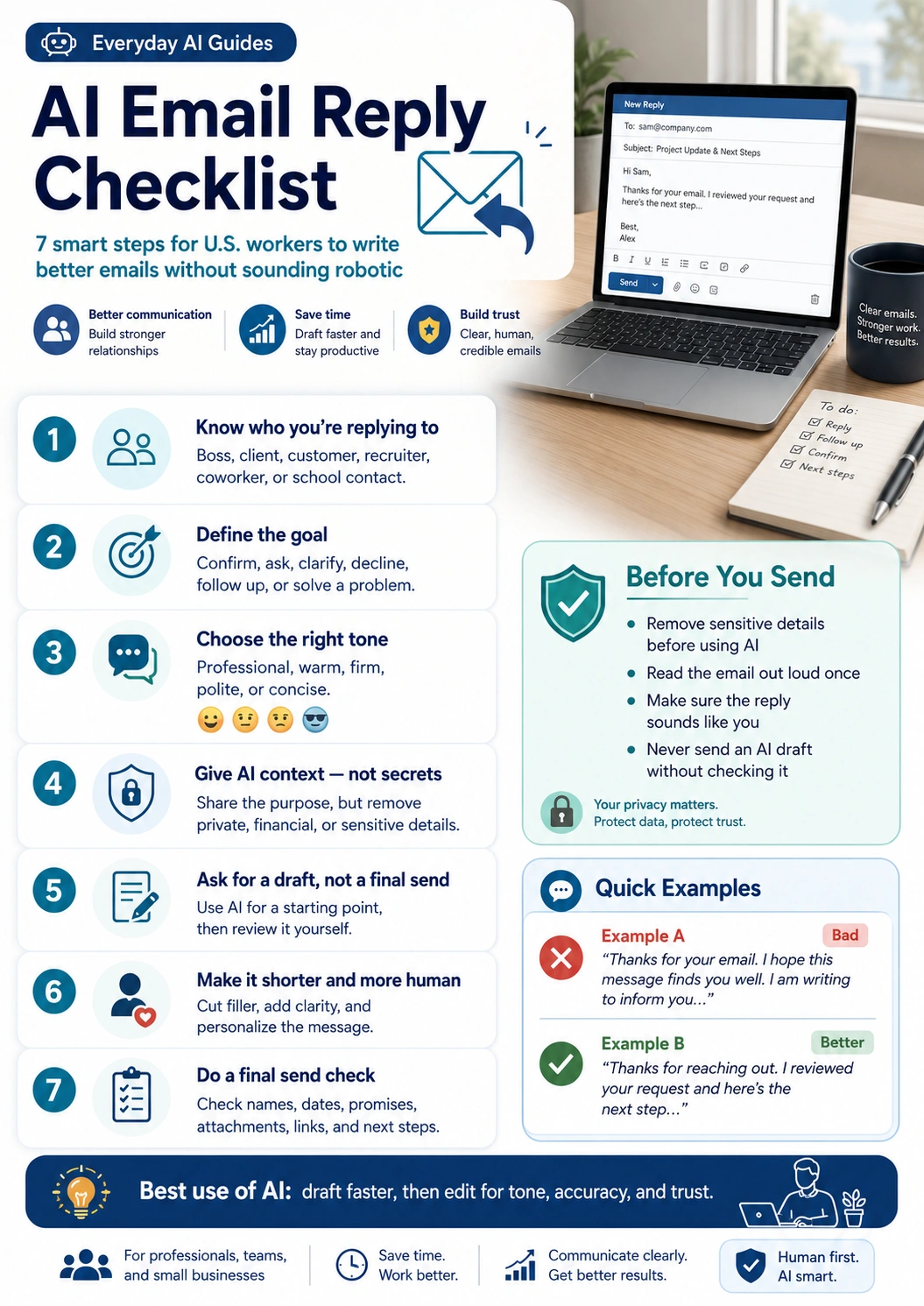
The 7-Step AI Email Reply Checklist
Use this AI email reply checklist before you paste a message into AI, while you review the draft, and right before you click send.
“`1Understand Who You Are Replying To
The first step is to identify the relationship. Are you replying to a boss, coworker, client, customer, recruiter, teacher, vendor, landlord, or someone you do not know well?
The same message can sound helpful in one situation and too casual in another. A customer service reply may need empathy. A boss reply may need clarity and timing. A recruiter reply may need professionalism and enthusiasm. A difficult coworker reply may need calm, neutral wording.
Prompt to use: “Help me draft a professional reply to a [boss/client/customer/recruiter/coworker]. Keep the tone [polite/firm/warm/short/direct] and avoid sounding robotic.”
2Decide What the Reply Needs to Accomplish
Before asking AI to write anything, decide the purpose of the email. A reply usually needs to confirm, clarify, apologize, decline, follow up, answer a question, solve a problem, or move a conversation to the next step.
If you do not define the goal, AI may produce a reply that sounds polished but does not actually solve the issue.
Common email reply goals
- Confirm a meeting or deadline.
- Ask for more information.
- Explain a delay without over-apologizing.
- Decline a request politely.
- Respond to a complaint with empathy.
- Follow up after no response.
- Set clear next steps.
3Choose the Right Tone Before Asking AI
Tone is one of the biggest reasons AI email replies can sound wrong. The draft may be too formal, too cheerful, too cold, too long, or too vague.
Choose the tone before asking AI to write. For U.S. workplace emails, useful tone options include professional, polite, firm, warm, concise, empathetic, friendly, or direct.
Prompt to use: “Rewrite this reply in a professional but human tone. Make it clear, respectful, and under 120 words. Remove any generic phrases that sound like AI.”
For difficult wording, you can also use How Do I Say This? to rewrite a message so it sounds clearer, calmer, and more professional.
4Give AI Enough Context, But Protect Private Details
AI gives better replies when it understands the situation, but that does not mean you should paste everything. Remove sensitive information first.
Instead of pasting a full private email thread, summarize the situation in your own words. Replace private names, account numbers, order IDs, addresses, contract details, employee information, and customer records with placeholders.
| Instead of pasting this | Use this safer version |
|---|---|
| “Customer Sarah Miller at 123 Oak Street paid with card ending 1234.” | “A customer asked about a payment and delivery issue.” |
| “My boss Mark said our internal revenue target is $48,000.” | “My manager asked for a project update with a private internal number.” |
| “Here is the full confidential contract.” | “I need a polite reply about a contract question without sharing confidential terms.” |
OpenAI’s Data Controls FAQ explains that users can manage whether conversations help improve models. Review the privacy and data settings for any AI tool before pasting sensitive information.
5Ask for a Draft, Not a Final Send-Ready Message
The safest mindset is to ask AI for a draft, not a finished email. A draft gives you a starting point. You still need to adjust it for your voice, facts, relationship, and timing.
Prompt to use: “Draft a reply I can edit. Do not make promises, invent details, or add facts I did not provide. Keep it clear and professional.”
Microsoft’s official Copilot in Outlook guidance also includes review and editing steps after Copilot drafts a message. That is a good habit no matter which AI email tool you use.
6Make the Reply Shorter, Clearer, and More Human
Many AI replies are too long. They may open with phrases like “I hope this email finds you well” or repeat the same point in several ways. That can make a normal email sound artificial.
After AI creates a draft, ask it to shorten the reply. Then add one human detail that fits the situation, such as a clear next step, a specific deadline, or a natural sentence you would actually say.
Prompt to use: “Make this email shorter and more natural. Keep the meaning the same, remove filler, and make it sound like a real person wrote it.”
7Check Facts, Tone, Attachments, and Next Steps Before Sending
The final step in the AI email reply checklist is the send check. This is where you catch small mistakes that can create big problems.
Before sending, check names, dates, prices, deadlines, links, attachments, promises, meeting times, spelling, tone, and next steps. If the email is sensitive, read it out loud once before sending.
Before you send, check:
- Does the reply answer the actual email?
- Is the tone right for this person?
- Are names, dates, times, prices, and links correct?
- Did AI add any promise you cannot keep?
- Did you include the attachment if you mentioned one?
- Does the final message sound like you?
Good vs. Bad AI Email Reply Examples
Here is a simple example of how AI can improve an email when you edit the draft instead of sending it blindly.
“`“Thank you for your email. I hope this message finds you well. I am writing to inform you that I have reviewed your request and will circle back at my earliest convenience.”
Why it feels weak: It is vague, padded with filler, and does not give a clear next step.
“Thanks for reaching out. I reviewed your request and can send the updated proposal by Friday afternoon. If you need it sooner, let me know and I’ll see what I can adjust.”
Why it works: It is clear, polite, specific, and useful without sounding robotic.
Best AI Email Prompts for Work, Clients, Customers, and Recruiters
“`For replying to your boss
“Write a clear, professional reply to my manager. Confirm that I understand the request, mention the next step, and keep the tone respectful and concise.”
For a client update
“Draft a warm but professional client update. Explain the current status, the next milestone, and when they can expect the next update. Do not overpromise.”
For a customer complaint
“Write an empathetic customer service reply. Acknowledge the issue, apologize without blaming anyone, explain the next step, and keep the tone calm.”
For a recruiter email
“Write a professional reply to a recruiter. Thank them, confirm my interest, ask for the next step, and keep the message brief.”
For a difficult conversation
“Rewrite this message so it sounds firm but respectful. Keep my boundary clear, remove emotional wording, and avoid sounding defensive.”
For messages that need a full conversation script instead of a simple email reply, try What To Say? for difficult conversation wording.
“`What Not to Put Into an AI Email Tool
Privacy matters. Even if a tool is designed to be helpful, you should avoid pasting information you are not allowed to share or would not want exposed.
- Passwords or login codes
- Customer records or private account details
- Payment information or bank details
- Employee records, HR issues, or performance details
- Medical, legal, or financial information
- Confidential contracts or business plans
- Private school, client, or company documents
- Social Security numbers, addresses, or sensitive IDs
For confusing messages that you need to understand before replying, use Plain Language Translator to turn complicated wording into simpler language.
Privacy and Safety Tips Before Using AI for Emails
AI email tools are useful, but some emails deserve extra caution. Be especially careful with messages involving money, invoices, urgent payment requests, password resets, account access, legal claims, job offers, or sensitive business decisions.
The FTC warns that scammers use emails and text messages to trick people into sharing personal or financial information. If a message asks you to click a suspicious link, update payment details, confirm private information, or open an unexpected attachment, slow down before replying or taking action.
Safe email habits
- Do not click suspicious links just because an email looks urgent.
- Verify payment requests through a trusted contact method.
- Do not paste suspicious links or private account details into AI tools.
- Use AI to draft a cautious reply, not to make a rushed decision.
- Ask a manager, client, or trusted person before sending sensitive information.
For rushed decisions, you can use Decision Helper to slow down and think through the next step before replying.
AI Email Reply Checklist for Small Business Owners
Small business owners can use AI to reply to customer questions, appointment requests, quote follow-ups, refund questions, order issues, service updates, and partnership emails. The key is to verify every detail before sending.
Check order numbers, service details, refund rules, and tone before sending.
Keep the message helpful, specific, and not too pushy.
Confirm dates, time zones, locations, and links carefully.
Be empathetic, factual, and clear about the next step.
Final AI Email Reply Checklist Before You Send
Use this AI email reply checklist before sending important work, client, customer, school, or personal emails.
- I know who I am replying to.
- I know the goal of the email.
- I chose the right tone before asking AI.
- I removed private or sensitive details.
- I asked AI for a draft, not a final send-ready message.
- I made the reply shorter, clearer, and more human.
- I checked names, dates, links, prices, promises, and attachments.
- I made sure the message sounds like me.
- I read the final email before sending.
Helpful Designs24hr Tools for Better Emails
These free Designs24hr tools can help you draft, rewrite, simplify, and review messages more carefully.
- Use the AI Email Reply Generator to create a professional reply draft.
- Rewrite a difficult message with How Do I Say This? when tone matters.
- Use What To Say? for difficult conversation scripts and sensitive wording.
- Turn confusing messages into plain language before replying.
- Use Decision Helper before making a rushed email decision.
- Explore free AI writing and productivity tools from Designs24hr for everyday work and communication tasks.
Trusted Resources for AI Email Writing and Safety
These external resources can help you understand AI email drafting, workplace communication, AI adoption, privacy controls, and email safety.
FAQs About the AI Email Reply Checklist
“`What is an AI email reply checklist?
An AI email reply checklist is a simple set of steps you follow before using AI to draft or edit an email response. It helps you check the purpose, tone, privacy, accuracy, and final wording before sending.
Can AI write professional email replies?
Yes, AI can help draft professional email replies, but you should always review and edit the message before sending. AI may miss context, use the wrong tone, or include details that do not match your situation.
How do I make AI email replies sound less robotic?
Give AI clear context, choose a natural tone, ask for a shorter draft, remove generic phrases, and add one or two details that sound like you. Always read the final reply out loud before sending.
What should I not paste into an AI email tool?
Do not paste passwords, private customer data, payment details, employee records, confidential contracts, medical information, legal details, sensitive business plans, or anything you are not allowed to share.
Can I use AI to reply to my boss or manager?
Yes, AI can help you draft a clear and professional reply to your boss or manager. For sensitive topics, review the wording carefully and make sure the tone is respectful, accurate, and not too casual or defensive.
Can AI help with customer service email replies?
Yes, AI can help create polite, clear, and helpful customer service replies. You should still verify order details, refund rules, dates, policies, and promises before sending the final message.
Is it safe to use AI for work emails?
It can be safe when you remove private or confidential details, follow company policy, review privacy settings, and avoid sharing sensitive business information. If your workplace has AI rules, follow those first.
What is the best prompt for an AI email reply?
A strong prompt includes who you are replying to, the goal of the email, the tone you want, important context, and what AI should avoid. For example: “Write a polite, professional reply that confirms the next step, keeps it under 120 words, and does not make any promises I did not include.”
Should I let AI send emails automatically?
For important work, client, customer, school, legal, financial, or sensitive emails, you should not let AI send automatically. Review the message yourself before sending.
How can small business owners use AI for email replies?
Small business owners can use AI to draft replies to customer questions, appointment requests, quote follow-ups, refund requests, and service updates. They should still confirm facts, prices, policies, and tone before sending.
Final Thoughts
An AI email reply checklist can help U.S. workers write better replies faster, but the final email should still sound like a real person. AI is best used as a drafting assistant, not an automatic send button.
Use AI to get unstuck, organize your thoughts, adjust tone, and shorten your message. Then review every detail so your final reply is accurate, respectful, private, and useful.
Start with the AI Email Reply Generator, then use this checklist to make sure your message is clear, human, and ready to send.